In fiResponse, a roster is the term used to refer to a hierarchical grouping of resources as those resources typically respond to an incident. For example: A dozer operator may typically respond to an incident with a dozer and a transport. You can use rostering to group the dozer operator with the dozer and transport they typically operate so all three resources can be dispatched at one time.
Note: To create or edit a roster, the master filters must be used to select an office. Rosters can only be set at the office, not at any higher administrative level.
-
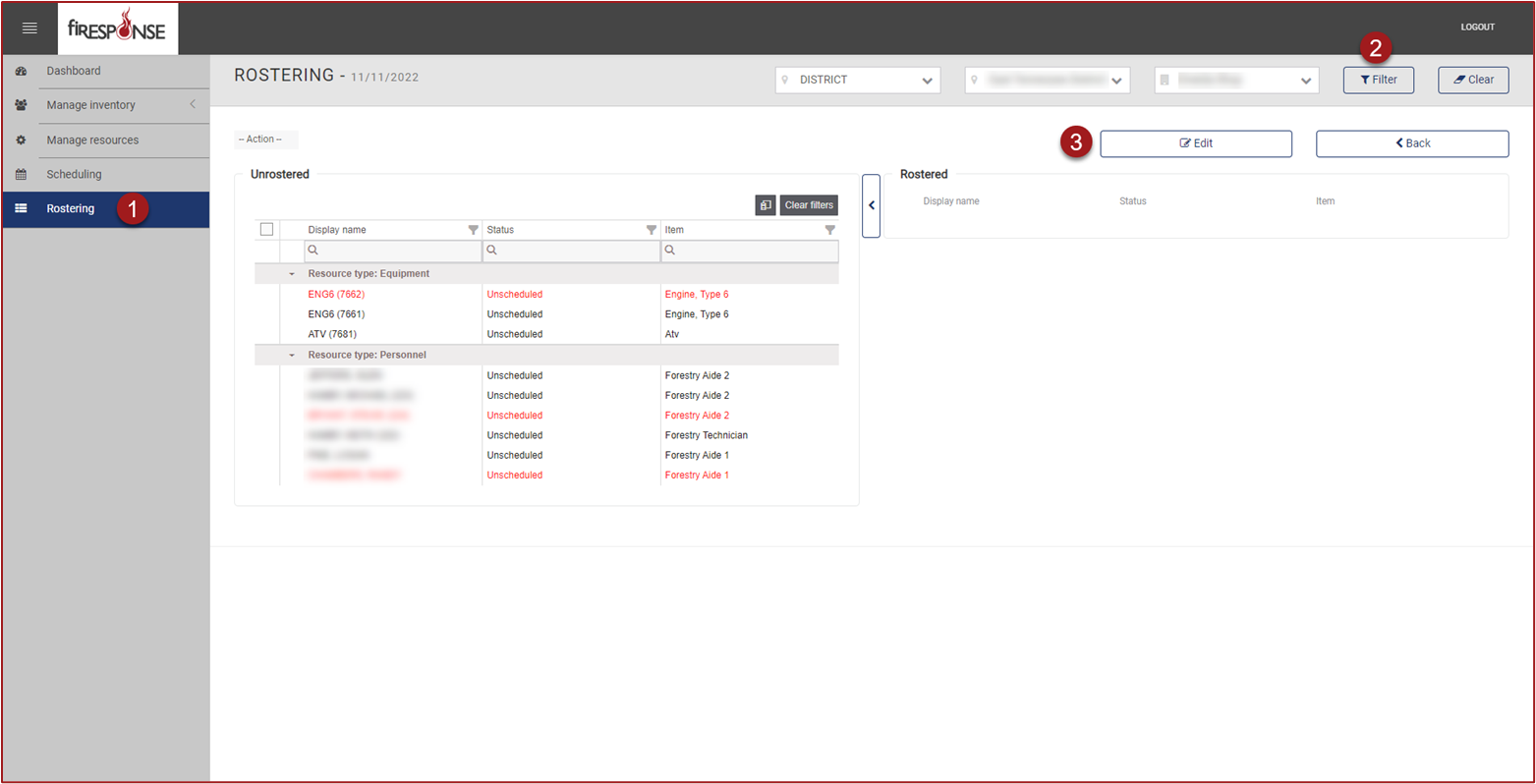
On the left-hand side in the page navigation list, click Rostering.
-
Select the Office from the Master Filters at the top of the page. You must click Filter to see the filtered results.
-
On the right-hand side, click Edit.
-
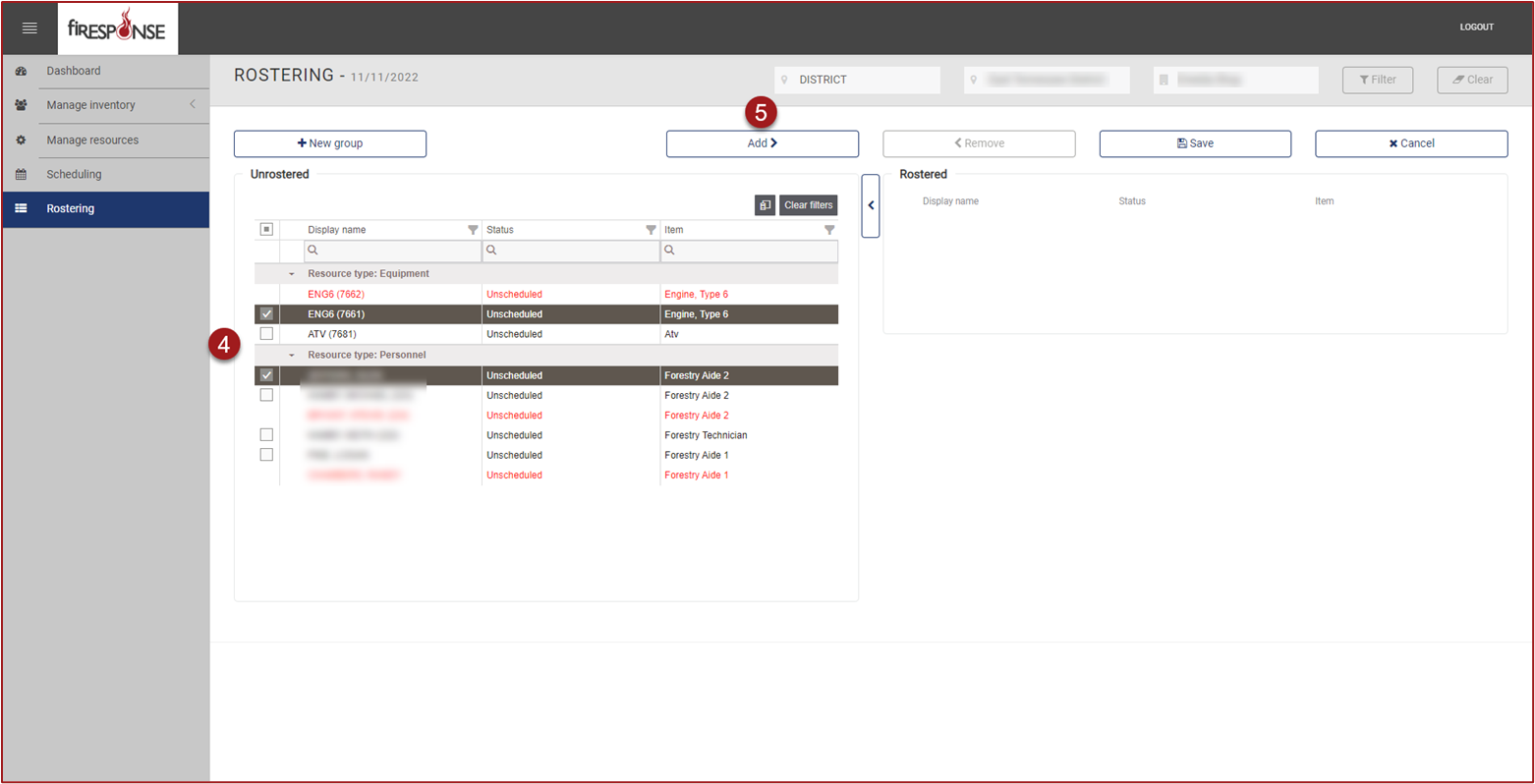
Select one or more resources from the Unrostered list.
-
At the top center, click the Add button or left click and hold on the resources and drag them right into the Rostered container.
-
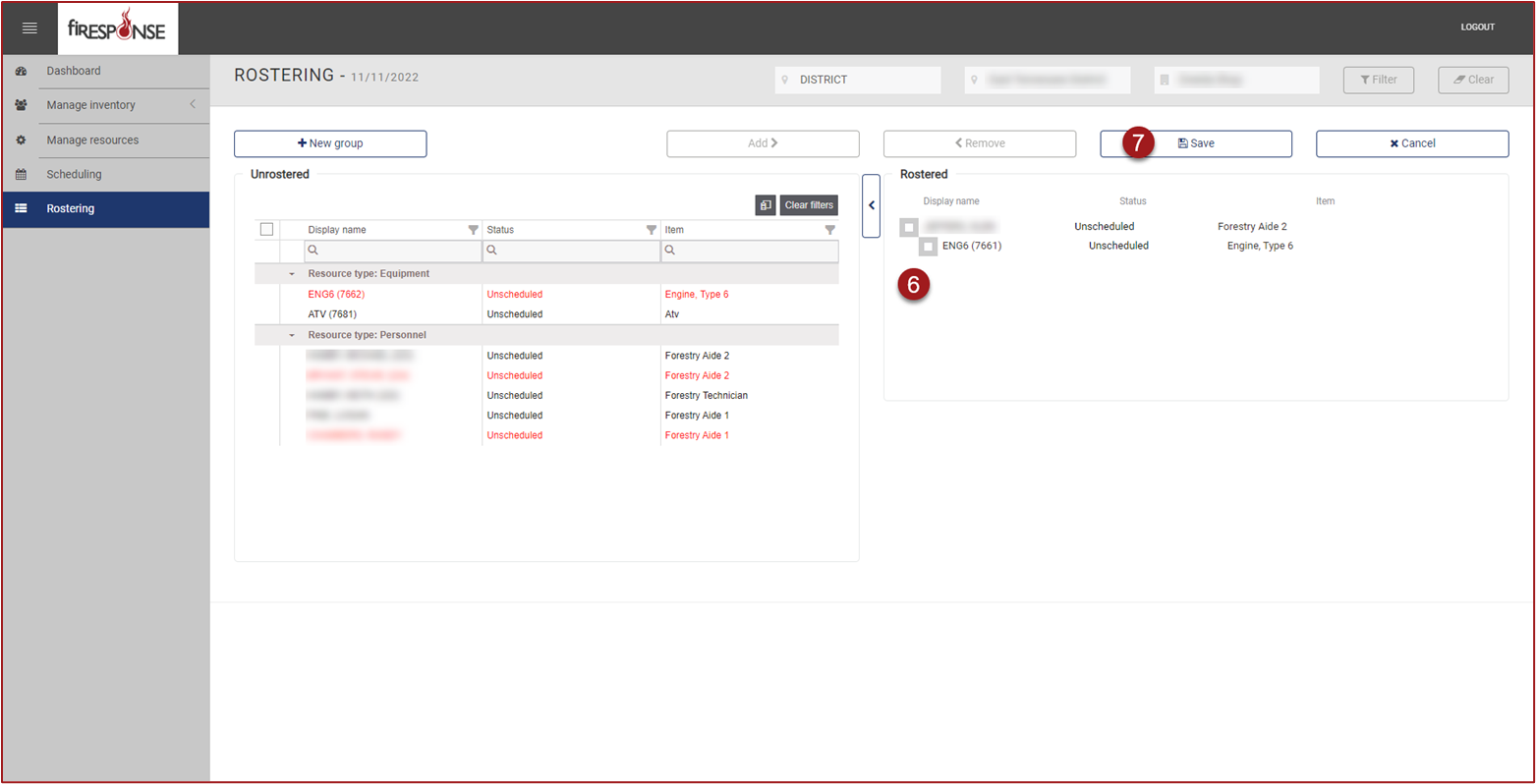
In the Rostered container, arrange the resources in the desired order by left clicking, holding, and dragging. Drag the resource and drop under the resource it will be rostered with.
-
Click Save.
Note: After clicking Save, the Roster has been officially “published” and the REMAPP Dashboard will show the office has published a Roster for the day (i.e., row is no longer red). A Roster does not currently expire. Once set, it will remain the same until changed by a user.