Follow the steps below to edit an Invoice:
-
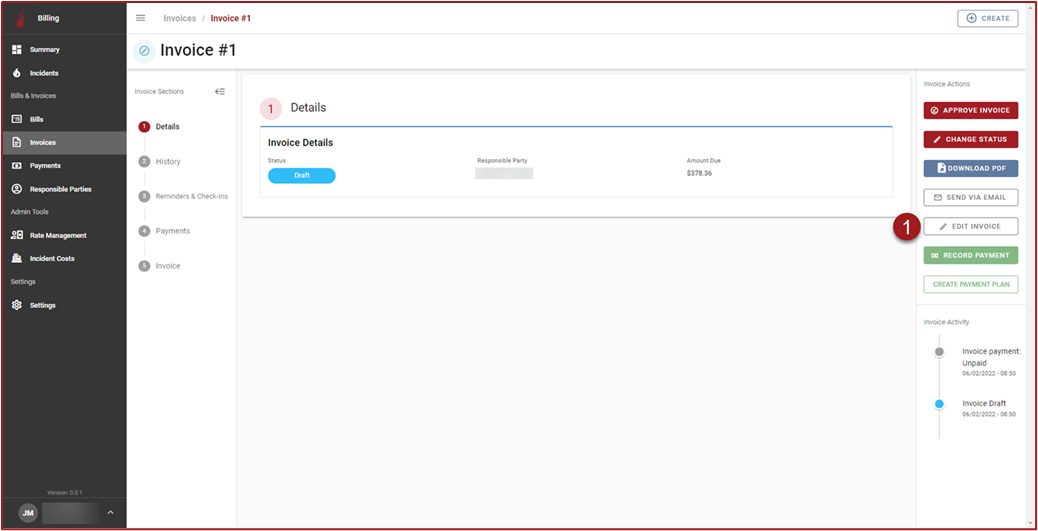
Click Edit Invoice.
-
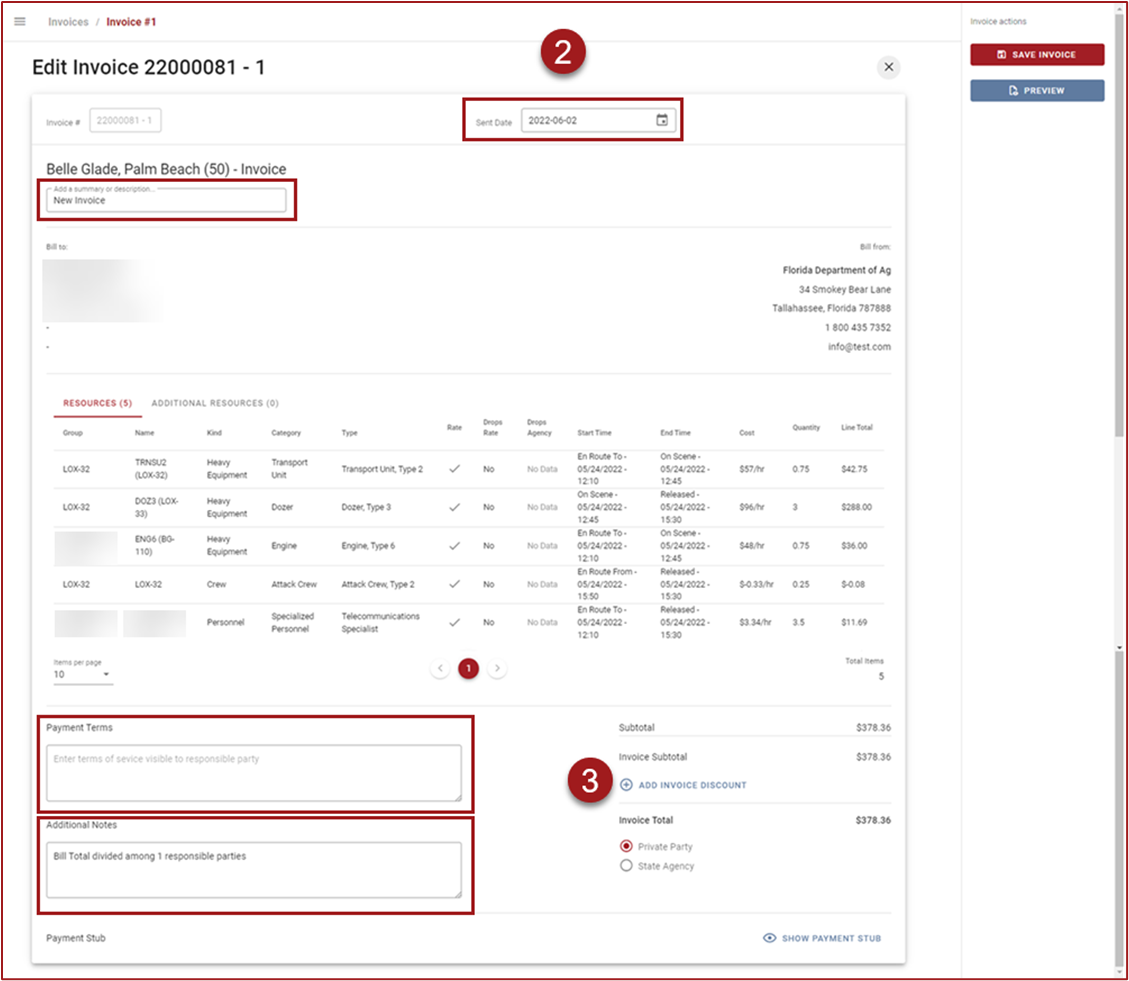
On the Edit Invoice page, the following fields can be edited: Sent Date, Summary/Description, Payment Terms, and Additional Notes.
-
To apply a discount click Add Invoice Discount.
-
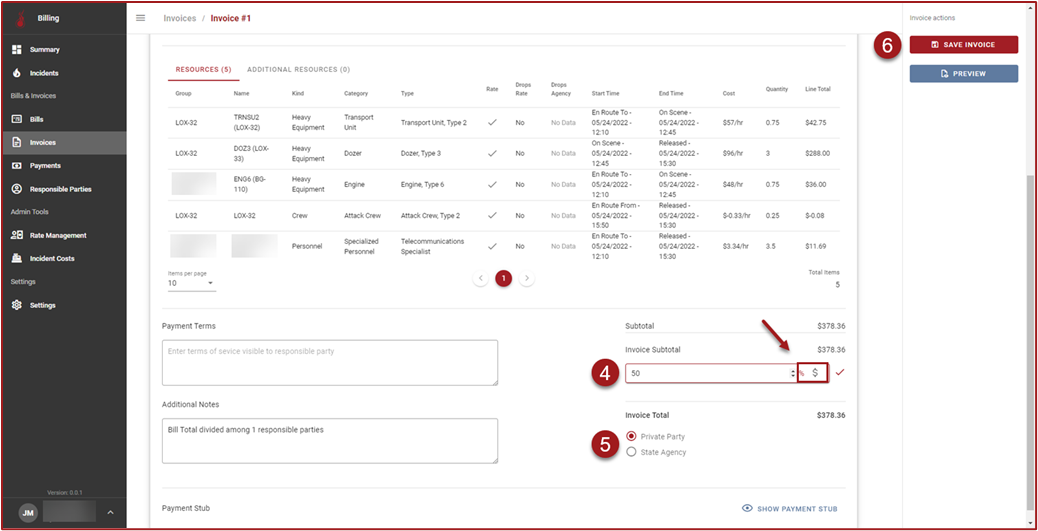
Click the $ or the % to determine what type of discount will be applied (either a fixed dollar amount or percentage), enter the discount amount, and then click the checkmark. The discount will be applied after clicking the checkmark.
-
Use the radio buttons to indicate if the Invoice is being sent to a Private Party or State Agency.
-
Click Save Invoice when finished.
-
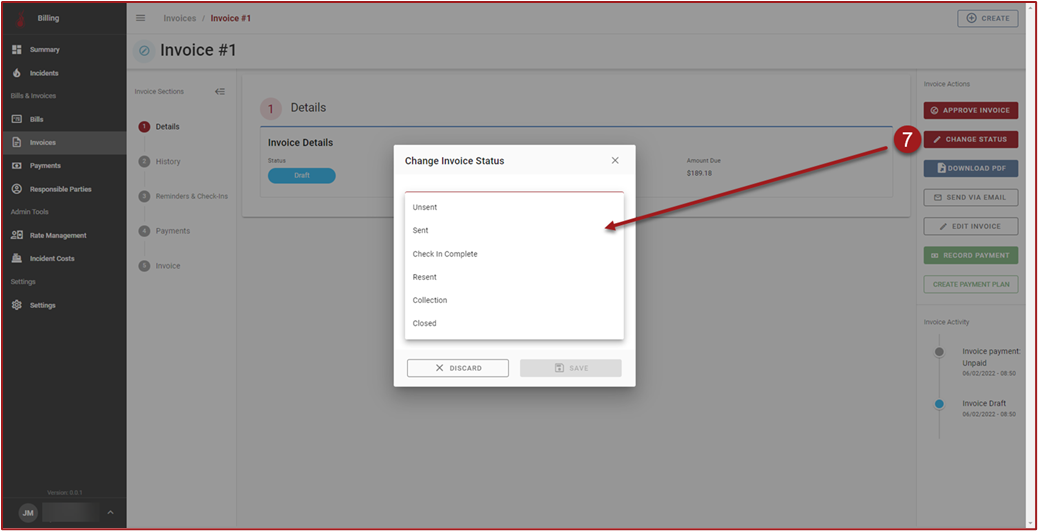
To change Invoice Status click Change Status, select a status, and click Save.
Note: Selecting Private Party or State Agency will cause the appropriate accounting information to be populated on the printable Invoice.