
In fiResponse, a roster is the term used to refer to a hierarchical grouping of resources as those resources typically respond to an incident. For example: A dozer operator may typically respond to an incident with a dozer and a transport. You can use rostering to group the dozer operator with the dozer and transport they typically operate so all three resources can be dispatched at one time.
Note: This workflow assumes the user has set a Default Filter so additional filtering is not necessary. See Set Default Filters for information on setting a Default Filter.
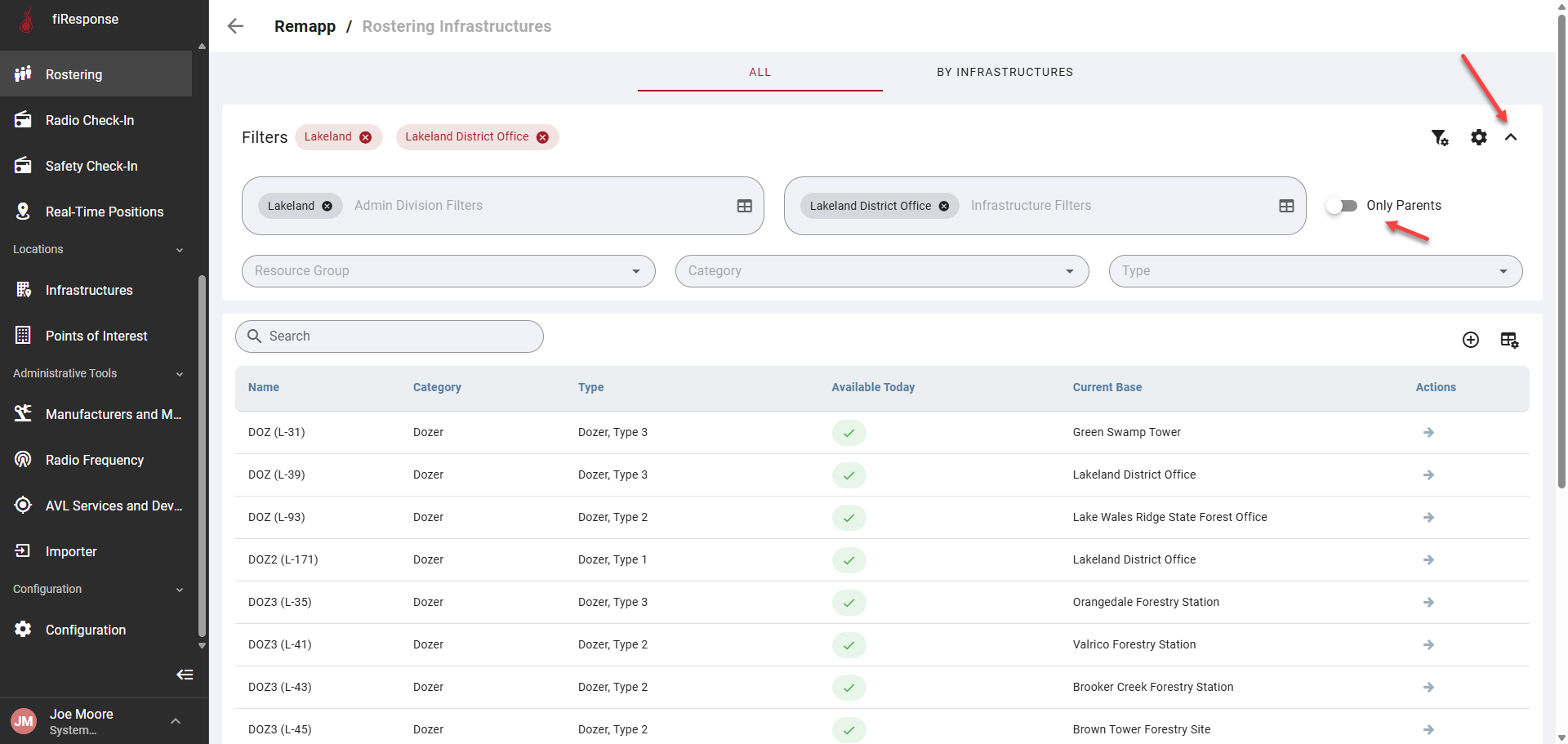
Note: By default, the Rostering grid displays “Parent” resources only (i.e. the grid only display resources that are set as the parent in a roster relationship). To disable this filter, click the down arrow and set the “Only Parents” toggle as disabled.
-
On the left-hand side in the page navigation list, click Rostering.
-
Use the filters to find the preferred Resources.
-
Click the arrow in the Actions column for the preferred Resource.
-
Click Edit (default filters will be applied).
-
In the Roster List, click the down arrow.
-
Left-click and hold on a Resource in the Resources List and drag it to the open slot in the Roster List.
-
Click Save.
Note: After clicking Save, the Roster has been saved. The Roster group will appear for other users in other apps. A Roster does not currently expire. Once set, it will remain the same until changed by a user.