Follow the steps below to record payments in the Billing module:
-
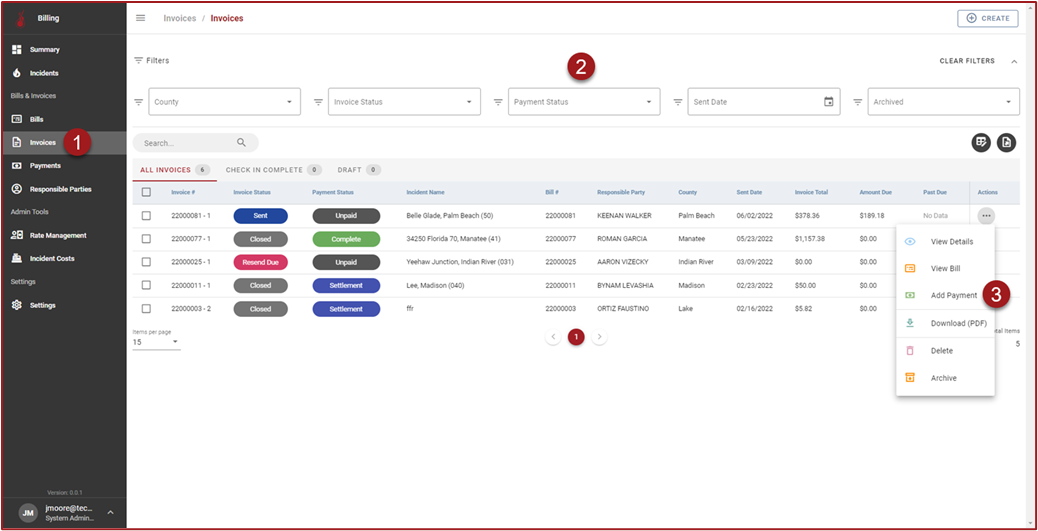
Click Invoices in the side navigation bar.
-
Use the filters and/or perform a wildcard search for the Incident Name to find the preferred Invoice.
-
Click “3 dots” in the Actions column and then click Add Payment.
-
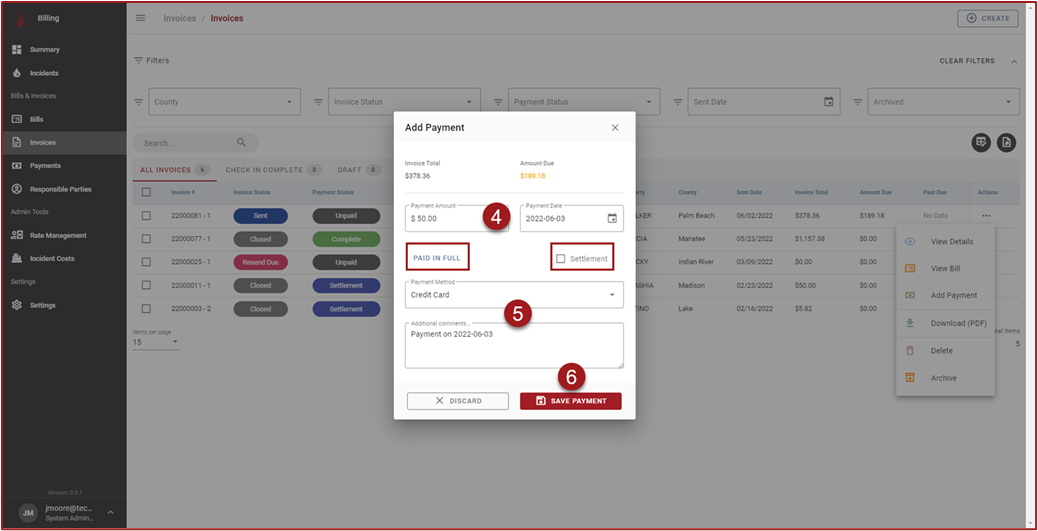
On the Add Payment modal enter the Payment Amount and select Payment Date.
-
Select Payment Method and add Comments.
-
Click Save Payment.
-
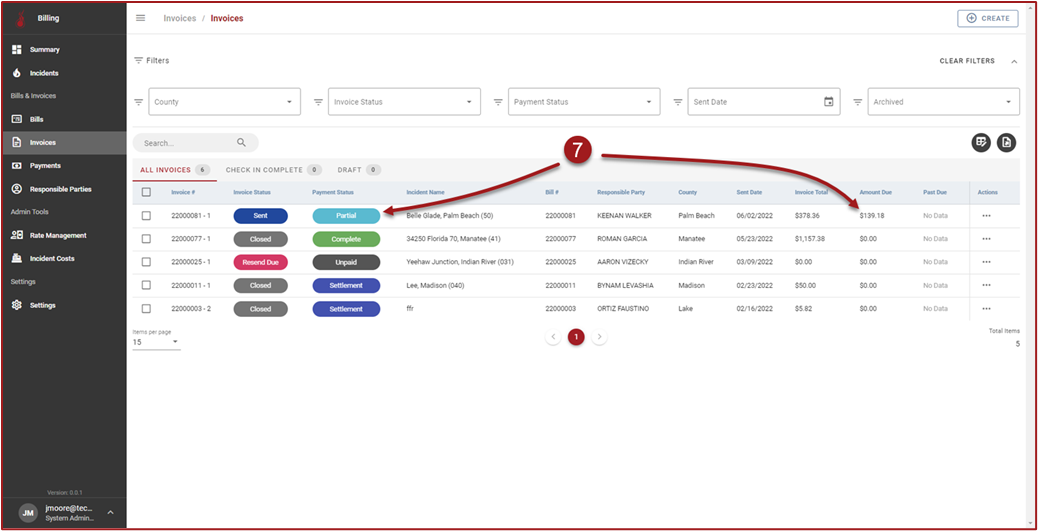
After clicking Save Payment the Add Payment modal will disappear. The Payment Status and Amount Due will updated based on the Payment saved in Step 6.
Note: Select to indicate the payment is equal to the amount due (after clicking the Payment Amount field will populate). If the Invoice should be marked as “Settlement” place a checkmark in the Settlement checkbox. The Settlement checkbox will cause the Payment Status to change to Settlement and the Amount Due will change to $0.00.
Note: Payments can also be viewed and entered on Step 4: Payments in the Invoice stepper. To access the Invoice stepper, click in the Actions column on the Invoices grid.