-
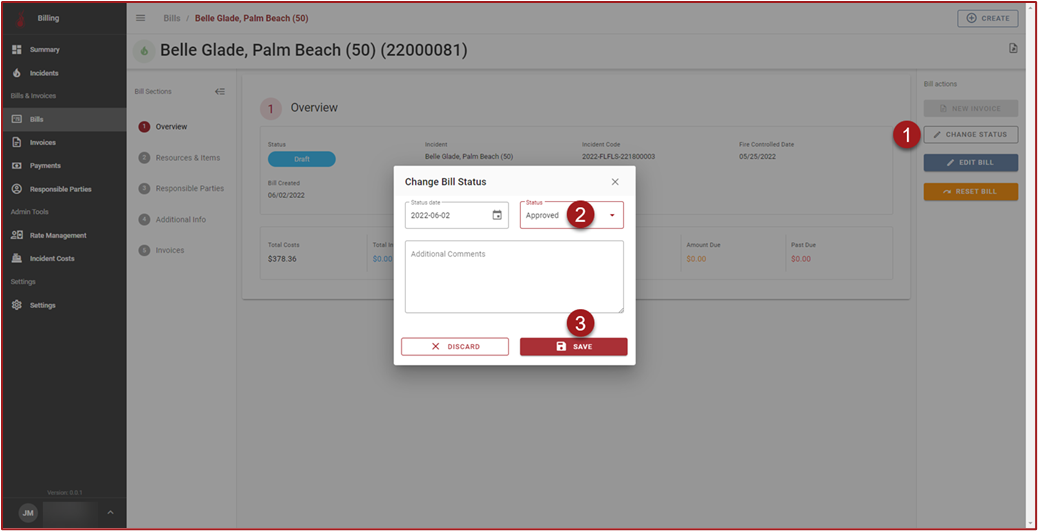
After saving edits to the Bill, click Change Status.
-
Select Approved in the Change Bill Status modal
-
Click Save. The Bill status will change to Approved.
-
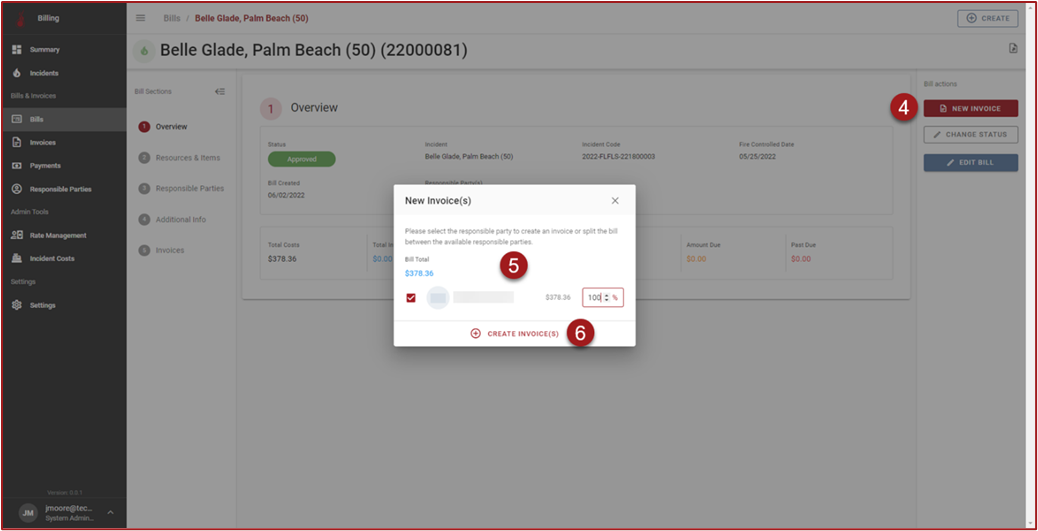
In the Bill Actions container click New Invoice.
-
On the New Invoice(s) modal the Bill Total and a list of Responsible Parties will be displayed. Place a checkmark in the checkboxes to select Responsible Parties and then enter a percentage of the Bill Total that the Responsible Parties will be charged.
-
Click Create Invoice(s). The Invoice(s) will be created.
-
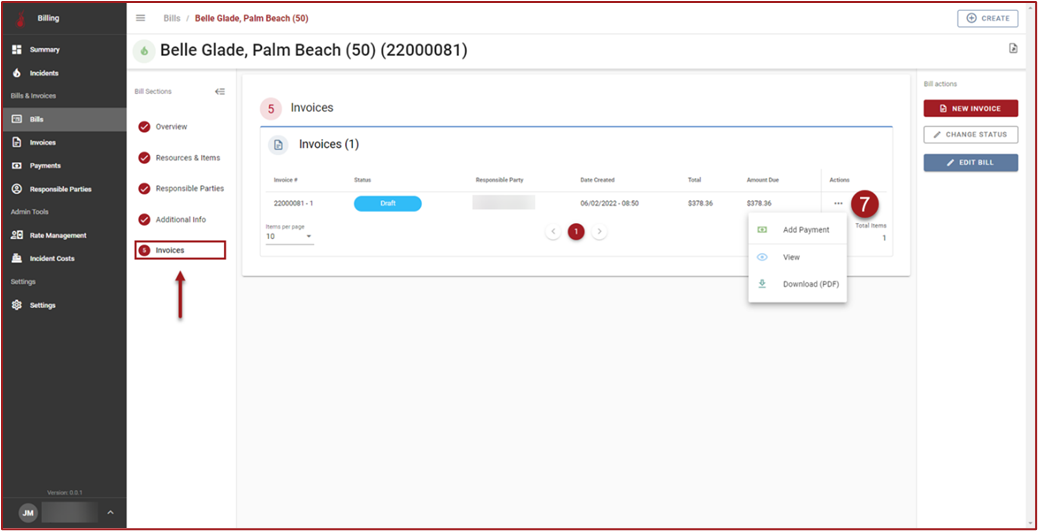
To view the Invoice, click on Step 5: Invoices, click “3 dots” in the Actions column and then click View.
-
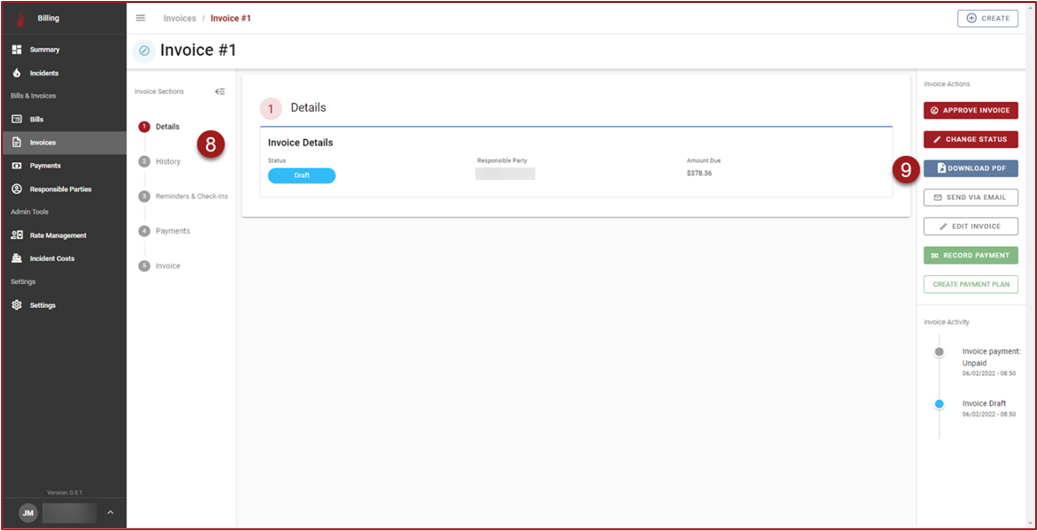
On the Invoice page, use the stepper to navigate through the Invoice steps and view Invoice information.
-
Click Download PDF to download a PDF version of the printable Invoice.