This page will show you how to generate a new ICS form. There are two ways to generate a new form.
-
Generate an entirely new form using only a “fresh snapshot” of relevant data from fiResponse
-
Generate a new form that will use a “fresh snapshot” of data from fiResponse and copy the manually entered information from the selected form
Note: Incidents will only appear in the ICS Module after a user has manually checked the appropriate checkbox in fiResponse Desktop or in the Situational Awareness Viewer (SAVE) Application on fiResponse Web.
Generate an Entirely New ICS Form
-
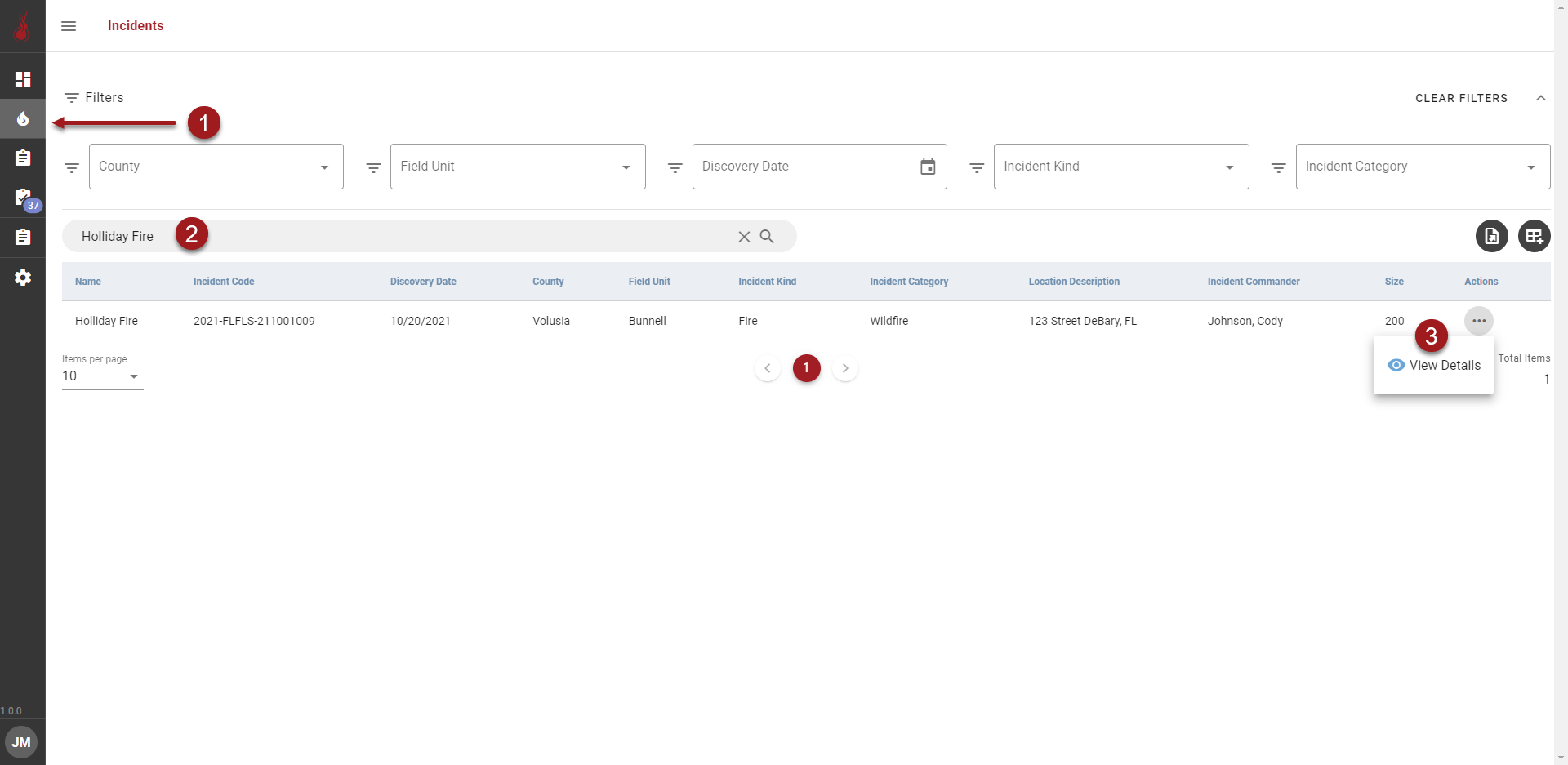
Click :IncidentsButton: to open the Incidents page
-
Use the Search pill to perform a wildcard search for the Incident Name. You must press “Enter” on the keyboard to perform the search.
-
Click :3dots: in the Actions column and click :ViewDetails: to open the Incident Details page
-
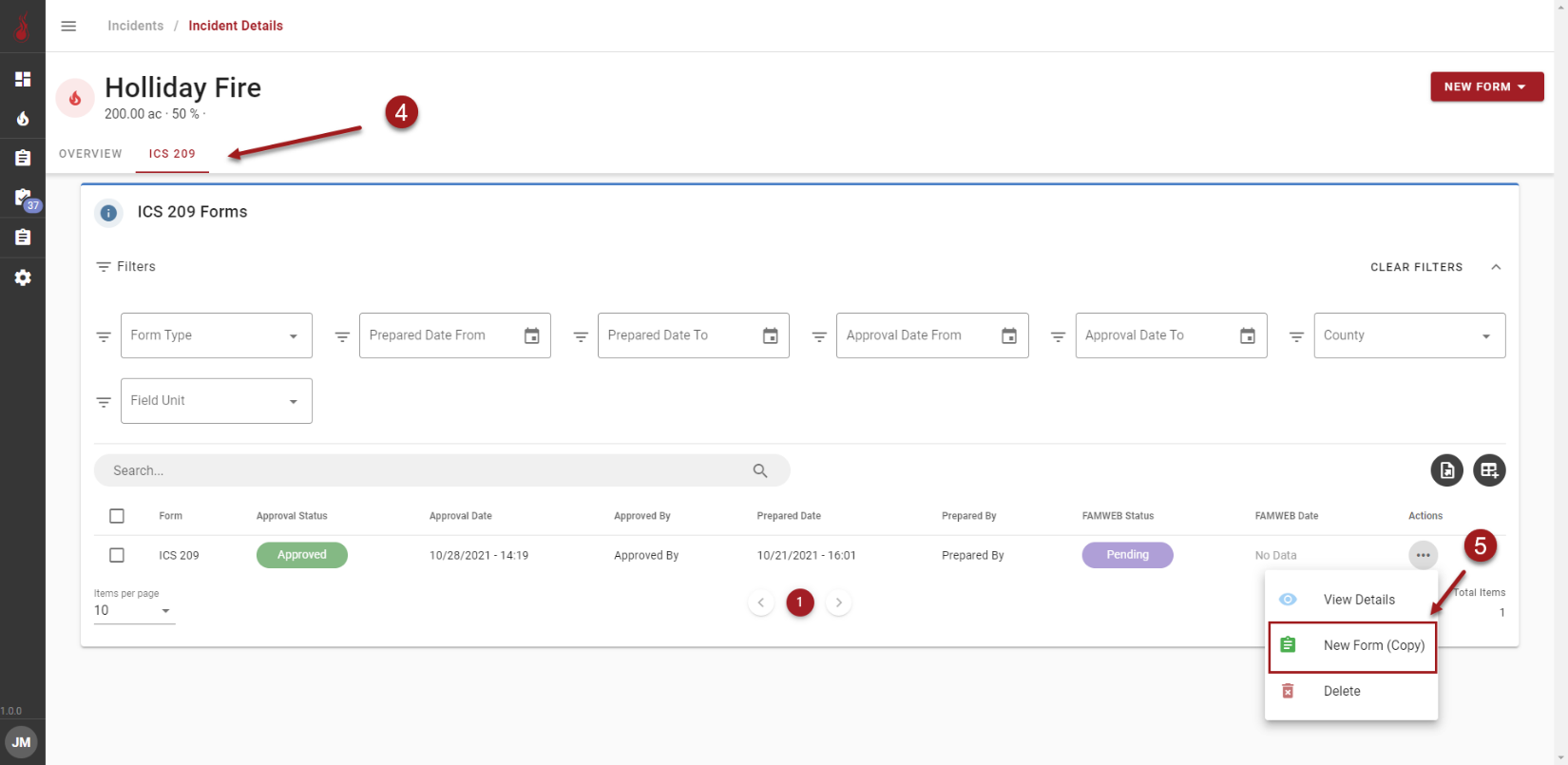
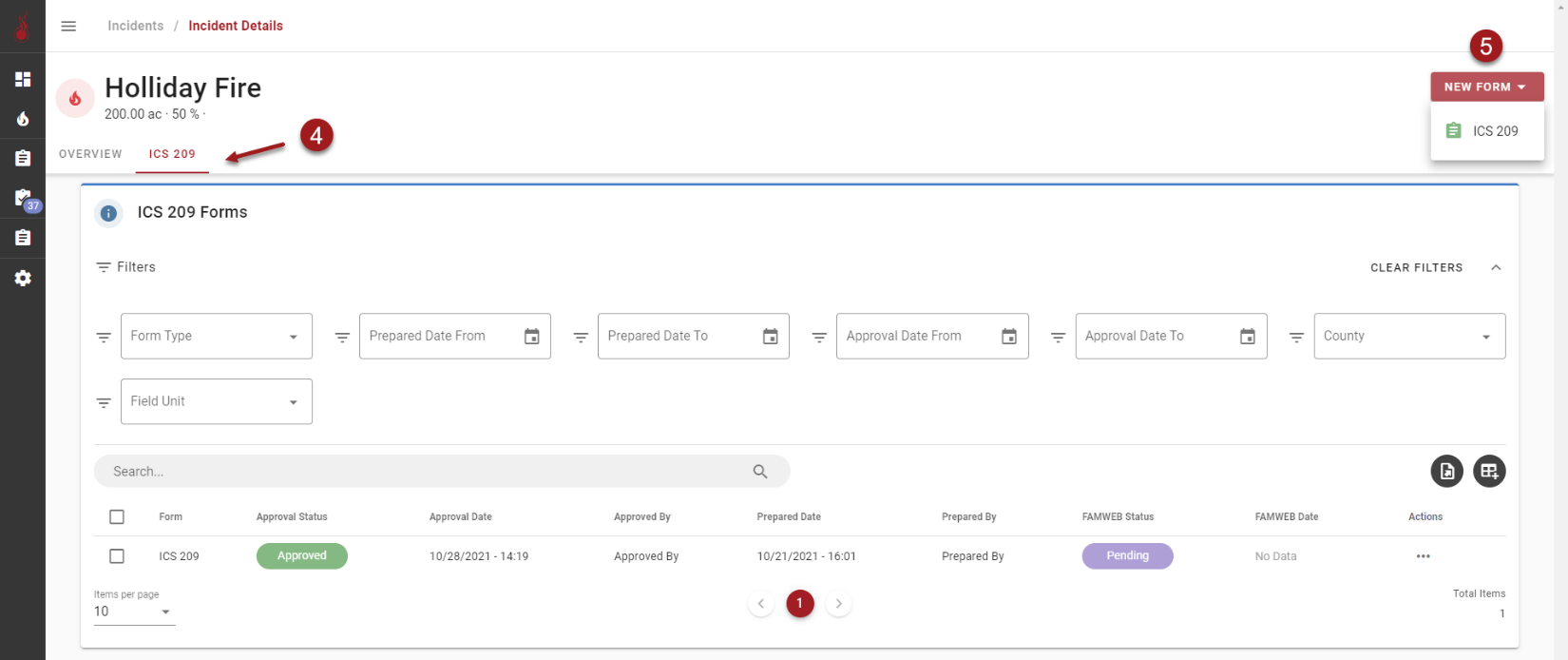
Select the preferred ICS form tab
-
Click :newform: in the top right corner of the page and click to select the preferred form.
-
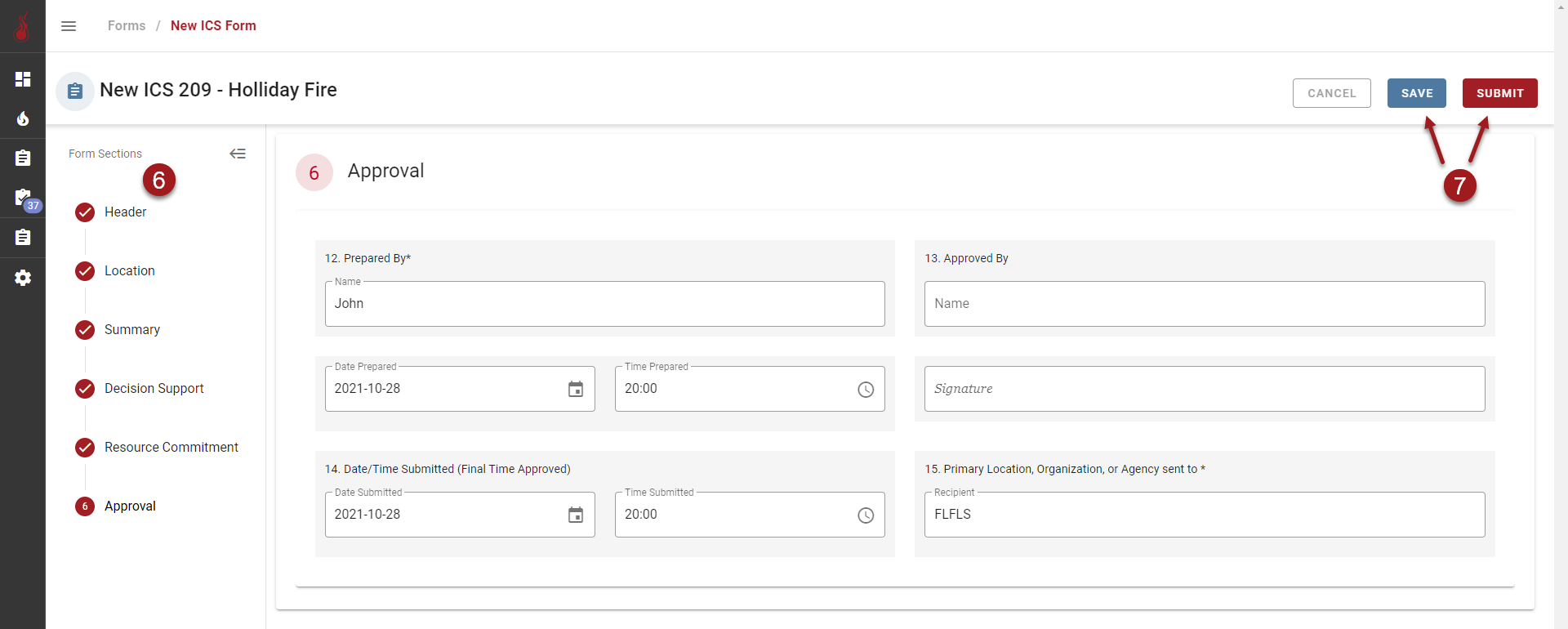
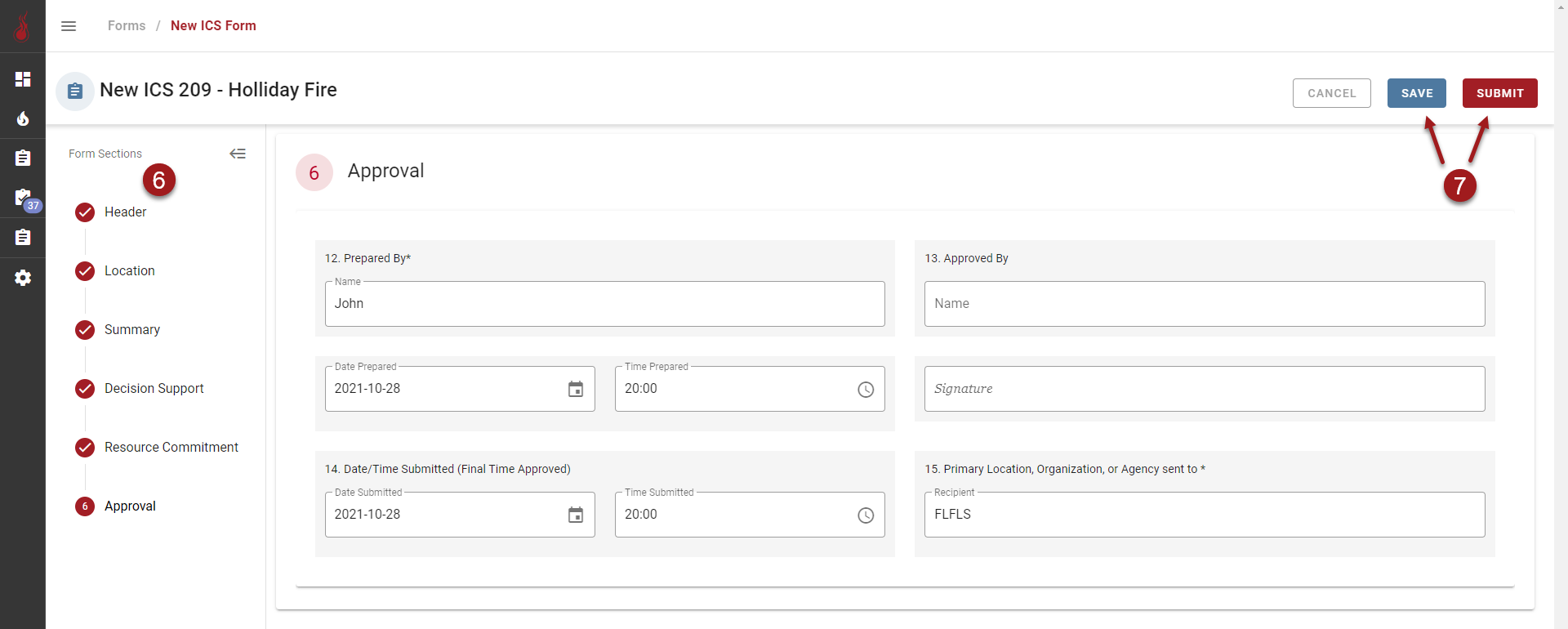
Use the stepper to navigate and complete the form. Required fields are labeled “(Required)” and will be displayed as highlighted in red when incomplete.
-
Click :blue-save: to save a copy of the form that can be accessed later, or click :red-submit: to submit the form for internal review.
Copy an Existing ICS Form
-
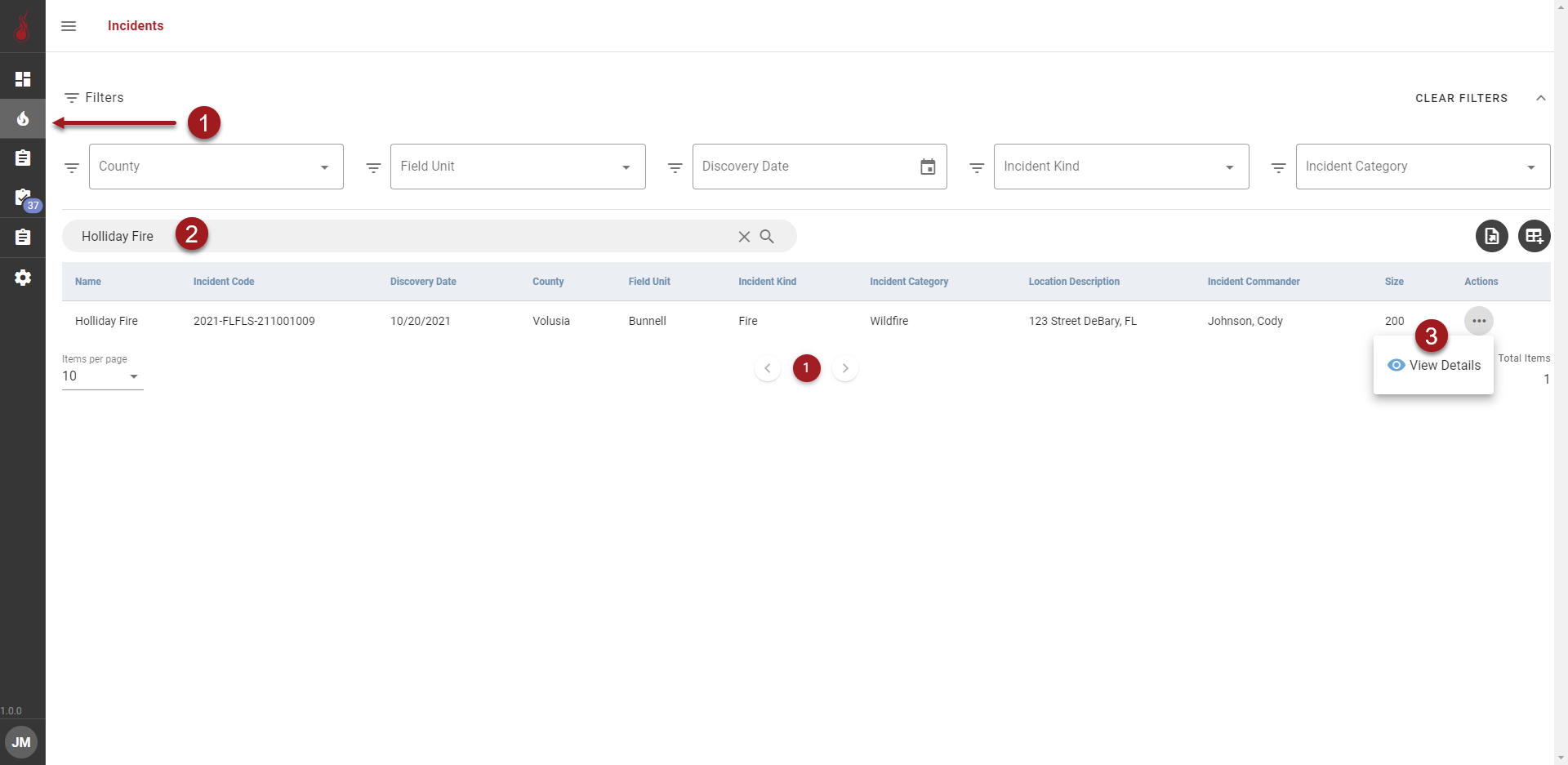
Click :IncidentsButton: to open the Incidents page.
-
Use the Search pill to perform a wildcard search for the Incident Name. You must press “Enter” on the keyboard to perform the search.
-
Click :3dots: in the Actions column and click :ViewDetails: to open the Incident Details page.
-
Select the preferred ICS Form tab
-
Click :3dots: on the row for the preferred incident and click :NewFormCopy:. The “New Form (Copy)” button will pull a “fresh snapshot” of data from fiResponse and will copy the contents of the manual write-in fields from the selected form.
-
Use the stepper to navigate and complete the form. Required fields are will be labeled “(Required)” and will be displayed as highlighted in red when incomplete.
-
Click :blue-save: to save a copy of the form that can be accessed later, or click :red-submit: to submit the form for internal review.