
This section provides instructions on the media capabilities available in fiResponse Mobile. Media including photos and files can be uploaded and viewed using fiResponse Mobile.
Note: The user must have the appropriate role and permissions to view or upload Incident Media using fiResponse Mobile.
Note: The user must enable permissions for fiResponse Mobile to use the camera on the mobile device to take incident photos.
Take or Attach Photos
-
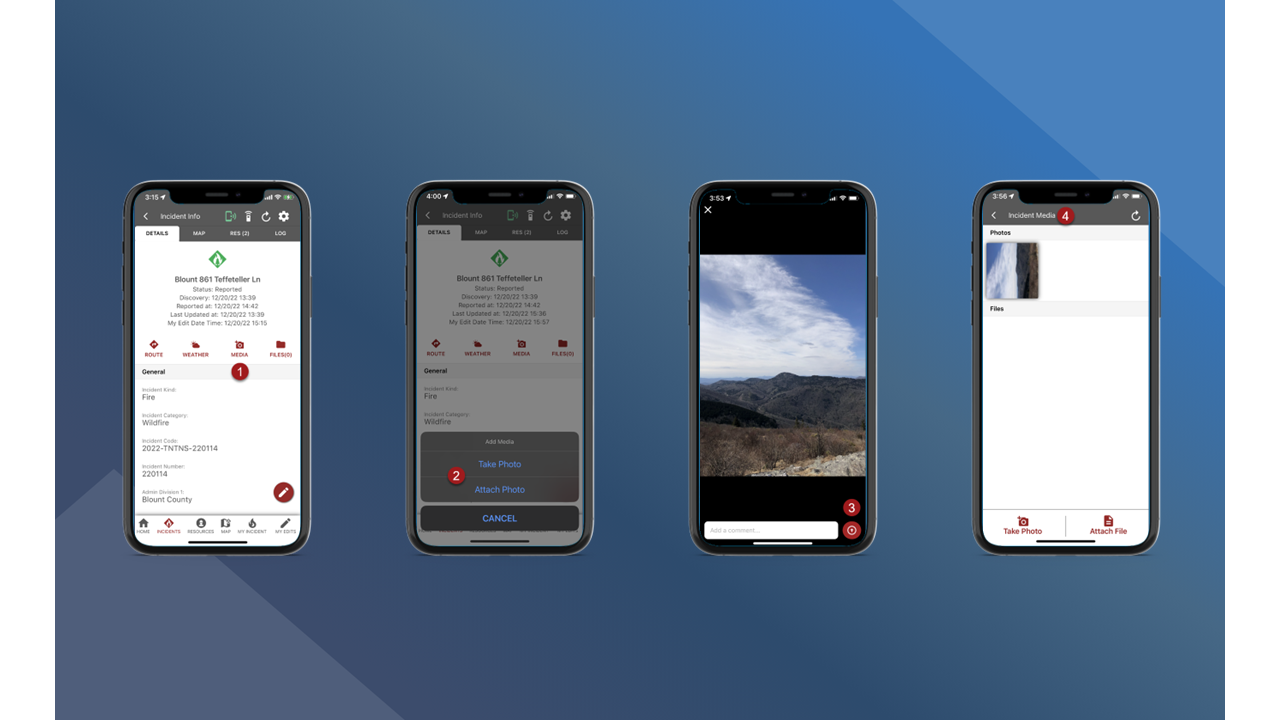
On the Incident Info screen tap Media.
-
Tap Take Photo or Attach Photo.
-
Use the device’s camera or photo library to select a photo. Tap the red arrow button to attach the photo.
-
The photo will appear in Files.
Note: Use My Edits to sync the photo. See My Edits to learn how to sync edits.
Attach Files
-
On the Incident Info screen tap Files.
-
Tap Attach File.
-
Use the device’s file manager to find and select a file.
-
After selecting the file the Incident Media screen will be displayed and the selected file will be listed in the Files section.
-
Use My Edits to sync the photo. See My Edits to learn how to sync edits.