Layout

Activity Tracker Web

Logging in to Activity Tracker brings you to the main dashboard.
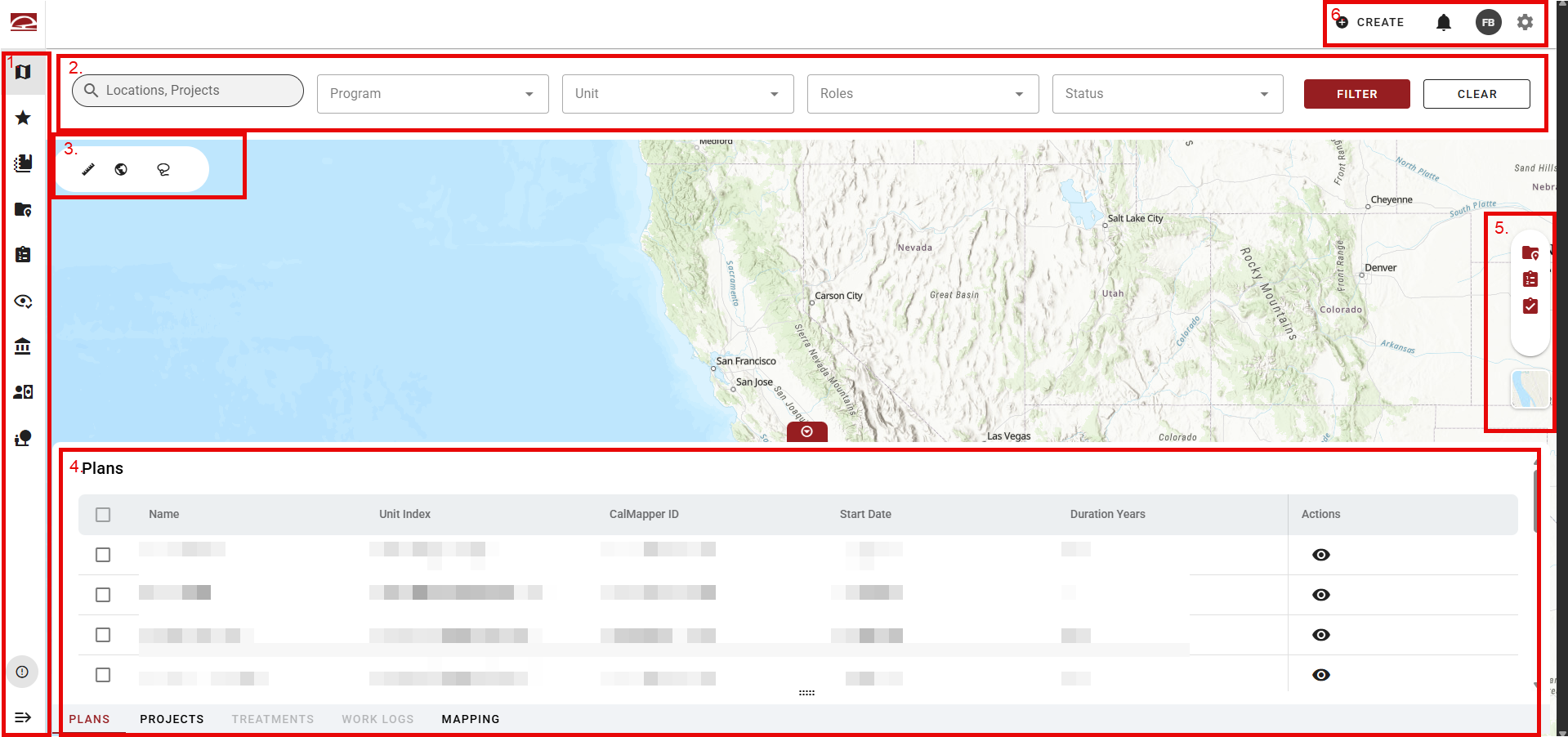
image-20260330-165134.png
CalMAPPER Web Dashboard

Click the links below to learn more about each section.

  1. Left Toolbar

  2. Map Filters

  3. Map Tools

  4. Grid View

  5. Map Layers Panel

  6. Top Right Toolbar

Activity Tracker Mobile

Logging in to Activity Tracker Mobile brings you to the main dashboard.

Interface may look slightly different depending on your mobile device.

2026-05-26 09-05-49 High Res Screenshot-20260526-150550.png
Interface - iOS


image-20260526-154418.png
Interface - Android


Bottom Navigation Bar

The bottom navigation bar contains three tabs. The active tab is highlighted in blue.

  • Explore — The main map view.

  • My Work — A list of treatments you have starred for quick access. Displays "No Data To Display" when no treatments have been starred.

my work-20260526-161517.png
My Work
  • Settings — Account information and app configuration options.

Top Toolbar

The top toolbar appears in the Explore tab and contains four icons:

  • Search (magnifying glass) — Search for treatments.

  • Refresh (circular arrows) — Refreshes data from the server.

  • Notifications (bell) — Opens the Notifications screen, which shows system messages. Messages can be filtered by All, Unread, or Read. A notification confirms when a data sync has completed.

  • Sync (cloud with upload arrow) — Opens the My Edits panel, where unsynced work log records are queued and sent to the server.

When the Treatments list is open (via the List button), the Search icon is replaced by a Filter icon for filtering the treatment list.

Map Controls

Three controls appear as floating buttons over the map:

  • Location arrow (bottom left) — Centers the map on your current GPS location.

  • List (bottom center) — Toggles the Treatments list view, which slides up as a panel over the map.

  • Layers (bottom right) — Opens basemap and layer options.

Map Options

A "..." button appears in the upper right of the map area. Tapping it expands three additional controls stacked vertically:

  • Collapse — closes the options menu.

  • Info — toggle legend for map layers.

  • Measure — Opens Measurement Tools with options for measuring Distance and Area. Both open an interactive measurement mode on the map.

image-20260526-162810.png
Measurement Tools

Click Distance or Area and place points on the map to display a measurement. Options exist to start over (red x), redo (blue arrow), or remove the last point (red minus).

Distance tool-20260526-163026.png
Measurement Tool: Distance Example