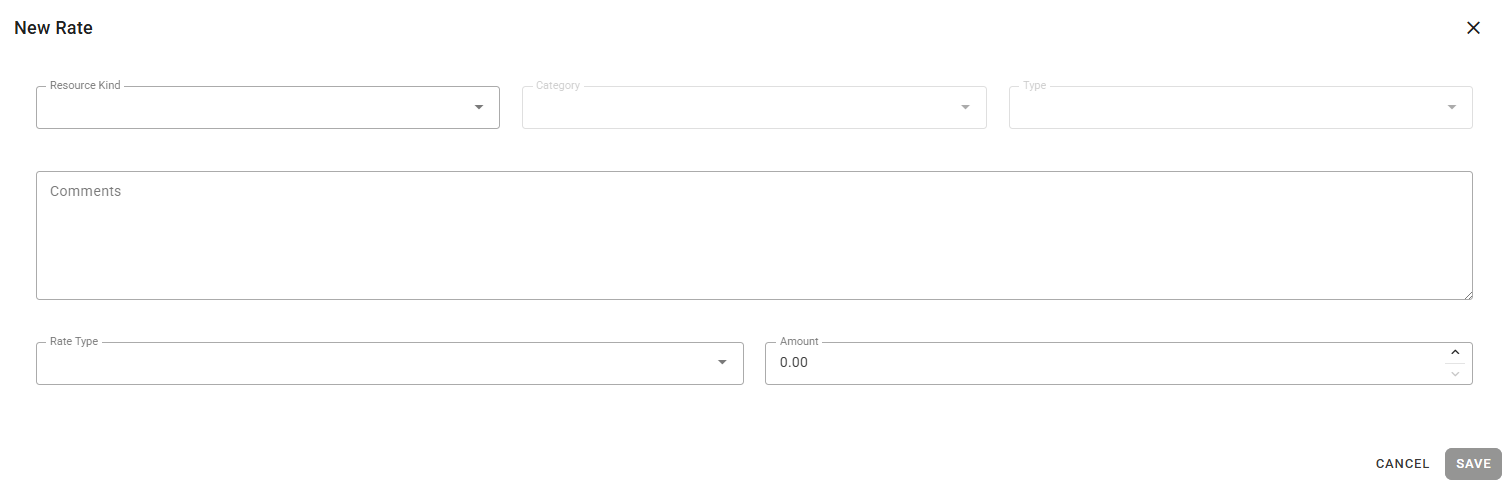
The Rate Management page provides an administrative tool for managing the resource rates used to calculate costs on work logs.
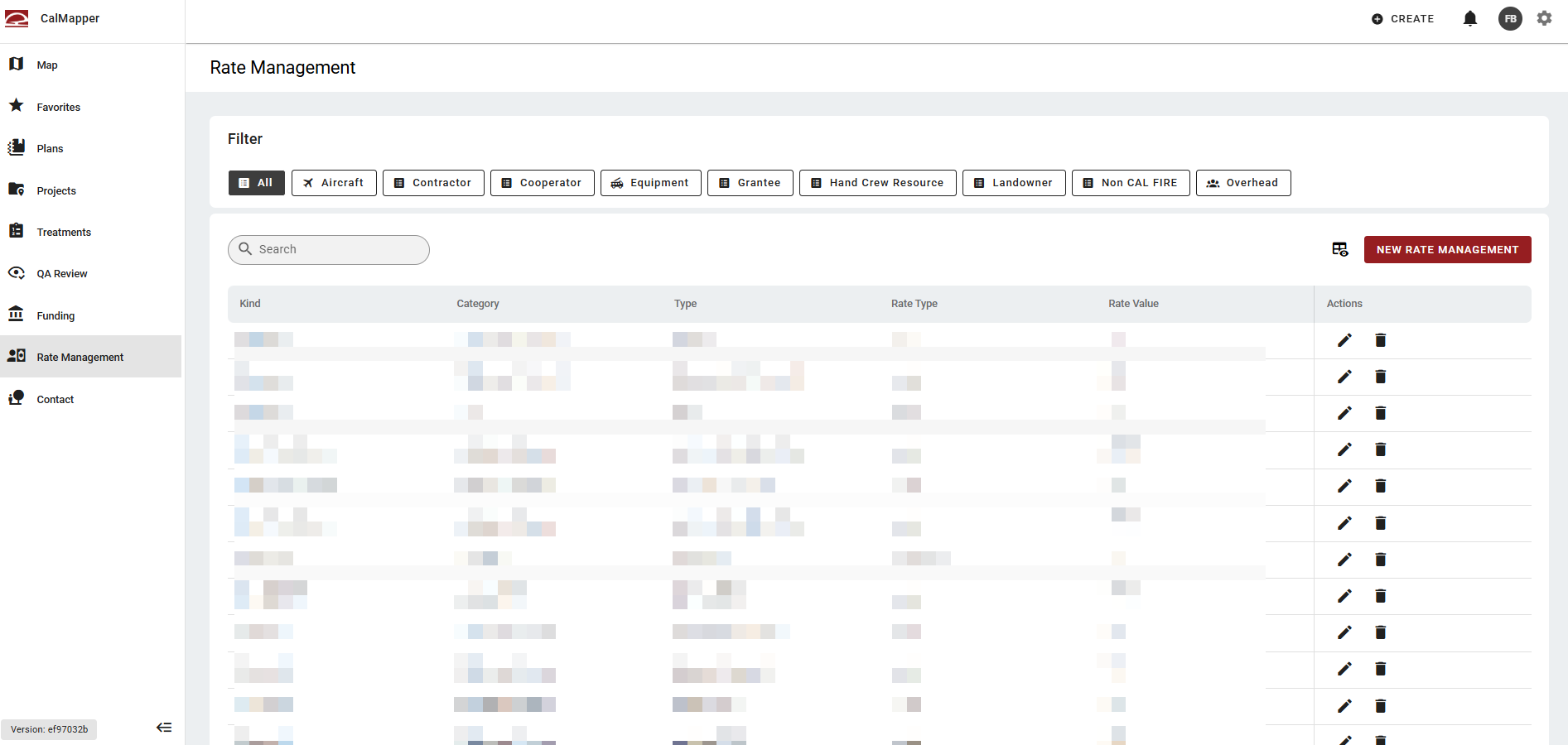
Filtering and Search
To filter resource rates, select a category chip filter at the top of the page. Users can click any chip to instantly narrow the list to a specific resource kind. The All chip is selected by default and shows the full list.
A free-text search bar is available for quick lookup. Or, click a column heading to sort it in ascending or descending order.
Table
The table displays each resource rate with default columns. Use the spreadsheet icon in the top right to adjust the columns shown.
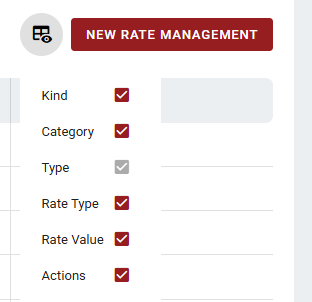
Table Actions
Each resource rate (row) has two action icons: a pencil (edit) icon to modify the rate record and a delete (trash) icon to remove it.
New Rate Management
A prominent New Rate Management button in the top right launches the resource rate creation workflow.

Enter the required information and click Save to add the resource rate to the table.