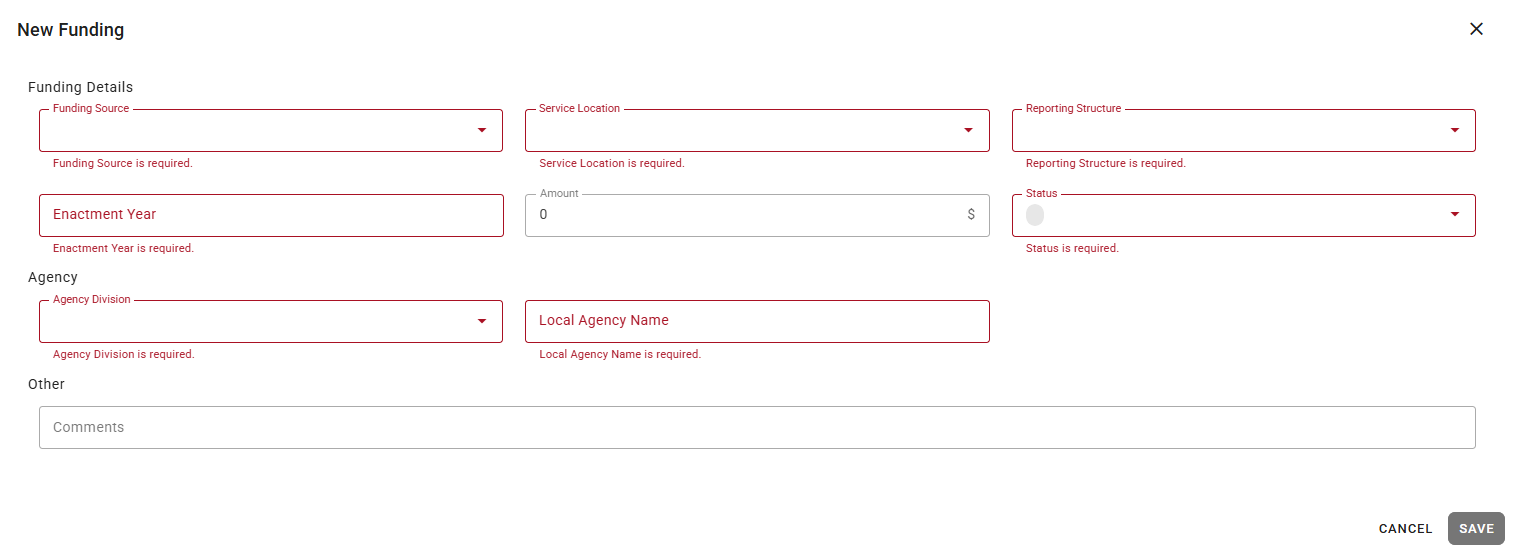
The Funding page provides a master list of all funding sources configured in the system. It is an administrative tool used to manage the financial sources that get linked to projects and invoices.
Filtering and Search
A free-text search bar is available for quick lookup. Or, click a column heading to sort it in ascending or descending order.
Table
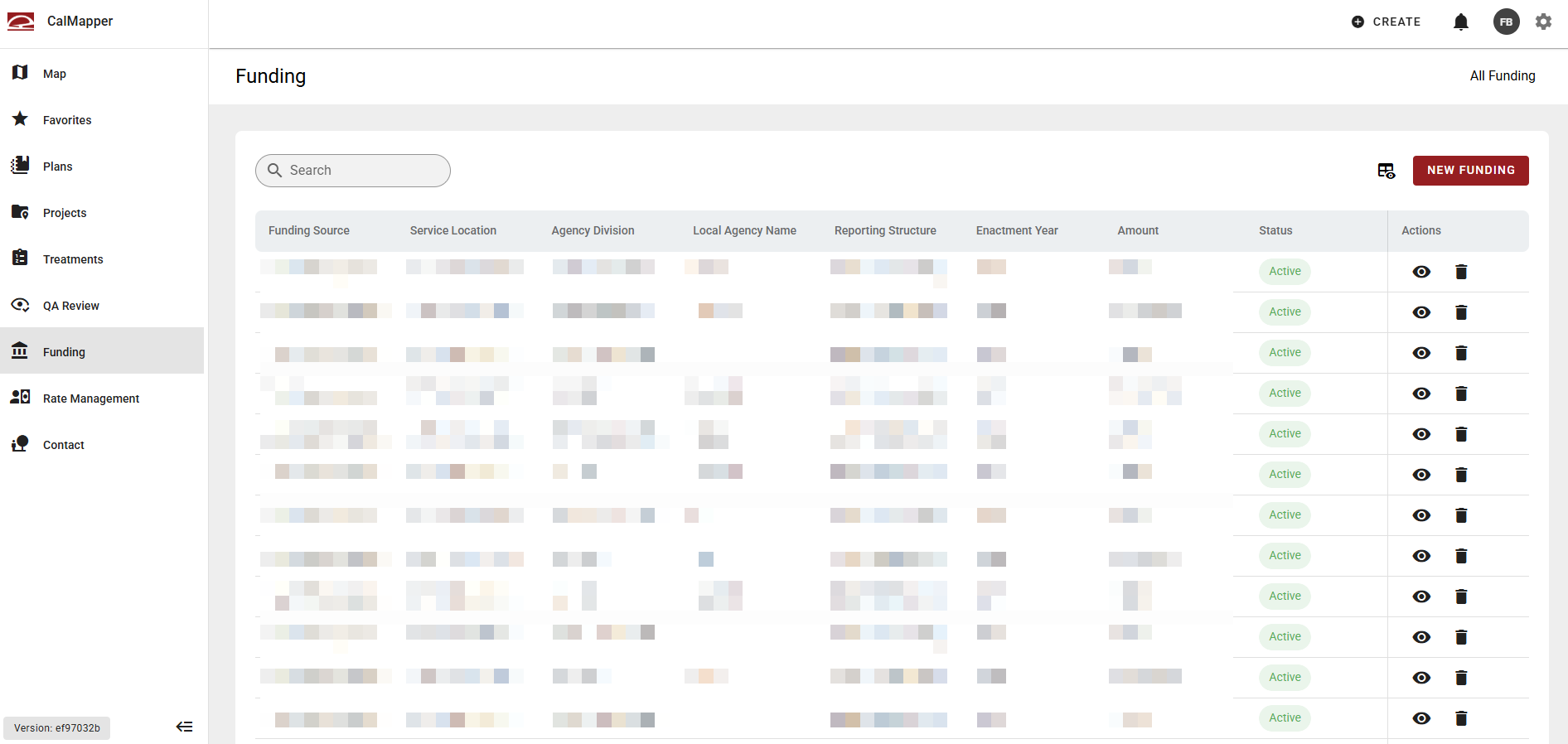
The table displays each funding source with default columns. Use the spreadsheet icon in the top right to adjust the columns shown.
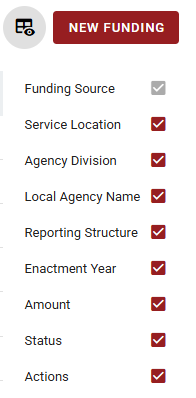
Table Actions
Each funding source (row) has two action icons — a view (eye) icon to open the record and a delete (trash) icon.
View Funding Source
Clicking the view (eye) icon opens an individual record page for the funding source selected.
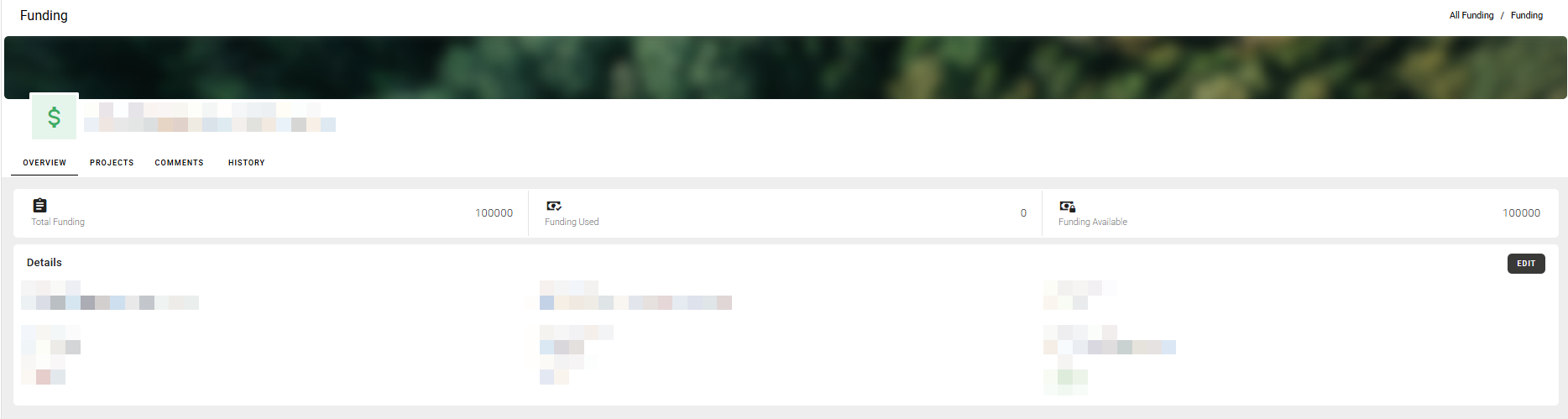
The funding source record has four tabs:
1. Overview
The Overview tab is the landing tab when a funding source record is opened. It displays a Details panel containing the funding source's key attributes. An Edit button in the top right of the Details panel allows authorized users to modify the record.
2. Projects
The Projects tab links all projects linked to the current funding source.
3. Comments
The Comments tab allows users to add and view comments on the funding source record, supporting collaboration and internal notes without modifying the core record data.
4. History
The History tab provides an audit log of changes made to the funding source record, including what was changed, by whom, and when.
New Funding
A prominent New Funding button in the top right launches the funding source creation workflow.

Enter the required information and click Save to add the funding source to the table.