
The Radio Frequency page manages the reference list of radio frequencies and frequency types used across fiResponse. These records are available for assignment when configuring resource and infrastructure records.
This section is administered by system administrators. The page has two tabs: Radio Frequency and Frequency Types.
Radio Frequency Tab
The Radio Frequency tab lists all radio frequency records.
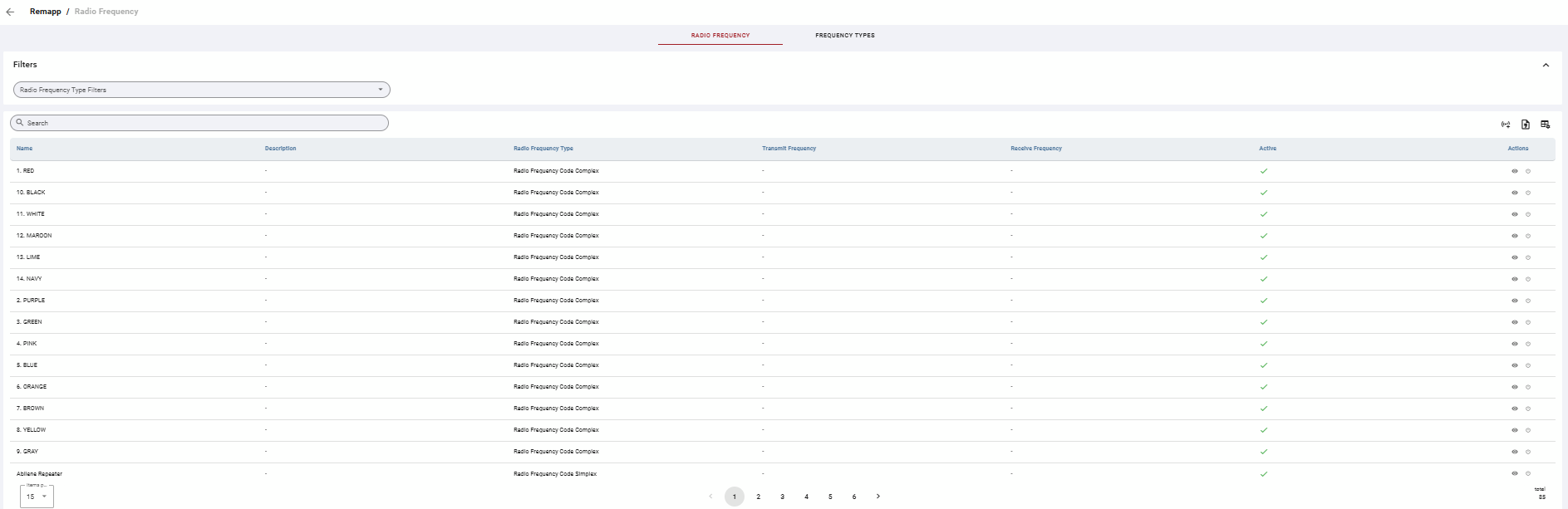
Grid
Use the Search bar to find a specific radio frequency. Use the multiselect filter to only show specific radio frequency types.
Table Actions
|
Icon |
Label |
Description |
|---|---|---|
|
Radio icon with + |
Add |
Opens a form to create a new radio frequency record. |
|
Document |
Export |
Exports the current grid contents to your chosen format. |
|
Grid with gear |
Toggle Columns |
Opens column visibility controls. |

Row Actions
|
Icon |
Action |
Description |
|---|---|---|
|
Eye |
View Details |
Opens the full frequency record in view mode. Click Edit to make changes. |
|
Power icon |
Activate / Deactivate |
Toggles the active state of the frequency record. |
Frequency Types Tab
The Frequency Types tab lists the available radio frequency type classifications (e.g. Simplex). These types are used to categorize records on the Radio Frequency tab.

Grid
Table Actions
|
Icon |
Label |
Description |
|---|---|---|
|
Radio icon with + |
Add |
Opens a form to create a new frequency type. |
|
Document |
Export |
Exports the current grid contents to your chosen format. |
|
Grid with gear |
Toggle Columns |
Opens column visibility controls. |

Row Actions
|
Icon |
Action |
Description |
|---|---|---|
|
Eye |
View Details |
Opens the frequency type record in view mode. Click Edit to make changes. |
|
Power icon |
Activate / Deactivate |
Toggles the active state of the frequency type record. |
Common Tasks
Add a New Radio Frequency
-
On the Radio Frequency tab, click the Add icon in the toolbar.
-
Complete the form:
-
Name — Required. The name of the frequency.
-
Radio Frequency Type — Required. Select the frequency type.
-
Description — Optional.
-
Transmit Frequency — Optional. Enter the transmit frequency value.
-
Receive Frequency — Optional. Enter the receive frequency value.
-
-
Click Save.
Add a New Frequency Type
-
Click the Frequency Types tab.
-
Click the Add icon in the toolbar.
-
Complete the form:
-
Name — Required.
-
Description — Optional.
-
-
Click Save.
View or Edit a Radio Frequency Record
-
Locate the record in the grid using search or filters.
-
Click the eye icon (View Details) in the Actions column.
-
Click Edit, update the relevant fields, and click Save.