
The Manufacturers and Models page manages the reference list of equipment and aircraft manufacturers and their associated models. These records are used when creating or editing resource records (the Manufacturer Name and Model Name fields in the Add Equipment and Add Aircraft forms draw from this list).
This section is administered by system administrators. Changes here affect the options available when creating or editing resource records.
The page has two tabs: Manufacturers and Models.
Manufacturers Tab
The Manufacturers tab lists all manufacturer records. Models are created and managed within each manufacturer record.
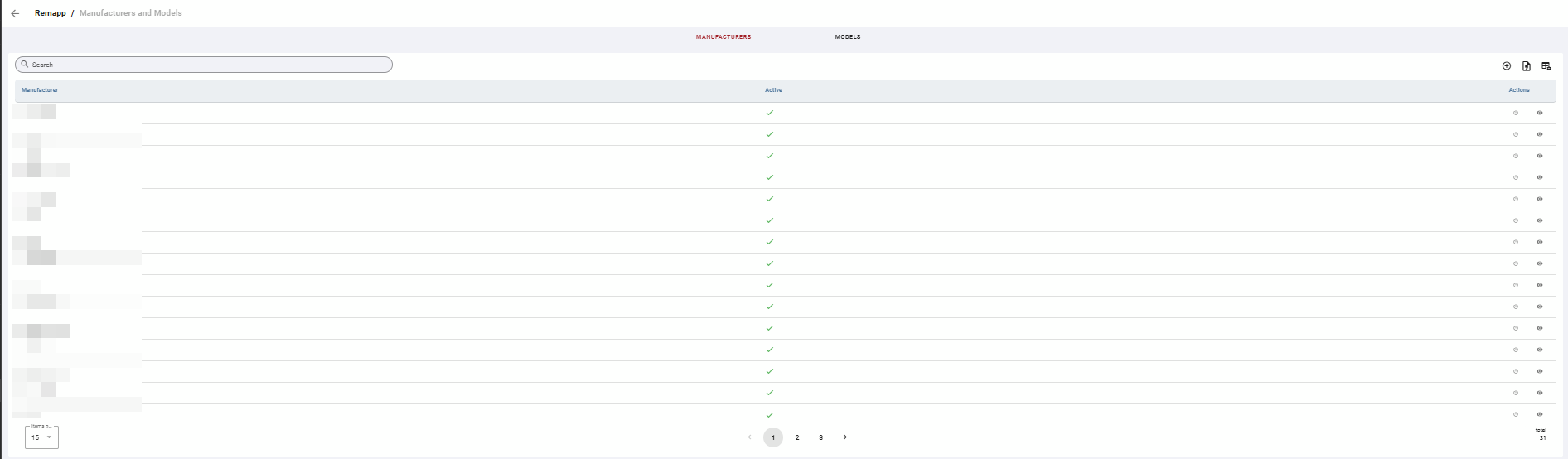
Grid
Use the Search bar to find a specific manufacturer.
Active indicates whether the manufacturer record is currently active. Inactive manufacturers will not appear as selectable options when creating resource records.
Table Actions
|
Icon |
Label |
Description |
|---|---|---|
|
Circle with plus |
Add |
Opens a form to create a new manufacturer record and add models to it. |
|
Document |
Export |
Exports the current grid contents to your chosen format. |
|
Grid with gear |
Toggle Columns |
Opens column visibility controls. |

Row Actions
|
Icon |
Action |
Description |
|---|---|---|
|
Power icon |
Activate / Deactivate |
Toggles the active state of the manufacturer record. |
|
Eye |
View Details |
Opens the full manufacturer record in view mode, including its associated models. Click Edit to make changes. |
Models Tab
The Models tab displays all model records across all manufacturers. Use this tab to search or review models without navigating into individual manufacturer records.
Models cannot be added from this tab. Models are created within a manufacturer record.
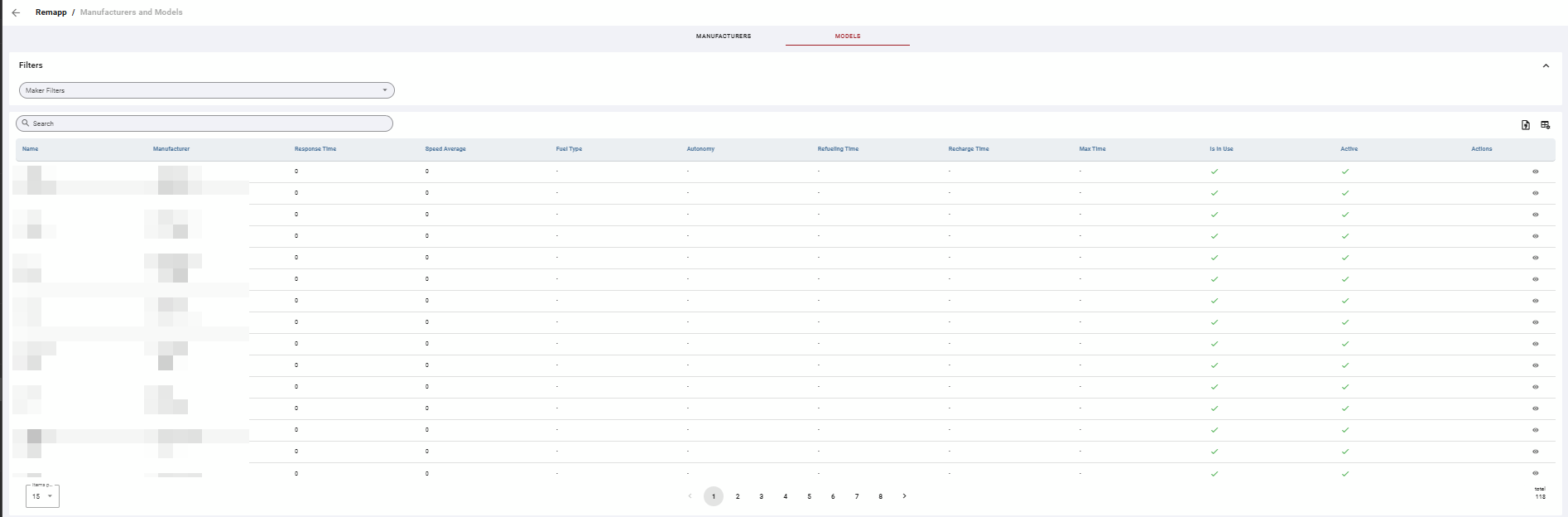
Grid
Use the Search bar to find a specific model. Use the multiselect filter to only show models by selected manufacturers.
Is In Use indicates whether the model is currently assigned to at least one resource record.
The other columns are performance specification fields for the model.
Row Actions
|
Icon |
Action |
Description |
|---|---|---|
|
Eye |
View Details |
Opens the model record in view mode. Click Edit to make changes. |
Common Tasks
Add a New Manufacturer
-
Click the Add icon in the toolbar on the Manufacturers tab.
-
In the Maker section, enter the manufacturer Name. This is the only required field.
-
Optionally, add models to the manufacturer now using the Models section. See Add a Model to a Manufacturer below.
-
Click Save.
Add a Model to a Manufacturer
Models are added within a manufacturer record, either when creating a new manufacturer or by editing an existing one.
-
On the Manufacturers tab, locate the manufacturer record.
-
Click the eye icon (View Details) in the Actions column.
-
Click Edit.
-
In the Models section, click Add. A new editable row appears in the Models grid.
-
Enter the model details directly in the row fields.
-
Click Save.