
The AVL Services and Devices page manages the Automatic Vehicle Location (AVL) services and physical tracking devices used to monitor resource positions. It has two tabs: AVL Services and AVL Devices.
AVL Services Tab
The AVL Services tab lists the tracking service providers configured in the system. Each service defines the connection settings and tracking interval used by associated AVL devices.
A Search bar is available to filter the list by keyword.
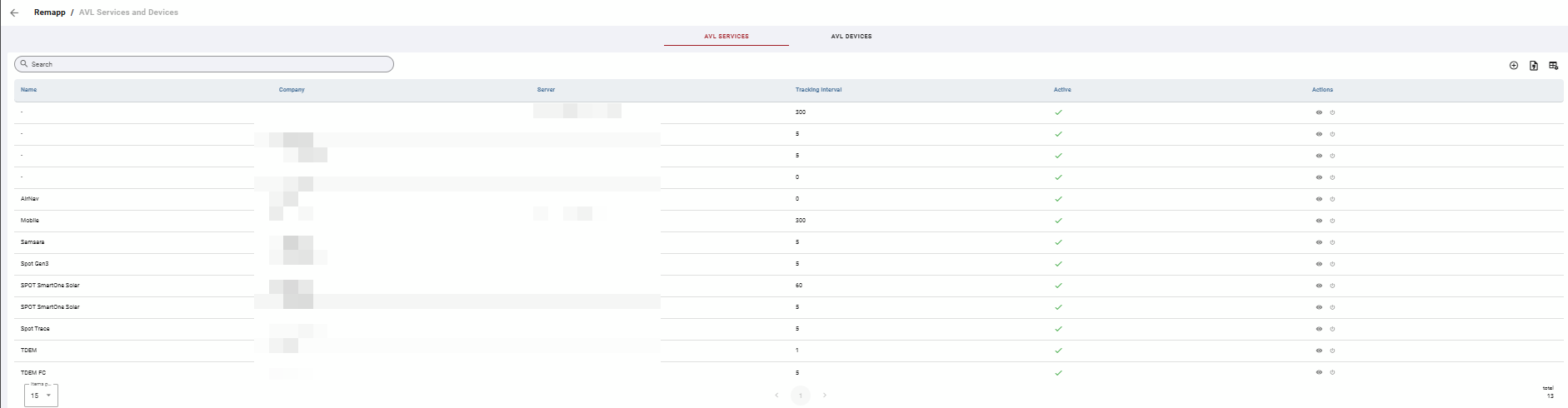
Grid
Table Actions
|
Icon |
Label |
Description |
|---|---|---|
|
Add icon |
Add |
Opens the Add Service form to create a new AVL service record. |
|
Document |
Export |
Exports the current grid contents to your chosen format. |
|
Grid with gear |
Toggle Columns |
Opens column visibility controls. |

Grid Columns
|
Column |
Description |
|---|---|
|
Name |
The name of the AVL service provider. |
|
Company |
The company associated with the service. |
|
Server |
The server address used to connect to the service. |
|
Tracking Interval |
The frequency at which the service reports position data. |
|
Active |
Indicates whether the service is currently active. A green checkmark indicates active status. |
|
Actions |
Icons for available row-level actions. See Row Actions below. |
Row Actions
|
Icon |
Action |
Description |
|---|---|---|
|
Eye |
View |
Opens the service record in read-only view. |
|
Power icon |
Activate / Deactivate |
Toggles the active status of the service. |
AVL Devices Tab
The AVL Devices tab lists the individual tracking devices registered in the system. Each device is associated with an AVL service and can be linked to a specific resource.
Filters are available in dropdown or date picker formats. A Search bar is also available to filter results by keyword.
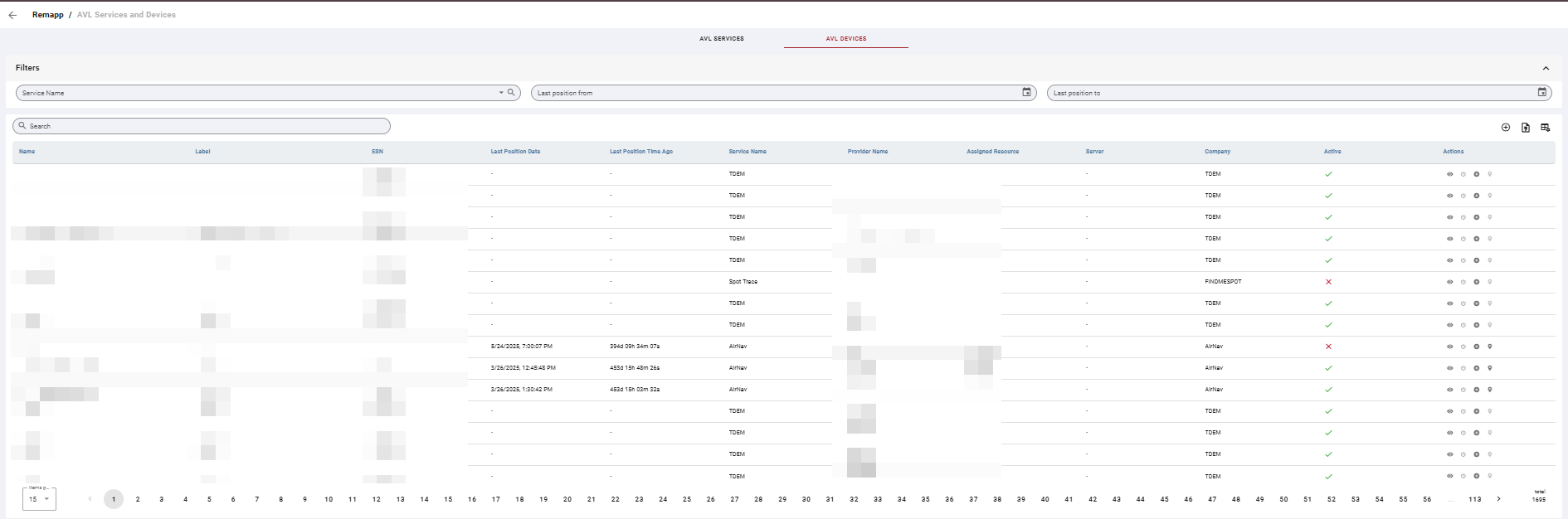
Grid
Table Actions
|
Icon |
Label |
Description |
|---|---|---|
|
Add icon |
Add |
Opens the Add Device form to create a new AVL device record. |
|
Document |
Export |
Exports the current grid contents to your chosen format. |
|
Grid with gear |
Toggle Columns |
Opens column visibility controls. |

Grid Columns
|
Column |
Description |
|---|---|
|
Name |
The name of the AVL device. |
|
Label |
A label assigned to the device. |
|
ESN |
The Electronic Serial Number of the device. |
|
Last Position Date |
The date and time of the most recent position reported by the device. |
|
Last Position Time Ago |
The elapsed time since the last position was reported, displayed in days, hours, minutes, and seconds. |
|
Service Name |
The AVL service associated with the device. |
|
Provider Name |
The provider associated with the device. |
|
Assigned Resource |
The resource currently linked to this device. |
|
Server |
The server address used by the associated service. |
|
Company |
The company associated with the device. |
|
Active |
Indicates whether the device is currently active. A green checkmark indicates active; a red X indicates inactive. |
|
Actions |
Icons for available row-level actions. See Row Actions below. |
Row Actions
|
Icon |
Action |
Description |
|---|---|---|
|
Eye |
View |
Opens the device record in read-only view. |
|
Power icon |
Activate / Deactivate |
Toggles the active status of the device. |
|
Resource icon |
Set Resource |
Opens a resource selection panel where you can assign a resource to the device. Use Search or Filters to locate the resource. |
|
Map pin |
Show Positions |
Opens a Positions panel showing historical position data for the device. Filter by start and end date and time. Options to export as KML or CSV are available in the panel toolbar. |
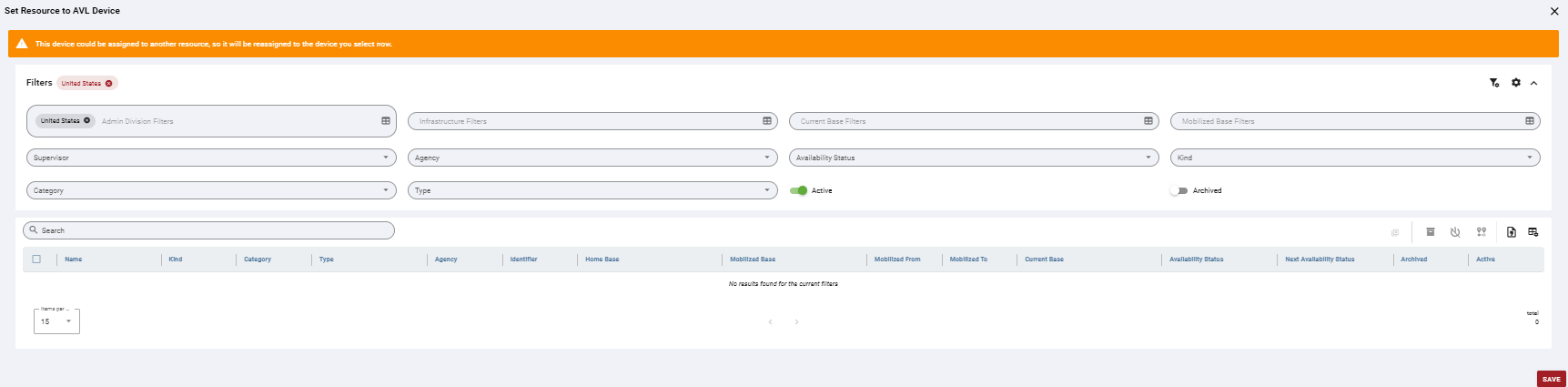
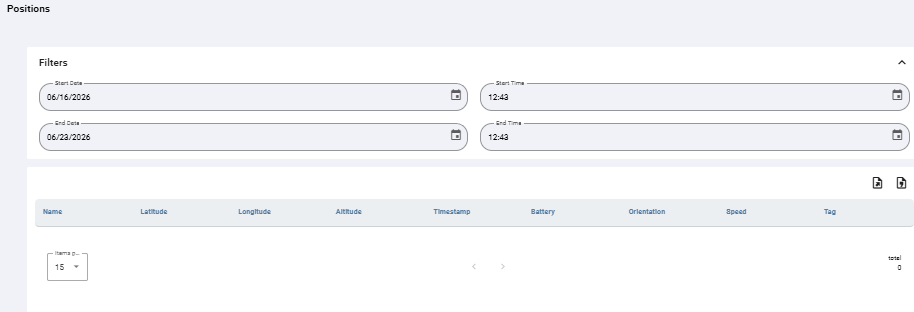
Common Tasks
Add a New AVL Service
-
On the AVL Services tab, click the Add icon in the toolbar.
-
Complete the form:
-
Name — Required.
-
Company — Required.
-
Description — Required.
-
Tracking Interval — Required.
-
Server, Connection, Contact, Email, Phone — Optional.
-
-
Click Save.
Add a New AVL Device
-
Click the AVL Devices tab.
-
Click the Add icon in the toolbar.
-
Complete the form:
-
Service Name — Required. Select from the dropdown.
-
Provider Name — Required.
-
Days for Renewal — Required.
-
Tracking Interval — Required.
-
Name, Label, ESN, Company, Renewal Date, Renewal Time — Optional.
-
-
Click Save.
Assign a Resource to an AVL Device
-
Locate the device in the AVL Devices grid using Search or Filters.
-
Click the Set Resource icon in the device's row.
-
Use the filters and search bar in the Set Resource panel to locate the resource.
-
Select the resource from the list.
-
Click Save.
View Position History for a Device
-
Locate the device in the AVL Devices grid using Search or Filters.
-
Click the Show Positions icon in the device's row.
-
In the Positions panel, set the Start Date, Start Time, End Date, and End Time to define the date range.
-
Review the position records in the grid. To export as KML or CSV, use one of the export icons in the panel toolbar.