
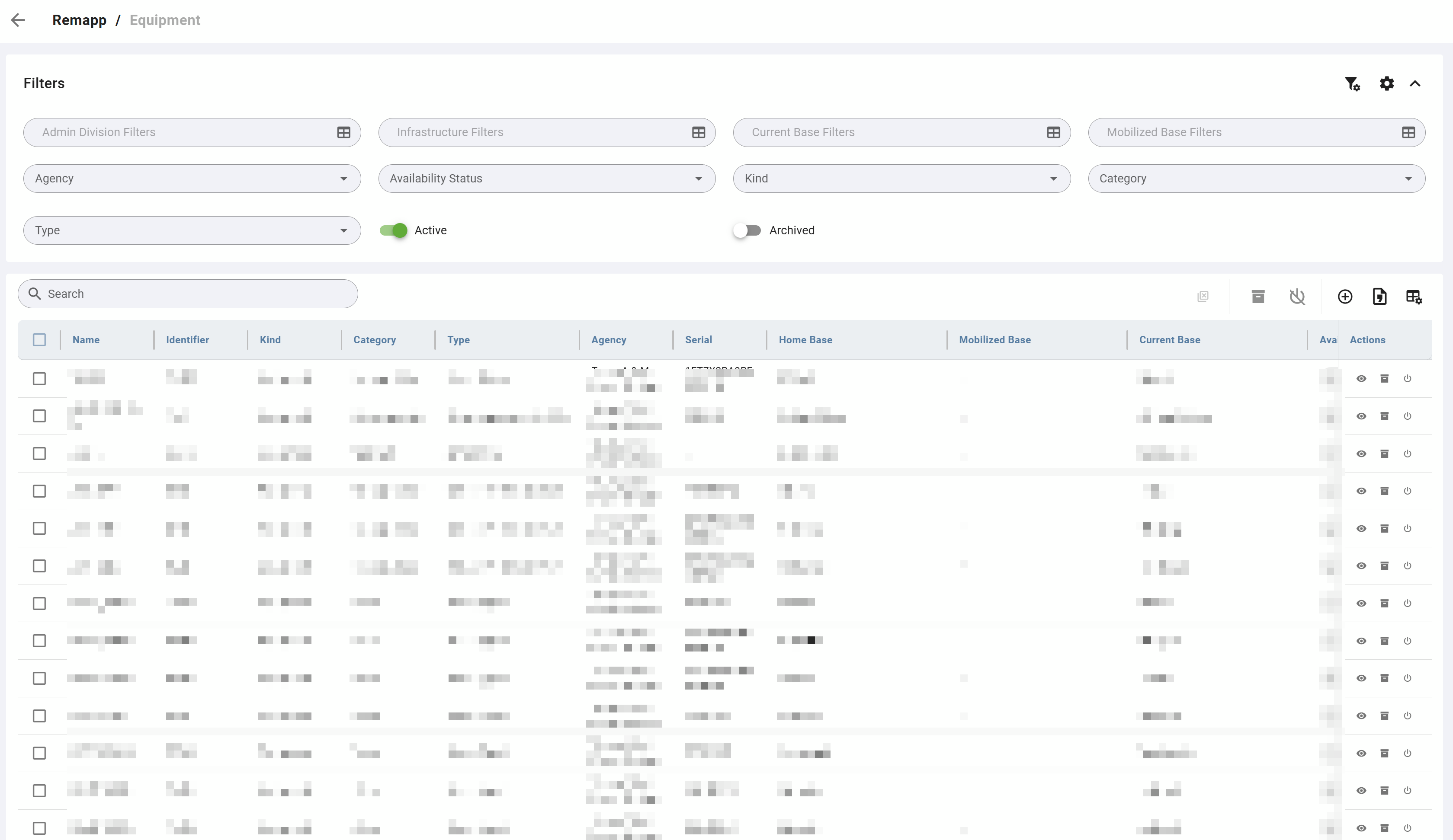
The Equipment grid displays records for all Equipment groups in your organization. Use this grid to find Equipment records, manage their active status, and access full record details.
Filters
Filters (in dropdown, multi-select, and toggle formats) are available at the top of the Equipment grid view. If you have configured default filters in Configuration, they will be applied automatically when you open this grid. See Configuration for instructions on setting defaults.
A Search bar also appears below the Filters.
Grid
Row Actions
Each row has three action icons in the Actions column.
|
Icon |
Action |
Description |
|---|---|---|
|
Eye |
View Details |
Opens the full Equipment record in view mode. Click Edit within the record to make changes. |
|
Archive icon |
Archive |
Archives the record. The Equipment will no longer appear in dispatch lists. The record is retained in REMAPP 2. |
|
Circle/power icon |
Deactivate |
Sets the Equipment as Inactive. To reactivate, open the full record via View Details, click Edit, enable the Active toggle, and click Save. |
Table Actions
The toolbar above the grid provides bulk actions and table controls. Bulk actions apply to all rows selected via the checkboxes in the left column. Select individual rows or use the checkbox in the column header to select all visible records.
|
Icon |
Label |
Description |
|---|---|---|
|
Archive box |
Archive Selected |
Archives all selected records at once. |
|
Power symbol |
Deactivate Selected |
Sets all selected Equipment as Inactive. |
|
Person with plus |
Add |
Opens a blank form to create a new Equipment record. |
|
Document |
Export |
Exports the current grid contents to your chosen format. |
|
Grid with gear |
Toggle Columns |
Opens column visibility controls. |
Bulk actions apply only to the rows you have selected. Review your selection carefully before applying a bulk action, as these changes take effect immediately.
Common Tasks
View or Edit an Equipment Record
-
Locate the record in the grid.
-
Click the eye icon (View Details) in the Actions column.
-
To make changes, click Edit.
-
Update the relevant fields.
-
Click Save.
Add New Equipment
Do not repurpose existing equipment records when a piece of equipment is replaced. Instead, add the new equipment as a new record and archive the old one. This preserves the historical record for both pieces of equipment.
-
Click the Add icon in the toolbar.
-
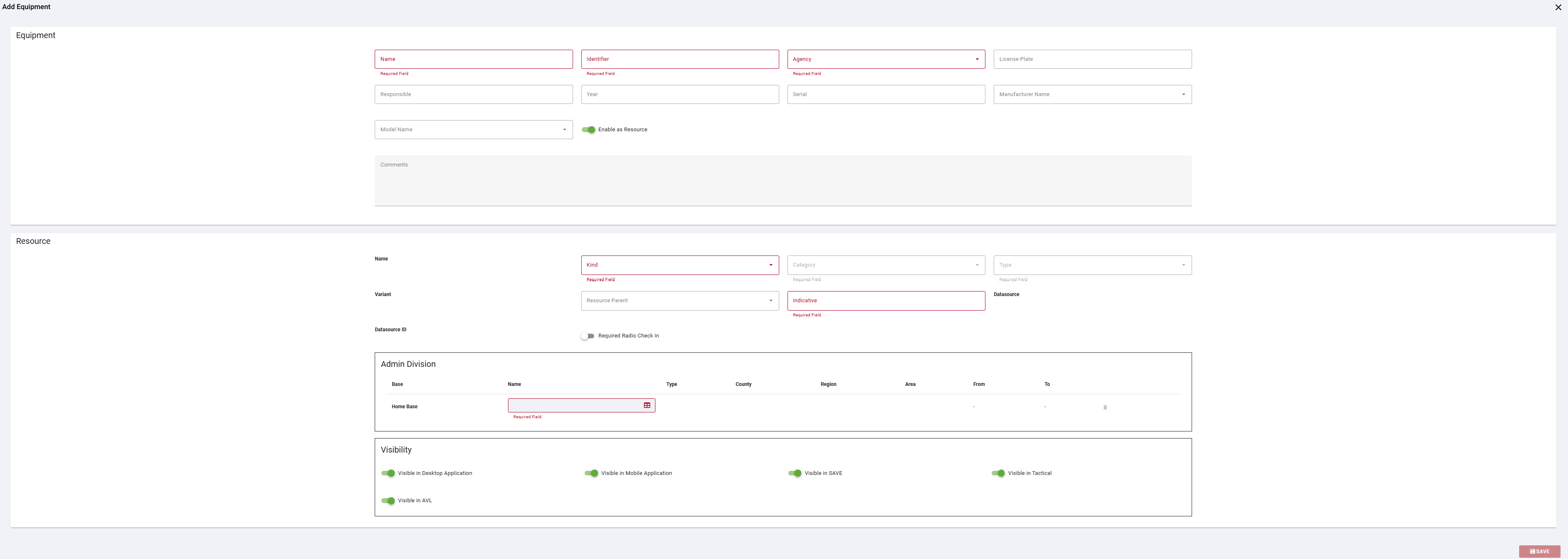
Complete the Equipment section. Required fields are highlighted in red.
-
Complete the Resource section. Required fields are highlighted in red.
-
Review the Visibility section. Disable any toggles where the equipment should not appear.
-
Click Save.
Enable as Resource is on by default in the Add form. The equipment will be dispatchable immediately after saving, provided a Home Base is set and the required Resource fields are complete.
Deactivate an Equipment Record
-
Locate the record in the grid.
-
Click the Deactivate icon in the Actions column.
To reactivate, open the full record via View Details, click Edit, enable the Active toggle, and click Save.
Archive an Equipment Record
-
Locate the record in the grid.
-
Click the Archive icon in the Actions column.