
The Infrastructure grid displays all infrastructure records in your organization (physical locations such as air tanker bases, stations, and offices that serve as home bases or operational locations for resources). Infrastructure records are used throughout REMAPP 2 as filter values and as home base assignments for resources.
This section is primarily administered by system administrators. Changes to infrastructure records affect how resources and filters appear across REMAPP 2 and other fiResponse applications.
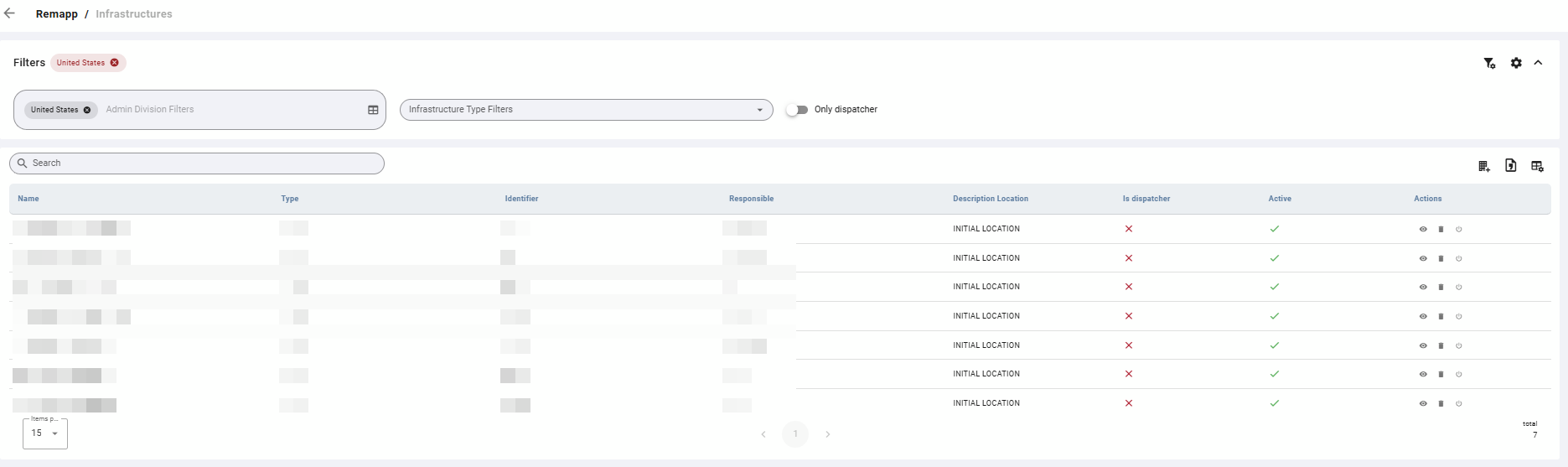
Filters
Filters are available at the top of the Infrastructure grid view. If you have configured default filters in Configuration, they will be applied automatically when you open this grid. See Configuration for instructions on setting defaults.
A Search bar also appears below the Filters.
When enabled, the Only Dispatcher toggle shows only infrastructures designated as dispatcher locations.
Grid
Table Actions
|
Icon |
Label |
Description |
|---|---|---|
|
Building with plus |
Add Infrastructure |
Opens a form to create a new infrastructure record. |
|
Document |
Export |
Exports the current grid contents to your chosen format. |
|
Grid with gear |
Toggle Columns |
Opens column visibility controls. |
Row Actions
|
Icon |
Action |
Description |
|---|---|---|
|
Eye |
View Details |
Opens the full infrastructure record in view mode. Click Edit within the record to make changes. |
|
Trash/delete |
Delete |
Permanently deletes the infrastructure record. This action cannot be undone. |
|
Power icon |
Deactivate |
Sets the infrastructure as inactive. To reactivate, open the full record via View Details, click Edit, enable the Active toggle, and click Save. |
Deleting an infrastructure record is permanent. Unlike archiving a resource, a deleted infrastructure cannot be recovered. Before deleting, confirm the infrastructure is not assigned as a home base to any active resources or used as a filter value by other users.
Common Tasks
Add a New Infrastructure
-
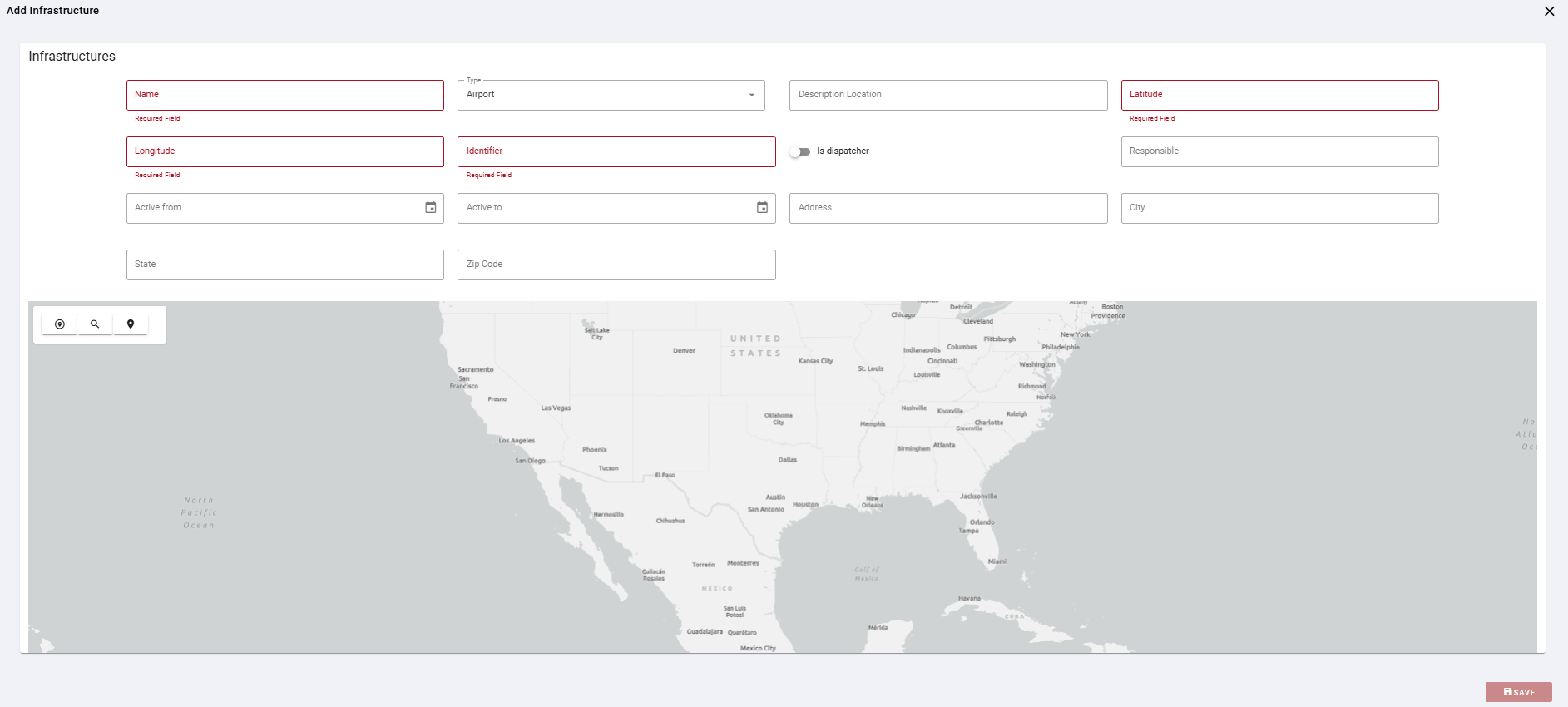
Click the Add Infrastructure icon in the toolbar.
-
Complete the form. Required fields are highlighted in red.
-
Optionally, use the embedded map to set the location visually. Use the map controls to search for a location or drop a pin to set coordinates.
-
Click Save.
View or Edit an Infrastructure Record
-
Locate the record in the grid using search or filters.
-
Click the eye icon (View Details) in the Actions column.
-
To make changes, click Edit.
-
Update the relevant fields.
-
Click Save.