
If using the FireSim model under New Simulation:
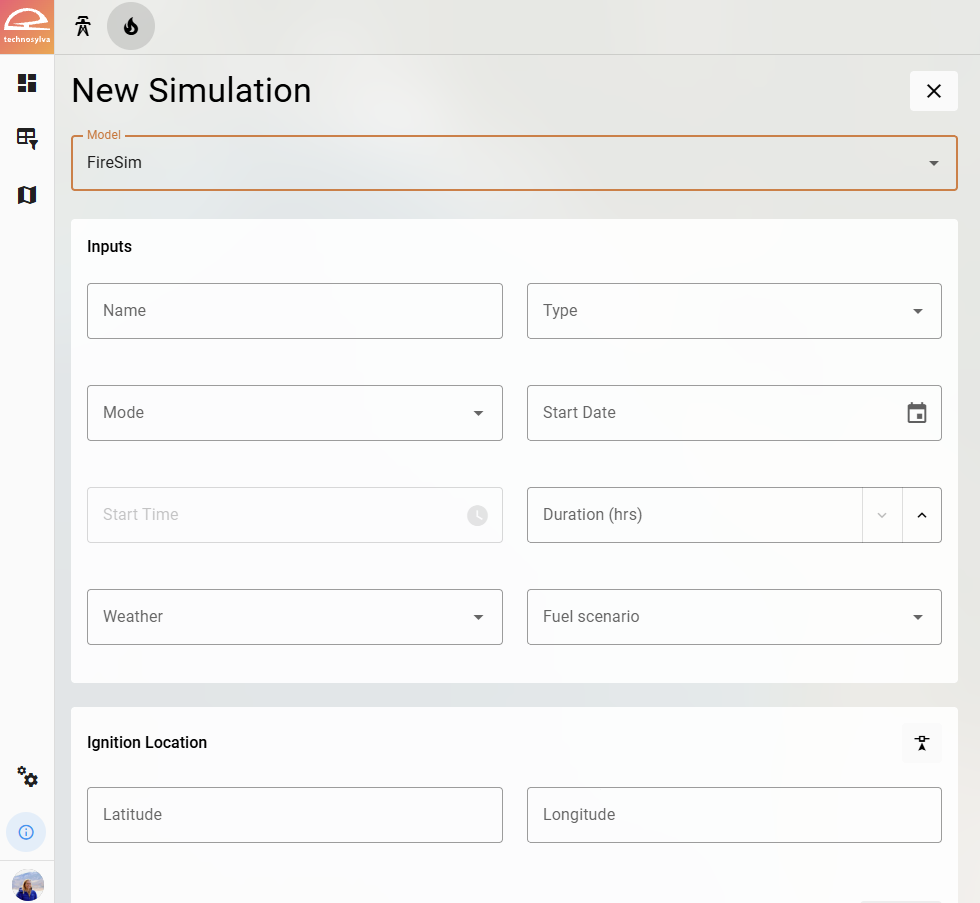
Give the simulation a Name, Start Date, Start Time, and Duration (8 to 24 hours).
Use informative titles for easy differentiation. Include timestamp, location, and scenario type.
Example: "AssetGroup_C_ActualConditions_1415hrs_Feb4_HighWind"
Simulation Types
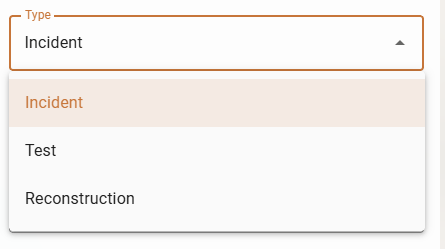
Select the Type of simulation: Incident, Test, or Reconstruction.
Incident Simulations
Incident applies when an actual fire occurs, allowing for simulations. Selecting Incident from the Type dropdown will cause a Select Incident button to appear.
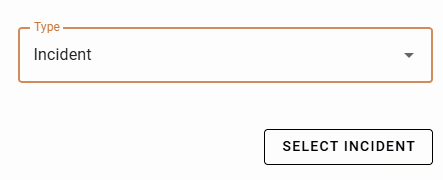
Click the Select Incident button to choose an incident to use as an ignition point for the simulation. Use the Search bar to search for an incident by name or details.

Test Simulations
Test conducts what-if scenarios for predicted high-risk areas.
Reconstruction Simulations
Reconstruction analyzes events from a past fire incident.
Mode
Select the Mode: Fire Spread (Standard) or Fire Spread (Probabilistic).
Fire Spread (Standard)
A deterministic fire spread simulation using the ignition, weather, and fuel inputs provided.
Fire Spread (Probabilistic)
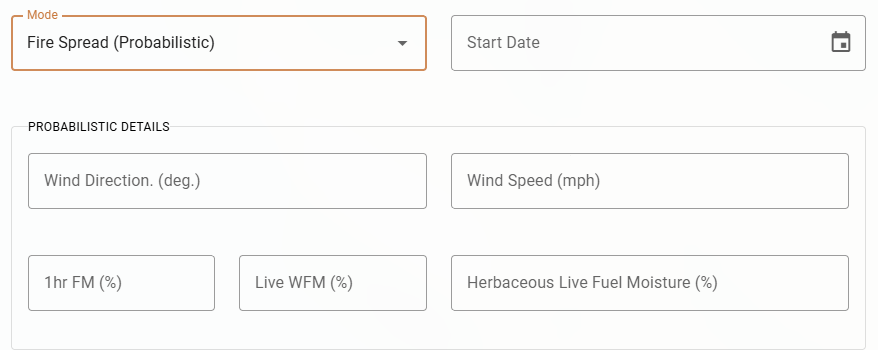
Selecting Fire Spread (Probabilistic) will expand the panel to include probabilistic inputs. Probabilistic mode provides the ability to adjust variability on four inputs:
-
Wind Direction (degrees)
-
Wind Speed (mph)
-
1hr Fuel Moisture (%)
-
Herbaceous Live Fuel Moisture
Probabilistic mode uses a Monte Carlo method to run fifty simulations using the input data and will overlay all simulation outputs together to create a probabilistic surface.
Weather
Select the Weather type: Forecast or Constant
-
Forecast - Indicates that the model should use the selected day’s Weather Research and Forecasting (WRF) forecast. The simulation uses the data for each hour of the forecast to influence fire spread.
-
Constant - Allows the user to set a fixed value for one or more of the adjustable parameters. This value remains fixed for the duration of the simulation.
Fuels
Select the Fuel Scenario. Fuel models will evolve as fuels are updated seasonally. Read more about Technosylva’s fuel models.
Ignition Location
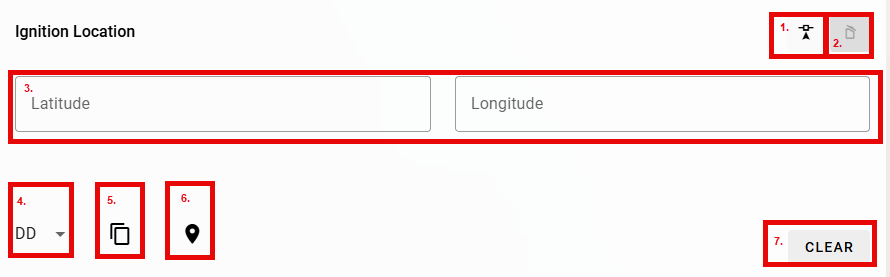
Enter the Ignition Location manually or select a location on the map.
-
Select an Ignition Location on the map.
-
Delete the selected geometry and start again.
-
Enter coordinates manually or copy and paste from another source.
-
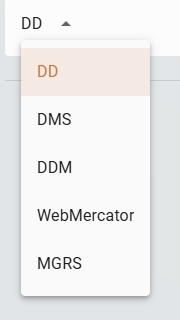
Change Units from decimal degrees (default).
DD - Dropdown -
Copy location to clipboard.
-
Zoom to the location on the map.
-
Clear the existing selection and start again.
Ignition Location: Incident
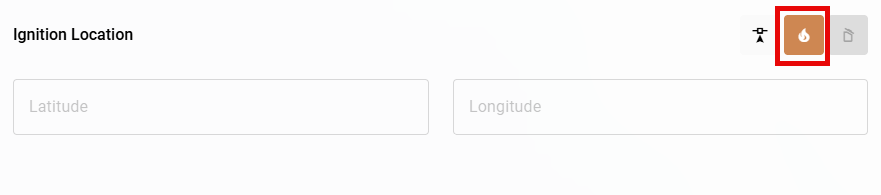
If running an Incident simulation, an additional option appears to populate the incident’s coordinates as the ignition location.
Run the Simulation
Click Run.
The new simulation will appear in the Simulations table.
Return to Simulations for more information on reviewing and comparing simulations.