About
Use Events to track and document operational events, such as Public Safety Power Shutoff (PSPS) events, from first detection through final restoration. Events can be created manually, by drawing an area on the map or selecting circuits, or automatically, when circuits exceed a specified criterion. Monitor which assets are approaching, meeting, or no longer meeting thresholds as forecast conditions change over a multi-day window anchored to Day 0.
Events is an included feature for all Operations Core customers. For more information, please contact your Customer Success representative.
Interface Overview
To access the Events Panel, select Events in the top toolbar in the Operations application.
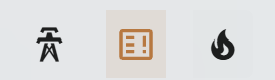
The Events Panel remains open when you open Simulations or Asset List.

Panel Header
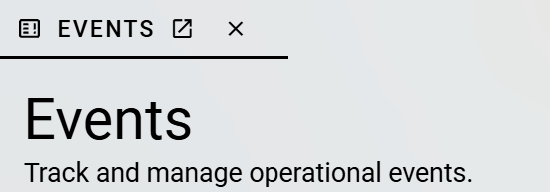
The Panel Header displays the Events tab.
-
Pop-out: Select the pop-out icon next to the tab name to open the panel in a separate window.
-
Close: Select X to close the panel.
If event creation permissions are enabled for your account, a New Event button also appears in the top-right corner of the Panel Header.

Search and Filter

Enter text in Search to filter the event list by event name.
Select a status filter to show only events with that status.
|
Filter |
Shows |
|---|---|
|
All |
All events. |
|
Open |
Events that have been created and are being monitored or planned. |
|
Active |
Events that are underway. |
|
Closed |
Events that have ended. |
Events Table
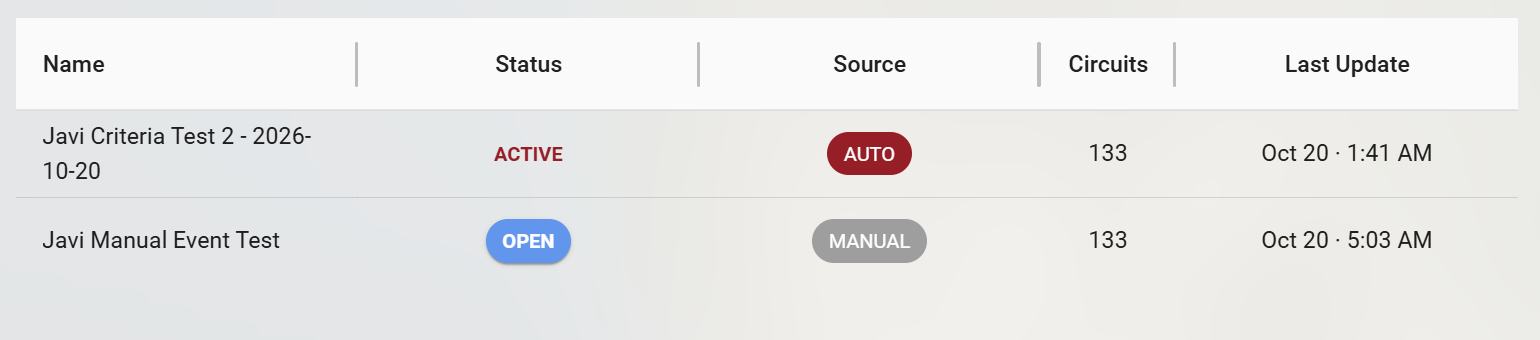
The Events Table lists each event that matches the current search and filter.
|
Column |
Description |
|---|---|
|
Name |
Event name. |
|
Status |
Open, Active, or Closed. |
|
Source |
Auto if Wildfire Operations created the event because circuits exceeded the PSPS trigger criteria in a new forecast run. Manual if a user created the event. |
|
Circuits |
Number of circuits in the event. |
|
Last Update |
Date and time of the most recent change to the event. |
Select an event to open the Event Details Panel.
Event Details Panel
The Event Details Panel shows the scope, criteria, forecast history, and change log for a single event. Use this panel to review how an event has changed over time.
To access the Event Details Panel, select an event in the Events Panel.
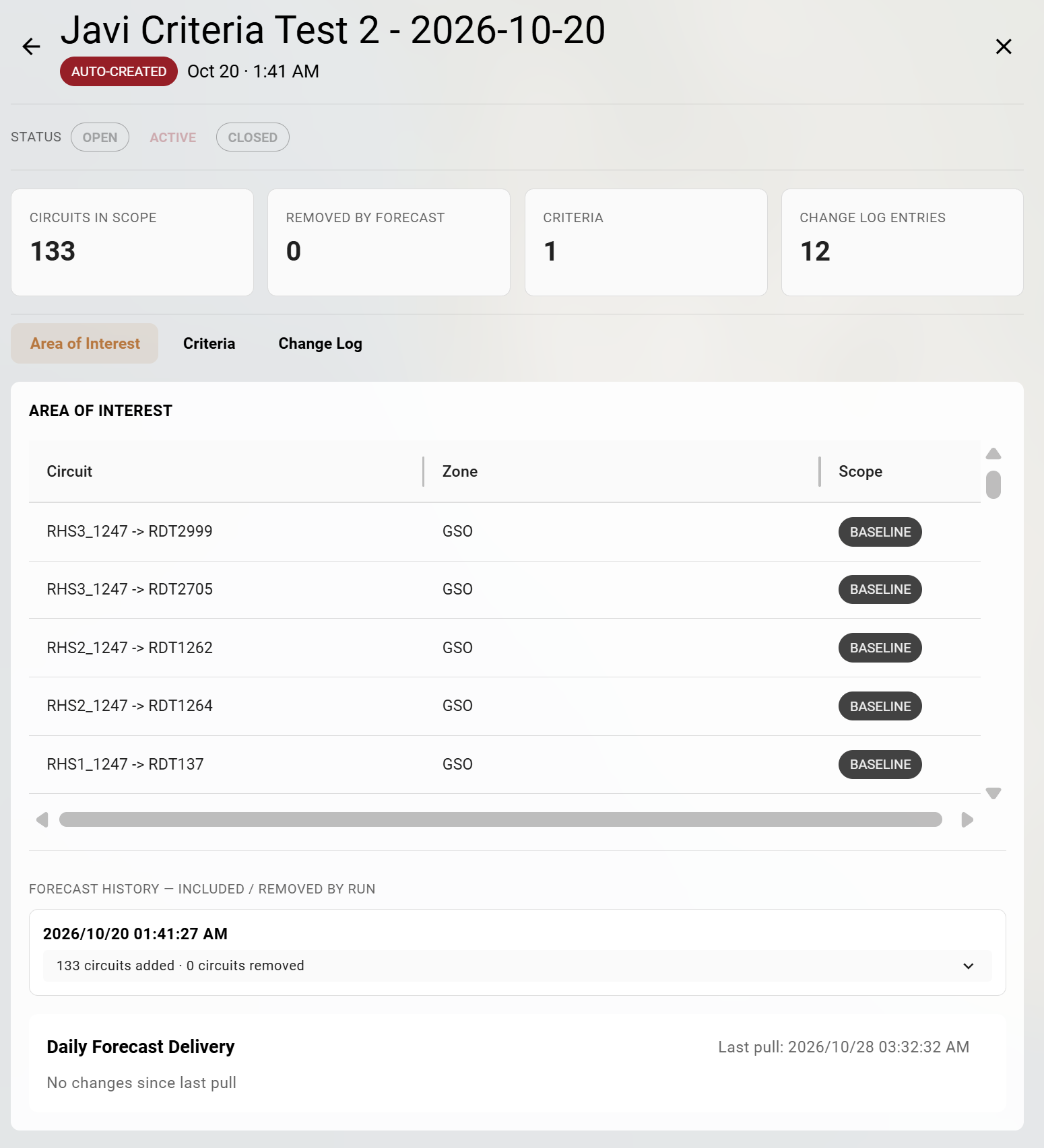
Header
The Header displays the event name, event type, creation method (for example, Auto-Created), status, and the date and time the event was created.
-
Back: Select the back arrow to return to the Events Panel.
-
Close: Select X to close the panel.
Summary Cards
|
Card |
Description |
|---|---|
|
Circuits in Scope |
Number of circuits currently in the event. |
|
Removed by Forecast |
Number of circuits removed because a later forecast run no longer exceeded the criteria. |
|
Criteria |
Number of criteria applied to the event. |
|
Change Log Entries |
Number of entries in the change log. |
Area of Interest Tab
The Area of Interest tab lists the circuits in the event, followed by the forecast history and the latest forecast delivery.
Circuit Table
|
Column |
Description |
|---|---|
|
Circuit |
Circuit identifier. |
|
Zone |
Zone the circuit belongs to. |
|
Scope |
Baseline if the circuit was in scope when the event was created. Added if it was added by a later forecast run. |
Forecast History
Forecast History lists each forecast run that changed the event scope. Each entry shows the run date and time and the number of circuits added and removed. Select the arrow on an entry to expand it and see which circuits changed.
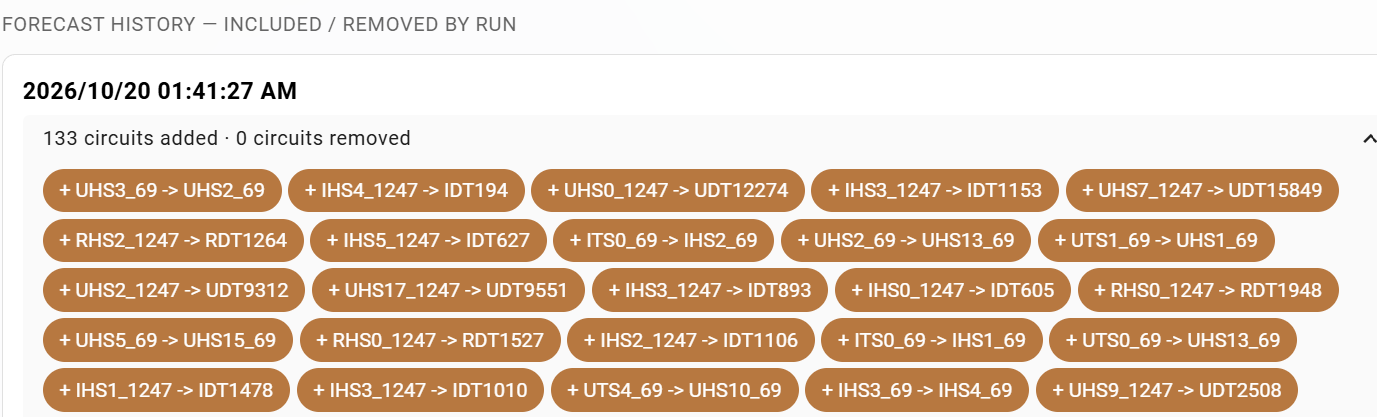
Daily Forecast Delivery
Daily Forecast Delivery shows the date and time of the last forecast pull and whether that pull changed the event scope.

Criteria Tab
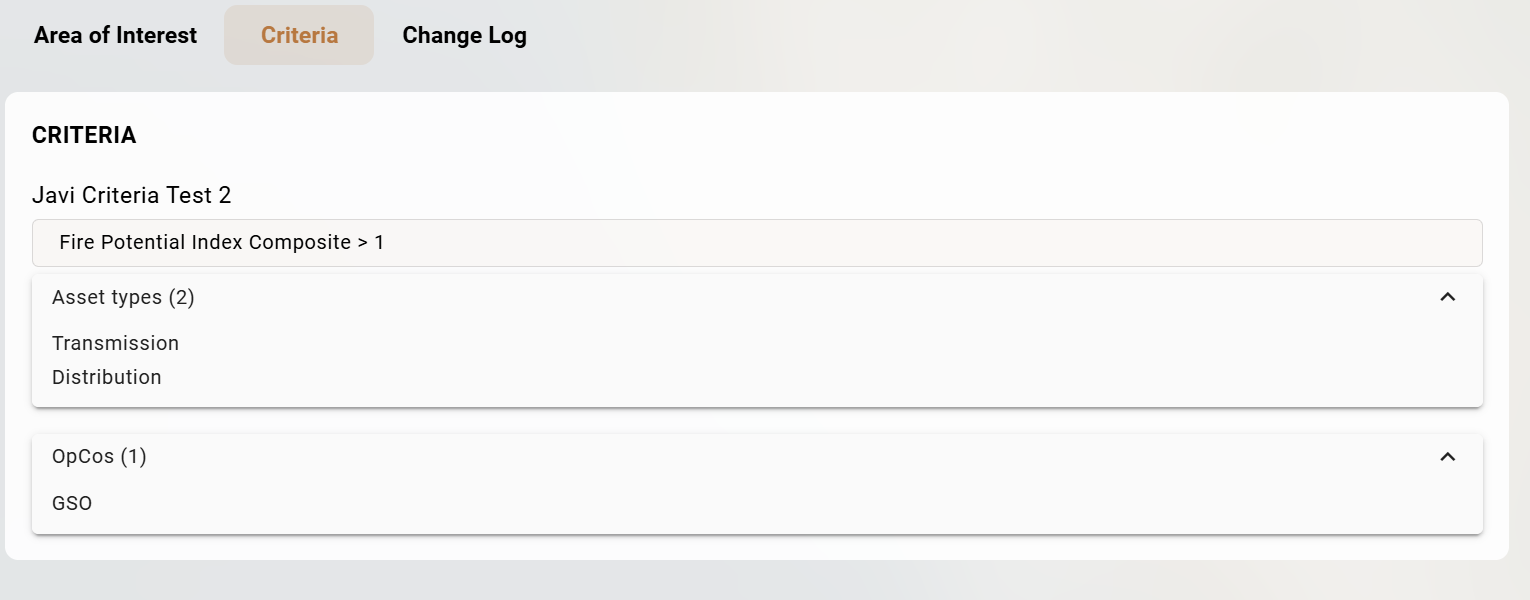
The Criteria tab shows each criterion applied to the event.
Each criterion displays:
-
Name: The criterion name.
-
Condition: The metric, operator, and threshold value.
-
Asset types: The asset types the criterion applies to. The number in parentheses shows how many are selected. Select the arrow to expand the list.
-
OpCos: The operating companies (OpCos) the criterion applies to. The number in parentheses shows how many are selected. Select the arrow to expand the list.
Change Log Tab
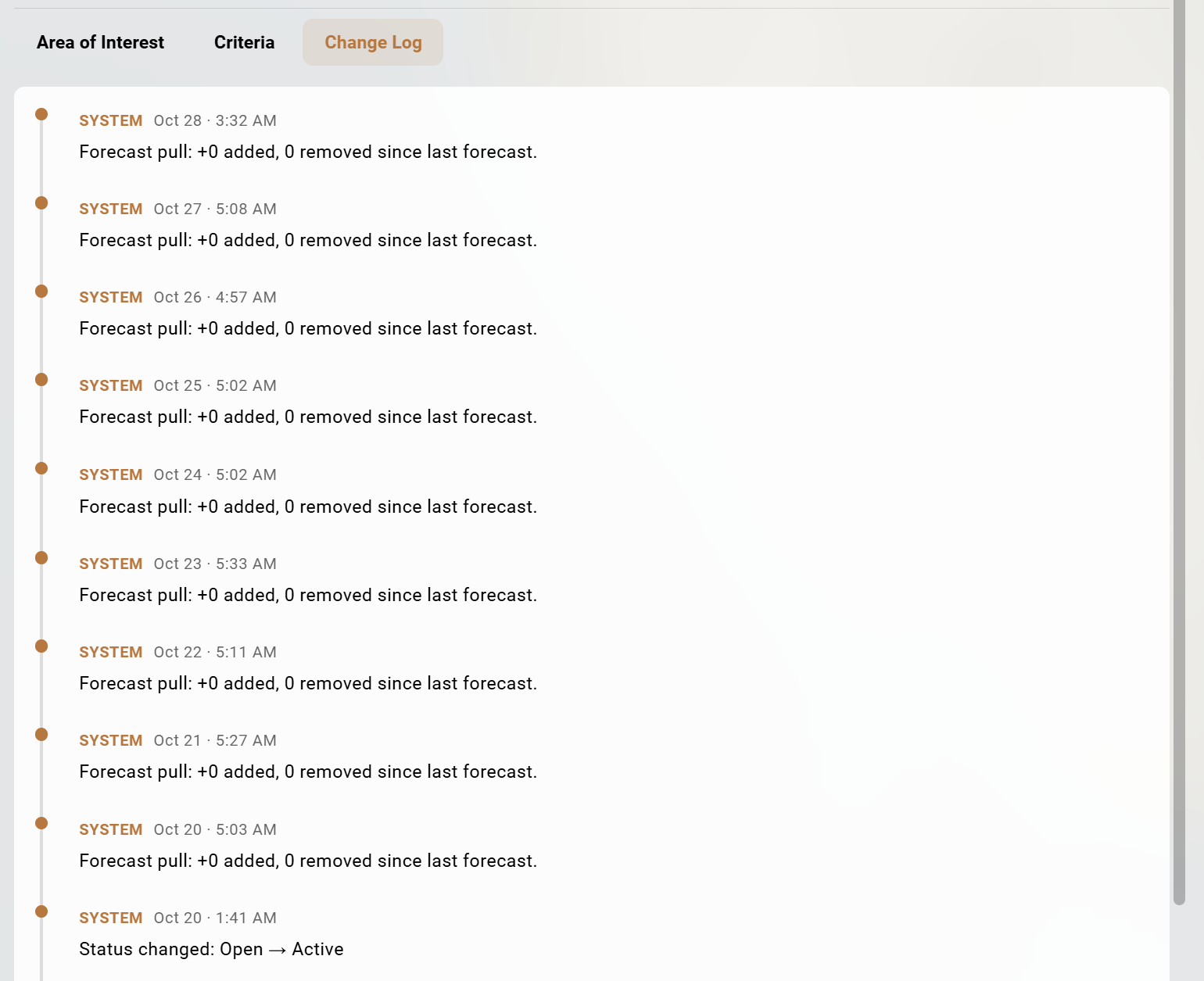
The Change Log tab lists changes to the event in reverse chronological order, with the most recent entry at the top.
Each entry displays:
-
Source: Who made the change. Changes made by Operations display System and changes made manually by a user display User.
-
Date and time: When the change occurred.
-
Description: What changed.
The change log records the following types of changes:
|
Entry |
Description |
|---|---|
|
Forecast pull |
A new forecast was retrieved. The entry shows the number of circuits added and removed compared with the previous forecast. An entry is added for each pull, including pulls that do not change the event scope. |
|
Status changed |
The event status changed, for example, from Open to Active. |
New Event
Use New Event to create an event manually. See Automatic Events for automatic event creation.
If event creation permissions are enabled, the New Event button will appear in the Panel Header of the Events Panel. If you believe these permissions should be enabled for your account, please contact your organization’s administrator.
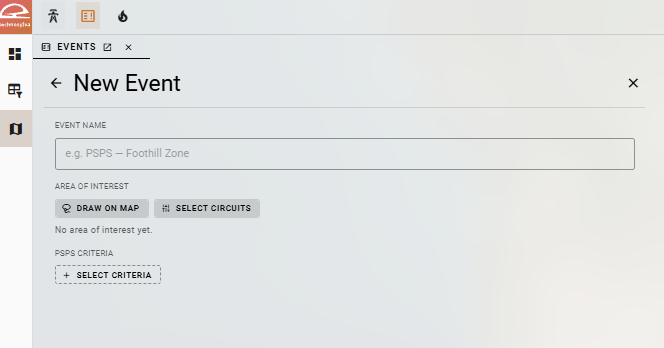
-
Back: Select the back arrow to return to the Events Panel without creating the event.
-
Close: Select X to close the Events Panel.
Event Name
Enter a descriptive name for the event in Event Name. Names can be up to 100 characters.
Area of Interest
Define the circuits included in the event using Draw on Map or Select Circuits.
Draw on Map
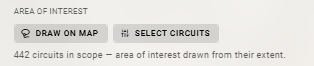
Click Draw on Map to select the desired area on the map. The event includes the circuits within the area. Click on the map to begin drawing and double-click to save the drawing when you are finished. Click Draw on Map again to select a new area replacing the previous selection. Click Cancel Drawing to exit the drawing tool.
The total number of circuits in scope is shown below the Area of Interest options.
Select Circuits
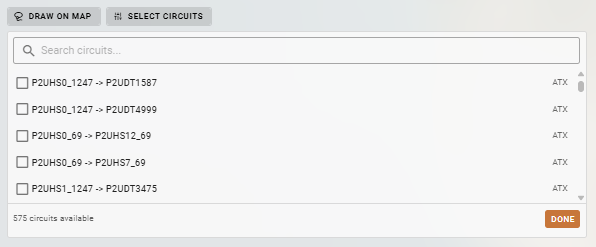
Click Select Circuits to choose circuits from a list. Enter text in the search bar to filter the list by circuit identifier. Then, select the check box next to each circuit to include in the event. The zone for each circuit is shown on the right. The number of available circuits is shown at the bottom of the list. Select Done to add the selected circuits to the event.
Select Circuits can also be used to refine the selection created by the Draw on Map tool. Draw the area on the map, then click Select Circuits and select or clear circuits.
PSPS Criteria
Select Select Criteria to choose one or more PSPS criteria to apply to the event. Click Done to save.
Create Event
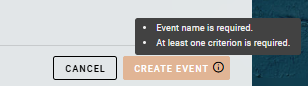
Create Event remains unavailable until the event has a name and at least one criterion. Hover over Create Event to see which information is missing. Click Create Event to save the event or Cancel to return to the Events Panel without creating the event.
Automatic Events
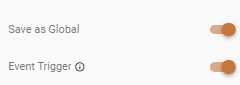
To create events automatically, use the Criteria Builder to create a criterion and turn on the Event Trigger toggle. When circuits exceed the criterion, Operations automatically creates an event and updates it until a user closes it.
The Event Trigger is only available for global criteria. Global criteria are saved criteria that are available to all users in your organization, unlike user criteria, which are visible only to the user who created them. Only users with permission to create global criteria can save them.