
This section explains how to create, manage, and customize configurations in FireCast. Configurations define the fire environment conditions, model parameters, and outputs that shape your fire growth simulations.
Understanding Configurations
A configuration is a comprehensive set of parameters that determines how FireCast models fire growth. While your agency supplies foundational data such as fuels and topography grids, configurations allow you to tailor model outputs to reflect real-world conditions or specific scenarios.
Numerous configurations may co-exist, though there are practical limitations due to the modeling load on the infrastructure. Configurations may overlap spatially across your landscape.
Configuration Permissions
Your FireCast administrator controls configuration access:
-
Agency-wide defaults: Provided for all users; may be locked from editing depending on user account capabilities.
-
User configurations: Created by authorized users for personal use.
-
Shared configurations: Promoted for agency-wide use (requires permissions).
Creating a New Configuration
To create a configuration:
-
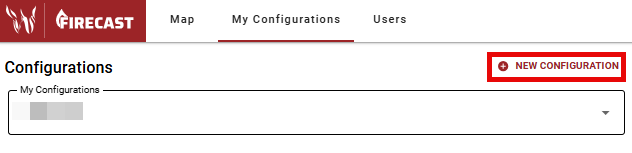
Select the My Configurations tab at the top of the FireCast window to view all configurations available to you. If you do not have this option, contact your FireCast administrator.
-
Click New Configuration to open the configuration form.
Basic Settings
-
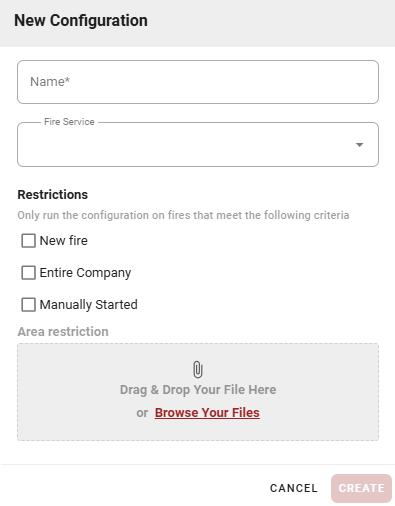
Name (Required): Choose a clear, descriptive name. Establishing a consistent naming pattern helps manage multiple configurations.
-
Fire Service: Select your agency from the dropdown. This cannot be changed after setup. This list may differ based on access rights of your agency and your account.
-
Restrictions: Define when simulations trigger and who can access the configuration. These settings are permanent after creation.
-
New Fire: Limits simulations to newly reported fires. Useful for initial attack decisions and prioritizing new starts. A single New Fire configuration will prevent non-New Fire configurations from simulating new ignitions.
-
Entire Company: Makes the configuration available to all agency users. Best for administrator-created standards.
-
Manually Started: For user-initiated simulations on existing fires. These configurations only run when triggered manually, providing a toolbox for specialized scenarios.
-
If no restrictions are selected, the configuration models all fires (with consideration of New Fire configurations) and remains active until disabled.
Area Restriction
Simulations run within a specified geographical area, defaulting to your agency boundary or administrator-defined area. With appropriate permissions, you can define specific areas using GeoJSON polygon files.
Uploading Custom Areas
-
Drag and drop or browse for your GeoJSON polygon file.
-
Multi-polygons are supported.
-
Point and line files are not currently supported (as they may not define a boundary).
Creating GeoJSON Files
-
Create a new file at: https://geojson.io/ .
-
Convert from vector shapefiles using ArcGIS or QGIS.
-
Convert from other spatial formats at: https://mygeodata.cloud/ .
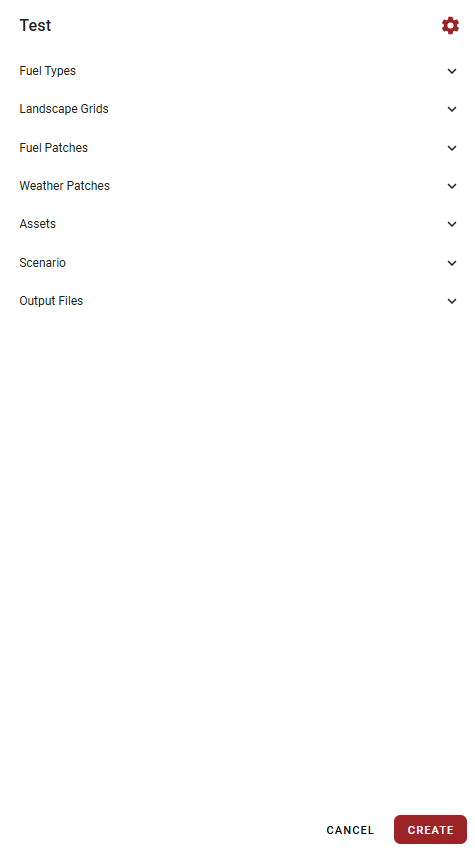
Click CREATE to finalize the configuration. A new panel will appear on the left side of the screen.
Editing Configurations
Configuration Settings
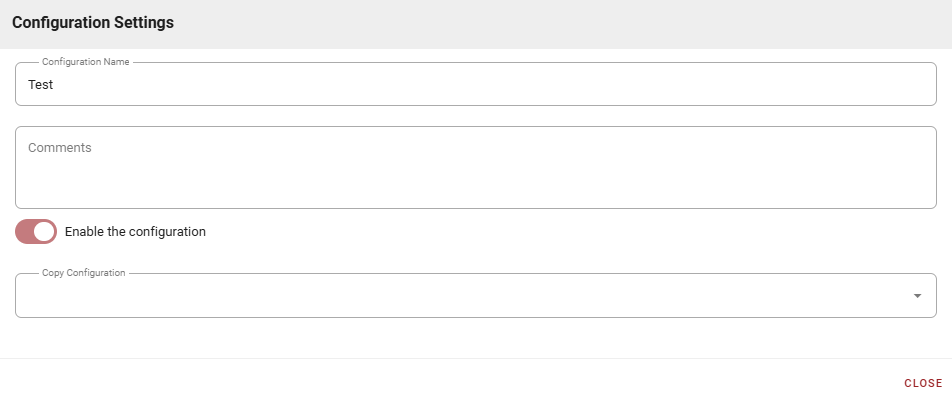
Click the gear icon next to a configuration to:
-
Rename the configuration.
-
Add comments for documentation.
-
Enable/disable the configuration.
-
Copy settings from existing configurations using the Copy Configuration dropdown. This duplicates all parameters, saving setup time. Selecting None starts from defaults. Depending on the type of configuration, this option may not always be available.
Fuel Types
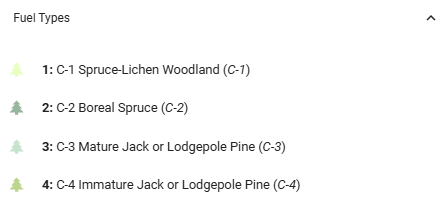
Your agency provides fuel type grids. In Canada, these align with the Canadian Forest Fire Behaviour Prediction System fuel types. Although fuel type properties are fixed in FireCast, you can adjust their application using Fuel Patches.
Landscape Grids
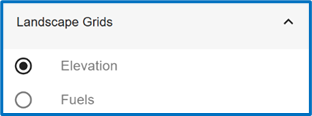
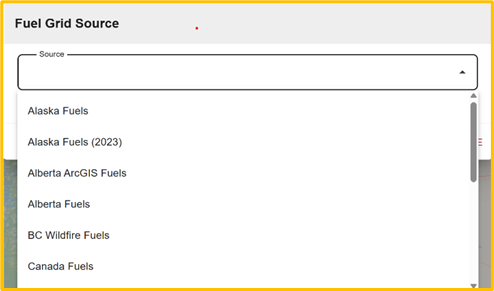
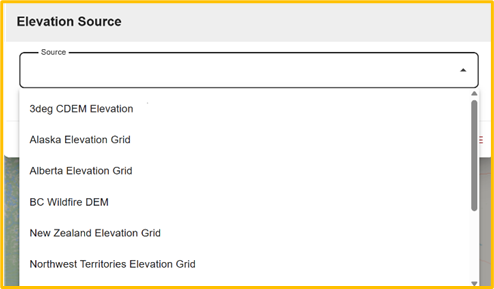
Agencies supply landscape grids for Elevation and Fuels. In Canada, sources may be agency-specific or from national datasets. Ensure your selected fuel grid matches your intended use in both resolution and location. The look-up table for fuels will already be preconfigured to be appropriate for your fuel grid.
Fuel Patches
Fuel patches allow detailed control over fuel conditions for specific times or areas. Many are pre-configured for seasonal conditions. Patches use start/end dates and can be sequenced, as well as overlapped spatially and temporally.
-
Patches offer more control than external data but require more setup.
-
The system applies patches first, then seasonal conditions, then external sources.
-
Avoid combining patches and seasonal tables unless you understand the hierarchy.
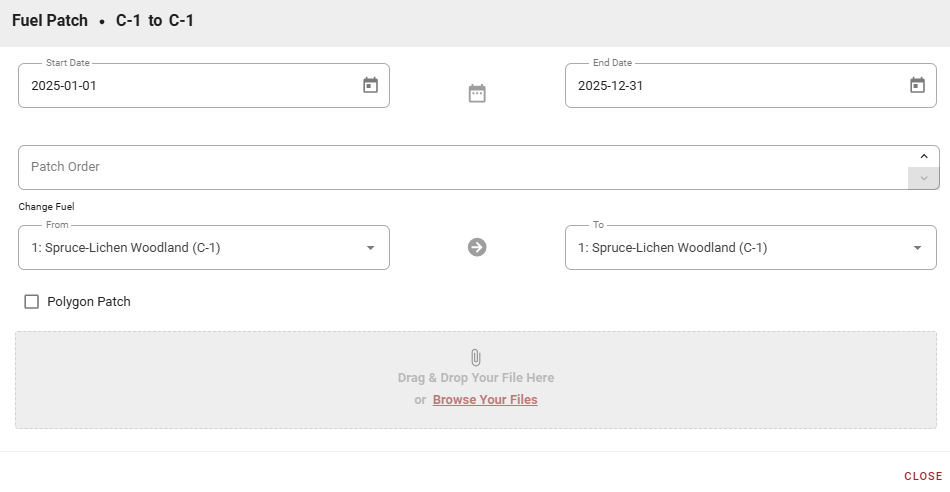
Creating a Fuel Patch
-
Select New Fuel Patch.
-
Set start and end dates.
-
Order patches if multiple are active.
-
Select and change fuel types as needed.
-
Use Polygon Patch to upload GeoJSON polygons; the default covers the entire area. Multi-polygon patches are supported. When applied to the fuel grid, a patch applies if the grid cell's center lies within the polygon.
The list includes “all fuels” and “all combustible fuels”.
Weather Patches
Weather patches modify weather variables across the entire configuration area for defined time periods.
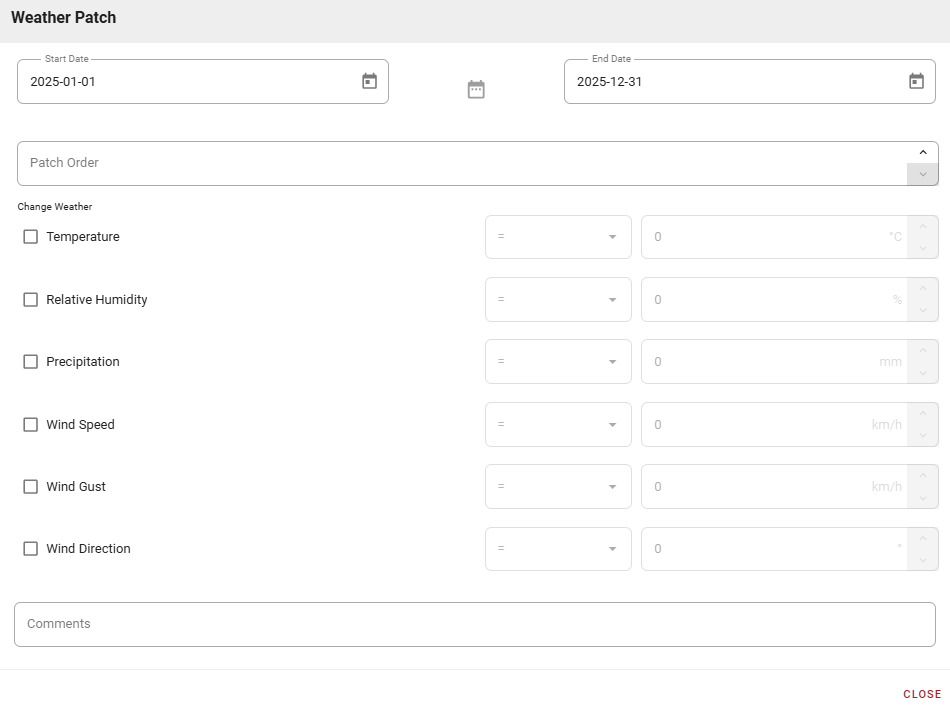
Creating a Weather Patch
-
Select New Weather Patch.
-
Set start and end dates.
-
Order patches if multiple are active.
-
Modify weather variables (Temperature, Relative Humidity, Precipitation, Wind Speed, Wind Gust, and Wind Direction) using:
-
Constant values
-
Addition/subtraction
-
Multiplication/division
-
Wind gusts: Can be multiplied/divided relative to either wind gusts or wind speed
-
Wind direction: Can be specified as constant or within a directional range
-
Assets
Your agency provides Assets or Values At Risk (VARs) within the configuration area. The agency supplies this data when available.
At this time, Assets are important for two purposes:
-
Critical fire paths
-
Fire arrival times
Point data is most efficient compared to line or polygon data. Multi-point, multi-line, and multi-polygon datasets are accepted. It is up to the data provider, not Technosylva, to address any concerns about data security.
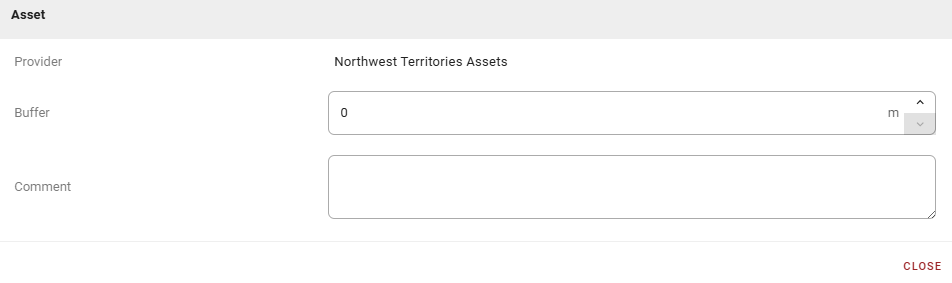
In the Asset dialog, you can:
-
Define a Buffer around non-polygon Assets.
-
Add Comments for documentation.
Scenario
The Scenario section defines input data and model parameters for fire growth simulation.
Inputs
-
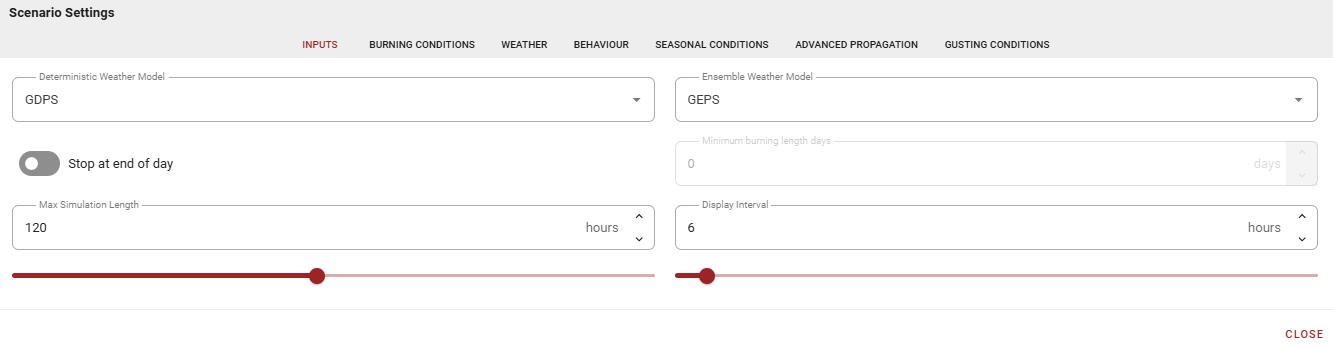
Weather Models: select up to one Deterministic and one Ensemble weather model. Your agency may limit available models.
-
A Deterministic model uses one weather model input.
-
An Ensemble model includes one weather control member and any number of variations. All models are simulated and the results are combined. You cannot select a subset of Ensemble members.
-
“Do not run” lets the user choose to model only a Deterministic weather model, or only an Ensemble weather model.
FireCast does not check the validity of choice of weather models versus the selection of outputs. For example, a choice of only a Deterministic weather model, with only Ensemble outputs may result in no outputs being generated by the configuration.
-
Simulation Duration:
-
End at a Specific Day: Stops at midnight of the chosen day, useful for comparing multiple fires, where the Fire Behavior Analyst (FBAN) wants to compare growth to midnight. As an example, a duration of 48 hours will complete any time between 25 hours and 48 hours, depending on the starting hour of the simulation.
-
Maximum Simulation Length: Specify up to 240 hours, limited by weather model data.
-
Ensure your weather model covers the area and duration needed. If the maximum simulation length exceeds the duration of the choice of the weather model, then the lessor of both values will be used for modeling.
Display Interval is the time between fire growth isolines in Deterministic models (default: 6 hours). Reduce for more detail in short simulations. The same interval is used for all temporal outputs.
Burning Conditions
Burning Conditions define daily burning periods and fire behavior thresholds that determine when and under what conditions fire growth occurs. Burning Conditions use start dates and persist until superseded by new conditions or calendar year end.
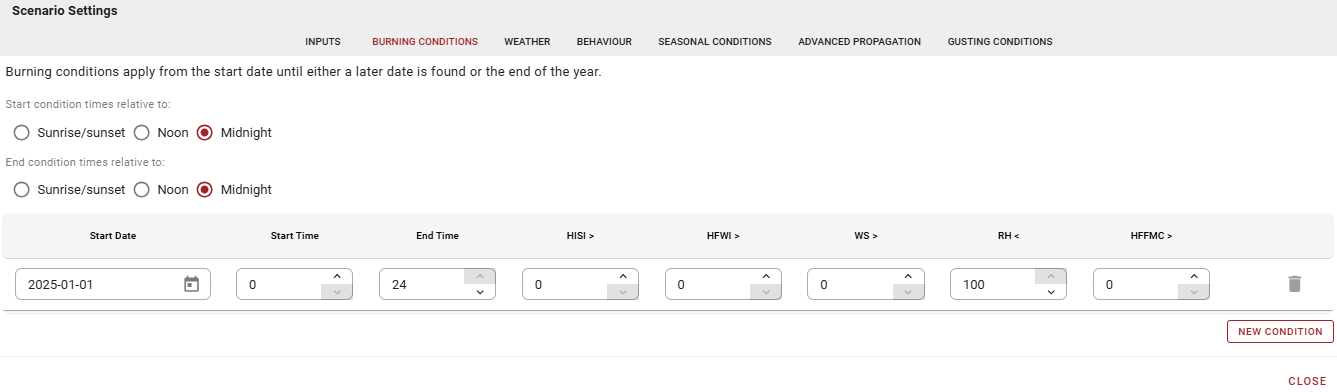
Recommendations for Burning Conditions:
-
The first entry should start January 1 of current year (avoids system defaults).
-
Add subsequent entries as needed for seasonal changes.
-
The final entry persists through year end.
-
If the configuration applies to the southern hemisphere, set the first and last entries the same to maintain consistent fire growth conditions during summer.
Choose reference points (Sunrise/Sunset, Noon, Midnight) and set start/end times.
Examples:
-
Reference: Midnight, Start: 10, End: 20 = burns 10 AM to 8 PM
-
Reference: Noon, Start: 10, End: 20 = burns 10 PM to 8 AM
-
Reference: Sunrise/Sunset, Start: 2, End: 2 = burns 2 hours after sunrise to 2 hours after sunset
Mixed references ARE allowed (e.g., start at Noon, end at Midnight). It is possible to create invalid combinations of values and it is currently up to the user to ensure that such situations are avoided. Although the modeling engine will consider no sunrise or sunset in very north latitudes, other combinations can occur where the burning period start time would begin after the end time. In these situations, the modeling output will be undefined and must be considered invalid.
Set fire behavior thresholds for when burning is allowed.
-
Hourly Initial Spread Index (HISI): Fire burns only when >= specified value.
-
Hourly Fire Weather Index (HFWI): Fire burns only when >= specified value.
-
Wind Speed (WS): Fire burns only when >= specified value. If gusting is applied, then the wind speed used here will be either the prevailing wind speed, or gusting, depending on the selected heuristic for gusting.
-
Relative Humidity (RH): Fire burns only when =< specified value.
-
HFFMC (Hourly Fine Fuel Moisture Code): Fire burns only when >= specified value.
Multiple conditions with different start dates automatically affect simulation outputs. Use with care, as settings can interact and cause inaccurate results if not properly configured. All conditions above must pass for a vertex to grow in a given time step.
Weather
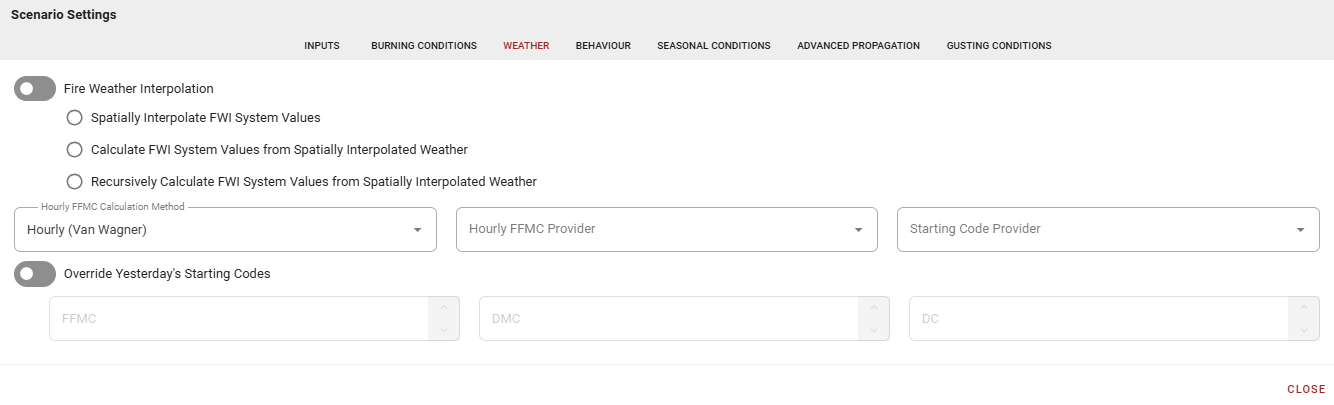
The Weather tab controls how FireCast calculates fire weather indices and fuel moisture.
-
Fire Weather Interpolation determines howFire Weather Index (FWI) values are calculated across the landscape.
-
Off (Default): Values assumed spatially constant. Best for computation performance.
-
Spatially Interpolate FWI Values: Interpolates among weather stations using inverse distance weighting.
-
Calculate FWI System Values: Goes back one time period, interpolates starting codes using inverse distance weighting, spatially corrects current weather using adiabatic lapse rate, then calculates current FWI at fuel grid resolution.
-
Recursively Calculate FWI Values: Similar to above but goes back up to 52 days to ensure all FWI values reach equilibrium.
-
Contact Technosylva Support for current development status before using interpolation options given the choice(s) of weather models and your geographic region. These can work with multiple weather streams but have increasing computation costs—best for analysis, not real-time modeling.
-
The Hourly FFMC Calculation Method dropdown includes three methods for calculating Fine Fuel Moisture Code (FFMC):
-
Van Wagner's Hourly Method: Responds to precipitation immediately; relatively flat diurnal curve when considering conditions such as relative humidity without precipitation.
-
Lawson's Diurnal Method: Greater response to RH in FFMC variation through 24 hours, but doesn't capture precipitation until next day's reporting period.
-
Anderson's Equilibrium Method: Fuel moisture constant with atmospheric RH; can drive FFMC to respond to precipitation quicker than Lawson’s, but with greater diurnal variation than Van Wagner, possibly to excessive levels.
-
Correct selection of HFFMC calculation will require knowledge of behavior of each of these approaches given your geographic area and season.
-
If available, select an Hourly Fine Fuel Moisture Code (FFMC) Provider. If unavailable, FireCast assumes daily FFMC at 17:00 local daylight time and back-calculates using Equilibrium method.
-
Starting Code Provider defaults to your Fire Service's reported daily codes. Select your Fire Service when available.
-
Overriding Starting Codes is a useful analytical tool for adjusting Fire Weather Index (FWI) moisture code values to reflect localized conditions (aspect, soil moisture, observed fire behavior). Use carefully for specific circumstances for interactive modeling and avoid for automated operational modeling.
Behavior
The Behavior tab includes calibration parameters for adjustment after reviewing outputs.
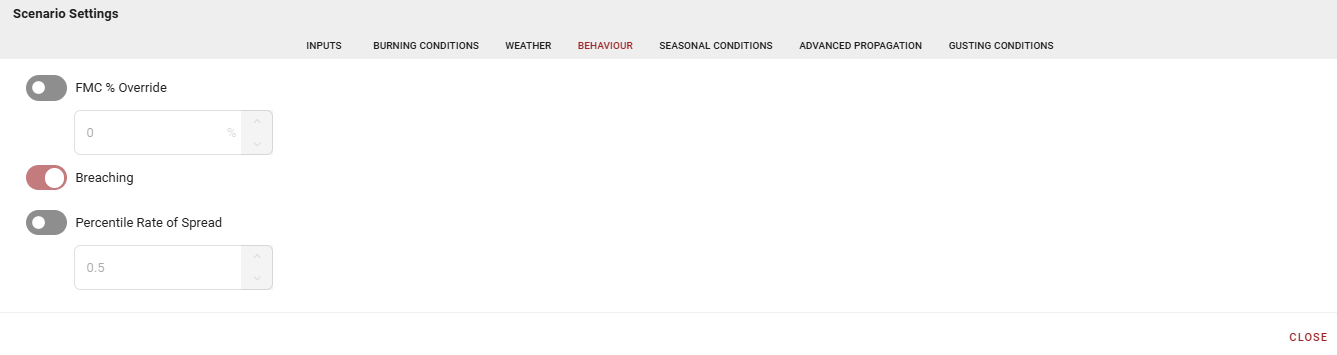
These settings apply to all simulations using this configuration automatically—understand their broad impact before making changes. Apply one at a time to gauge impact.
-
FMC % Override adjusts for seasonal or other variations in Fuel Moisture Content (FMC) (e.g., spring dip in coniferous fuels, distressed stands). If a value is not provided, the model uses the CFFDRS equation based on latitude, longitude, and Julian calendar.
-
Breaching considers radiant heat (through Flame Length (FL)) to allow fires to grow past non-fuel barriers. This mode is not spotting, nor does it consider spotting. At typical modeling resolutions, breaching may occur across cell corners and across vector breaks.
-
Percentile Rate of Spread defaults to 50th percentile, reflecting typical fire growth during equilibrium per W. John Braun’s publications. This can be modified for growth in specific fuel types or wind conditions, but applies to all applicable fuels in simulation. Use with caution and review outputs carefully.
Seasonal Conditions
Configure the fire environment according to changing seasonal fuel conditions. Settings affect the entire geographical area.
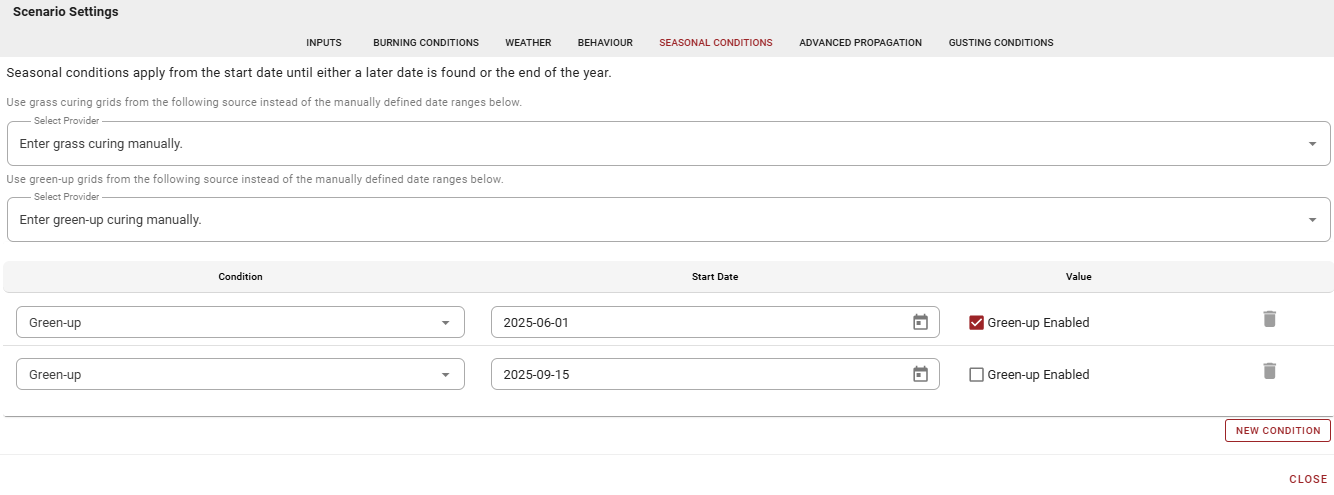
-
Grass Curing defines the percentage of cured (dead) grass relative to green growth. Generally speaking, through a season, spring will often starts at 100% as snow recedes, leaving dried, dead matted grass at peak volatility. Then, in summer, curing diminishes as grass grows and greens; becomes fire barrier when cured-to-green ratio falls below 50%. In fall, standing grass begins curing, reflecting increasing volatility as percentages rise.
When configured for manual entries, we recommend using January 1 as the start date with 100% curing (or a similar value) to capture early season conditions. Then, add entries to reflect seasonal changes for the applicable area. Default grass curing is 60%, used if no values are provided.
-
Green-Up indicates deciduous trees budding and leafing out, making surface fuels less flammable. This setting applies to composite fuel types such as D1/D2 and M1/M2, but not to fuel types that are specifically D1, or D2, or M3 (for example). The composite fuel types respect the green-up state where other fuel types do not. Similar to adding a fuel patch:
-
The D1/D2 composite fuel type will act as either DI or D2.
-
The M1/M2 composite fuel type will act as either MI or M2.
-
The M3/M4 composite fuel type will act as either M3 or M4.
-
Green-up, when on and applied, significantly diminishes fire growth potential in deciduous and mixedwood stands.
-
Grass Phenology indicates whether grass is to be standing or matted, and only applies to the composite O1a/O1b grass fuel type. This setting does not apply to specifically O1a or O1b.
-
To Select Provider for Grass Curing and Green-Up:
-
Manual: Leave on manual (default) to build custom tables adjusted for local shoulder season conditions.
-
Define conditions by date with:
-
Grass Curing: Date and percentage
-
Green Up: Enable/disable
-
Standing Grass: Enable/disable
-
-
-
Automatic: Choose Fire Service or CWFIS grids (when/where available) from the Select Provider drop-down.
-
Custom tables may conflict with Fuel Patches. Review Seasonal Conditions settings before constructing patches.
Fuel patches are applied to the fuel grid before seasonal conditions are applied to fuels selected for modeling. E.g. if the fuel grid contains D1/D2 but a fuel patch changes D1/D2 to D2, then the model will use D2 and ignore any applicable seasonal conditions (because D2 ignores the green-up state).
Manual tables capture temporal changes across the landscape but apply equally across the fuel grid. Automatic grids (e.g. from CWFIS) grids will capture spatial variation at the current moment in the calendar year, but will not predict changes through the course of the simulation.
Both manual tables and automatic grids have their uses. For example, for a short duration simulation of one to three days, seasonal changes may not be particularly important if the expectation is little change in these values will occur during the simulation. However, if the simulation is for 10 days, then seasonal changes captured by manual tables may be very important, particularly during green-up.
Advanced Propagation
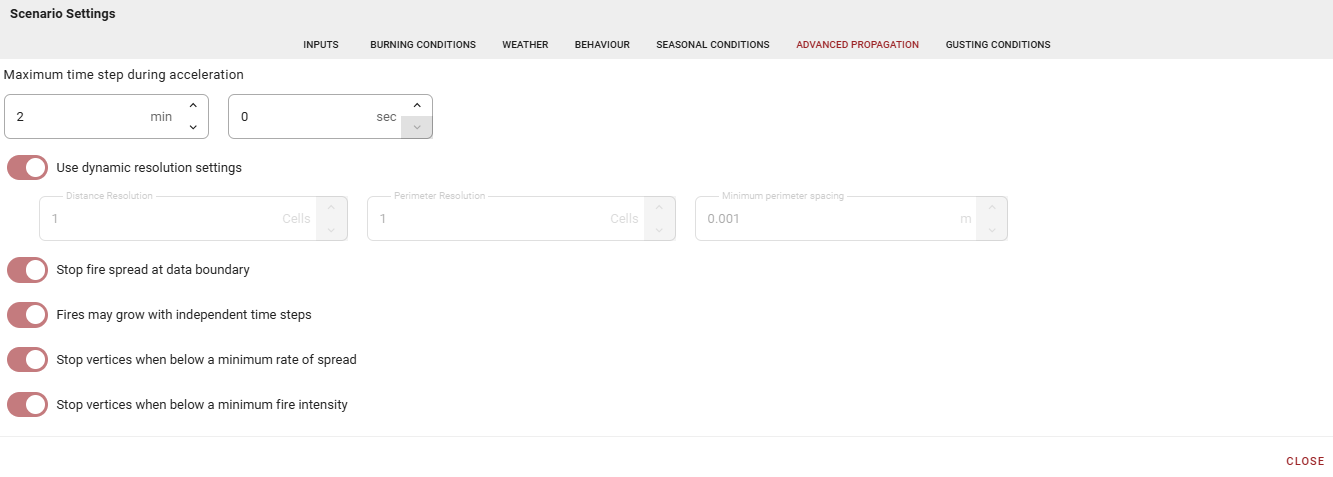
Adjust spatial and temporal modeling resolution.
-
Maximum Time Step During Acceleration reflects the accepted rule that fire reaches equilibrium growth at 20 minutes from point ignition. The default forces 10 samplings during this period (two minute maximum time step). This is only applicable to point ignitions.
-
Use Dynamic Resolution Settings allows management of distance and perimeter modeling parameters to balance grid resolution, fire size, and performance (default: on). As a fire grows, parameters increase upon reaching specific thresholds, affecting time steps and sampling rate while accounting for increased variability. Current settings rely on overall observations; if they do not suit current modeling needs, discussion can determine better dynamic resolution parameters.
If this setting is disabled, then the following options are available:
-
Distance and Perimeter Resolution can be adjusted but depend on each other, and are expressed in units of grid cells (not in meters).
-
A value of one for the Distance Resolution indicates that the largest distance any vertex can travel in a given step size is one grid cell, and determines the temporal sampling of the fire’s perimeter on the landscape.
-
A value of one for the Perimeter Resolution indicates the largest distance between any two perimeter vertices in a straight line is one grid cell. This value determines the spatial sampling of the fire’s perimeter on the landscape. As the eccentricity of the fire perimeter increases, this threshold is automatically reduced to ensure that the partial-differential equations have adequate sampling to maintain realistic growth and curvature of the fire perimeter. New vertices are introduced in any portion of the perimeter to meet this local condition.
-
Larger spacing may generate coarser outputs and specific features on the landscape may be missed during modeling. This may be suitable for large fires with homogeneous fuels over extended periods, but may not be desirable in heterogenous conditions.
-
-
Minimum Perimeter Spacing defines the minimum distance between neighboring perimeter vertices, measured in meters. When vertices are too close, one is removed. The correct spacing reduces the number of vertices without distorting the perimeter's elliptical shape. Optimizing vertex count improves performance.
-
-
Stop Fire Spread at Data Boundary: operational modeling of fires shouldn't be affected unless running extremely fast - this setting is present primarily for static analysis (default: on). Report any occurrences so automatic clipping can be adjusted.
-
Fires May Grow With Independent Time Steps applies to static analysis, not real-time fire modeling (default: on). Each fire is modeled independently in FireCast. Where two fires are modeled in the same simulation, this setting will optimize the step sizes and growth of the individual fires to:
-
Stop Vertices When Below a Minimum Rate of Spread
-
Stop Vertices When Below a Minimum Fire Intensity
-
For greater detail, see Development and Structure of Prometheus: the Canadian Wildland Fire Growth Simulation Model, p. 34
Gusting Conditions
Gusting Conditions settings are experimental features used successfully in specific situations. They apply to wind speeds affecting Rates of Spread (ROS) indirectly through Fire Behavior Prediction (FBP) equations. These settings do not change Fire Weather Index (FWI) values, maintaining non-linear relationship between gusting and ROS. They do not affect influence of slope or aspect on wind.
Not all weather models provide gusting data. In this situation, the gusting options are ignored.

-
Gusting Level
-
None: no gusting applied (default).
-
Average: Averages forecasted gusting and wind speed throughout the hour. Percent gusting determines weighting in the equation combining wind speed with gusting. Select 50% for equal weighting.
-
Time Derived: Re-evaluates windspeed and distributes gusting or forecasted windspeed evenly and consistently through the hour. Algorithm introduces sub-hourly calculation timesteps triggering recalculation events (consistent with Prometheus/WISE event-driven modeling).
-
Available Parameters:
-
Percent gusting
-
Gusting bias (start/middle/end)
-
Gusts per hour
-
-
-
ROS Derived: Leverages internal time steps calculated using perimeter thresholds. Determines whether next sub-hourly time step should use gust wind speed or regular wind speed, targeting specified percentage of hour for gusting. Where time-derived gusting is consistent across hours, this approach adjusts based on simulation modeling, and will target the percentage of gusting per hour, at the completion of the hour.
-
Available Parameters:
-
Percent gusting
-
Gusting bias (start/middle/end)
-
-
-
-
Gusting Bias defines whether gusting occurs at:
-
Start of time quanta (hour)
-
Middle of time quanta
-
End of time quanta
-
Statistical preference chosen should not significantly alter output.
-
Percent Gusting defines what percentage of an hour uses either forecasted windspeed or gusts. Example: 20% at 5 gusts per hour = 2.4 minutes gusting and 9.6 minutes forecasted windspeed per 12-minute period.
-
Gusts per Hour defines the number of gusting periods per hour. Gusting bias determines when within each quanta gusting applies. Example: 5 gusts per hour = gusting every 12 minutes
Output Files
Configure downloadable data and reports before running simulations. FireCast generates only the statistics and output files defined in this section, so it is possible that a configuration would generate no outputs.
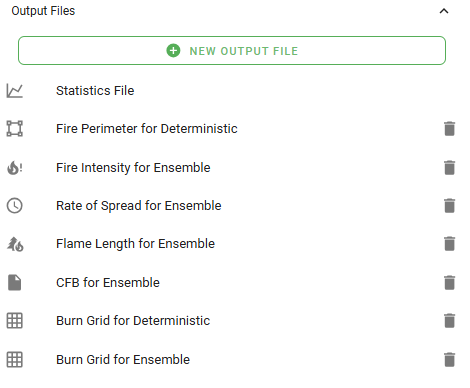
To create an output file:
-
Select New Output File.
-
Choose File Type.
-
Set Interpolation Method (Closest Vertex, Inverse Distance Weighted, Area Weighted).
-
Select Weather Model (Deterministic or Ensemble).
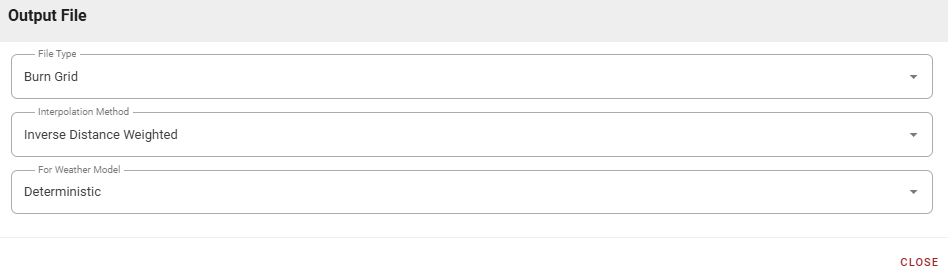
Interpolation Method: Configures how vertices inform simulation raster outputs. Each modeled grid cell contains Fire Behavior Prediction (FBP) system, weather, and Fire Weather Index (FWI) values that can be spatially displayed in grids equivalent to the original raster fueltype grid. Three vertex-to-raster interpolation techniques characterize fire and environment:
-
Closest Vertex (Preferred): Constrained to active vertices; best performance. Exports statistics for vertex closest to raster grid cell center.
-
Inverse Distance Weighted (Default): Determines values by weighting distances between vertices and cell centroid, combined with fire values at vertices. More complex computation examining vertex participation.
-
Area Weighted: Uses Voronoi polygons to identify area of influence for each vertex in a given grid cell. Generates weighting based on intersections with the grid cell being calculated. Most complex computation.
Note that all of these settings are directly impacted by the choice of perimeter and distance resolutions and the dynamic resolution settings.
Statistics File
Configure desired elements before modeling. Results are available in table and graph formats and can be downloaded.
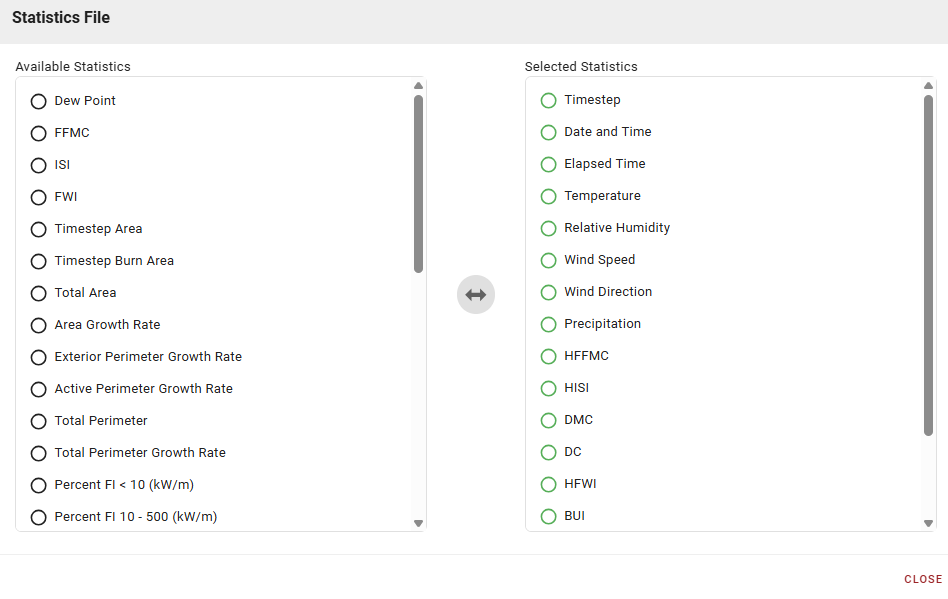
Set your Preferred Units to Metric or Imperial.