
Logging into FireCast brings you directly to the main Dashboard.
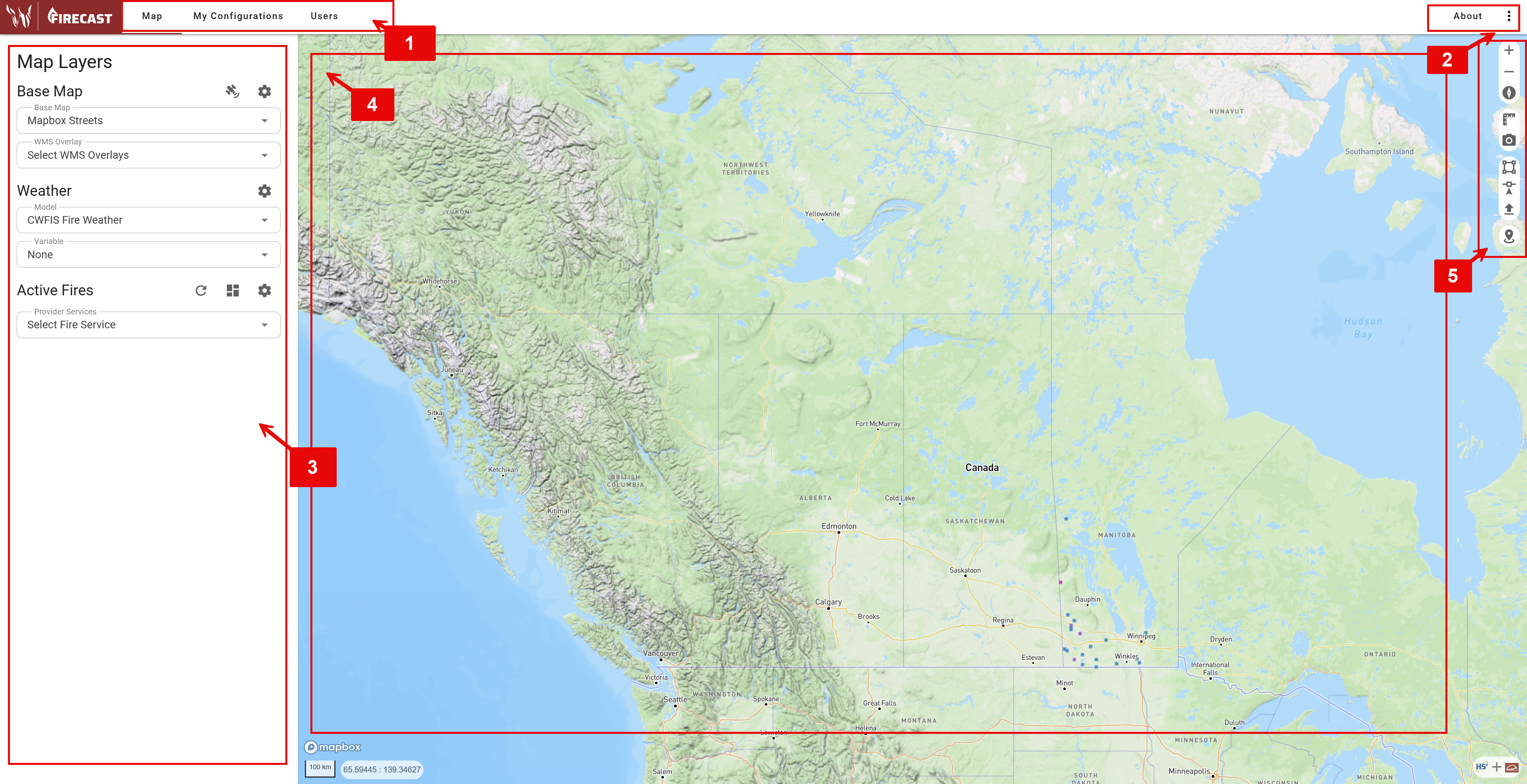
1. Navigation Header
The top navigation bar provides access to FireCast’s primary sections:
-
Map: Return to the main map view (home screen).
-
My Configurations: Access and manage your fire modeling configurations.
-
Users: View and manage user accounts (if permitted).
Your login credentials determine which tools you can access. If you need additional permissions, please contact your administrator.
2. About and Options
In the top-right corner, you’ll find:
-
About: View application information and data source documentation.
-
Options: Access personalized user settings and additional account options, depending on your permissions.
3. Map Layers Panel
When Map is selected in the navigation bar, the Map Layers Panel appears. Use this panel to control which data layers are displayed on your map.
4. Map Canvas
If Map is selected in the top navigation bar, the central map display shows data as base maps, custom data layers, fire locations, and simulations as configured by the Map Layers Panel.
Click on map features to view details, access fire information, or trigger specific actions.
Coordinate Display
At the bottom of the map, you’ll see:
-
Scale bar (in kilometers or miles based on your unit preference)
-
Mouse cursor coordinates (latitude/longitude)
-
Map attribution and data sources
Navigation Tips
-
Click and drag to pan across the map
-
Use mouse wheel to zoom in and out
-
Double-click to zoom to a specific location
-
Hold Shift and drag to zoom to a selected area
-
Right-click and drag to rotate the map to a 3D view
5. Map Control Tools

The vertical toolbar on the right side of the map provides essential controls. Hover over each icon to see its name.
-
Zoom In/Out (+/-): Adjust the map scale.
-
Reset North: Return the map to a north-up orientation.
-
Ruler: Access measurement tools.
-
Screenshot: Capture the current map view.
-
Create Polygon Ignition: Draw a polygon on the map canvas.
-
Create Point Ignition: Draw a point on the map canvas.
-
Load a GeoJSON File: Import a perimeter from an existing GeoJSON file.
The tools Create Polygon Ignition, Create Point Ignition, and Load a GeoJSON File require specific permissions. Contact your agency administrator if you need access.