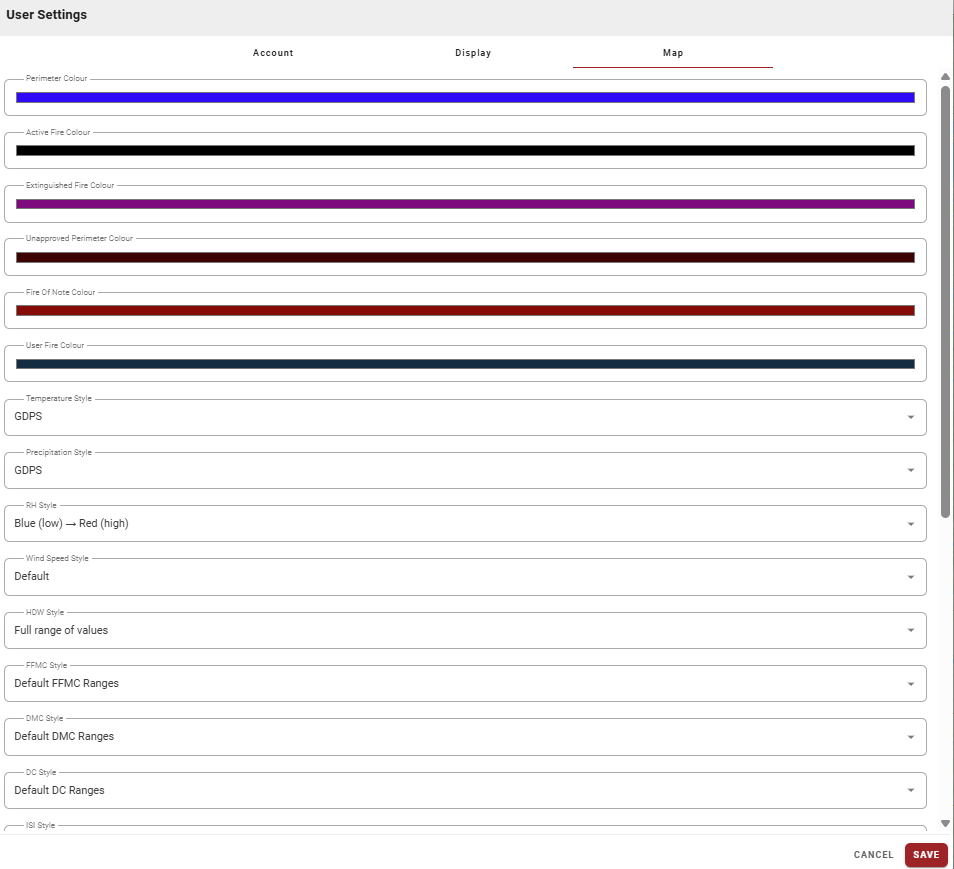
The Options (⋮) menu can be found at the top right of the application.
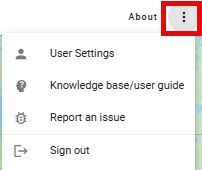
User Settings
Access User Settings by clicking the Options (⋮) menu at the top right of the application. The settings menu includes three tabs: Account, Display, and Map.
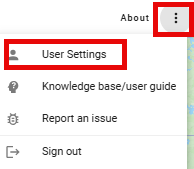
Account
-
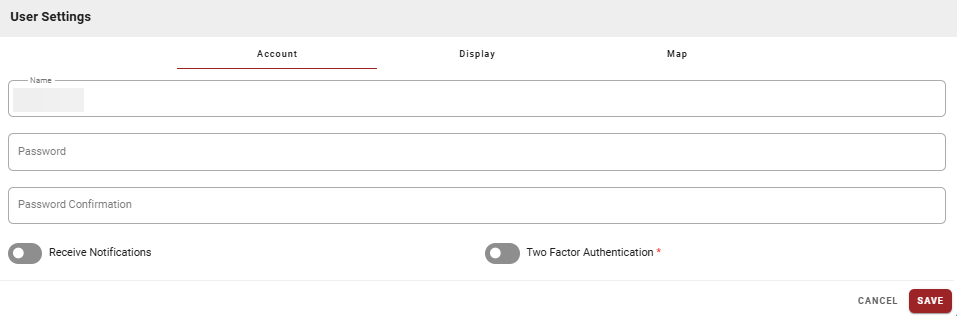
Change your Name and Password
-
Enable/disable Receive Notifications
-
Enable/disable Two Factor Authentication
If your agency requires Two Factor Authentication, you cannot disable it.
Saving Changes
Click SAVE to apply your settings, or CANCEL to discard changes and return to the previous screen. Your preferences are saved to your user profile and applied automatically on future logins.
Display
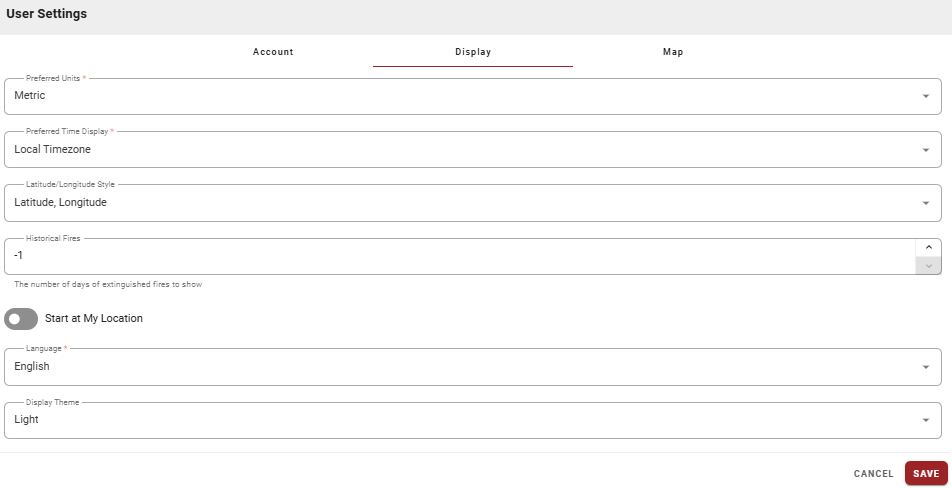
Personalize how FireCast displays information. Changes apply to your user account across all sessions.
-
Preferred Units: Choose Metric or Imperial for all data displays (distance, temperature, wind speed, area).
-
Preferred Time Display: Select Local Timezone or UTC for all time displays.
-
Latitude/Longitude Style: Choose between Latitude, Longitude or Degrees Minutes Seconds.
-
Historical Fires: Set the number of days of extinguished fires to display on the map.
-
-1: Show all historical fires (default)
-
Specific number: Limit display to recent days
-
-
Start at My Location: Enable to center the map on your location when FireCast loads.
-
Language: Select English or French for the interface.
-
Display Theme: Choose Light, Dark, or Detect Browser Preference.
Map
Customize preferred map colors in the Map tab.