Base Map Selection
Base maps provide the essential geographic context for viewing fire data, simulations, and operational information in FireCast. Selecting the appropriate base map allows you to visualize terrain, identify landmarks, assess accessibility, and better understand the landscape where fires are occurring.
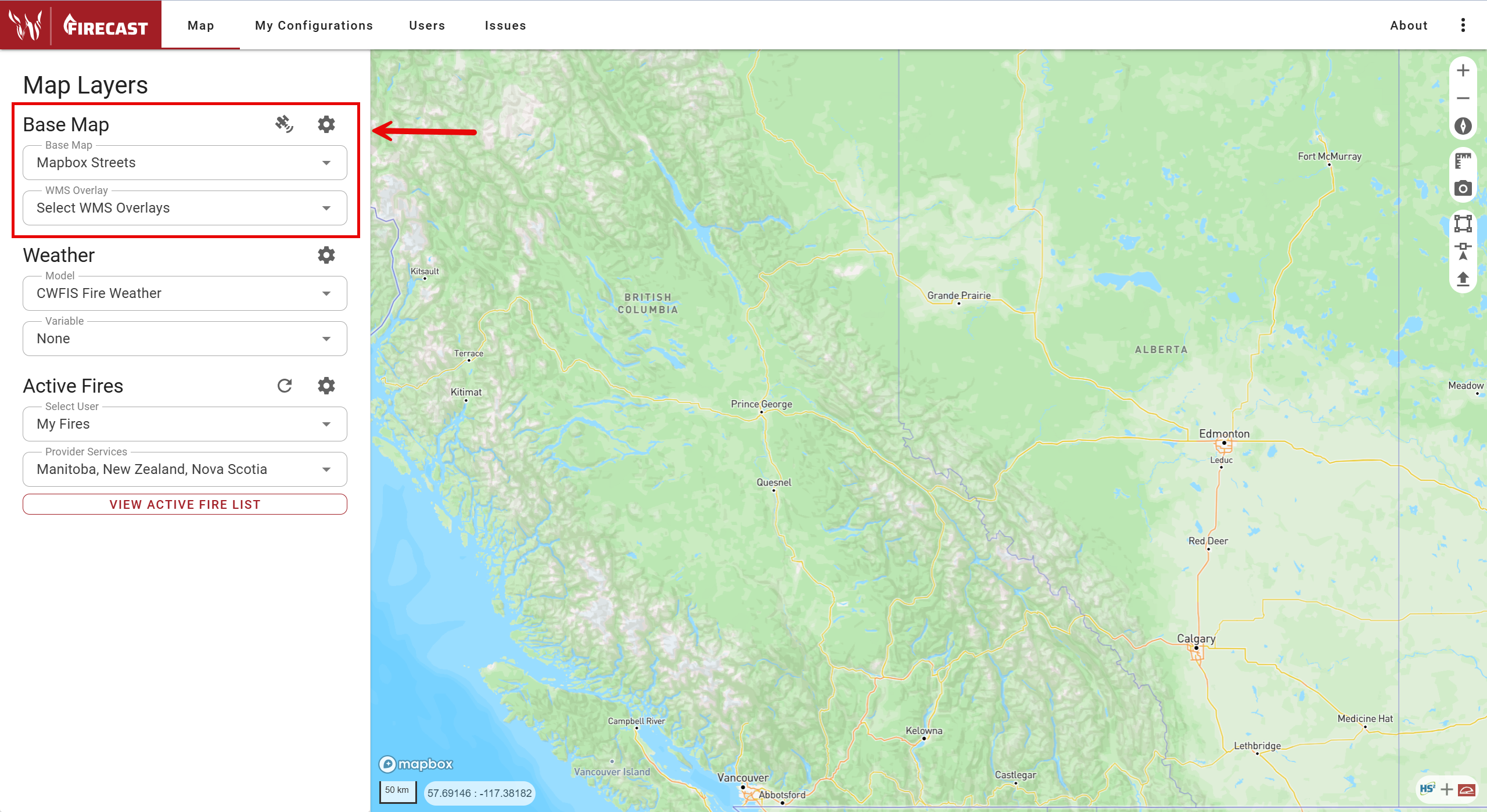
By default, FireCast offers several standard base maps, including Streets, Satellite, and Imagery. To change the base map, simply select your preferred option from the Base Map dropdown menu.
Web Map Service (WMS) Overlay
You can enhance your map by adding additional data layers—such as labels or fire perimeters—using the Select WMS Overlays dropdown. Choose an existing WMS overlay from the list, or add a new one by clicking the settings gear icon next to the Base Map panel.
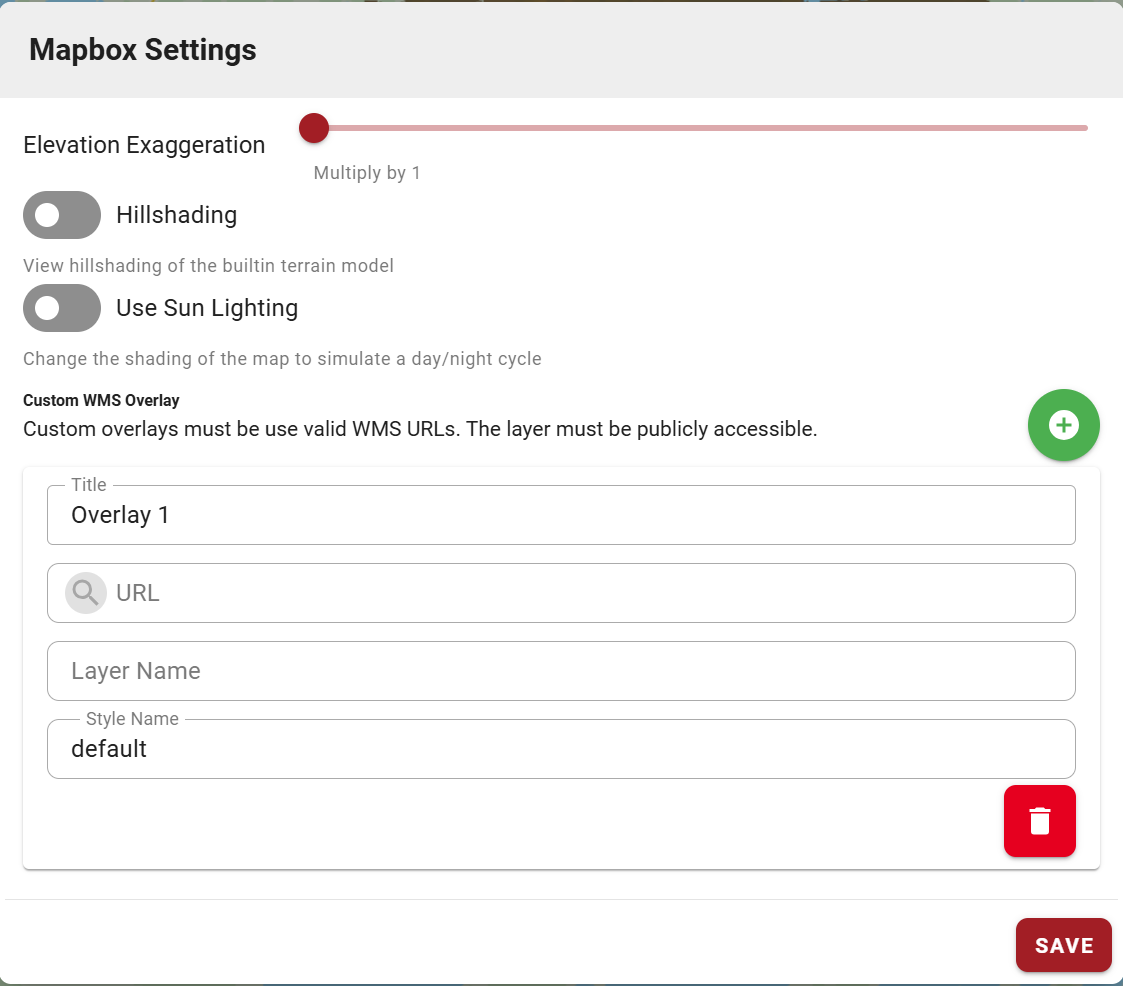
To add a custom WMS overlay:
-
Open Basemap Settings.
-
In the Custom WMS Overlay section, enter the required details:
-
Title
-
URL
-
Layer Name
-
Style Name
-
-
Click the save icon to add the overlay, or the remove icon to delete any overlays.
The custom WMS URL must be publicly accessible.
Elevation Exaggeration, Hillshading, and Sun Lighting
Place the map in 3D Mode by right clicking and dragging on the map. Then, click the settings gear icon next to the Base Map panel to enable features such as:
-
Elevation Exaggeration
-
Hillshading
-
Sun Lighting
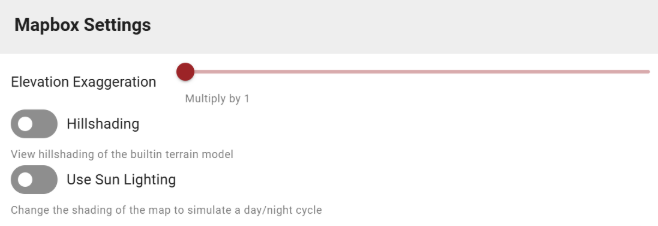
These options help you better interpret terrain and topography.
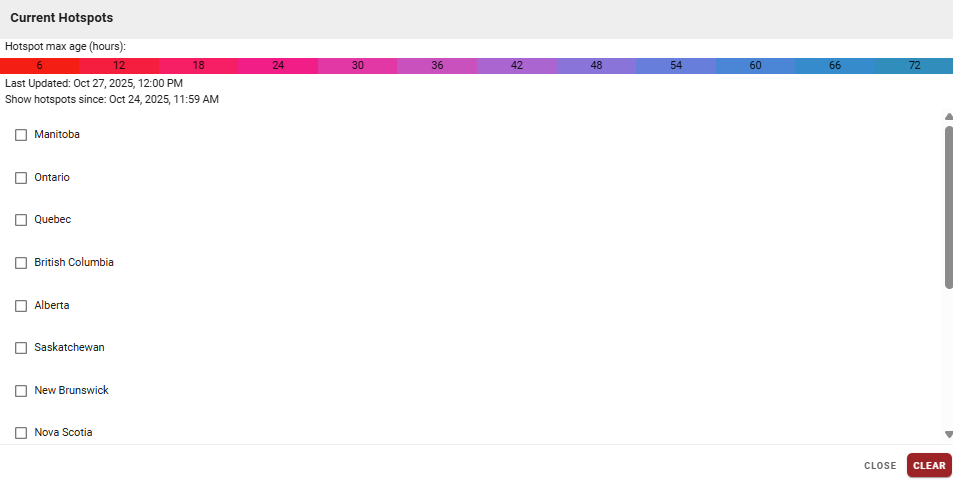
Current Hotspots
To view current hotspots:
-
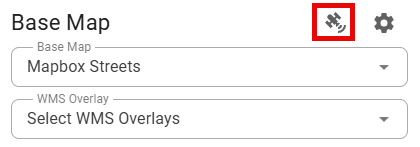
Click the satellite icon next to the Base Map panel to open the Current Hotspots menu.
-
Use the checkboxes to select which hotspots to display on your map.