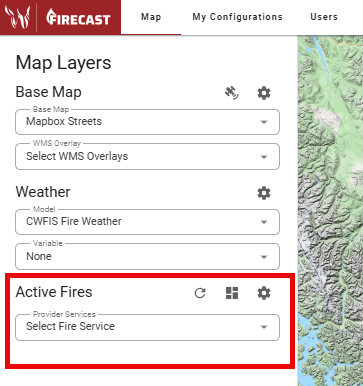
The Active Fires section of the Map Layers Panel lets you view a list of your agency’s active fires.
-
Use the Select Fire Service dropdown to check the box next to your agency’s name.
-
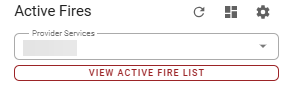
Click View Active Fire List and select a fire to open its perimeter.
-
You can also Search active fires, or use toggles to List user-created fires or List recently extinguished fires.
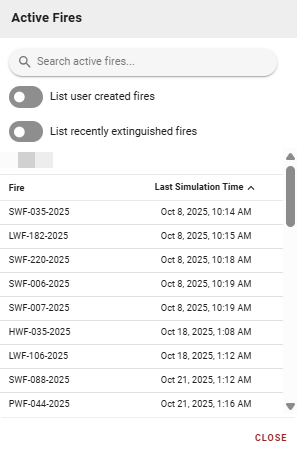
You will only be able to view your agency’s active fires unless other arrangements are made by your agency.
Grid Options
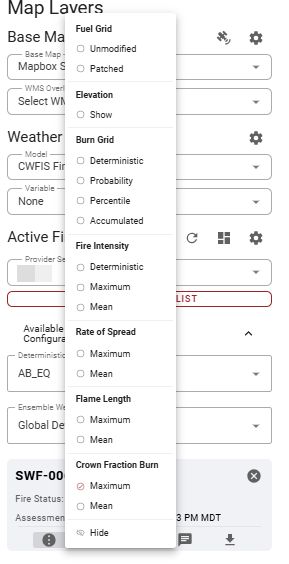
Open Grid Options to access additional fire layer information. A dropdown with radio buttons will appear.
-
Fuel Grid
-
Patched: User-modified fuels.
-
Unmodified: Fuels provided by the agency.
-
-
Elevation: Click Show to display the elevation used for modeling on the map.
-
Burn Grid:
-
Deterministic: Shows fire burned once using pre-configured modeling conditions.
-
Probability: Displays as a transparency gradient.
-
Percentile: Shows the probability of an area being burned, with a percentile legend.
-
Accumulated: Uses the weather model, pre-configured conditions, and fuel grid. See the map legend for the number of members used.
-
-
Rate of Spread: Click a maximum or mean option to view the Rate of Spread (ROS). Change the color range in User Settings (Map) if needed.
-
Flame Length: Click a maximum or mean option to view the Flame Length (FL. Change the color range in User Settings (Map) if needed.
-
Fire Intensity: Click a maximum or mean option to view Fire Intensity. Change the color range in User Settings (Map) if needed.
-
Crown Fraction Burn: Click a maximum or mean option to view crown fraction burn. A strike-through (
crown fraction burn) means no crown burned.
Use the Hide button to remove any of these layers.
Vector Options
Open Vector Options to access a dropdown of radio buttons.
-
Select Timesteps to animate the simulation perimeter. Use the time player to play, pause, fast-forward, or rewind the animation.
-
Once the animation starts, the weather used for modeling appears in the lower right corner.
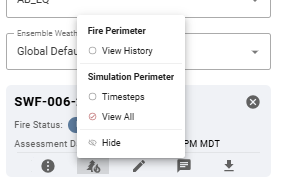
Use the Hide button to remove any of these layers.
Edit Simulation
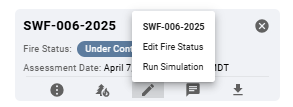
Open Edit Simulation to Edit Fire Status or Run Simulation.
Edit Fire Status
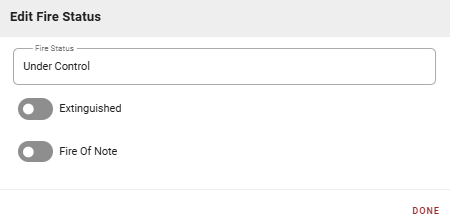
Update the operational status of a fire to reflect current conditions and management priorities.
-
Fire Status: Open text field with toggles for Extinguished and Fire of Note.
-
Extinguished: Enable when the fire is fully out with no remaining heat sources.
-
Fire of Note: Marks fires needing heightened awareness or priority.
-
-
Click DONE to save changes.
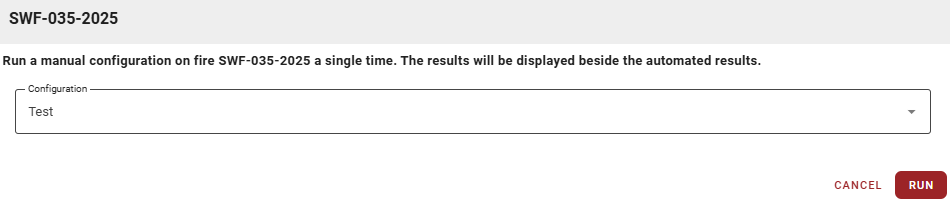
Run Simulation
To set up a manual Configuration to run on the selected fire, see My Configurations.

If you already have Configurations, select one from the Configuration dropdown and click RUN.
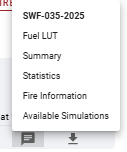
Simulation Information
Click Simulation Information to view more details about the simulation.
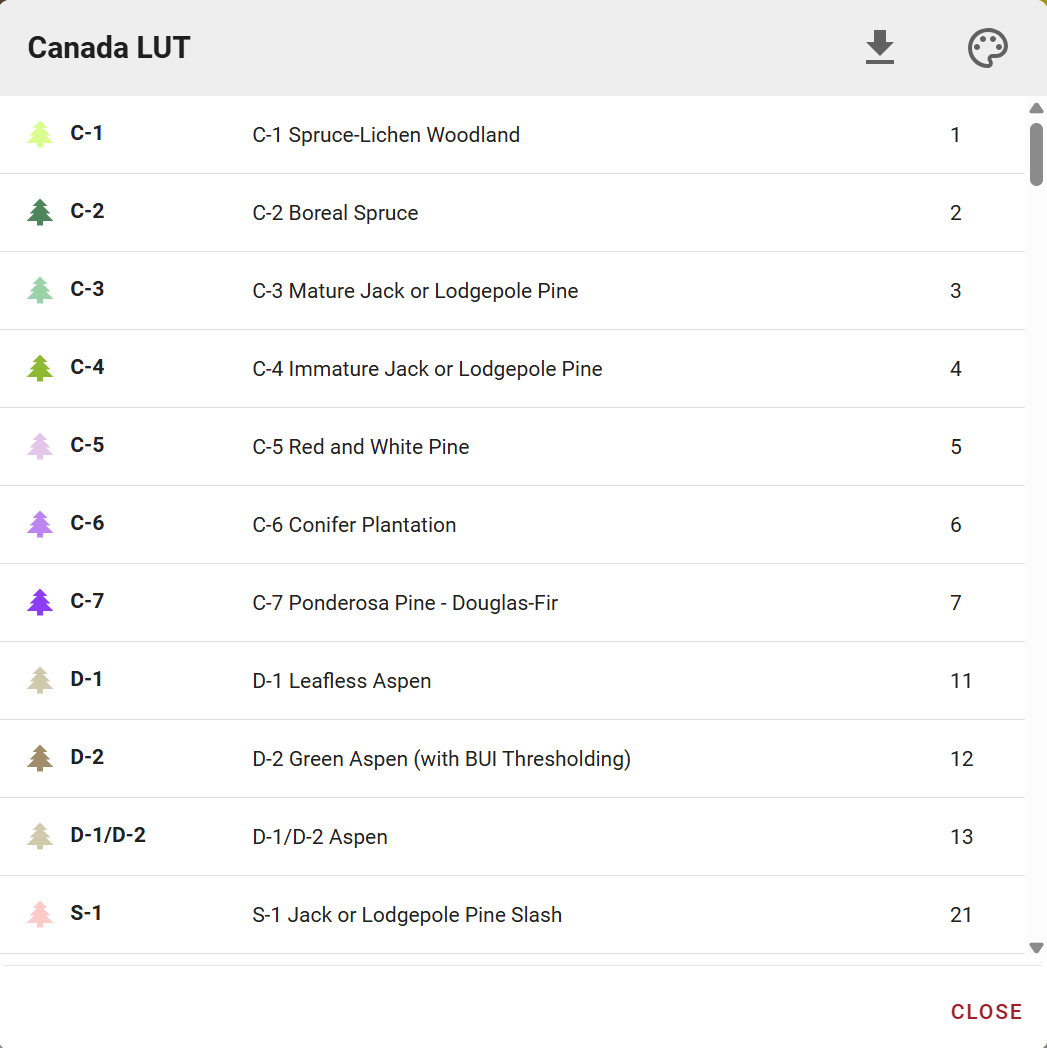
Fuel Look Up Table (LUT)
A Fuel Look Up Table (LUT) translates raw fuel grid data into recognizable fuel types for fire behavior modeling.
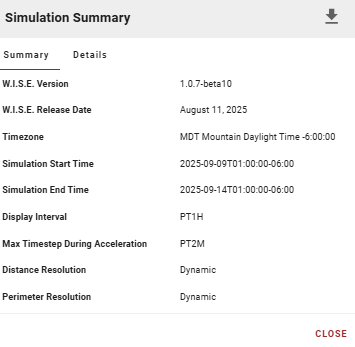
Summary
The Simulation Summary dialog provides key information about a completed or running fire growth simulation, including technical details about modeling parameters and settings.
Summary Tab
-
W.I.S.E. Version: Version of the Wildland fire Information System Ensemble (W.I.S.E.) modeling engine.
-
W.I.S.E. Release Date: Release date of the modeling engine.
-
Timezone: Timezone for all simulation timestamps.
-
Simulation Start/End Time: When the simulation began and ended.
-
Display Interval: Time between displayed fire growth isolines (e.g., PT6H = 6 hours).
-
Max Timestep During Acceleration: Maximum internal timestep during the fire’s acceleration phase (e.g., PT2M = 2 minutes).
-
Distance Resolution: Indicates if distance calculations use fixed or dynamic resolution.
-
Perimeter Resolution: Indicates if perimeter vertex spacing uses fixed or dynamic resolution.
Details Tab
Additional technical information about simulation configuration, inputs, and outputs (varies by simulation).
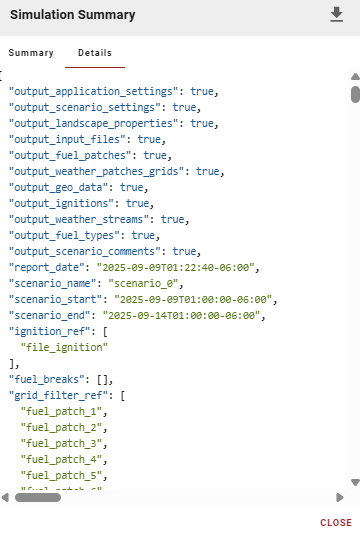
Details Tab Actions:
-
Download: Download simulation data, statistics, and output files.
-
Close: Close the summary dialog and return to the map.
Statistics
The Ensemble Simulation Statistics window displays comprehensive fire behavior and weather data over the simulation’s duration, in both graphical and tabular formats.
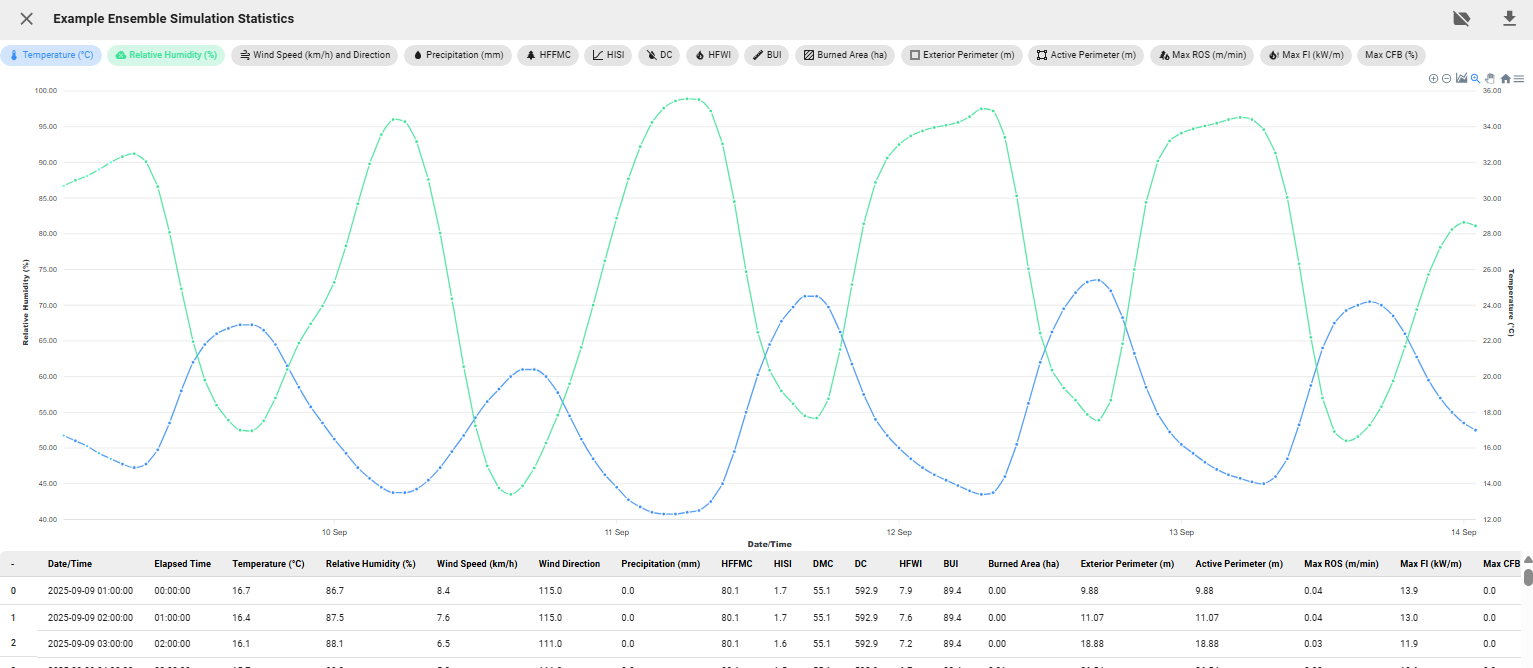
Interactive Graph
Toggle multiple data series on/off using metric buttons to compare variables over time.
-
Interactive Graph Actions

Graph Actions Menu -
Zoom In/Out: Adjust the graph view.
-
Hide Burn Windows: Show/hide burn windows on the graph.
-
Selection Zoom: Zoom in on a selected area.
-
Panning: Move along the x-axis.
-
Reset Zoom: Return to the original view.
-
Menu: Download the chart as .SVG, .PNG, or .CSV.
-
Data Table
The lower table provides time-stamped values for all metrics.
Statistics Actions
-
Close: Return to the map view.
-
Toggle Vertex Hover: Enable/disable info box on graph hover.
-
Download: Export simulation statistics as CSV for analysis, reporting, comparison, or record keeping.
Fire Information
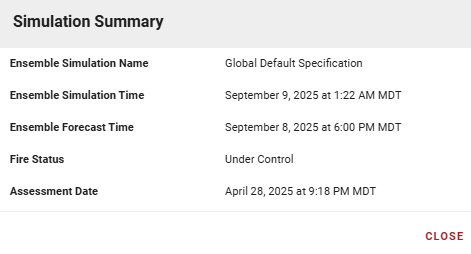
This panel displays key metadata about an ensemble fire simulation, including:
-
Ensemble Simulation Name: Name of the configuration used.
-
Ensemble Simulation Time: When the simulation was executed or scheduled.
-
Ensemble Forecast Time: Date/time of the weather forecast data used.
-
Fire Status: Operational status at simulation time.
-
Assessment Date: Last assessment of fire status or conditions.
Available Simulations
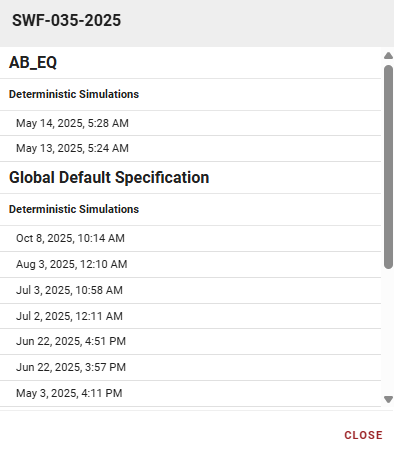
This panel lists all simulations run for a specific fire, organized by configuration and in reverse chronological order.
-
Fire Identifier: Name or ID of the fire (e.g., "SWF-035-2025").
-
Configurations: Simulations grouped by configuration.
-
Simulation Type: Indicates deterministic or ensemble simulations.
-
Simulation List: Each entry shows the date/time run. Click to view results.
To view simulations for another fire, close this panel and select a different fire from the Active Fires list.
Download
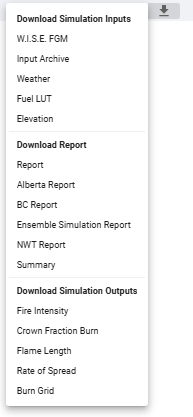
Use the Download button to get Simulation Inputs, Reports, or Outputs.
-
Use files under Download Report to create agency reports.
-
Use files under Download Simulation Outputs for external tools like ArcGIS Pro.