
The Weather section of the Map Layers Panel lets you view current weather conditions for today or forecast future weather. Use the dropdown menu in this section to select a Weather Model and a Variable. Only one weather layer can be displayed at a time.
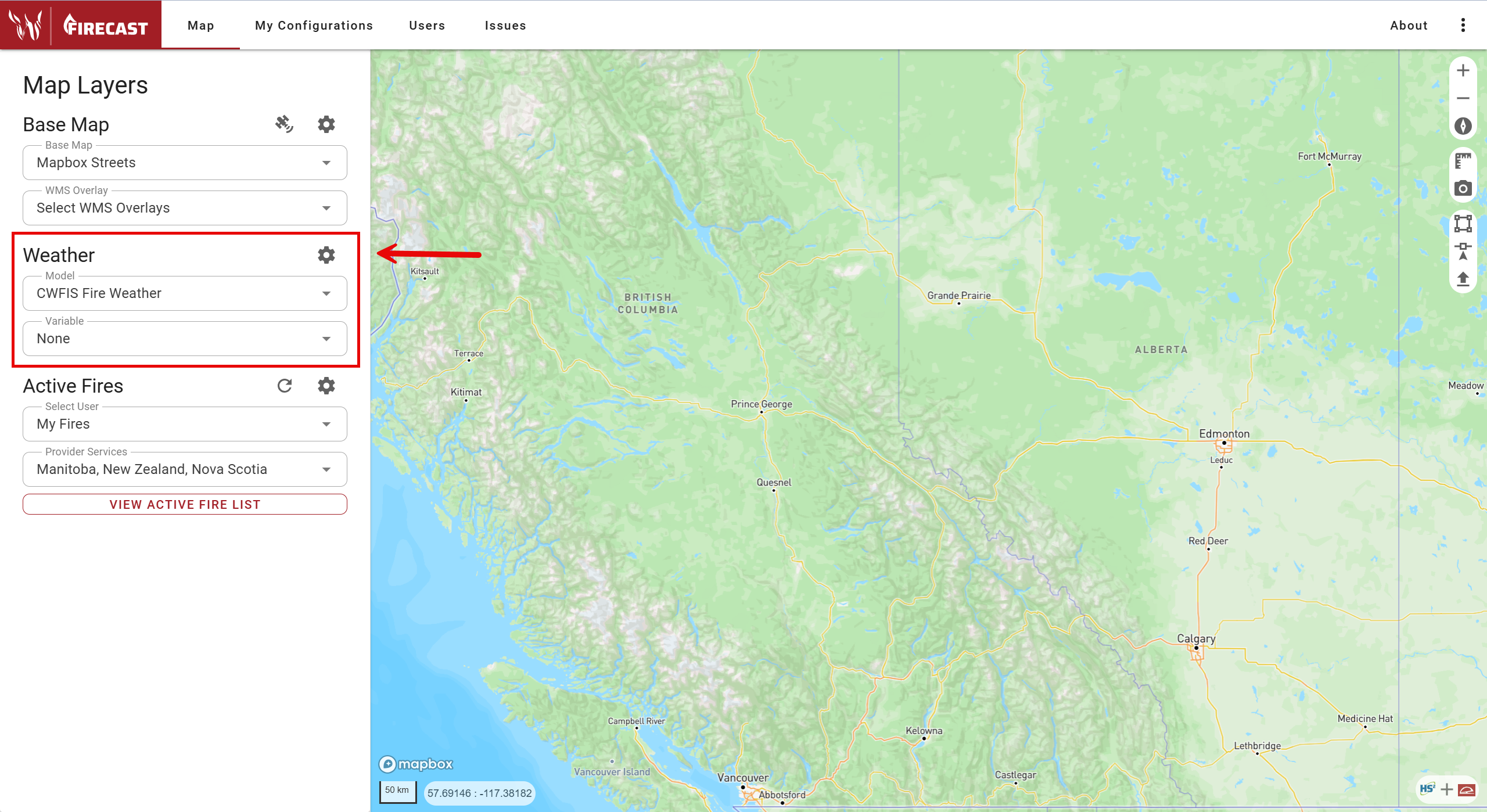
Current Weather Models appear first in the list, followed by Forecast Weather Models.
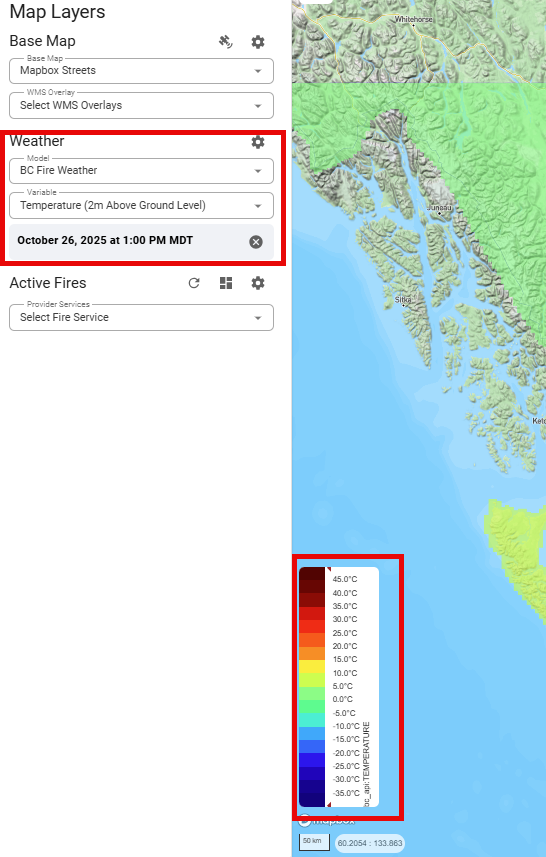
When you select a Current Weather Model and Variable, a legend appears in the bottom left corner of the map, and a time/date stamp is shown under the Weather section of the Map Layers Panel.
Forecast Weather
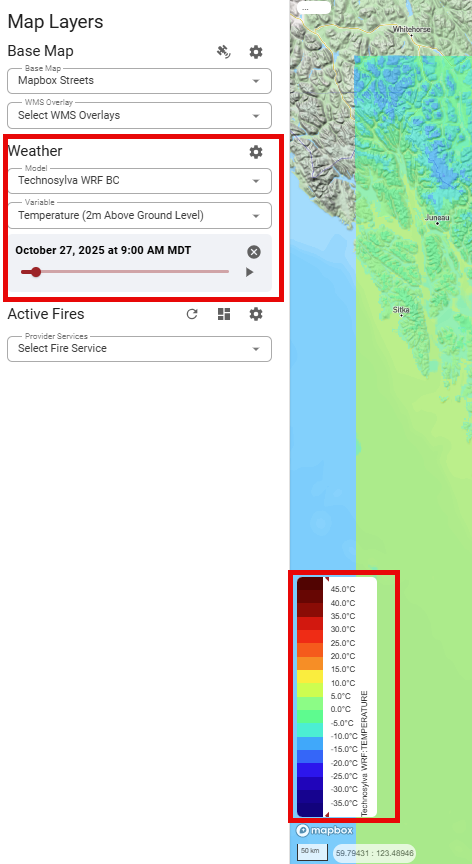
When you select a Forecast Weather Model and Variable, a timeline slider appears under the Weather section. Use this slider to choose a specific date and time. A legend will also appear in the bottom left corner of the map.
Weather Settings
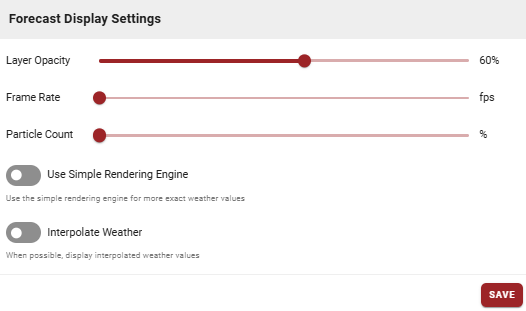
Click the settings gear icon in the Weather section to access Forecast Display Settings. After making changes, click SAVE to apply your settings.
Layer Opacity
Adjust the transparency of forecast layers (0–100%). Lower opacity reveals more of the underlying map and base layers; higher opacity makes forecast data stand out.
Frame Rate
Set the playback speed for animating fire growth over time (measured in frames per second, fps). Higher frame rates create smoother animations but may affect system performance.
Particle Count
Choose the number of particles used in weather visualizations (when applicable). More particles provide detailed wind and weather patterns but require more processing power.
Use Simple Rendering Engine
Enable this option for improved performance when displaying weather data. The simple rendering engine is optimized for speed and is ideal for systems with limited graphics capabilities or when viewing complex forecast data.
Interpolate Weather
When enabled, FireCast displays smoothly interpolated weather values between data points, resulting in more continuous weather visuals. When disabled, raw weather station data is shown without interpolation.
If you experience slow map performance, try the following:
-
Reduce Layer Opacity
-
Lower the Frame Rate
-
Decrease the Particle Count
-
Enable the Simple Rendering Engine
For more details on customizing weather layer appearance, see User Settings (Map).