
Tactical Analyst (TA) Web is designed to be map and incident centric. The Map Canvas remains visible at all times regardless of which tools or panels are open. The application is built around the concept of selecting a specific incident to work with, allowing you to focus on the incidents relevant to your assignment and maintain situational awareness without visual clutter from unrelated events.
On opening, the interface has three primary elements:
-
The Map Tools at the top right of the screen.
-
The Main Toolbar on the left side.
-
The Map Canvas.
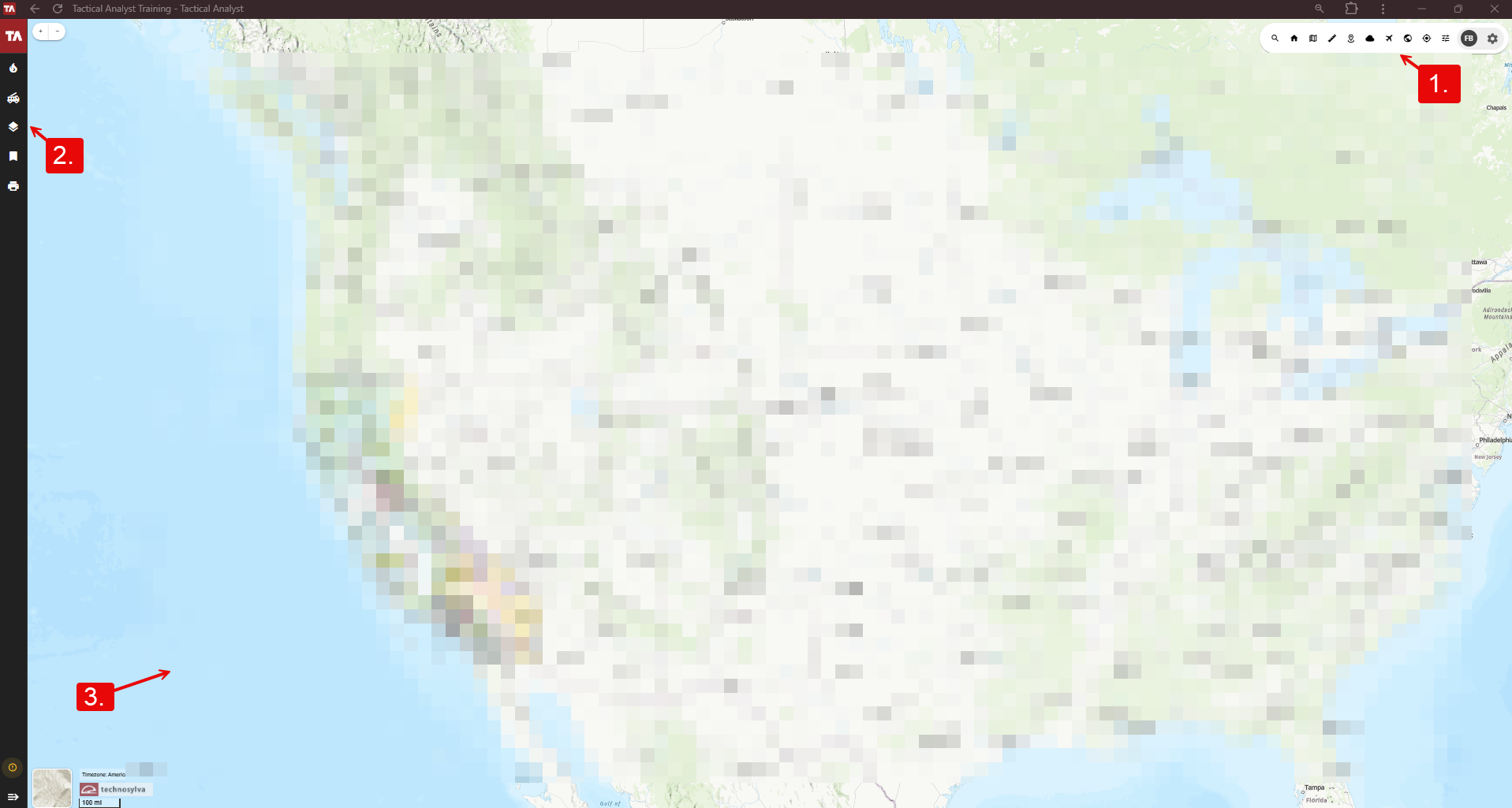
1. Map Tools
The Map Tools bar in the top right provides access to the tools below.

Search
Search for locations, addresses, coordinates, or incidents by name.
Impact Tool
The Impact Tool (house icon) is an on/off toggle.
-
Click Start Drawing and draw one or more polygons on the map to query the estimated population and number of buildings within the drawn area.
-
Click the location pin to the right of the impact area to zoom in or the x button to clear the result.
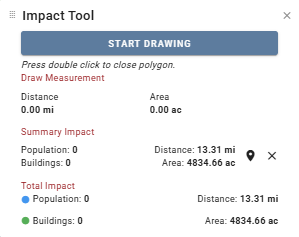
Selecting a very large area with the Impact Tool may cause a delay in loading.
Legend
On/off toggle. Displays the symbology for all active map layers.
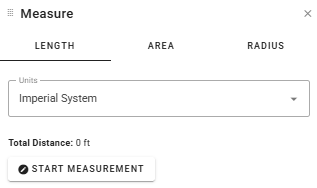
Measure
On/off toggle. Click between the three tabs to measure Length (line), Area (polygon), or Radius (circle) on the map canvas. Use the Units dropdown to change the metric. Click Start Measurement and single-click on the map canvas to begin drawing. Double-click to complete the shape. Click Clear Measurement to remove the shape and start over.
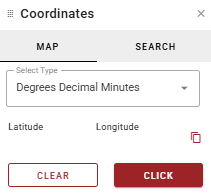
Coordinates
On/off toggle. Use the Click button on the Map tab to click a point on the map to retrieve its coordinates or search for a known coordinate by navigating to the Search tab. Select the desired coordinate format from the Select Type dropdown. Use the Copy button to copy the current coordinates or click Clear to start over.
Forecast Tool
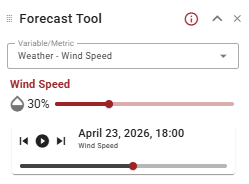
The Forecast Tool (cloud icon) is an on/off toggle. View real-time weather prediction and fire risk forecasting data.
-
Select the desired Risk or Weather metric from the Variable/Metric dropdown.
-
Adjust the transparency of the forecasted layer using the droplet slider.
-
Use the timeline tools to jump forward or backward by one-hour increments or press play to watch the forecast progress.
For more information about the variables available, select the i button in the top right or visit the Technosylva Glossary.
Aerial Intel
On/off toggle. Use the Aerial Intel Panel to view and upload aviation photos and video associated with an incident.
Aerial Intel is not available for all customers.
Go to Extent
Returns the map canvas to your default map extent.
My Position
Centers the map canvas on your current location. Requires location permissions to be enabled within the web browser.
Active Filters
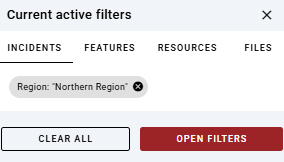
Displays currently active filters for Incidents, Features, Resources, and Files across four tabs. Click the x next to a filter to clear it or Open Filters for more options. Filters can also be cleared in bulk using the Clear All option. A red dot appears on the Active Filters button if filters are currently enabled.
Profile Menu
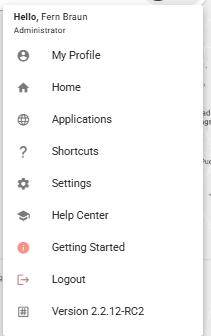
Displays your name and role at the top. Access additional links, resources, and your user profile settings.
-
My Profile - View and edit your user profile.
-
Home - Return to the WFA Portal home screen.
-
Applications - View and switch between available Technosylva applications.
-
Shortcuts - View available keyboard shortcuts.
-
Settings - Configure application settings.
-
Help Center - Opens the Tactical Analyst Help Center.
-
Getting Started - Access onboarding and introductory resources.
-
Logout - Log out of the application.
Pinned Incidents
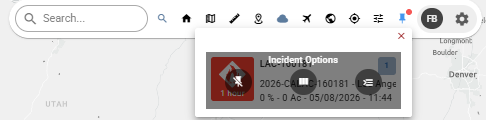
View your currently pinned incidents. Pin icon is only shown if incidents are currently pinned. Hover over an incident for options:
-
Remove Incident - Unpin the selected incident.
-
Open Comparative - Open the Incident Comparison Panel to compare incidents.
-
Open Incident - Selects the incident in the left hand Incidents List and opens the Incident Card on the right hand panel.
2. Main Toolbar
The Main Toolbar runs along the left side of the application window. This is where you access the application's primary tools and select an incident to work with. The toolbar can be expanded or collapsed using the arrow control at the bottom of the toolbar.
-
Incident List - View all active incidents. Select an incident here to pin it and begin working with it on the map.
-
Resource List - View a list of active resources. (Note: resource types displayed depend on your agency deployment.)
-
Map Layers - View, toggle, and add map layers to the canvas.
-
Bookmarks - Save and return to specific map locations or extents.
-
Print Map - Generate map products including Incident Action Plan (IAP) maps, Operations maps, and Briefing maps.
-
Info - view the version, customer, and environment of TA Web currently in use.
-
Expand/Collapse - Expand or collapse the main toolbar to maximize the map canvas area.
3. Map Canvas
The map canvas occupies the main area of the application window and is always visible. Zoom in and zoom out tools are located in the top left of the map. Or, control the map’s zoom using the mouse wheel. Click and drag or use keyboard arrows to pan. The map’s current scale is indicated in the bottom left corner of the map along with the current time zone.
When toggled on, tool windows can be rearranged across the map canvas by selecting the icon in the top left (to the left of the tool name) and dragging.
Click the Basemap image in the bottom left to select a new basemap from the options available.