
Use filters to streamline and optimize your map canvas by showing only the information relevant to your operational needs. Create a new filter by clicking the Active Filters button on the Map Tools bar and selecting Open Filters.
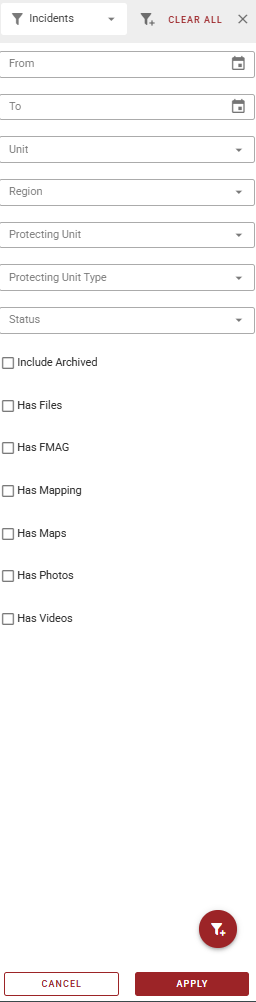
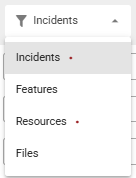
Select the type of filter (Incidents, Features, Resources, or Files). A red dot appears next to filter types which already have a filter applied.
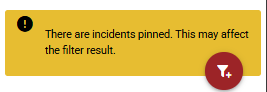
The form is dynamic and will change based on the type of filter selected. Fill out the information you would like to include in the filter and click Apply. A warning panel indicates if resources or incidents are pinned.
To save a filter to use later, click the red filter+ button in the bottom right above Apply, type the Name, and click Save Filter.
To select a previously saved filter, click the saved filter icon to the right of the filter type dropdown. A blue dot appears on the icon if saved filters are currently available. Select a saved filter name to apply it or use the trash can icon to the right to delete it.