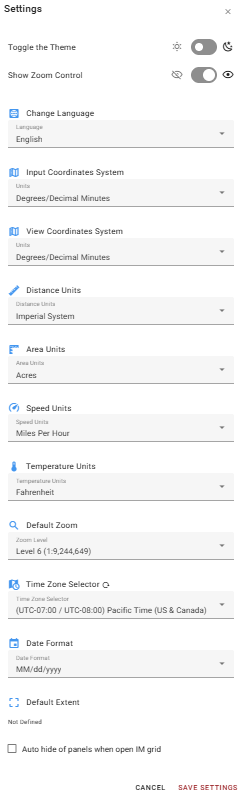
Access Settings by selecting Profile Menu from the Map Tools Bar, then selecting Settings. Changes take effect after selecting Save Settings. Select Cancel to discard any changes.
Toggle the Theme - Switch between light and dark display modes.
Show Zoom Control - Show or hide the zoom control on the map canvas.
Change Language - Set the display language for the application.
Input Coordinates System - Set the coordinate format used when entering coordinates anywhere in the application (e.g. Degrees/Decimal Minutes).
View Coordinates System - Set the coordinate format used when coordinates are displayed anywhere in the application (e.g. Degrees/Decimal Minutes).
Distance Units - Set the units used for distance measurements.
Area Units - Set the units used for area measurements.
Speed Units - Set the units used for speed measurements.
Temperature Units - Set the units used for temperature measurements.
Default Zoom - Set the default zoom level applied when the application opens.
Time Zone Selector - Set the time zone used for all timestamps displayed in the application. Click the refresh button to the right to restore time zone to default.
Date Format - Set the date format used throughout the application (e.g. MM/dd/yyyy).
Default Extent - Displays the bookmark currently set as the default map extent. If a Default Extent is defined, you can delete it here. If no Default Extent is defined, you can set it using a bookmark.
Auto hide panels when open IM grid - When enabled, the side panels are automatically hidden when the Incident Mapping features grid is opened, maximizing the available screen area.