Resource List
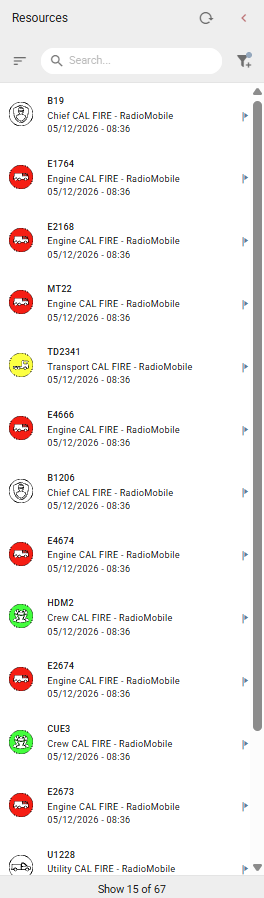
The Resource List displays active Automatic Vehicle Location (AVL) resources tracked within your deployment. Each entry shows the resource name, type, provider, and the date and time of the last known position update. A flag icon to the right of a resource on the Resource List indicates that the resource is currently moving.
Select the collapse arrow in the upper right to hide the panel and maximize the map canvas.
Use the Search bar to filter resources by name. Select the Sort icon to sort the list by device name or timestamp. Select the Filter icon to filter the list by resource properties. A blue dot appears on the Filter icon if a filter is currently applied.
Select the Reload icon in the upper right to reload the resource list with the latest data.
Resource Card
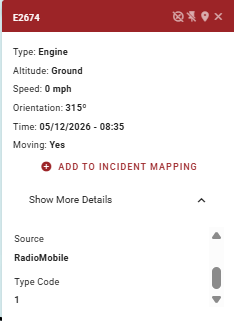
Select a resource entry to open its Resource Card and zoom the map canvas to the resource's current location. The Resource Card displays the following:
-
Type - The resource type (e.g. Engine).
-
Altitude - The current altitude (e.g. Ground).
-
Speed - The current speed in mph.
-
Orientation - The current heading in degrees.
-
Time - The timestamp of the last position update.
-
Moving - Whether the resource is currently moving.
Location and Agency are shown in the expanded details section.
Resource Card Controls
The Resource Card Controls appear in the upper right-hand corner of the Resource Card.
-
Pin - Pins the Resource Card so it remains visible while you work elsewhere in the application. When pinned, a Hide Track option appears to hide the resource's movement path from the map canvas.
-
Zoom to Location - Zooms the map canvas to the resource's current position.
-
Close - Closes the resource card.
Trace
The Trace toggle controls how much of the resource's movement history is displayed on the map canvas:
-
Recent - Displays a recent portion of the movement path.
-
Full - Displays the complete movement history.
Pin a Resource
A resource can be pinned in two ways:
-
From the Resource Card - Open the Resource Card and select the Pin icon in the header.
-
From the Map Canvas - Select the resource directly on the map and select the Pin icon on the popup.
Once pinned, the resource appears in the Pinned Resource List in the Map Tools Bar.
Track a Resource
When a resource is pinned, its tracking history is displayed on the map canvas by default. To toggle the tracking history on or off, open the Resource Card and select the track visibility icon next to the resource.
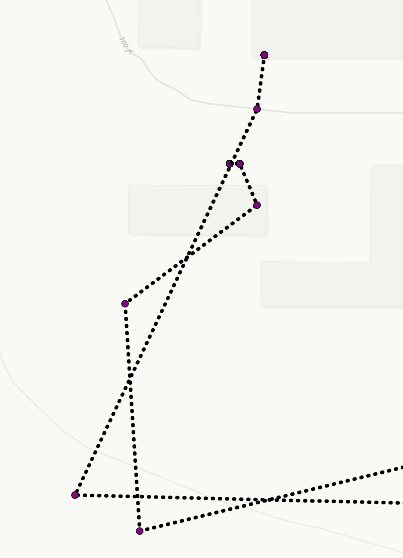
When a resource’s track is shown, historical breadcrumb positions are shown as purple dots. The most recent position is shown as a dot color-coded to the resource type as indicated by the icons to the left of the resource in the Resource List.
Add Resource Track to Incident
The breadcrumb trail of a resource can be added to an incident as a line feature:
-
Open the Incident Card for the incident you want to add the trail to.
-
Select the resource name in the Resource List to open its Resource Card.
-
In the Resource Card, select Add to Incident Mapping.
The Add to Incident Mapping option only appears when an Incident Card is open.