
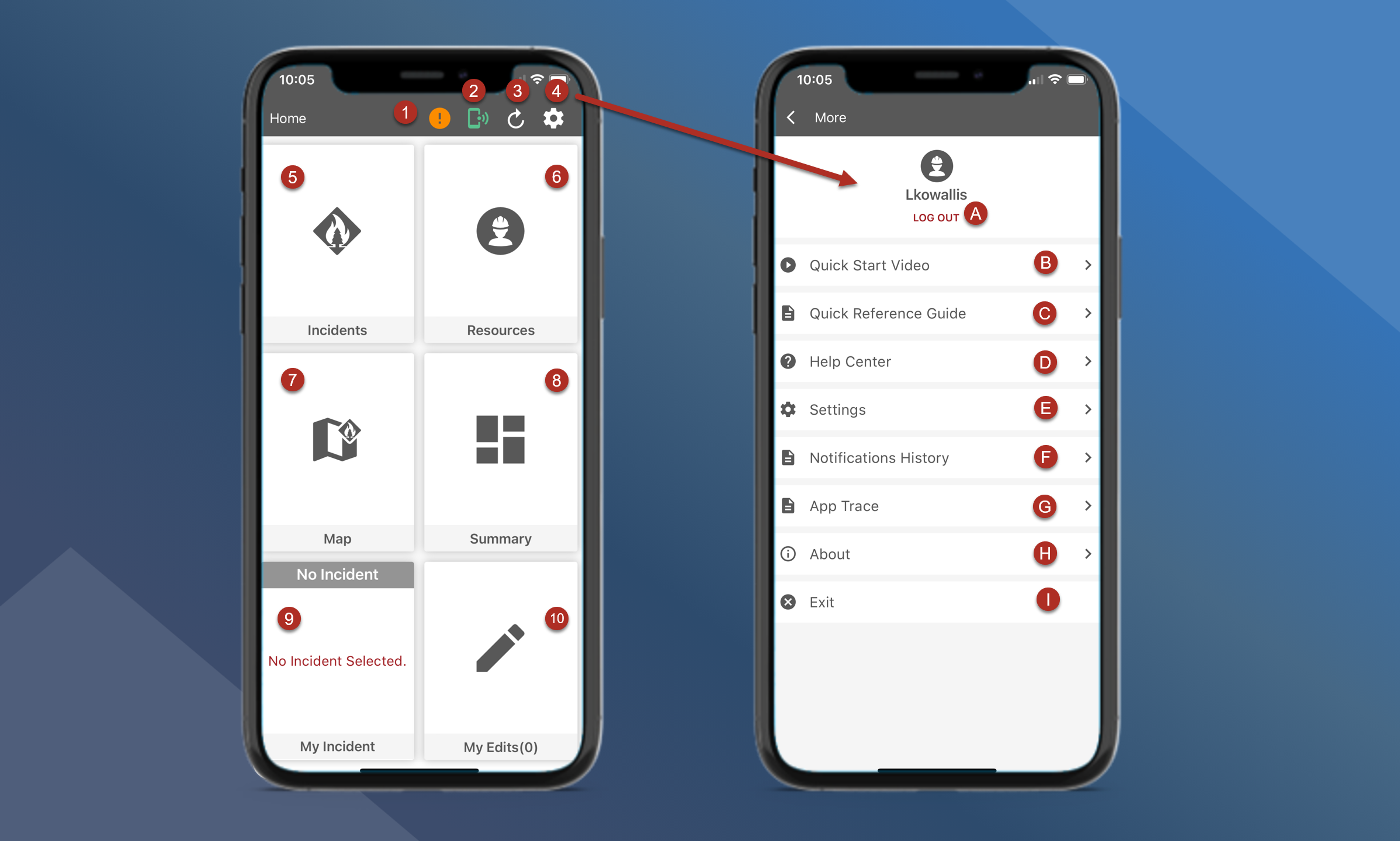
When users first open the mobile application, they are directed to the Home page.
-
Environment Icon - This orange exclamation only shows up in environments other than Production. When tapped, the users will get a popup message saying what environment they are logged into
-
App Connectivity - This icon shows the user's mode. Green is online, yellow is offline - by user, and red is offline.
-
Main App Refresh - Users can upload their edits and pull updated information from the central server by tapping this icon.
-
Settings
-
Logout of the current environment
-
Quick Start Video directs users to a 10 min overview video of how to use TA mobile
-
Quick Reference Guide available offline to help users navigate through the mobile app
-
Help Center directs users to the knowledgebase website
-
Additional Settings
-
Notifications History shows new activity for Incidents, Mapping and Log Messages
-
App Trace is used by Technosylva for troubleshooting
-
About will show users what environment and version they are currently working in
-
Exit the mobile application
-
-
Incident List - View a list of all active incidents
-
Resource List - View a list of all AVL resources
-
Map - Map main overview
-
Summary - View dashboards and reports
-
My Incident - View and access your pinned incident
-
My Edits - Manage and sync your edits
Intro to TA Mobile
The video below will help you get started with Tactical Analyst Mobile and provide the basics to get you up and running.
TA Mobile Quick Start Guide
The TA Quick Start Guide is a document that outlines how to perform the core features and capabilities of Tactical Analyst. It will get you up and running quickly. Download it below.
Download Here:
What’s next?
Complete the Tactical Analyst Training to receive your certificate.