
Incident Boards allow you to organize content, control access, and collaborate within groups for a selected incident. Each incident has a set of default boards, and users can create additional boards as needed.
Content created in one board is not automatically visible in other boards. It must be explicitly shared or copied.
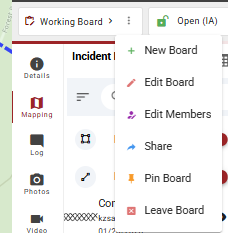
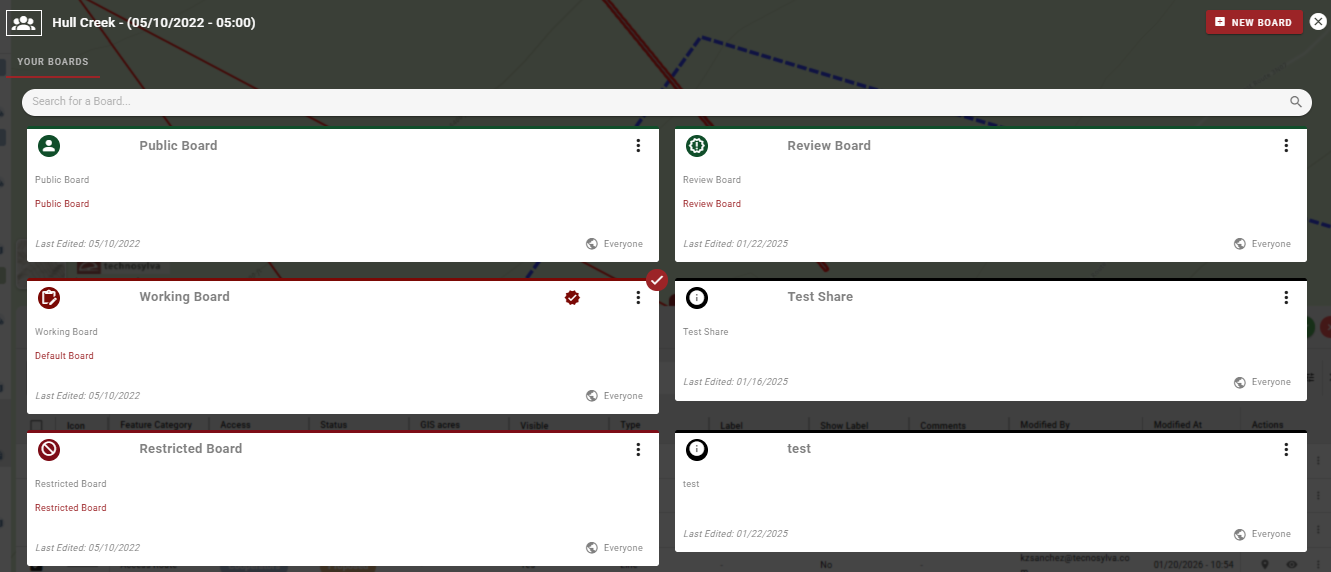
The active board is displayed in the Board Toolbar in the Incident Card header. Select the board name to open the Boards List and switch between boards.
Default Boards
Every incident has four default boards.
US customers only: the features visible in each board depend on the National Incident Feature Service (NIFS) access level and status of those features, and on the current incident mode.
|
Board |
Description |
NIFS Access Level |
NIFS Status Level |
|---|---|---|---|
|
Public |
View-only board for content that can be shared externally. Content cannot be created in this board. |
Public |
Approved |
|
Working |
The main operational board for the incident. In Open mode, all features added to this board are visible. In Approval mode, only features with Cooperators or Public access and Approved status are visible. |
Cooperators & Public |
Open: Proposed / Approval: Approved |
|
Restricted |
For restricted content. Only available to users with the required role or permission. |
Restricted |
All |
|
Review |
Automatically created when the incident is switched to Approval mode. Used for review and approval of features before they appear on the Working Board. Only available to users with the required role or permission. |
All |
All |
The Working Board is the board that the mobile application syncs to. All mobile users see the Working Board regardless of incident mode. In Approval mode, features added on mobile go to the Review Board before appearing on the Working Board.
User Defined Boards
Users can create additional boards for an incident to work in smaller groups or restrict content to specific users. Content created in user defined boards has an access level of Incident and a status of Draft by default. Draft features do not appear on the Working Board and are not submitted for review until the status is changed to Proposed.
Access to user defined boards is controlled by the board creator or users with the admin role.
Create a Board
-
Open the Incident Card for the relevant incident.
-
Select the options icon in the Incident Card header.
-
Select New Board.
-
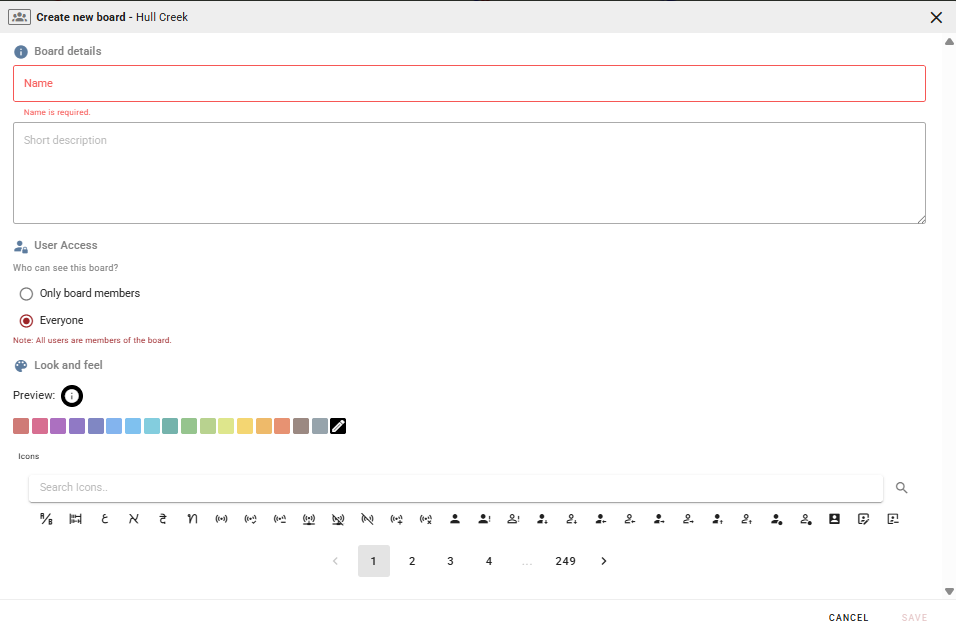
Enter a name and description.
-
Set who can see the board and who can join it (see Access Settings below).
-
Select a color and icon.
-
Select Save.
A new board can also be created by selecting New Board from the Boards List.
Access Settings
Who can see the board:
-
Everyone - The board appears in the Join a Board tab for all users.
-
Only Members - The board appears only in the My Boards tab for current members.
Who can join the board:
-
Anyone - Any user can join without approval.
-
Those who request access and are approved - Users can request access and must be approved before joining.
-
Only Those Added - Users must be manually added by someone with the appropriate role or permission.
Edit a Board
-
Open the Incident Card and select the board you want to edit from the Boards List.
-
Select the options icon in the Board Toolbar.
-
Select Edit Board.
-
Make the necessary changes.
-
Select Save.
Manage Board Members
View Members
-
Select the board from the Boards List.
-
Select the options icon in the Board Toolbar.
-
Select Edit Members.
Current members are listed under the Current Members List.
Add Members
-
Select the board from the Boards List.
-
Select the options icon in the Board Toolbar.
-
Select Edit Members.
-
Select the user or users from the Add Members List.
-
Select the add button to add them to the board.
-
Close the Members Manager.
Remove Members
-
Select the board from the Boards List.
-
Select the options icon in the Board Toolbar.
-
Select Edit Members.
-
Select the user or users from the Current Members List.
-
Select the remove button to remove them from the board.
-
Close the Members Manager.

Find and Join a Board
Boards that allow open or request-based access appear in the Join a Board tab of the Boards List.
Join an Open Board
-
Open the Incident Card and select the incident you want to join a board for.
-
Select the current board name to open the Boards List.
-
Select the Join a Board tab.
-
Select Join on the board you want to join.
The board will now appear under the My Boards tab.
Request Access to a Board
-
Open the Incident Card and select the incident you want to join a board for.
-
Select the current board name to open the Boards List.
-
Select the Join a Board tab.
-
Select Request on the board you want to join.
Once your request is approved, the board will appear in My Boards.
Pin a Board
Pinning a board adds it to the Incident Card so you can switch to it quickly without opening the Boards List.
-
Open the Incident Card and select the board you want to pin from the Boards List.
-
Select the options icon in the Board Toolbar.
-
Select Pin Board.
Pinned boards appear to the right of the Incident Card header. To unpin a board, repeat the same steps and select Unpin.
Share Content Between Boards
Content created in one board is not visible in other boards unless it is shared. Sharing makes the same instance of an item visible across multiple boards. Any edits made to a shared item will appear in all boards it has been shared to.
To create an independent copy of an item in another board instead, use Copy to Board. Copied items are separate instances and changes to the original will not affect the copy.
Content that can be shared between boards includes incident mapping features, photos, and files.
Share a Content Group
-
Select the board containing the content you want to share.
-
Select the options icon in the Board Toolbar.
-
Select Share Content.
-
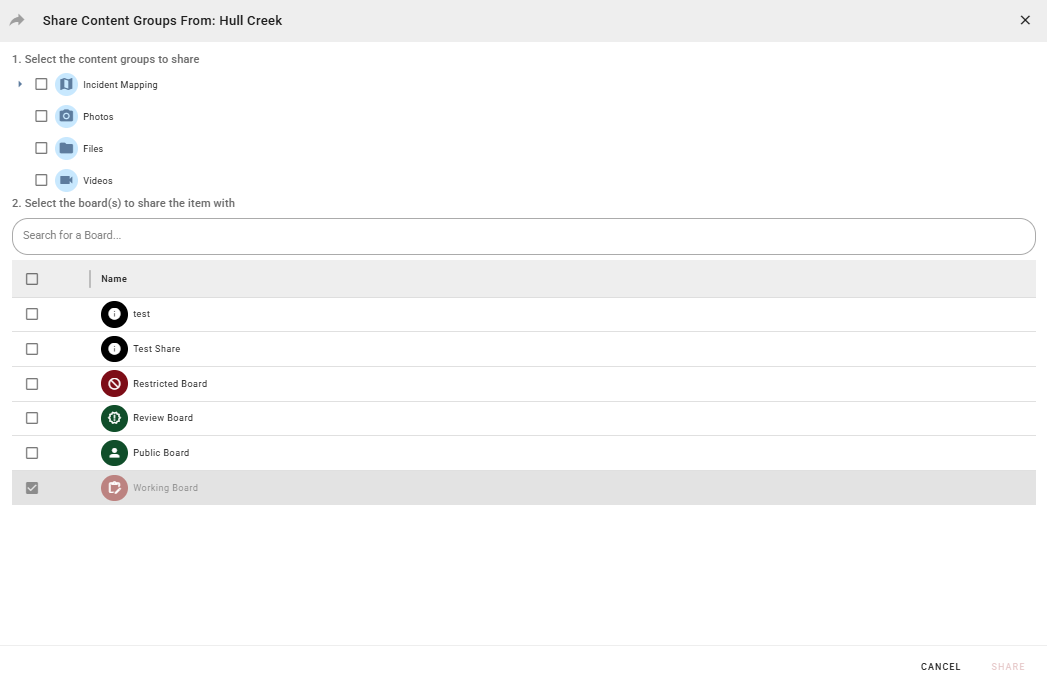
Select the content groups you want to share.
-
Select the destination board.
-
Select Share.
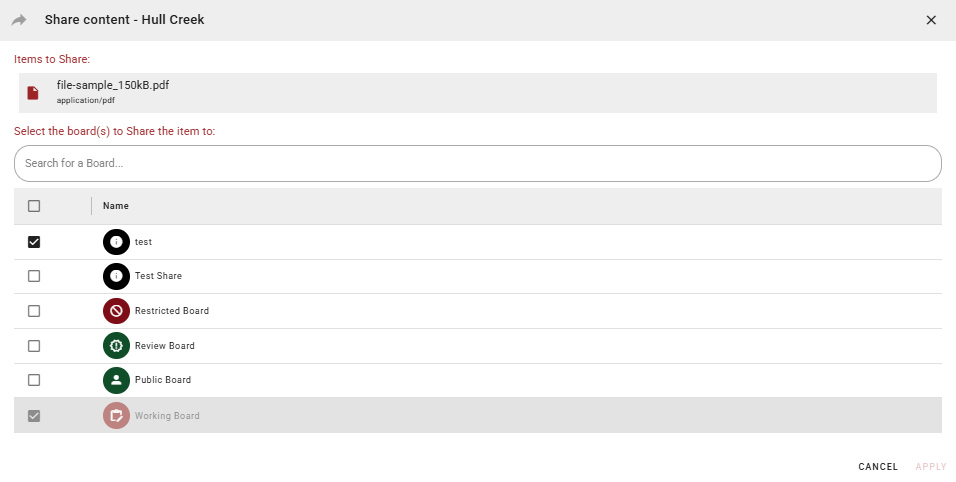
Share an Individual Item
-
Select the options icon next to the item you want to share.
-
Select Share.
-
Select the destination board.
-
Select Share.
Boards that are already checked in the share panel indicate the item is already shared to those boards.
Unshare an Individual Item
-
Select the options icon next to the item you want to unshare.
-
Select Share.
-
Uncheck the boards you want to remove the item from.
-
Select Share.
Review and Approve Features
The review and approval process applies when an incident is in Approval mode. See Switch Incident Modes for details on switching modes.
Open Mode
There is no review or approval process in Open mode. Features added to the Working Board are immediately visible to all users with a status of Proposed and an access level of Cooperators. To display a feature on the Public Board, change its access level to Public and its status to Approved.
Approval Mode
Once an incident is switched to Approval mode, features must go through the Review Board before appearing on the Working Board.
Features added on mobile, added to the Working Board on web, or submitted for review from a user defined board are placed in the Review Board with a status of Proposed.
The Review Board is automatically created when the incident is switched to Approval mode and remains a default board for the remainder of the incident. Only users with the required role or permission can access the Review Board.