
Bookmarks save specific map locations and extents so you can return to them quickly. They can be created from the Bookmark panel, the Search bar, or the Coordinates tool, and can be shared between users.
Open the Bookmark panel by selecting Bookmarks from the Main Toolbar.
Bookmarks are divided into two categories:
-
Global Bookmarks - Visible to all Tactical Analyst (TA) users in your deployment.
-
My Bookmarks - Visible only to you.
Only users with the appropriate permissions can make changes to Global Bookmarks.
View a Bookmark
-
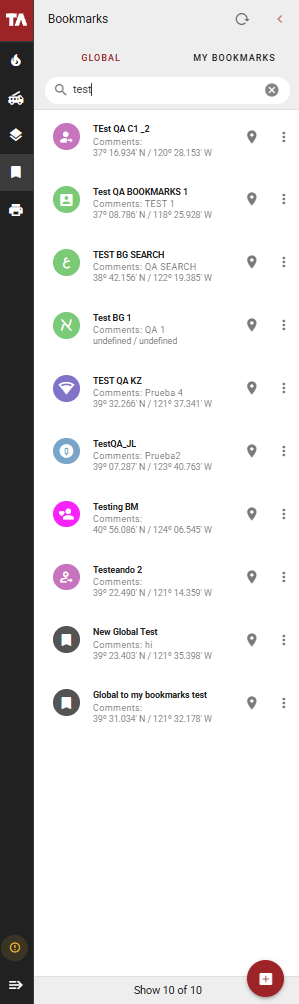
Open Bookmarks from the Main Toolbar.
-
Select Global Bookmarks or My Bookmarks.
-
Select a bookmark from the list. The map will zoom to that location.
Select the location icon next to a bookmark to toggle its pin on or off on the map canvas.
Create a Bookmark from the Bookmark Panel
Bookmarks can be created by drawing a point on the map or by searching for coordinates.
Draw a point on the map
-
Open Bookmarks from the Main Toolbar.
-
Select the + button to add a new bookmark.
-
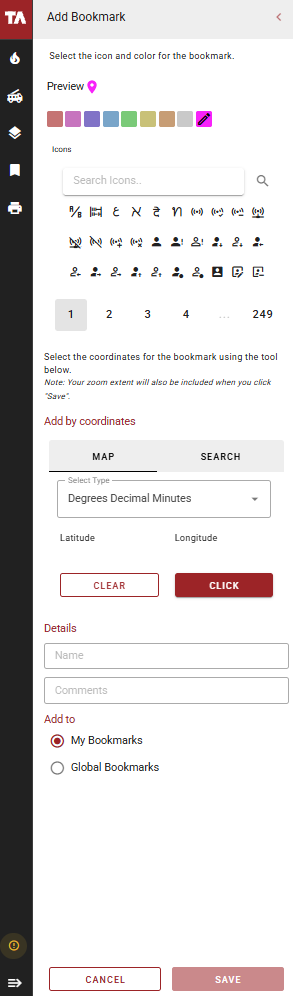
Select an icon and color for the bookmark's map pin.
-
In the Location section, select Point.
-
Select the coordinate units.
-
Select Draw, then click a point on the map canvas.
-
Zoom in or out to set the desired map extent.
-
In the Details section, enter a name and any comments.
-
Select My Bookmarks or Global Bookmarks.
-
Select Save.
Search for coordinates
-
Open Bookmarks from the Main Toolbar.
-
Select the + button to add a new bookmark.
-
Select an icon and color for the bookmark's map pin.
-
In the Location section, select Search.
-
Select the coordinate units.
-
Enter the coordinates and select Search.
-
Zoom in or out to set the desired map extent.
-
In the Details section, enter a name and any comments.
-
Select My Bookmarks or Global Bookmarks.
-
Select Save.
Create a Bookmark from a Pop-Up
-
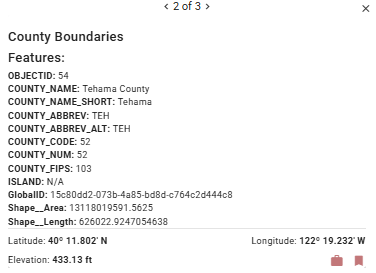
Search for or browse to a feature on the Map Canvas.
-
Click the feature so a pop-up appears.
-
Select the bookmark icon in bottom right corner of the pop-up.
-
Complete the Add Bookmark form and click Save.
The location will appear as a bookmark under My Bookmarks.
Edit a Bookmark
-
Open Bookmarks from the Main Toolbar.
-
Select My Bookmarks.
-
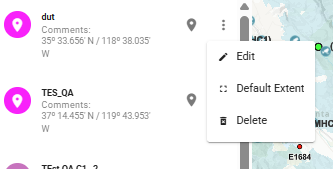
Select the options icon (⋮) next to the bookmark you want to edit.
-
Make the necessary changes.
-
Select Save.
Delete a Bookmark
-
Open Bookmarks from the Main Toolbar.
-
Select My Bookmarks.
-
Select the options icon (⋮) next to the bookmark you want to delete.
-
Select Delete.
Set a Bookmark as the Default Zoom Extent
-
Open Bookmarks from the Main Toolbar.
-
Select the options icon (⋮) next to the bookmark you want to use as the default extent.
-
Select Default Extent.
The Go to Extent button in the Map Tools Bar will now zoom to that bookmark's location and extent.