
Incident modes control the review and approval process for mapping features and align with Initial Attack and Extended Attack workflows. Not all user roles will have permissions to switch incident modes.
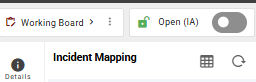
The current mode for an incident is displayed as a toggle in the Incident Card header. A green indicator shows Open mode and a red indicator shows Approval mode.
About Incident Modes
Open Mode (Initial Attack)
Open mode is the default for all incidents. There is no review or approval process in this mode. Features added to the Working Board are immediately visible to all users with a status of Proposed and an access level of Cooperators.
Features added to user defined boards still require a manual status change from Draft to Proposed before they appear on the Working Board.
Approval Mode (Extended Attack / Major Attack)
Approval mode introduces a mandatory review and approval process for all mapping features. Features added on mobile, on the Working Board on web, or submitted from a user defined board are routed to the Review Board before becoming visible on the Working Board.
The Review Board is automatically created when the incident is switched to Approval mode and remains a default board for the life of the incident. It is only accessible to certain use roles.
For details on the review and approval workflow, see Incident Boards.
Switch Incident Modes
Switch to Approval Mode
-
Open the Incident Card for the relevant incident.
-
Select the mode toggle in the Incident Card header.
-
A confirmation dialog will appear. Select Confirm.
The toggle will update to show Approval mode. The Review Board will be created automatically.

Switch Back to Open Mode
An incident can be switched back to Open mode from Approval mode if needed.
-
Open the Incident Card for the relevant incident.
-
Select the mode toggle in the Incident Card header.
-
A confirmation dialog will appear. Select Confirm.
The toggle will update to show Open mode.