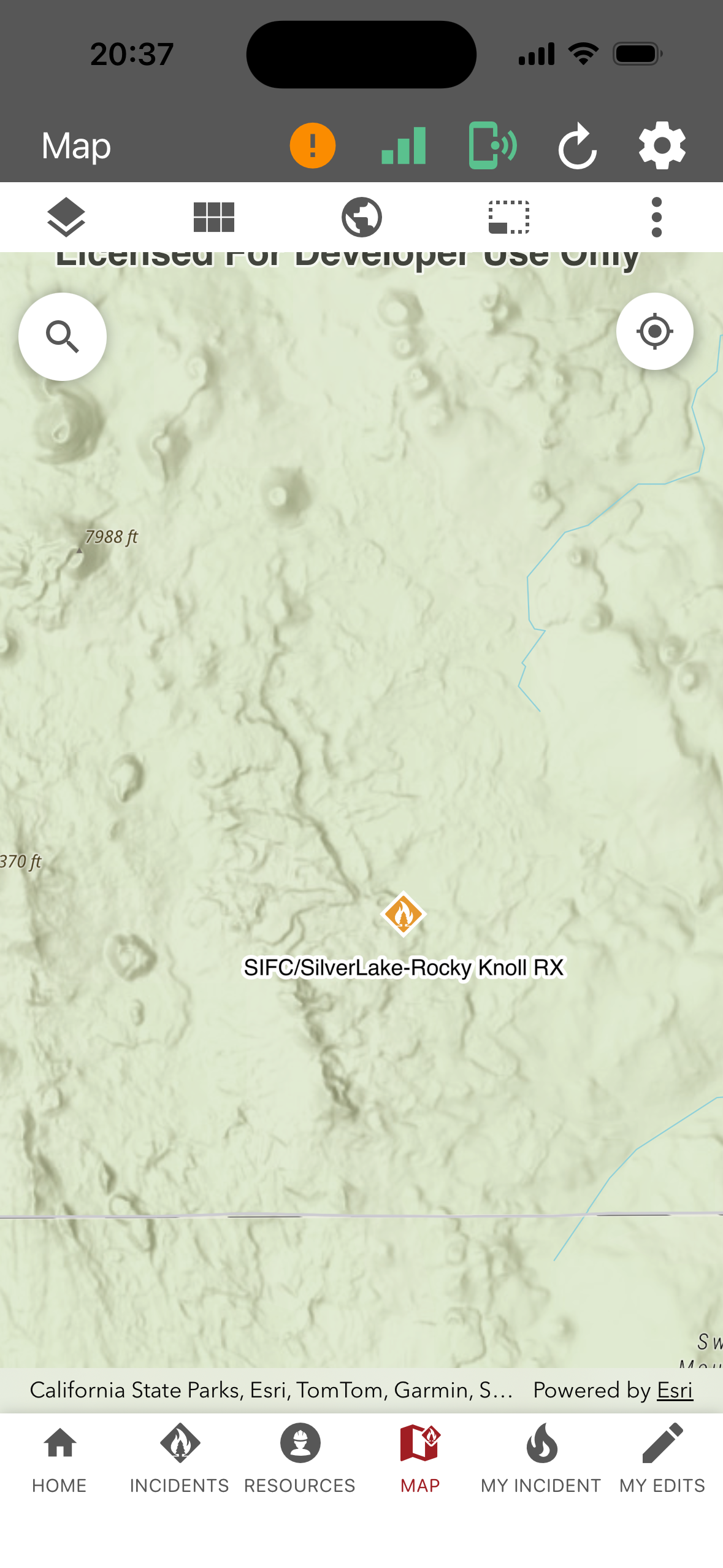
The main Map displays incidents, resources, and other map layers across your deployment. To open it, tap Map in the navigation bar at the bottom of the screen, or tap Map on the Home screen.
You cannot add mapping features, photos, or files from the main Map. To add these, open the incident and add them on the incident map (see Incident Card Mapping Features).
Map Toolbar

The toolbar below the header at the top of the Map contains the following tools:
-
Map Layers (layers icon): Turn map layers on or off. For more information, see Map Layers.
-
Basemaps (grid icon): Select the basemap displayed beneath the map layers. For more information, see Basemaps.
-
Global Extent (globe icon): Zoom out to the full map extent.
-
Offline Maps (dotted square icon): Download map areas for offline use. See Offline Maps.
-
More (three dots icon): Open the Map Controls menu.
Search the Map
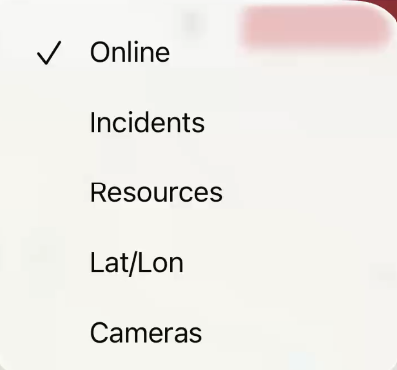
Tap the Search button in the upper left. Use the drop-down list to select what to search for:
-
Online: Search for addresses, places, and other locations. Requires an internet connection.
-
Incidents: Search for incidents by name.
-
Resources: Search for resources by name.
-
Lat/Lon: Search by latitude and longitude coordinates.
-
Cameras: Search for cameras by name.
Zoom to Your Location
Tap the My Location (crosshairs icon) button in the upper right to center the map on your current location.
Location permissions must be enabled on your device. For more information, see Location Settings.
Offline Maps
Offline maps let you view map areas when you do not have an internet connection.
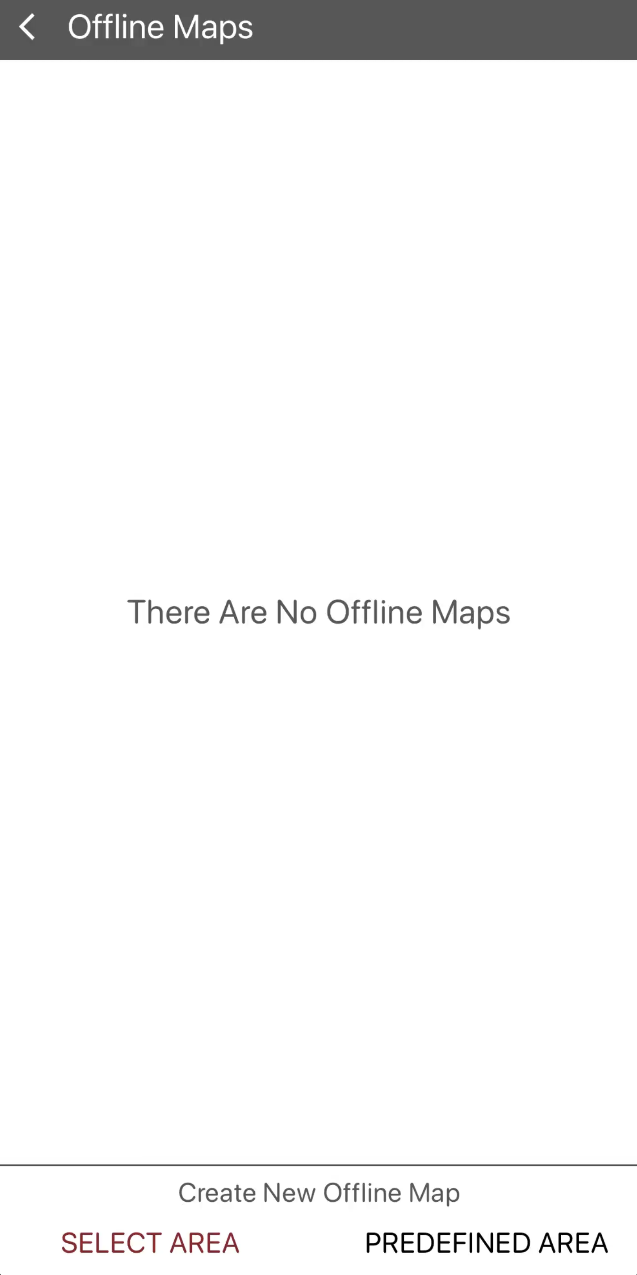
To open the Offline Maps screen, tap Offline Maps in the Map Toolbar. The screen lists the offline maps saved on your device. If no offline maps have been created, the screen displays There Are No Offline Maps.
Create an Offline Map
Under Create New Offline Map, tap Select Area or Predefined Area.
Select Area
-
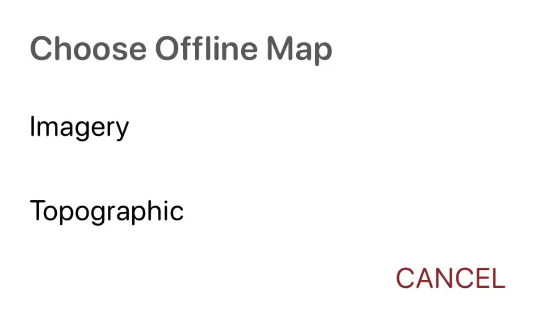
Tap Imagery or Topographic for your offline map type.
-
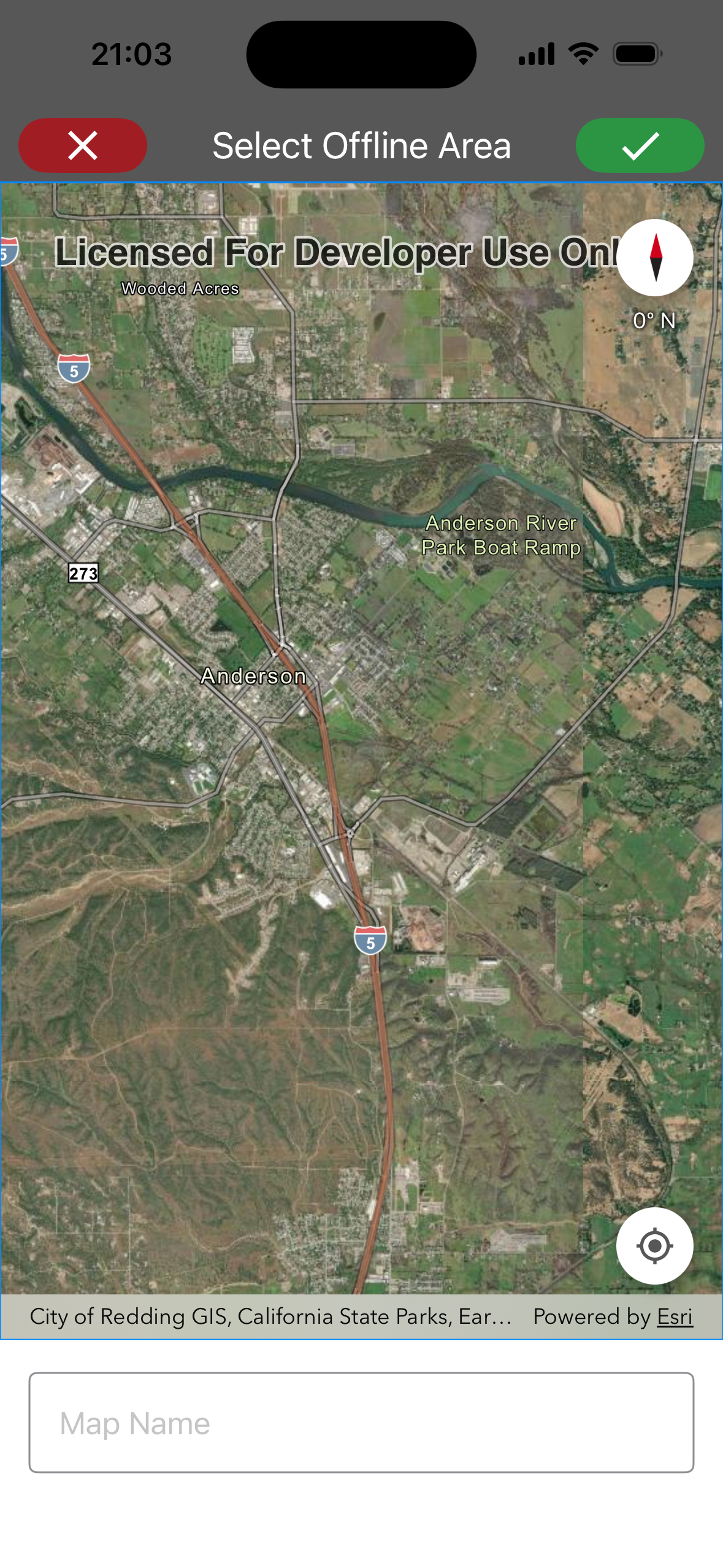
Zoom to the area you would like to download.
-
Enter the Map Name.
-
Tap the green check in the upper right.
To close the screen without downloading, tap X in the upper left.
Predefined Area
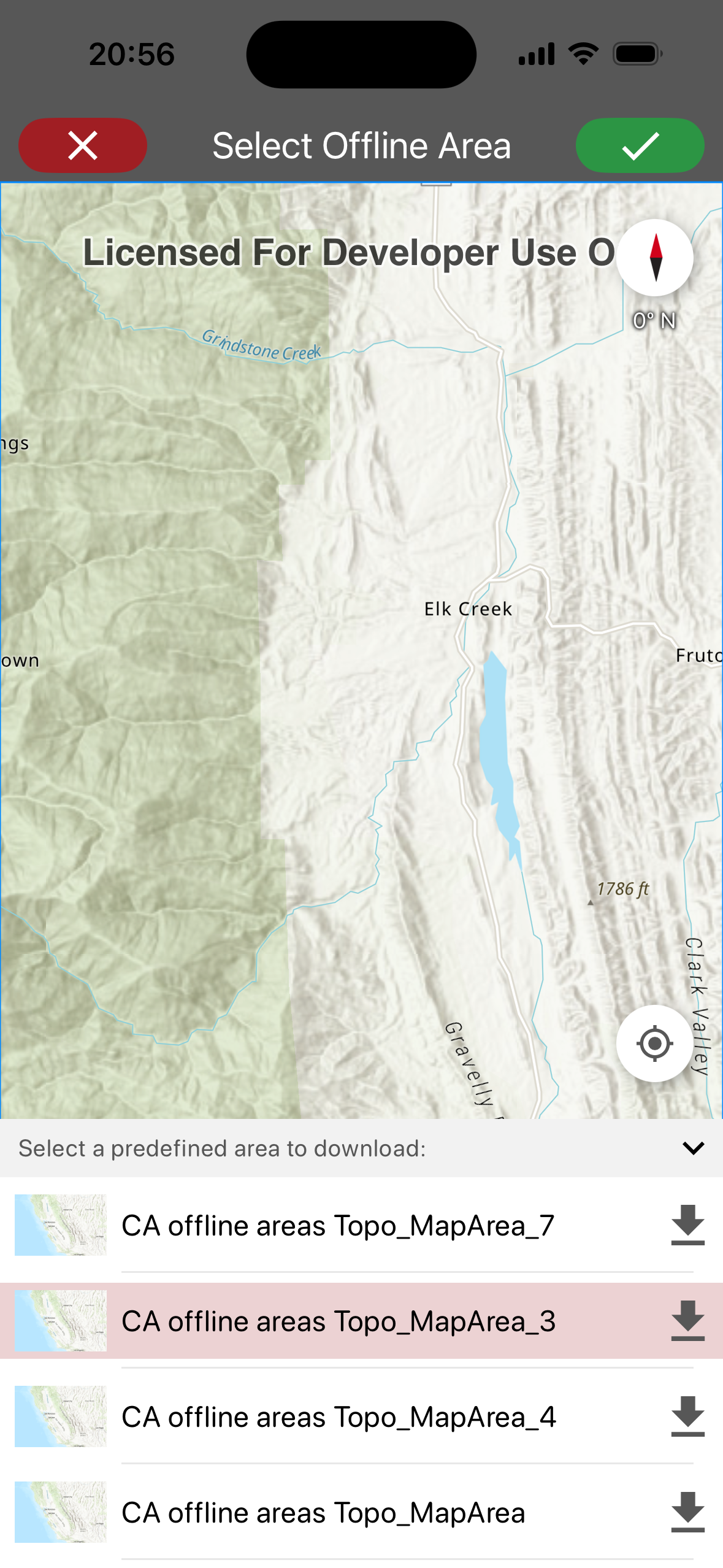
The Select Offline Area screen opens, with a map at the top and a list of available areas below.
-
Tap an area in the list. The map zooms to the selected area.
-
Tap the green check in the upper right.
To close the screen without downloading, tap X in the upper left.
Predefined areas are set up for your deployment. If the area you need is not listed, use Select Area or contact your administrator.