Set Location Permissions to “Always” or “Allow All the Time”
Location Permissions must be set to “Always” or “Allow all the time” to perform GPS Mapping with the App in the background or with the screen turned off.
iOS
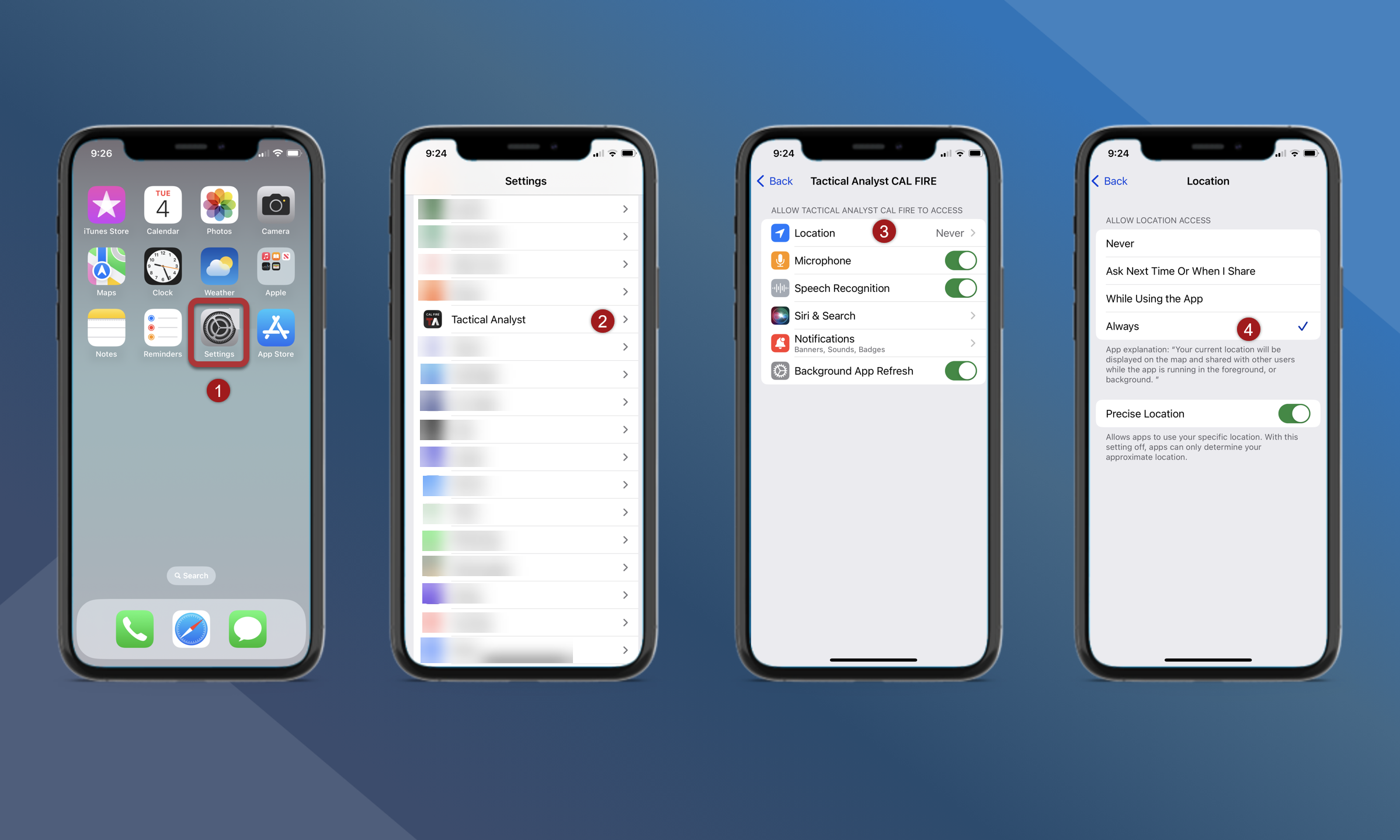
To change this permission on an iOS mobile device, follow these steps:
-
On an iOS mobile device open Settings.
-
Scroll down to find and tap Tactical Analyst.
-
Tap Location.
-
Tap Always.
Android
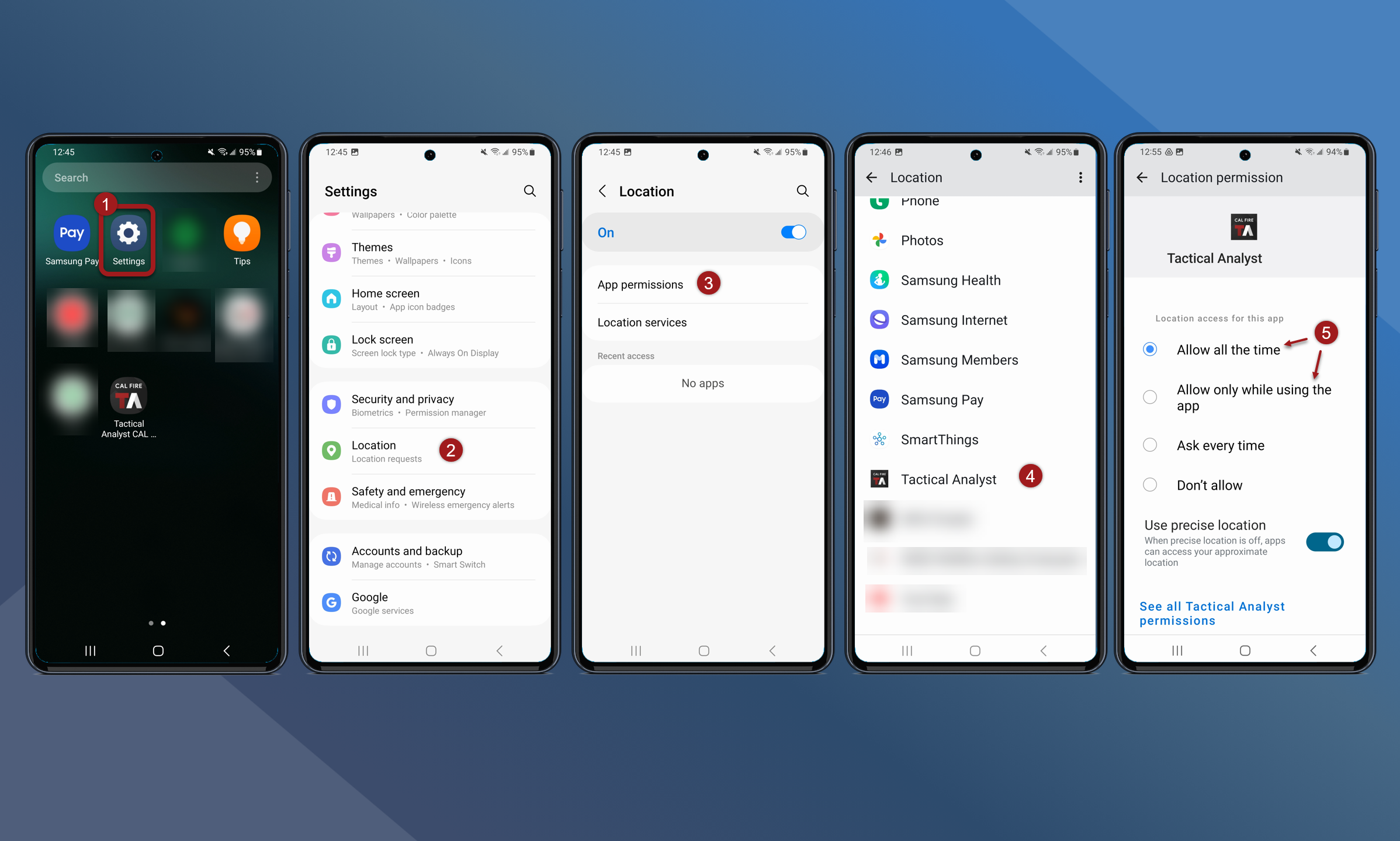
To change this permission on an Android mobile device, follow these steps:
-
On an Android mobile device open Settings.
-
Tap Location.
-
Tap App Permissions.
-
Find and tap Tactical Analyst.
-
Tap Allow all the time or Allow only while using the app.
Improve GPS Accuracy
Turn off mobile device Location Settings to improve GPS accuracy.
iOS
iOS resets this setting with every operating system update.
-
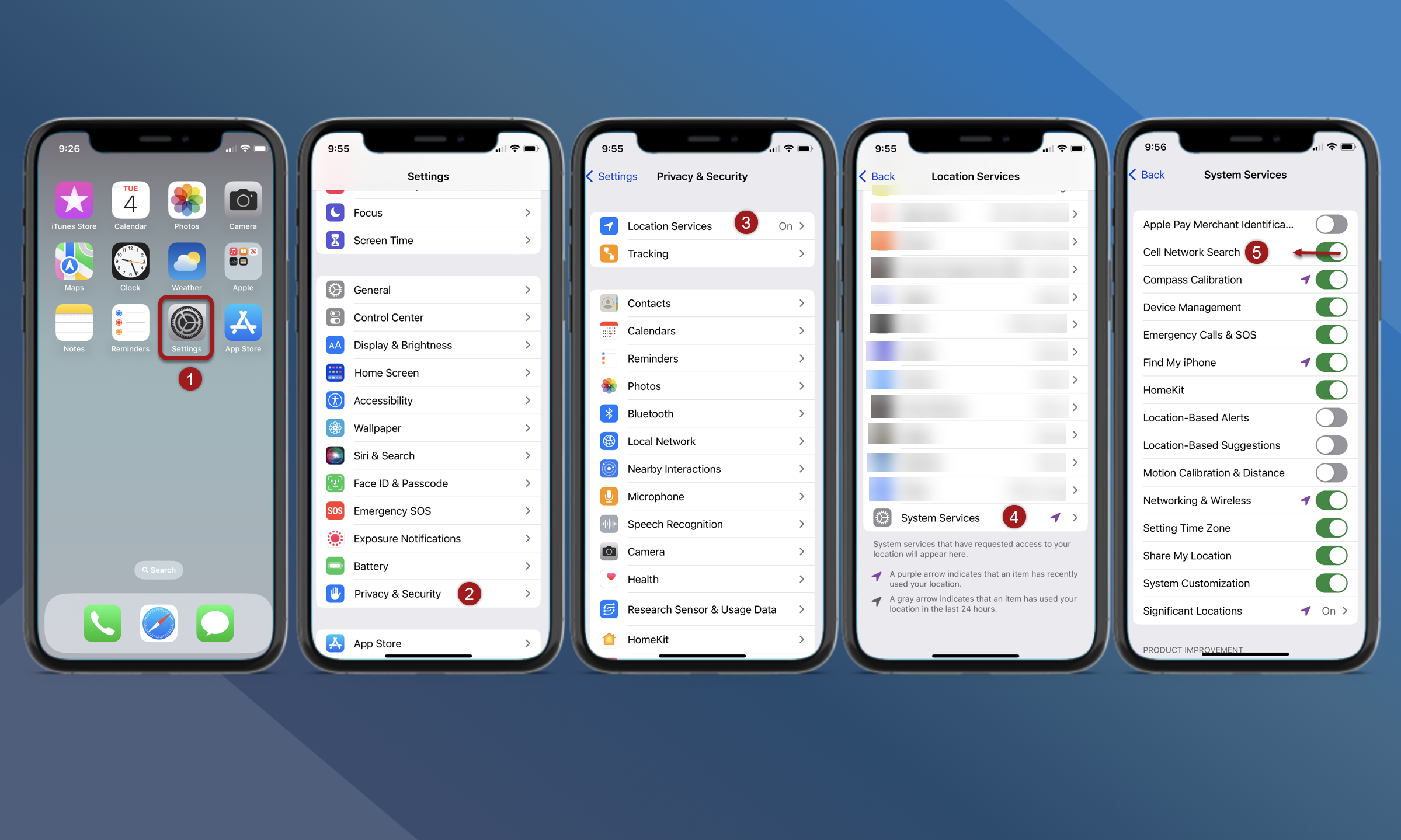
On an iOS mobile device open Settings.
-
Tap Privacy & Security.
-
Tap Location Services.
-
Navigate to the bottom of the screen. Tap System Services.
-
Tap the Cell Network Search slide to disable this setting.
Android
-
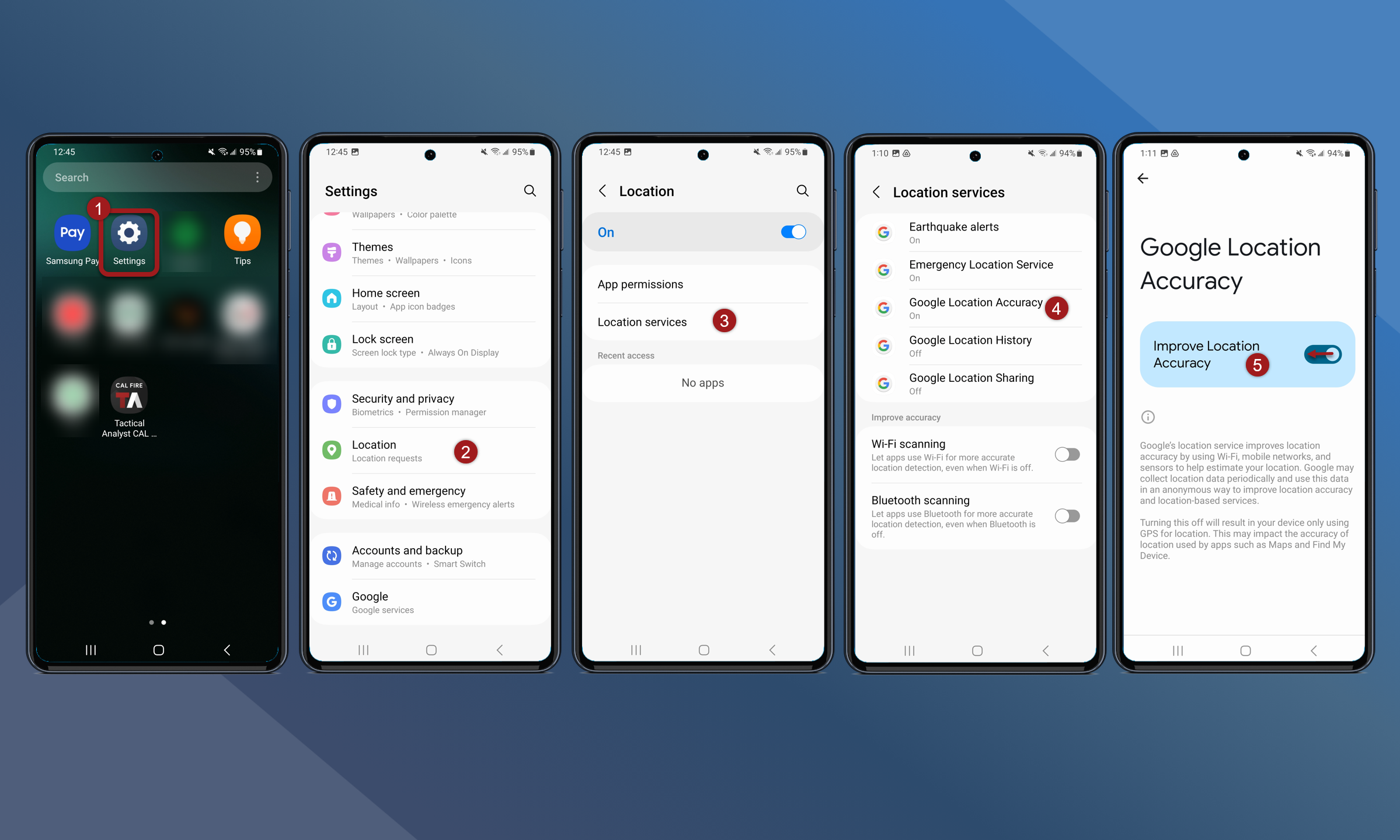
On an Android mobile device open Settings.
-
Tap Location in the settings list.
-
Tap Location Services to see additional settings.
-
Tap Google Location Accuracy.
-
Tap the Improve Location Accuracy slider to disable this setting..