
To open My Edits, tap My Edits in the Map footer or on the Home screen.
The My Edits screen lists incidents with edits on your device that have not been uploaded to the server. Use it to upload all edits for an incident, upload selected mapping features, or delete edits. Other users cannot see your edits until you upload them.
The number of pending edits appears on the My Edits navigation icon and in the screen title, for example, My Edits (1).
My Edits Overview
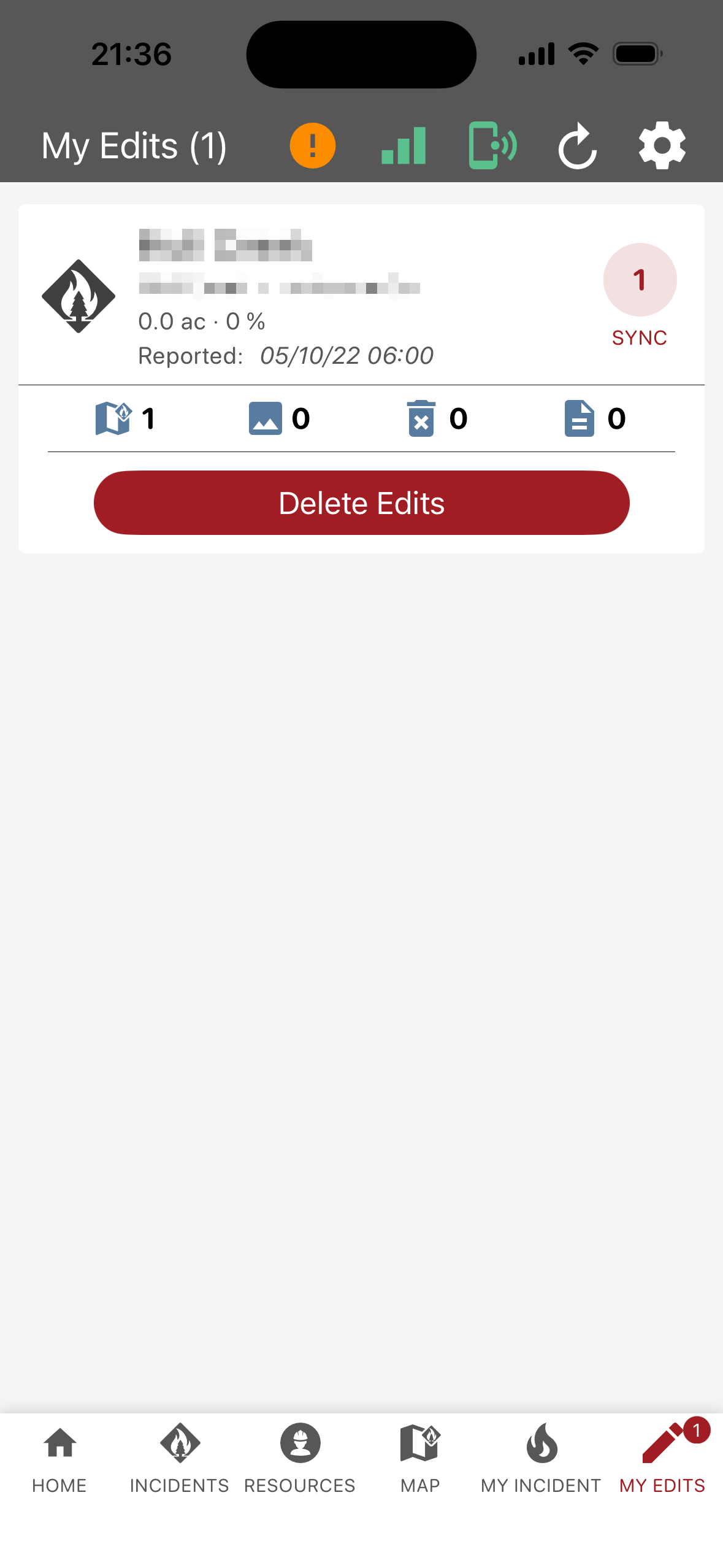
Each incident with pending edits has a card that displays the following:
-
Incident details: Incident name, location, size, percent containment, and reported date and time.
-
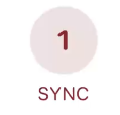
Sync button: Syncs all edits for the incident. A number badge indicates the number of changes to sync.
-
Features to Sync (map icon): Number of new or edited features waiting to sync.
-
Photos to Sync (photo icon): Number of new photos waiting to sync.
-
Deleted Features to Sync (trash can icon): Number of deleted features waiting to sync.
-
Files to Sync (document icon): Number of new files waiting to sync.
-
Delete Edits: Deletes pending edits for the incident from your device.
Manage Edits
Upload All Edits for an Incident
-
Open My Edits.
-
To the right of the incident details, tap Sync.
Delete Edits for an Incident
-
Open My Edits.
-
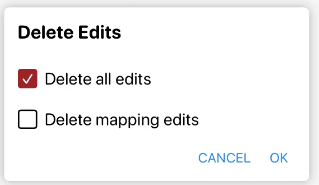
Below the incident details, tap Delete Edits.
-
Leave Delete all edits as the default.
-
Tap OK.
Upload Selected Mapping Features
-
Open My Edits.
-
Tap Features to Sync (map icon).
-
Select the mapping features to upload.
-
Tap Sync.
Delete Selected Mapping Features
-
Open My Edits.
-
Tap Features to Sync (map icon).
-
Select the mapping features to upload. Do not select the features you wish to delete.
-
Tap Sync.
-
Below the incident details, tap Delete Edits.
-
Leave Delete all edits as the default.
-
Tap OK.