
Tap the Resources icon on the Home page to view the the Automatic Vehicle Location (AVL) resources tracked within your deployment.
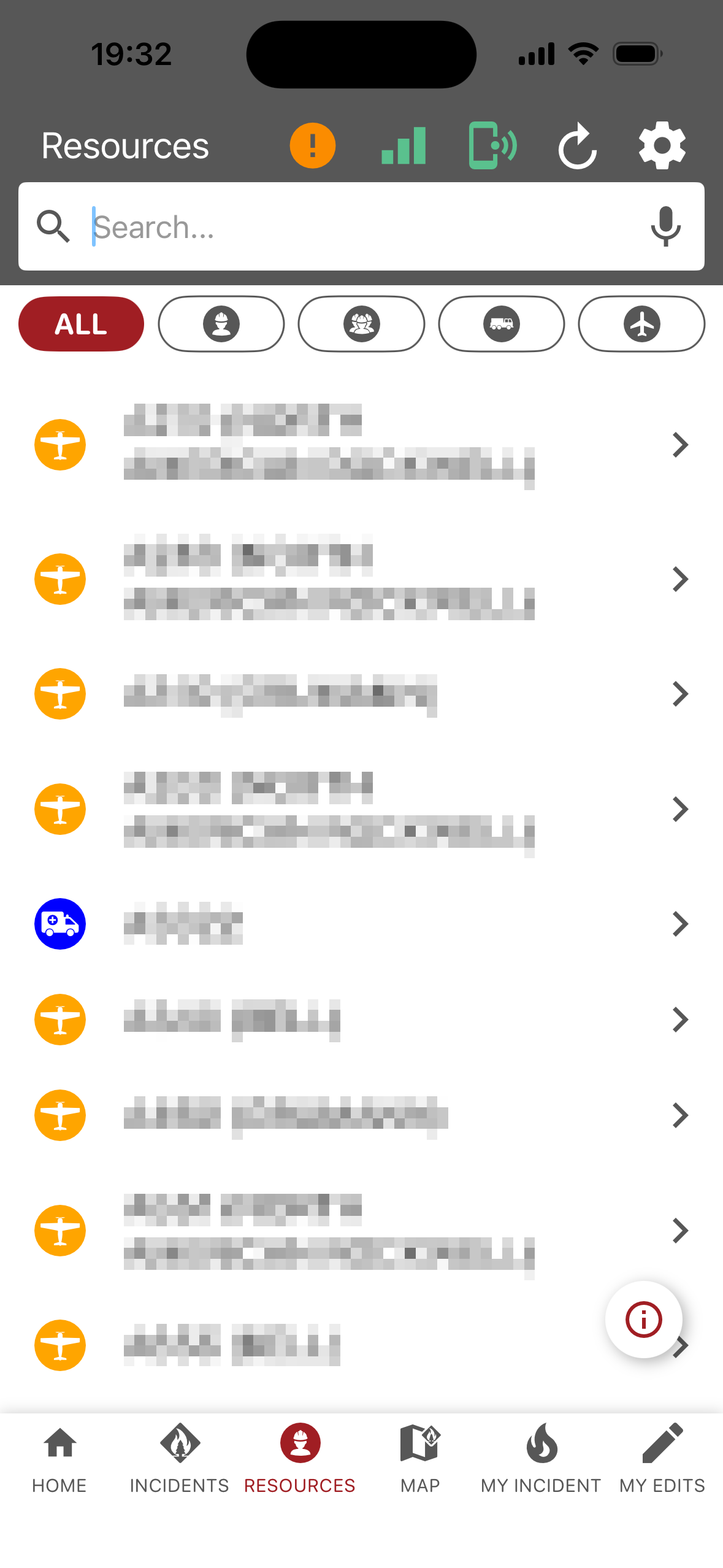
Search
Use the Search bar to find a resource by name. Tap the microphone icon to search by voice.
Filter by Resource Type
Use the filter buttons below the Search bar to limit the list to the selected resource types. The selected filter(s) are highlighted in red.
-
All: Show all resources.
-
Personnel (individual icon): Show individual personnel.
-
Crews (three people icon): Show crews.
-
Equipment (truck icon): Show ground equipment, such as engines and other vehicles.
-
Aircraft (airplane icon): Show aircraft.
Resource List
Each entry in the list displays the following:
-
Resource icon: Indicates the resource type.
-
Resource name: The name or identifier of the resource.
Tap an entry to open its Resource Card.
Resource Card
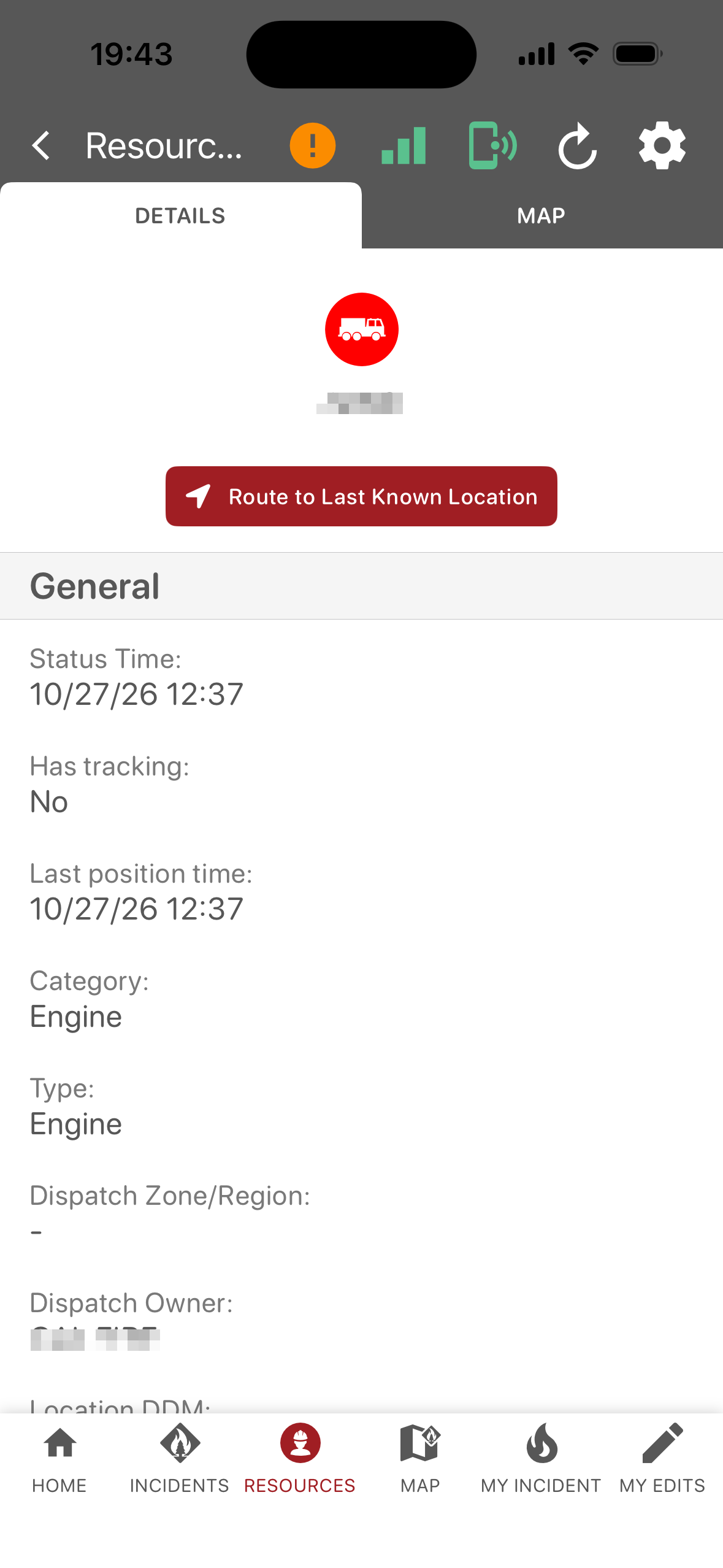
Each Resource Card has two tabs: Details and Map.
Details
The top of the Details tab displays the resource type icon and the resource name.
Route to Last Known Location: Opens directions to the resource’s last reported position in the device’s default navigation app.
The General section displays information about the resource, such as last position time, type, owner, and location.
Map
Zooms to the selected resource on the Map.