Tap the gear icon in the top-right corner to open the Settings menu.
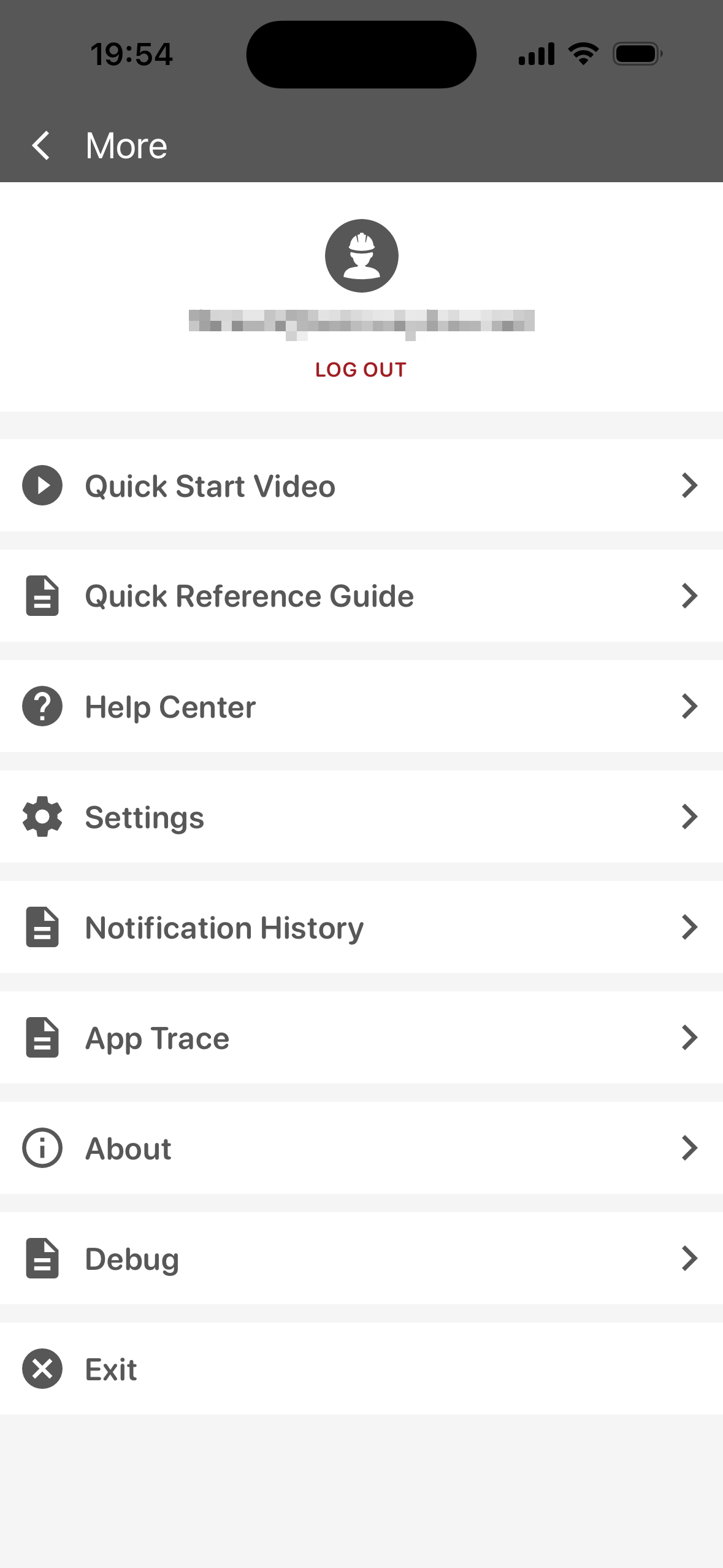
The top of the screen displays the email address of the signed-in account. Tap Log Out to sign out of TA Mobile.
-
Quick Start Video: Play a video overview of TA Mobile.
-
Quick Reference Guide: Open the TA Mobile Quick Reference Guide (QRG).
-
Help Center: Open the Tactical Analyst documentation in the Technosylva Help Center.
-
Settings: Open Application Settings.
-
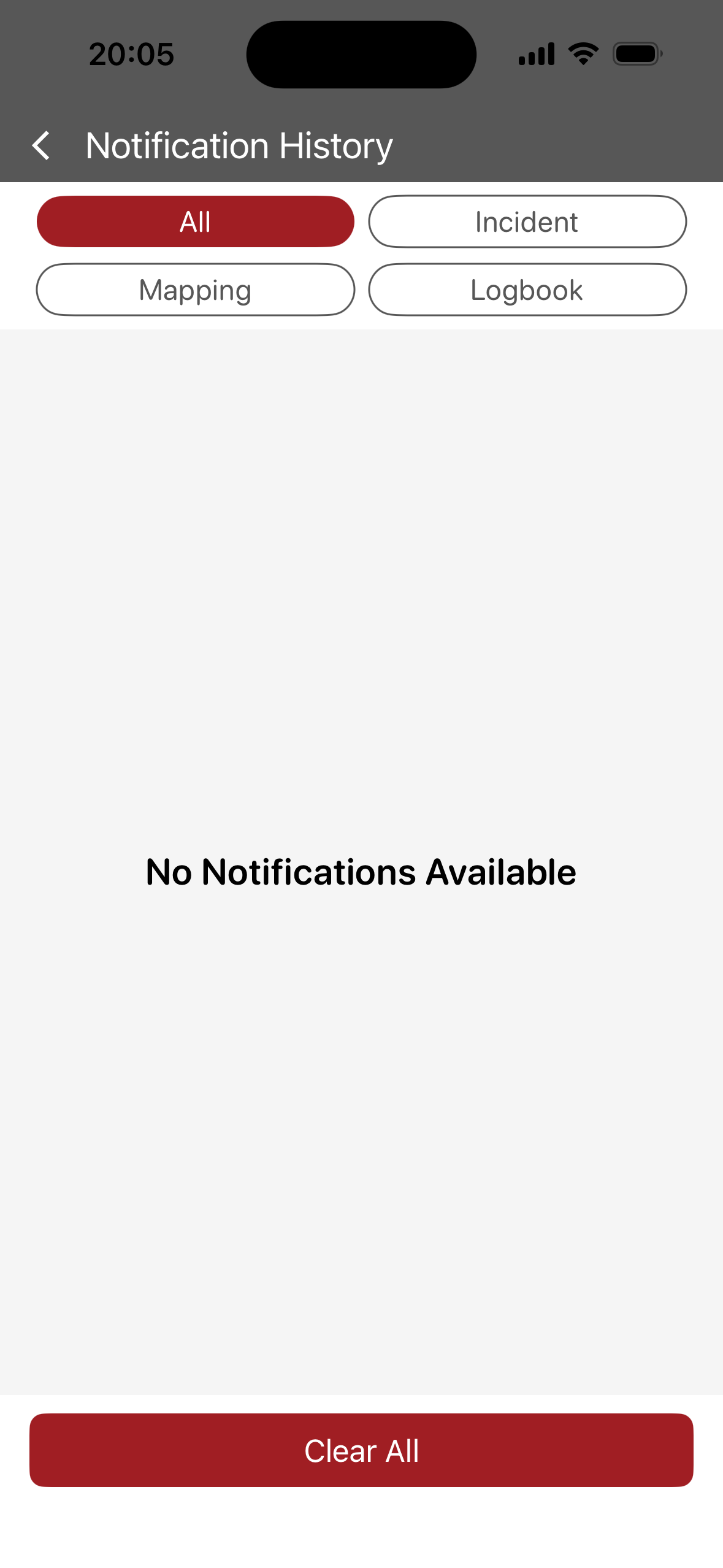
Notification History: View notifications previously received in TA Mobile. Optionally filter by type (Incident, Mapping, or Logbook).
-
App Trace: Used by Technosylva for troubleshooting.
-
About: View the app environment, version, and other information, such as the Disclaimer and Privacy Policy.
-
Debug
-
Exit: Close TA Mobile without signing out.
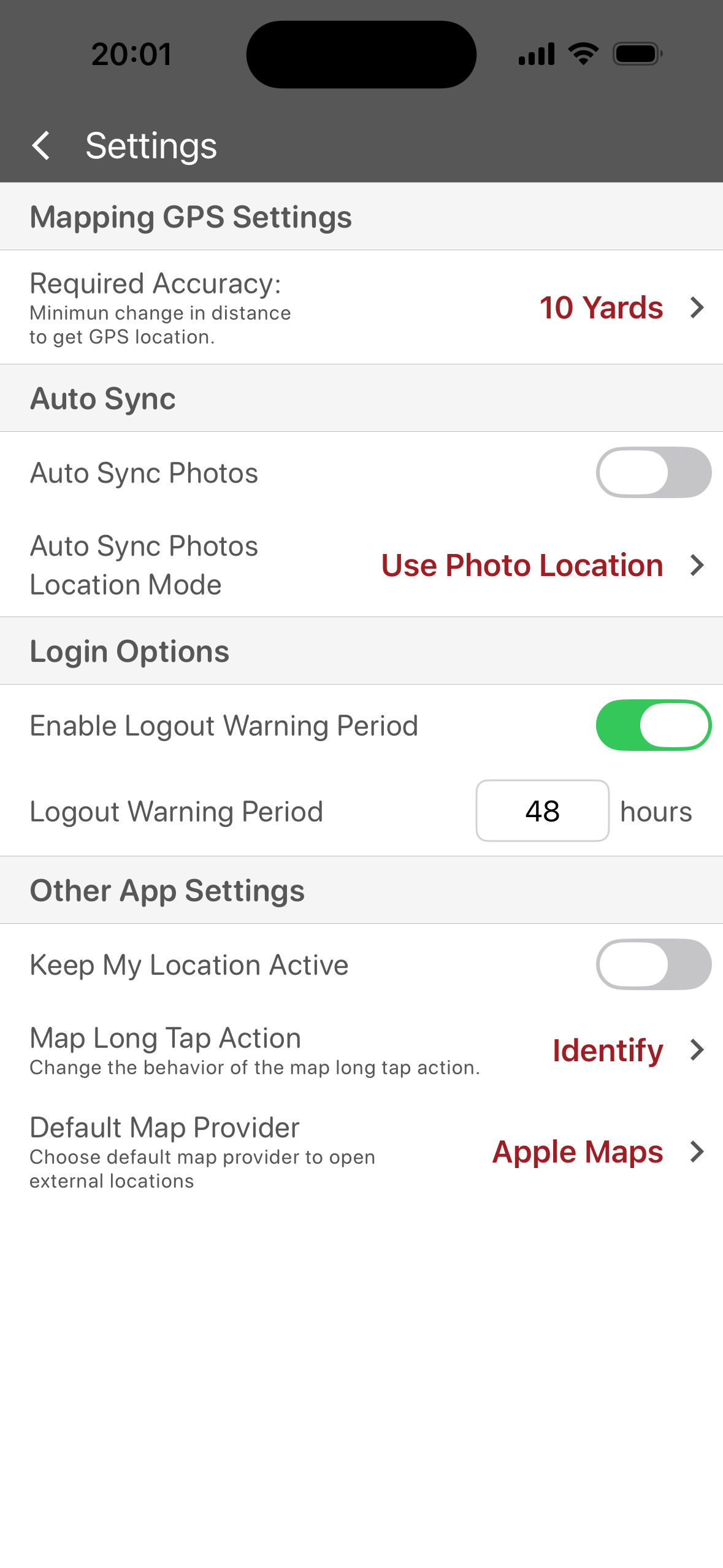
Application Settings
Mapping GPS Settings
-
Required Accuracy: The minimum distance your device must move before TA Mobile records a new GPS location. Tap to select a value.
Auto Sync
-
Auto Sync Photos: When on, photos sync automatically. When off, sync photos manually.
-
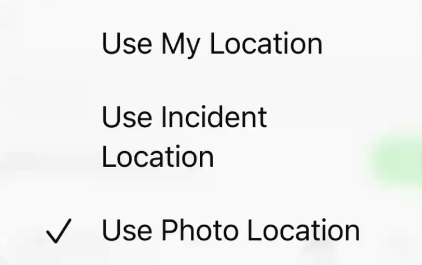
Auto Sync Photos Location Mode: Sets how location is assigned to synced photos (Use My Location, Use Incident Location, or Use Photo Location).
Login Options
-
Enable Logout Warning Period: When on, TA Mobile warns you before your session expires and you are logged out.
-
Logout Warning Period: The number of hours before logout that the warning appears.
Other App Settings
-
Keep My Location Active: When on, TA Mobile continues to track your location while the app runs in the background. Requires location permissions to be enabled on your device.
-
Map Long Tap Action: Sets what happens when you tap and hold the map (Identify feature or display Coordinates).
-
Default Map Provider: Sets the map app used for directions to external locations.