
The Map Canvas is used for spatial viewing and analysis. Circuit and segment risk data are displayed as a color ramp driven by the selected metric.
Map Toolbar
The map toolbar sits above the Map Canvas (below the Topbar) and provides the following tools:

-
Measure (Ruler): Measure distances directly on the map canvas.

-
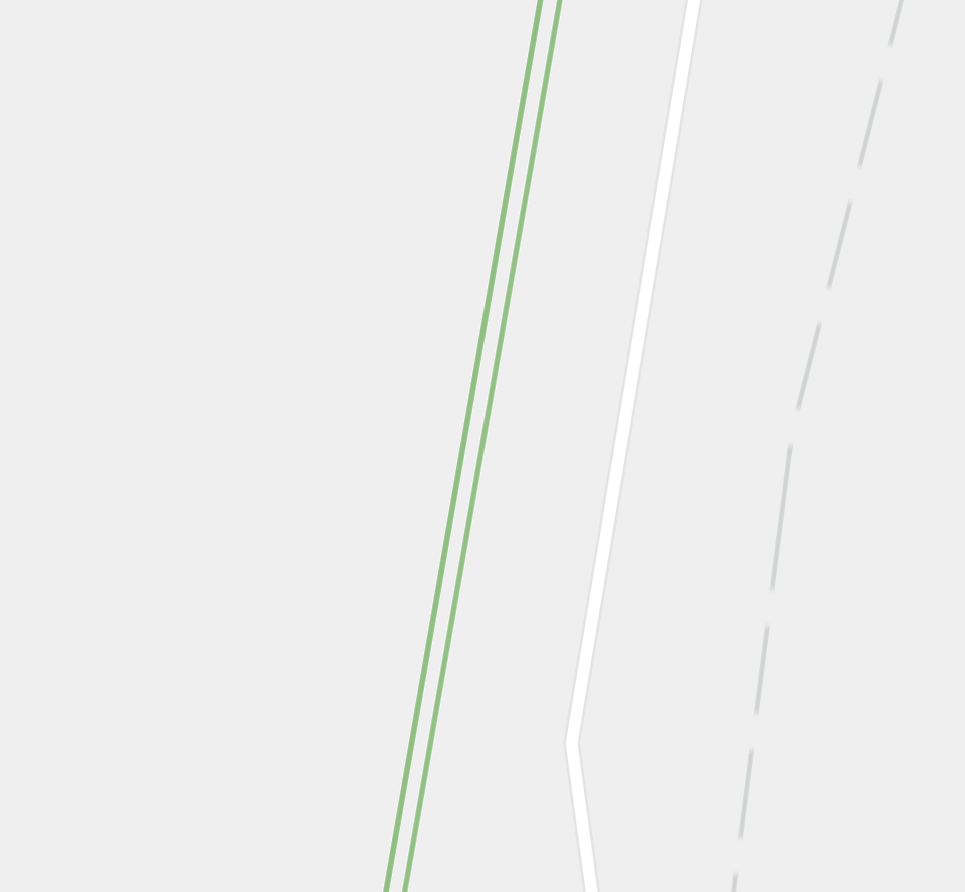
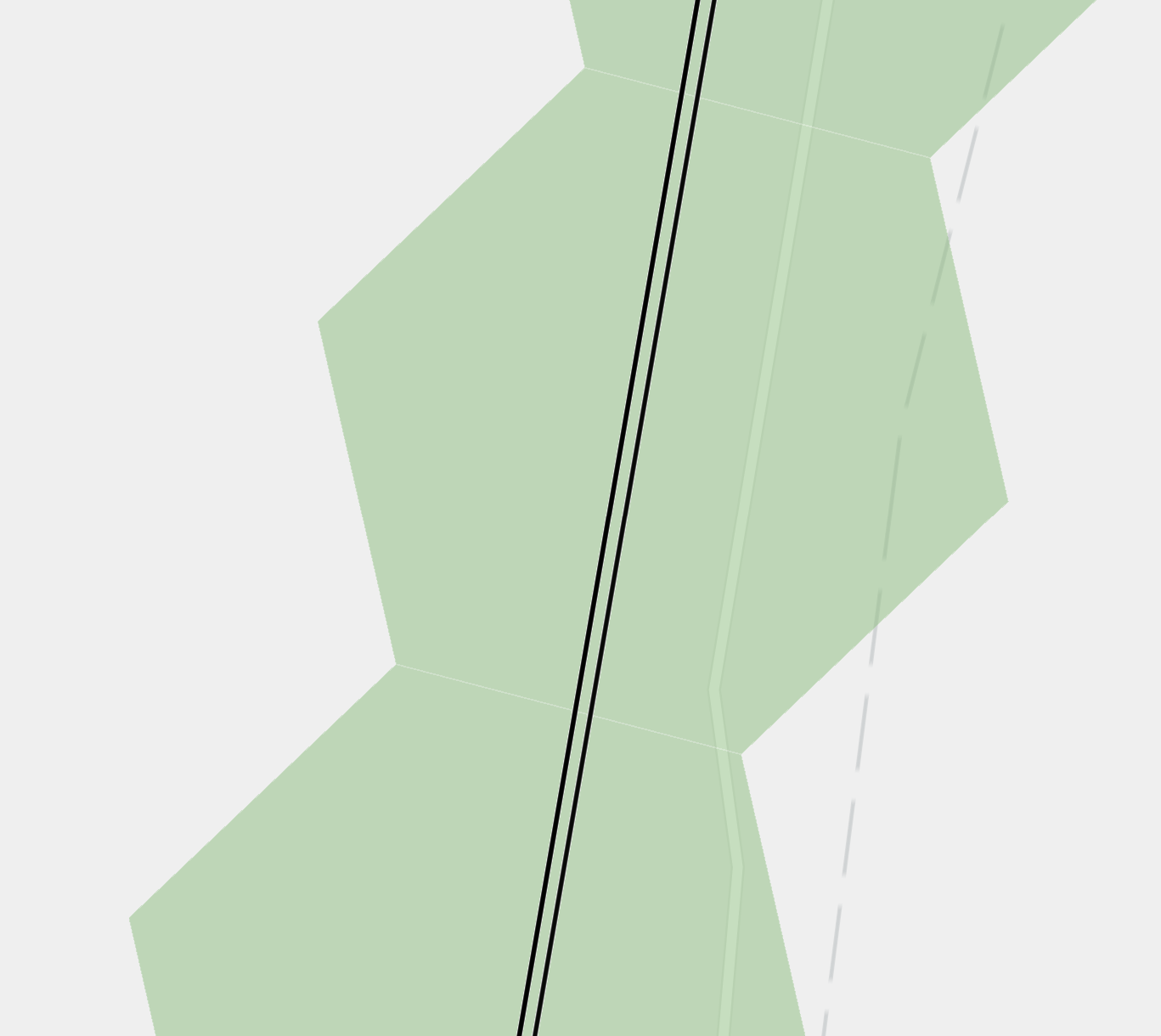
Dissolve Metrics Onto Assets (Dotted Globe): View risk colors directly on utility assets rather than having to visually connect separate asset and H3 layers. This makes it easier to identify where risk changes along a line and pinpoint areas for closer investigation.

Map Metrics
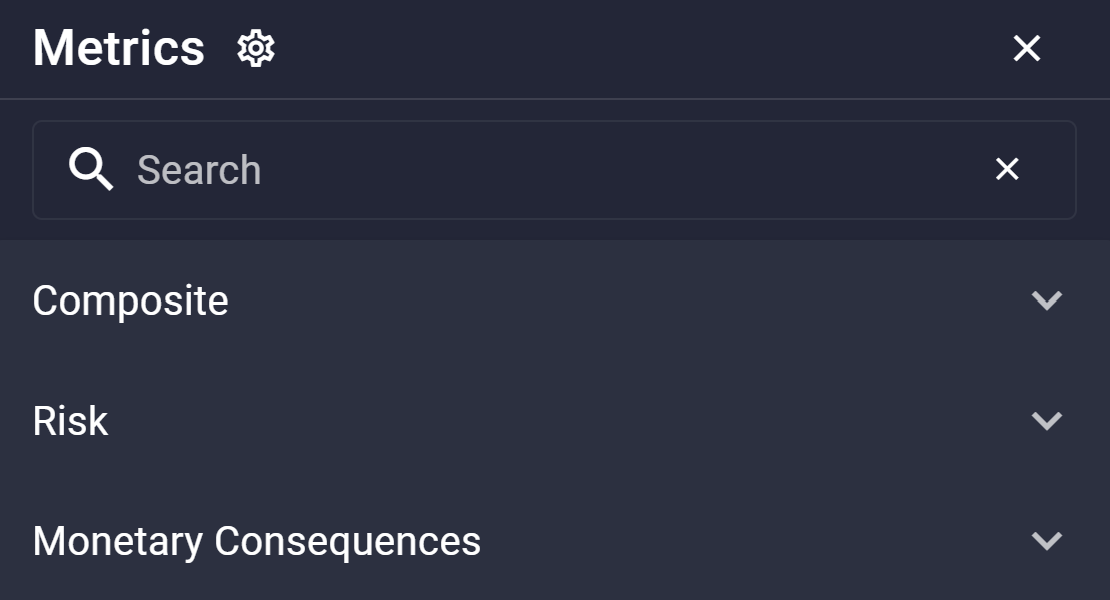
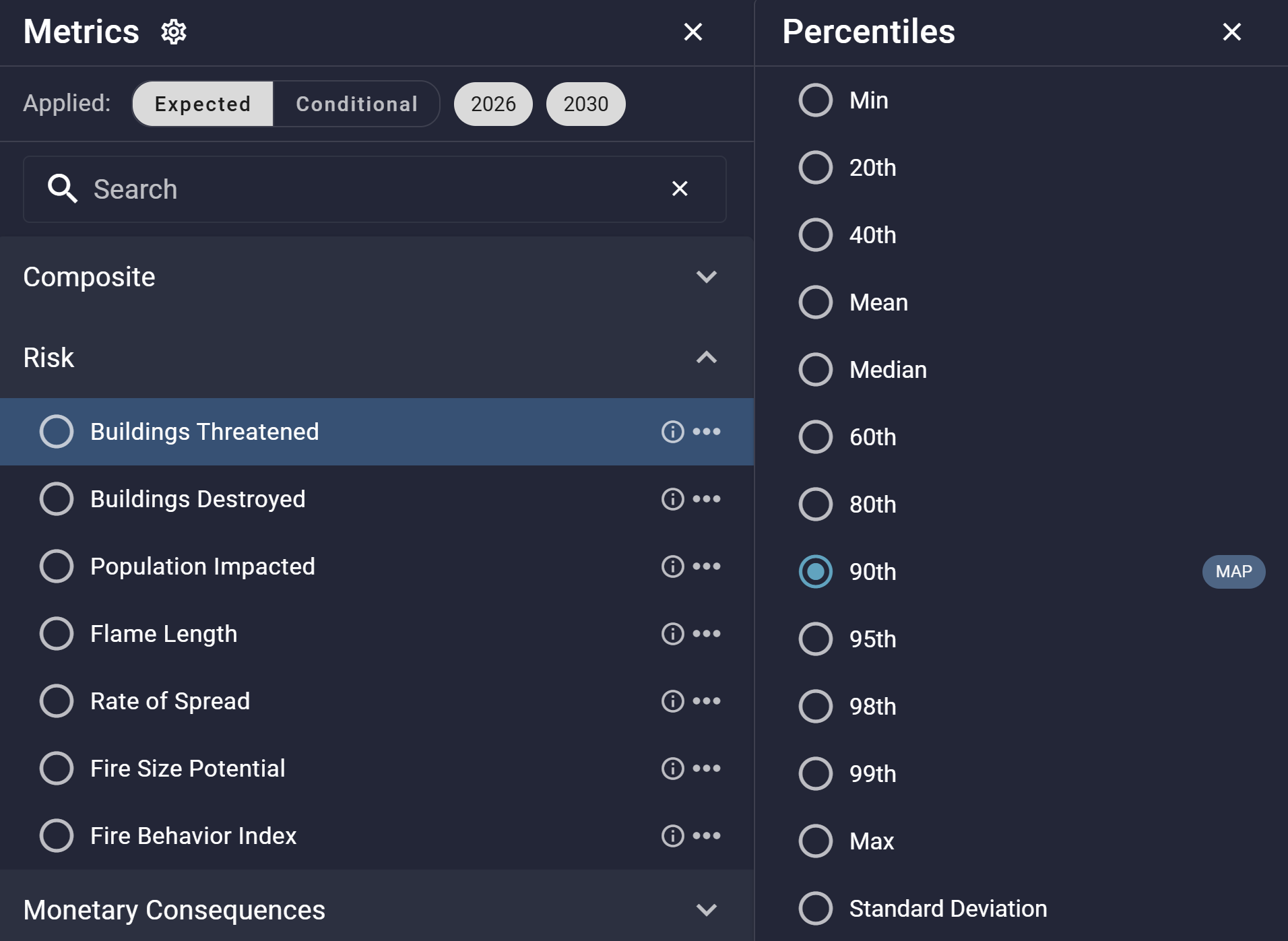
Select which metric drives the map color ramp. A badge in the map displays the name of the currently selected metric. Metrics are organized into categories such as Composite, Risk, Vegetation Management, and Monetary Consequences.
Layers vary by customer and may differ from those shown here.
-
Map Badge: Indicates the metric currently shown on the Map Canvas.
-
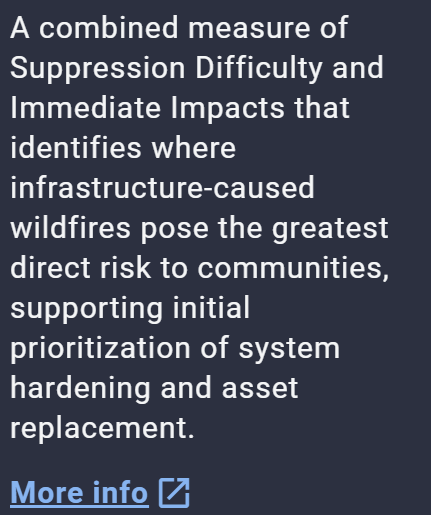
i: Get more information on the metric.
-
Three dots (⋯): for Risk and Monetary Consequences metrics, select the percentile you would like to display on the Map.
Zoom to Operating Area (Crosshairs)
Zoom the map to your organization's full asset extent.

Layers
Toggle contextual layers including territory, reference, and custom layers on or off. Layers are organized by type in separate tabs. A badge next to both the Layers button and the layer type tabs indicates the number of currently activated layers. Use the Clear button in the top right of the application to deselect all layers.

Layers vary by customer and may differ from those shown here.
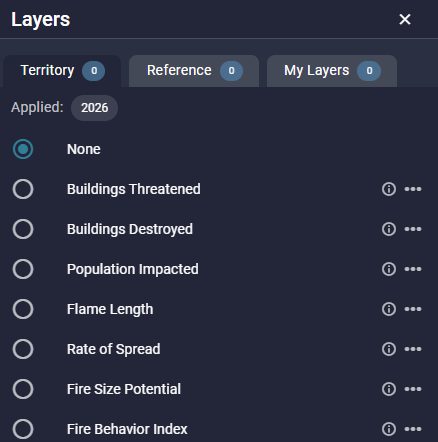
Click the i button for more information on a layer.
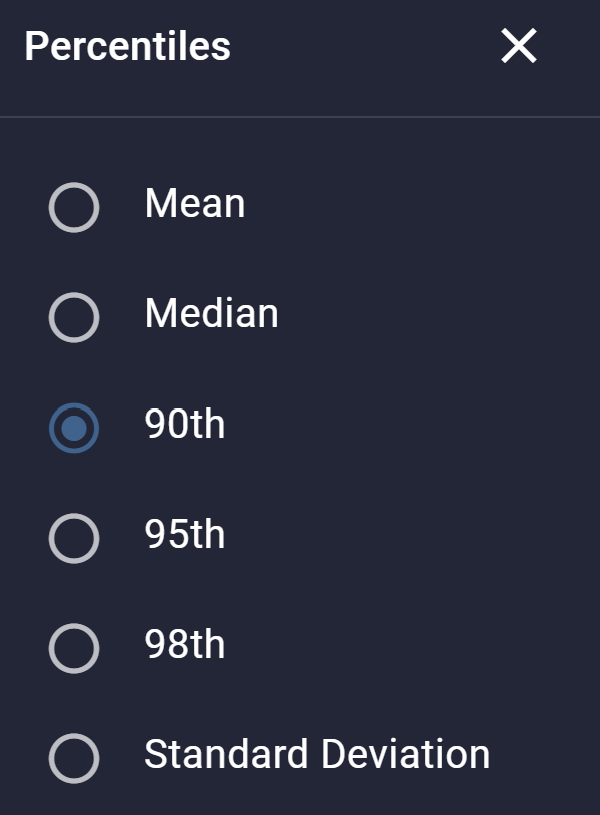
Territory layers also include a Settings menu (three dots) for selecting the percentile displayed (such as 90th percentile, mean, or median).
My Layers
Use the New Layer Wizard on the My Layers tab to add a layer from a service URL or an uploaded file (.GeoJSON, .JSON, .KML, or Shapefile (.zip)).
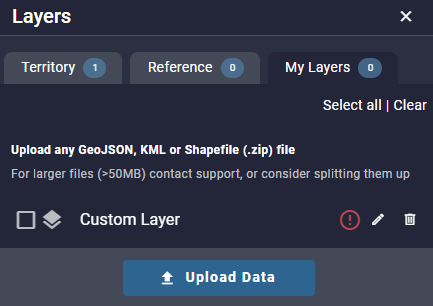
Click Upload Data to open the New Layer Wizard and select the type of data you would like to upload.
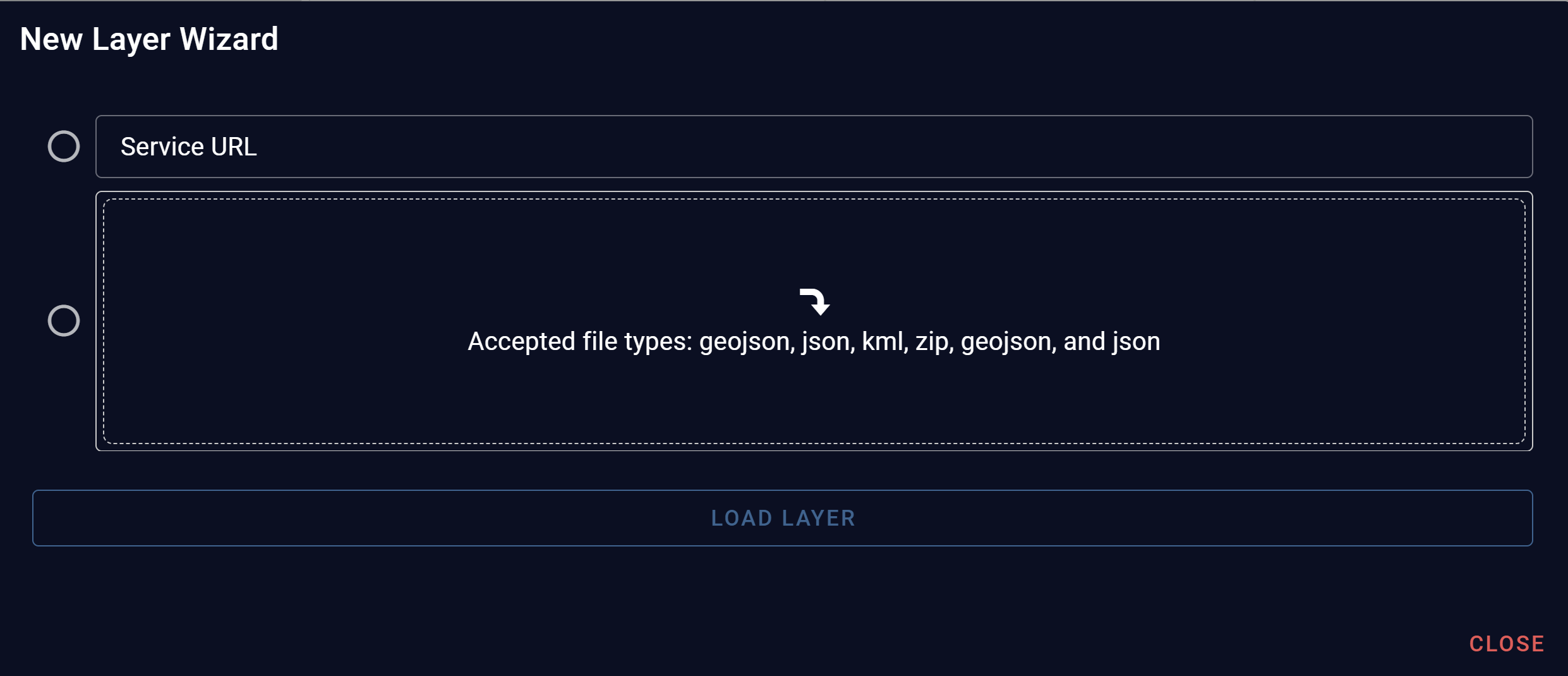
A red exclamation point next to the layer indicates the layer is invalid. Click the pencil icon to edit the layer name or the trash can icon to delete it.
My Layers are stored at the organization level, not at the user level, so all users of your organization will see them.
Sync to Table (Circular Arrows)
When activated, the Asset Table will only show assets activated on the map. If the icon is blue, sync to table is ON.

Basemap Selector
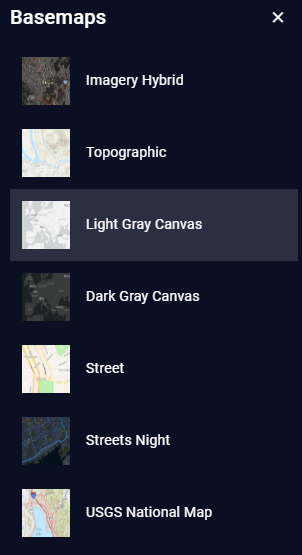
The choice of basemap depends on what information you need to prioritize at a given moment.

Available basemaps and their uses include:
-
Imagery Hybrid: Satellite imagery with street and label overlays. Useful for seeing tree canopy, land cover, and terrain while still reading place names and roads.
-
Topographic: Best for terrain-focused analysis, providing elevation contours and landform detail.
-
Light Gray Canvas: A clean, neutral background that reduces visual clutter and lets data layers stand out clearly.
-
Dark Gray Canvas: Similar to Light Gray Canvas but optimized for low-light environments or night operations, reducing screen glare while maintaining layer visibility.
-
Street: Useful when infrastructure context matters, such as identifying evacuation routes, access roads, or proximity of fire activity to populated areas.
-
Streets Night: The same street-level detail as Street, but with a darker palette suited for nighttime operations or extended monitoring sessions.
-
USGS National Map: Useful when you need infrastructure, jurisdictional boundaries, and terrain together.
Other Map Elements
Pop-ups
Click any H3 cell or asset on the Map Canvas to open its pop-up.
Map Legend
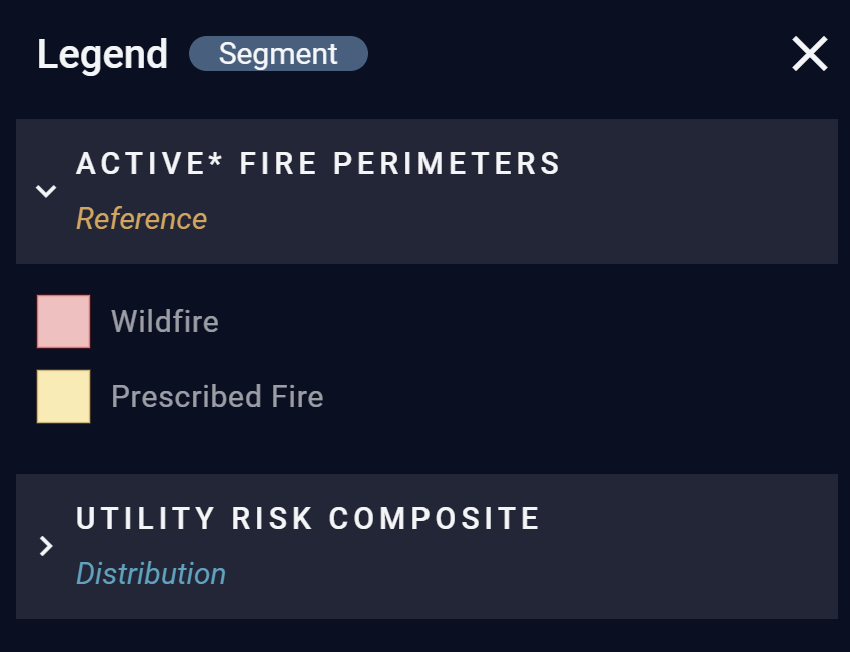
Use the Legend toggle in the bottom-left corner of the Map Canvas to show or hide the Map Legend. The legend displays the color gradient for the currently selected map metric and any selected Reference Layers.
Use the arrows next to each layer to expand or collapse the layer.
Click the Circuit / Segment Badge to toggle between circuit and segment display on the Map Canvas and Asset Table.
Map Footer
The Map Footer shows the current data aggregation level: H3 and Circuit / Segment. The Zoom Level, H3 Level, and Scale Bar adjust automatically as you zoom in and out, while the Circuit / Segment badge, which shows whether circuits or segments are displayed, is a manual toggle. The same toggle appears on the Legend and in the Asset Table.
See Application Settings to adjust the default zoom at which the display automatically switches between circuits and segments.
