
Logging in to Planning brings you directly to the main application.
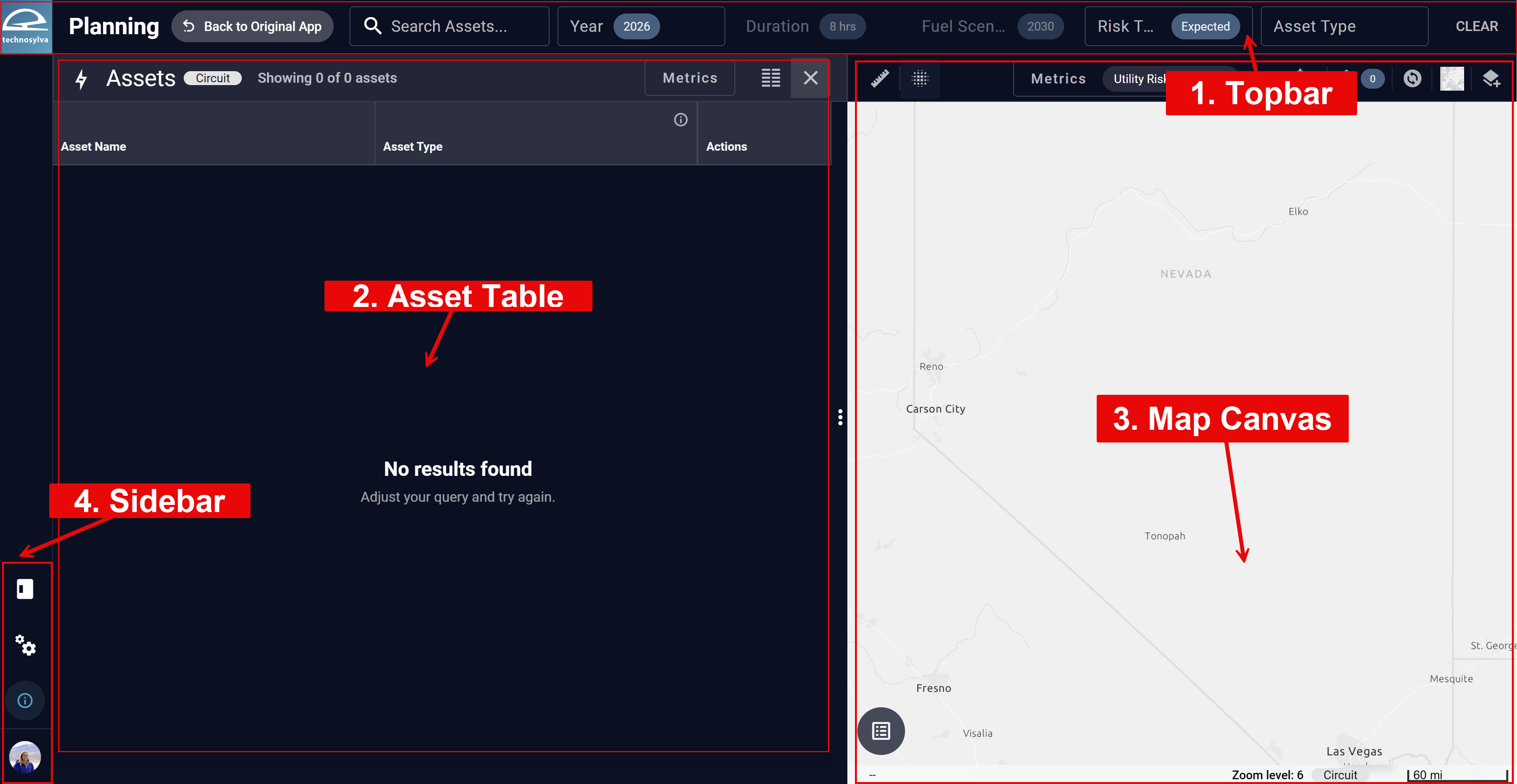
1. Topbar
The Topbar displays a search bar and several filters.

Use the Search bar to locate a specific asset by name.
Use the Topbar controls to scope data across the Map Canvas and Asset Table simultaneously. Available filters include:
-
Year: Select one or two simulation years to display.
-
Duration: Select the simulation duration.
-
Fuel Scenario: Select the fuel scenario (or example, 2030 fuels).
-
Risk Type: Switch between conditional and expected risk outputs, or display both simultaneously.
-
Asset Type: Filter by asset type such as Distribution or Transmission.
-
Clear: Clear all filters.
When one filter is applied, the Topbar displays its name. When more than one is applied, it displays the number of applied filters.
2. Asset Table
The Asset Table displays all assets matching the current filter state. Use the table to sort, compare, and navigate to assets.
3. Map Canvas
Use the Map Canvas to view and analyze risk spatially. Circuit and segment risk data are displayed as a color ramp driven by the selected metric.
4. Sidebar
The Sidebar runs along the left side of the application.

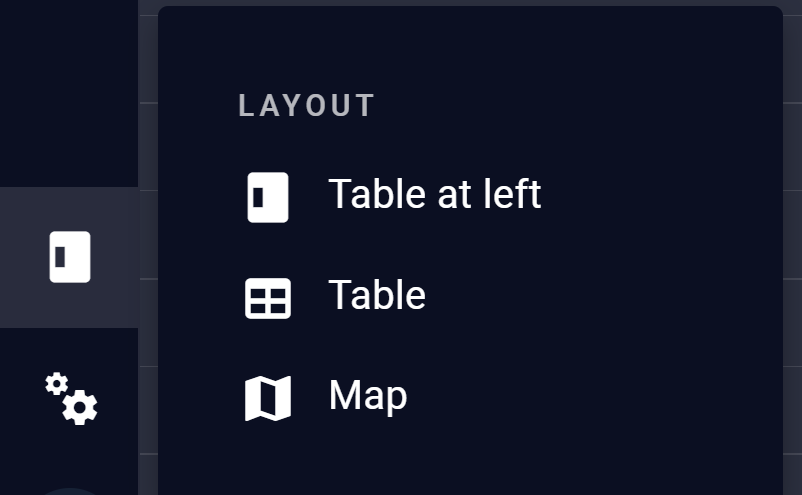
Layout Menu
Use the Layout menu at the top of the Sidebar to switch between three display modes:
-
Table at Left: Map Canvas and Asset Table side by side (default unless otherwise configured in Application Settings).
-
Table: Asset Table spans the full application width.
-
Map: Map Canvas spans the full application width.
Settings
Use the Settings menu (gear icon) to adjust display preferences.
Info
Info (i icon) provides Version, Build Date, and Region.
Account
Use the Account button (person icon) to open the Account panel. The panel provides links to http://my.technosylva.com for account management, help documentation, and the Technosylva service desk.