
The Map Layers panel is where you will manage, select, and view all of the available reference layers in Wildfire Planning.
To resize the panel, click the settings gear and use the sliding bar to resize the panel as needed.
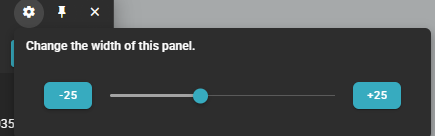
Depending on your organization, you may see other layer names than the ones demonstrated here. The dashboard functionality remains the same.
Selecting Layers
Layers that are toggled on and displayed on the Map Canvas will have their name highlighted in blue.

Click on the layer’s name to toggle it on or off on the Map Canvas.

Layers that are toggled on and displayed on the Asset Table will have their table icon highlighted in blue.
Click on the layer’s table icon to toggle it on or off on the Asset Table.
Setting Layers as Favorites
Layers that you use often can be set as a favorite using the star icon to the right of the layer name.

When a layer is set as a favorite, a quick access button for that layer will appear on the map next to the layers data panel. This allows you to quickly turn on and off a map layer without having to open the panel. This can be useful if you tend to toggle on and off the same set of layers frequently.

Ordering Layers
You may re-order the layers list by dragging and dropping the layer.
Grouping Data
Group layers as necessary for quick toggle on/off.
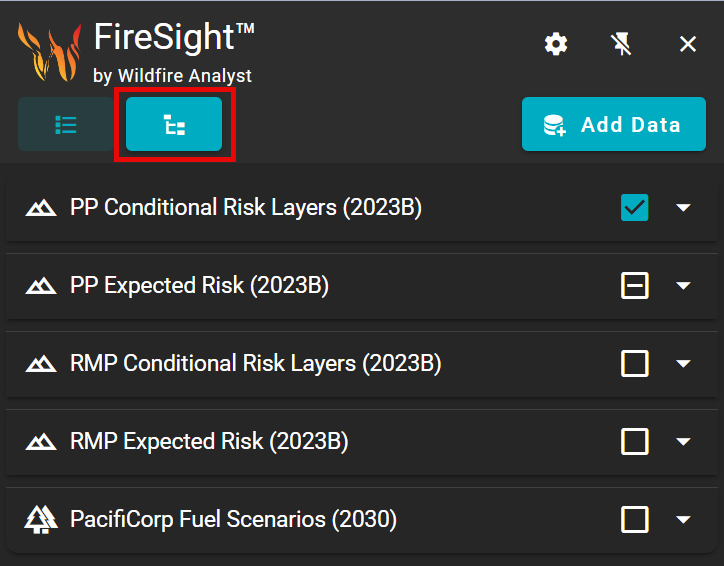
Use the down arrow icon 
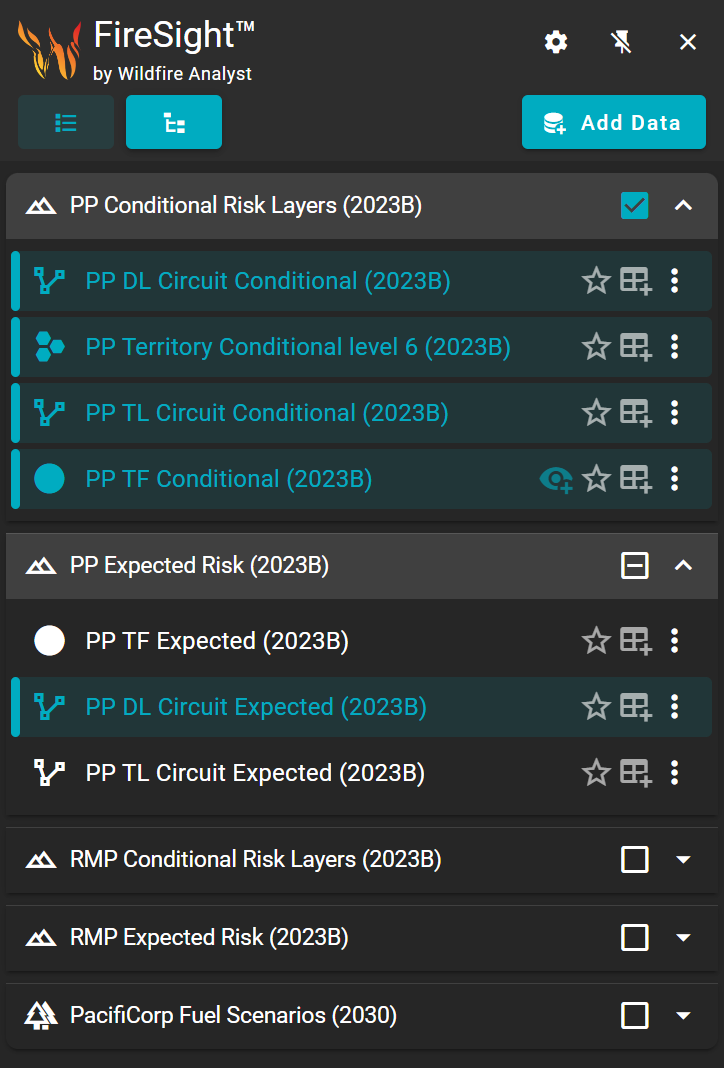
A blue check

Adding Layers
Use the Add Data button on the Map Layers panel to add additional data layers to the map.
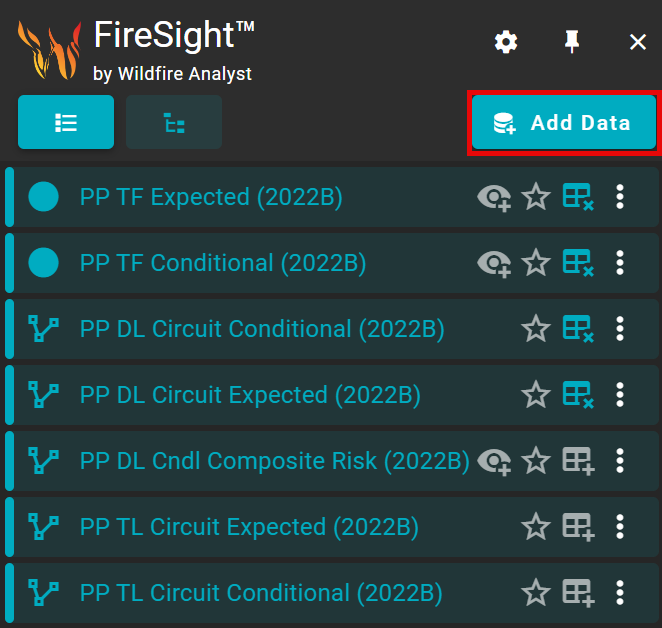
The Adding Data and Layers window appears with each individual tab representing a data source.

Select the tab for the type of data layer you would like to add.
FireSight Layers
FireSight Layers are layers specific to your organization’s data run. First, select the data version/fuels scenarios from the dropdown list, then check the box next to the layers you want to add to your Map Layers.
Reference Layers
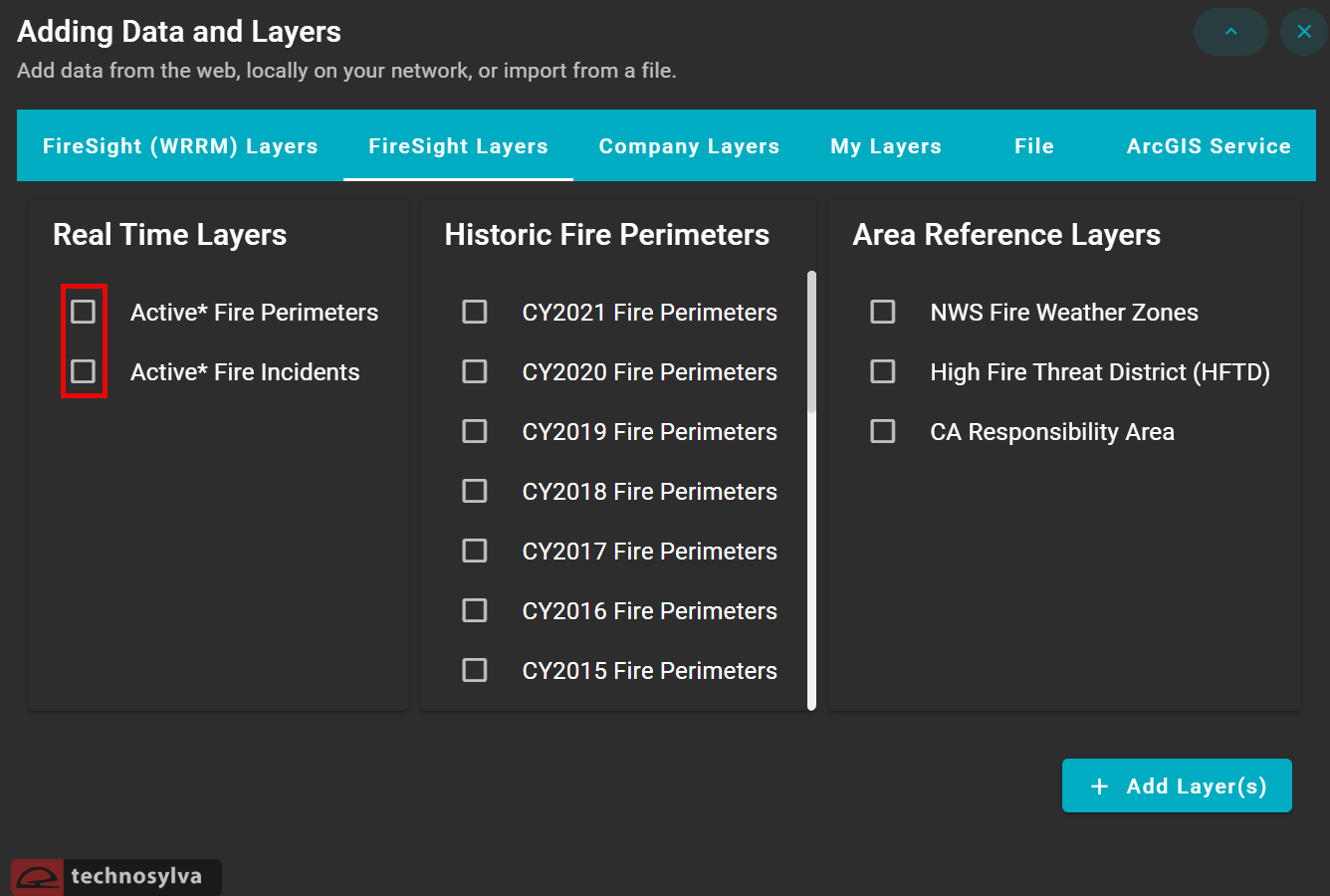
Reference Layers can be used to add additional context to the map. Reference data includes:
-
Real Time Layers: view active fire perimeters and incidents.
-
Historic Fire Perimeters: view fire perimeters by year.
-
Area Reference Layers: view additional relevant information such as NWS Fire Weather Zones.
Company Layers
Company Layers are only visible to users within your organization.
My Layers
My Layers are layers you have uploaded that are visible to only you, not to others in your organization.
File
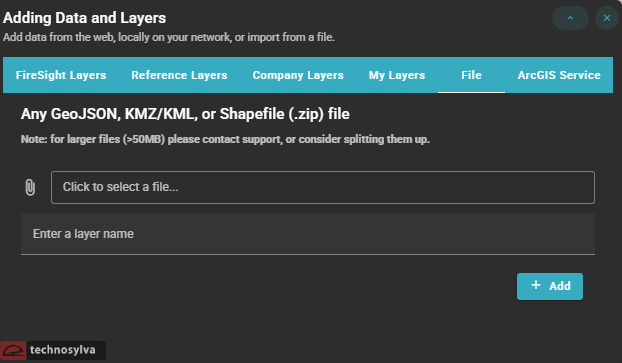
Add your own layer from an existing file by selecting an external GeoJSON, KMZ/KML, or Shapefile (.zip) file, entering a layer name, and pressing Add.
Files larger than 50MB may not save properly. Please split them into smaller files or contact support.
ArcGIS Service
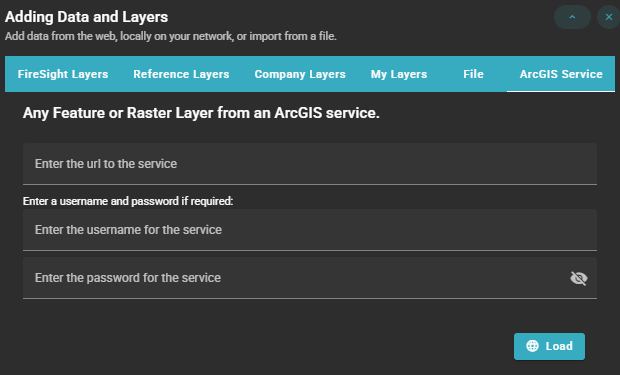
Add a layer from an ArcGIS Service by providing the URL and username/password (if required) and pressing Load.
Layer Options
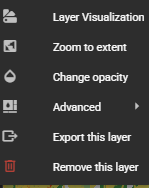
Access Layer Options by selecting the three dots next to the layer name.

This opens up a list of additional options:
Layer Visualization
Zoom to Extent
Use Zoom to Extent to adjust the map instantly to the full extent of the layer.
Change Opacity
Use Change Opacity to adjust the transparency of the layer. Useful for viewing multiple layers in the same location or viewing basemap content beneath a layer.
Advanced
Export this Layer
Export the layer to your computer as a GeoJSON file for external use.
Exporting is limited to 15,000 features.
Remove this Layer
Remove the layer from the Map Layers panel.