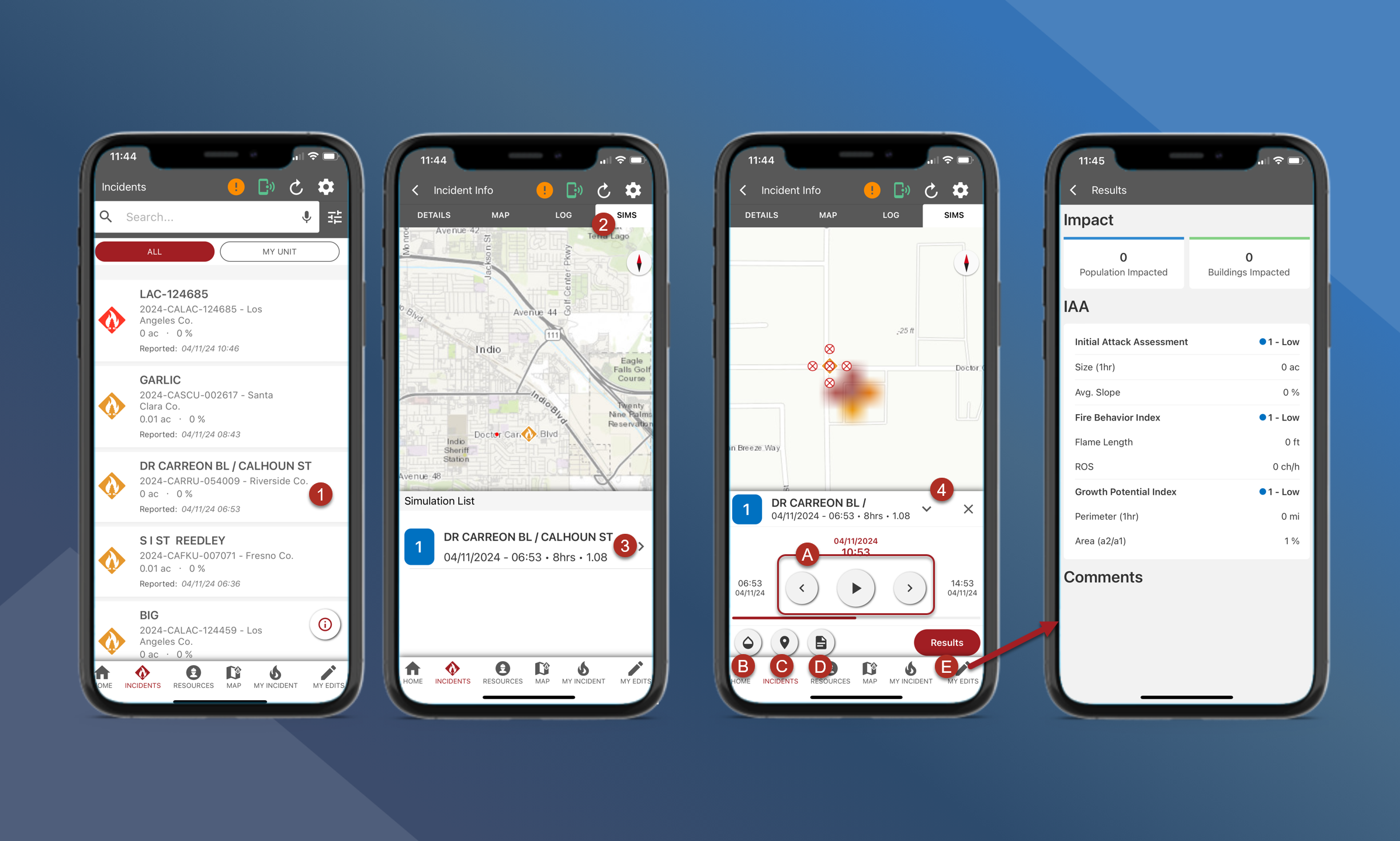
Simulations are available after an incident gets reported in Tactical Analyst or when an analyst publishes a new simulation from WFA.
If multiple FireSims are attached to an incident, all of them will be available in mobile.
The full fire simulation report and one-pagers are available in mobile for each simulation.
To view a FireSim animation or FireSim report, follow the steps outlined below:
-
Navigate to the Incident Info screen for the preferred incident
-
Tap Sims
-
If more than one simulation is available for the incident, they will be listed here
-
-
Tap on the preferred Sim
-
Use the panel at the bottom of the screen to play the simulation
-
Use the
buttons to watch the timeline of the simulation
-
Use the
button to change the Sim transparency
-
Use the
button to zoom to the sim location
-
Use the
button to download the full report or the one-page report
-
Tap Results to see the Impact analysis, Initial Attack Assessment, and Comments
-