
When a user pins an incident that has map tile packages (TPKs) attached, TA Mobile prompts the user to choose which type of incident data to download. This guide covers the download flow for the “Incident Maps” option and how to activate a downloaded map.
The incident being pinned must have one or more TPKs attached. If no TPKs are attached to the incident, the data-download prompt described below will not appear.
1. Pin the Incident
In TA Mobile, pin the incident that has TPKs attached. Pinning an incident with attached TPKs automatically triggers the data-download prompt.
2. Choose a Data Type
A popup appears asking what data the user wants to download. The available options are:
-
Incident Maps
-
Incident Mapping
-
Incident Media
-
Incident Logs
-
SIM Data
Select Incident Maps, then tap OK.
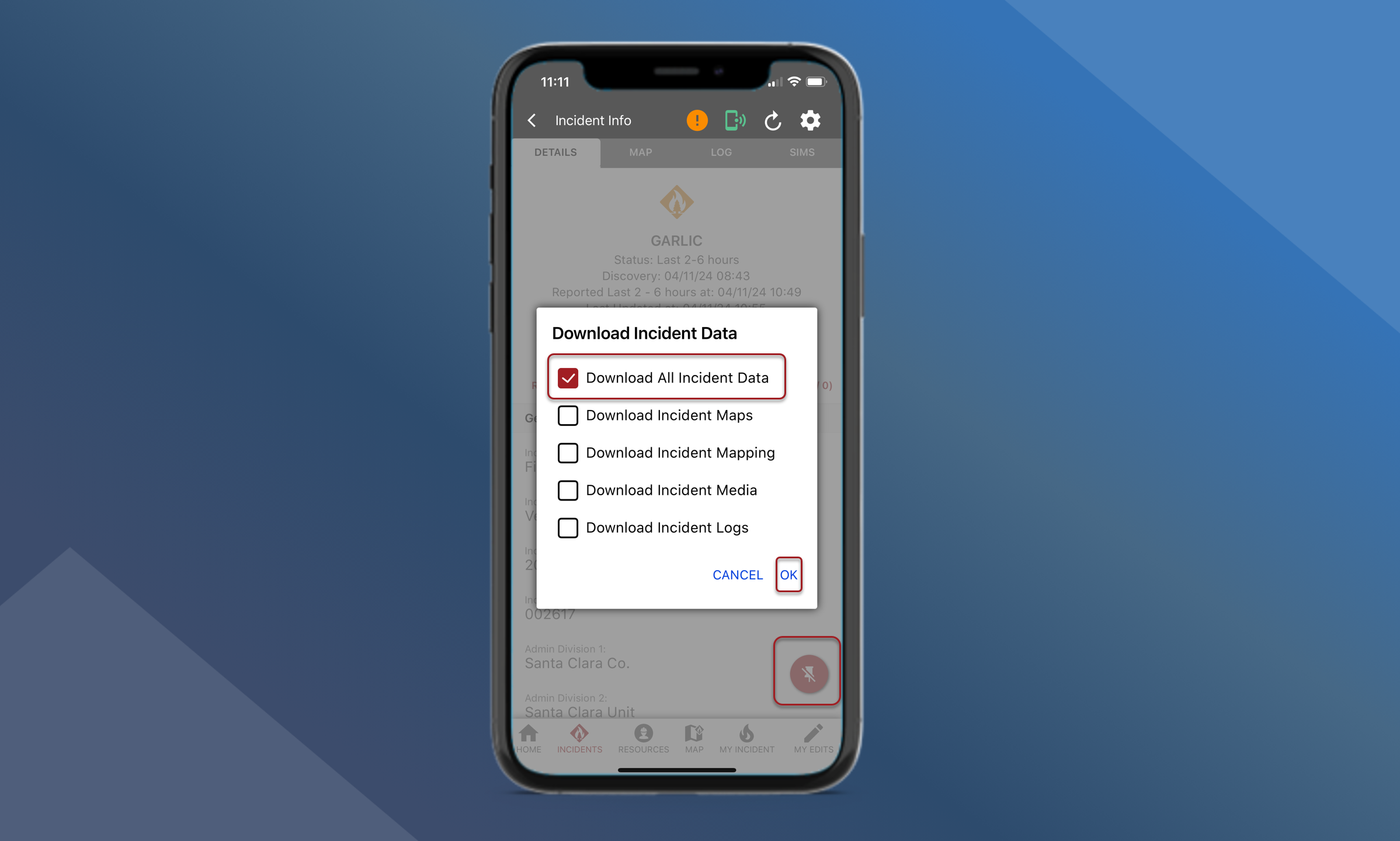
3. Select Files to Download
A second popup appears showing a checklist of available map files for that incident. This list reflects the specific TPKs attached to the incident being pinned, so the files shown will vary from incident to incident.
-
Check the box next to each file you want to download. Multiple files can be selected at once.
-
Tap Accept.
The selected file(s) will begin downloading.
4. Activate the Downloaded Map
Downloading a map file does not automatically turn it on. To view and activate the map:
-
Navigate to the Base Maps tab.
-
Select the downloaded map to turn it on.