Take a Photo
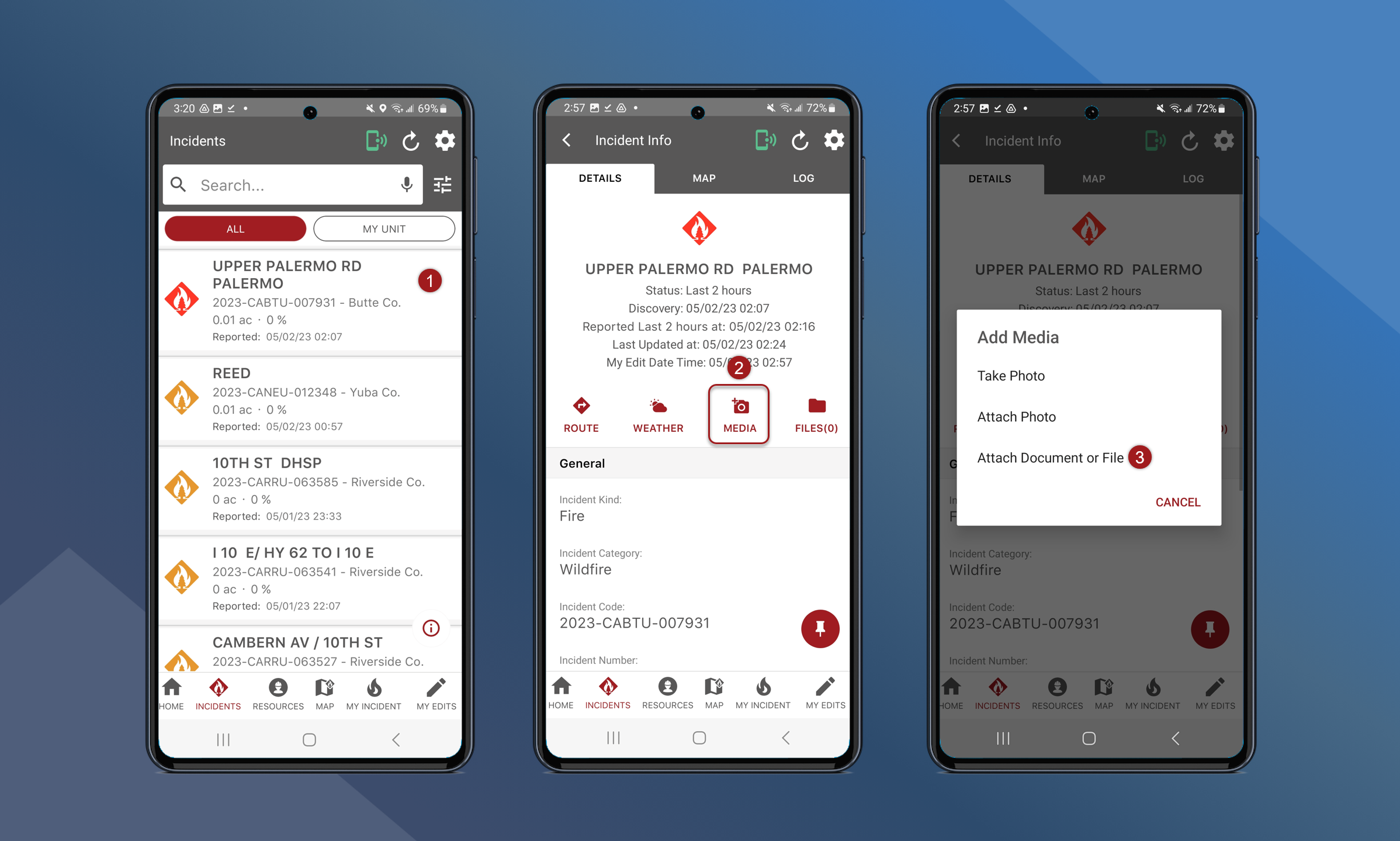
To take a photo, follow the steps outlined below:
-
Navigate to the Incident Info screen for the preferred incident
-
Tap Media
-
Select Take Photo
-
Tap
to take a photo
-
Add a comment (optional)
-
Tap
to attach the photo
-
Send now popup
-
Send Later will require users to manually sync the photo at a later time
-
Yes will sync the photo immediately
-
Connectivity is required to sync immediately
Attach Photo From Gallery
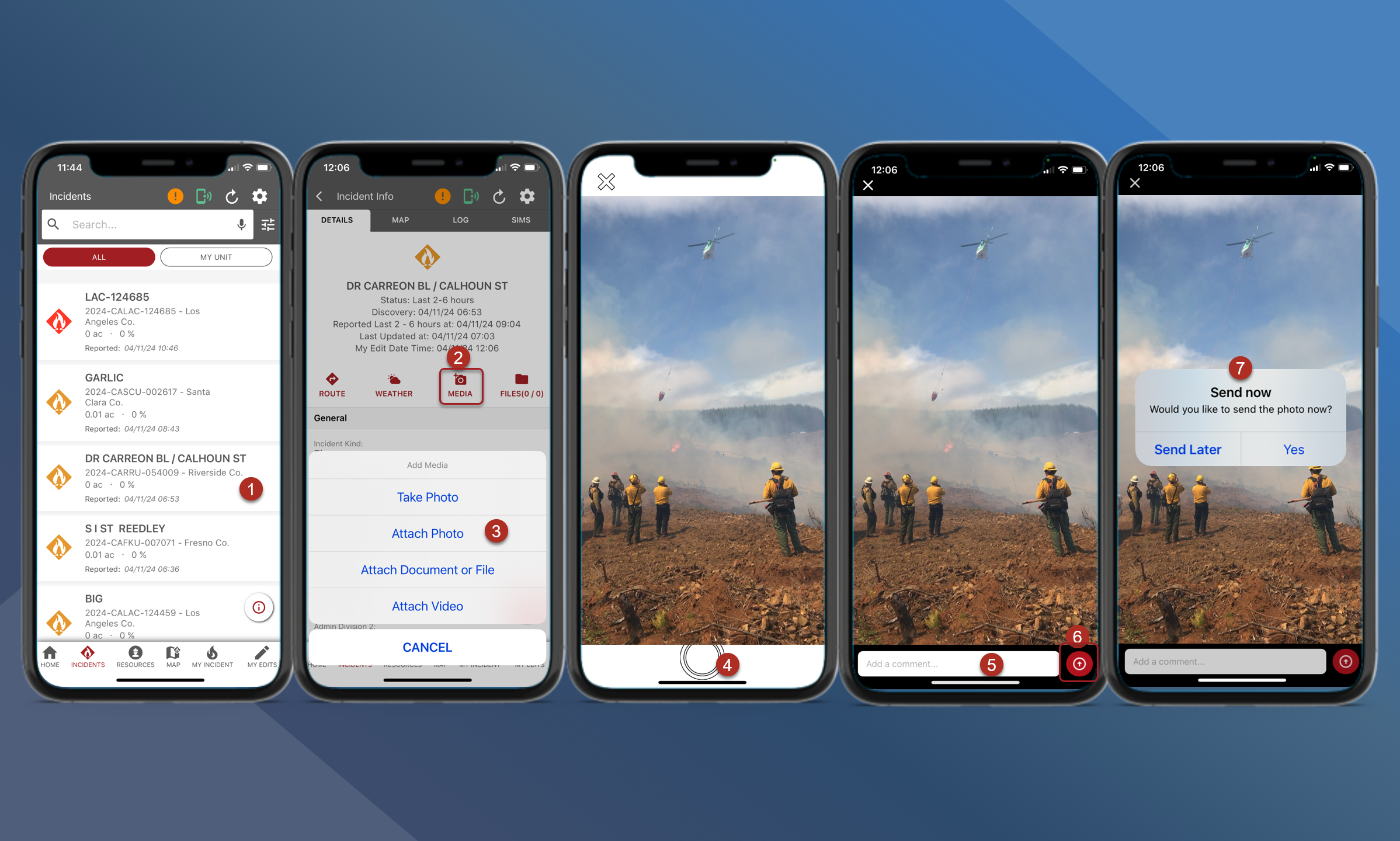
To attach a photo, follow the steps outlined below:
-
Navigate to the Incident Info screen for the preferred incident
-
Tap Media
-
Select Attach Photo to browse the phone’s gallery and select a photo
-
Add a comment (optional)
-
Tap
-
Send now popup
-
Send Later will require users to manually sync the photo at a later time
-
Yes will sync the photo immediately
-
Connectivity is required to sync immediately
Attach a File
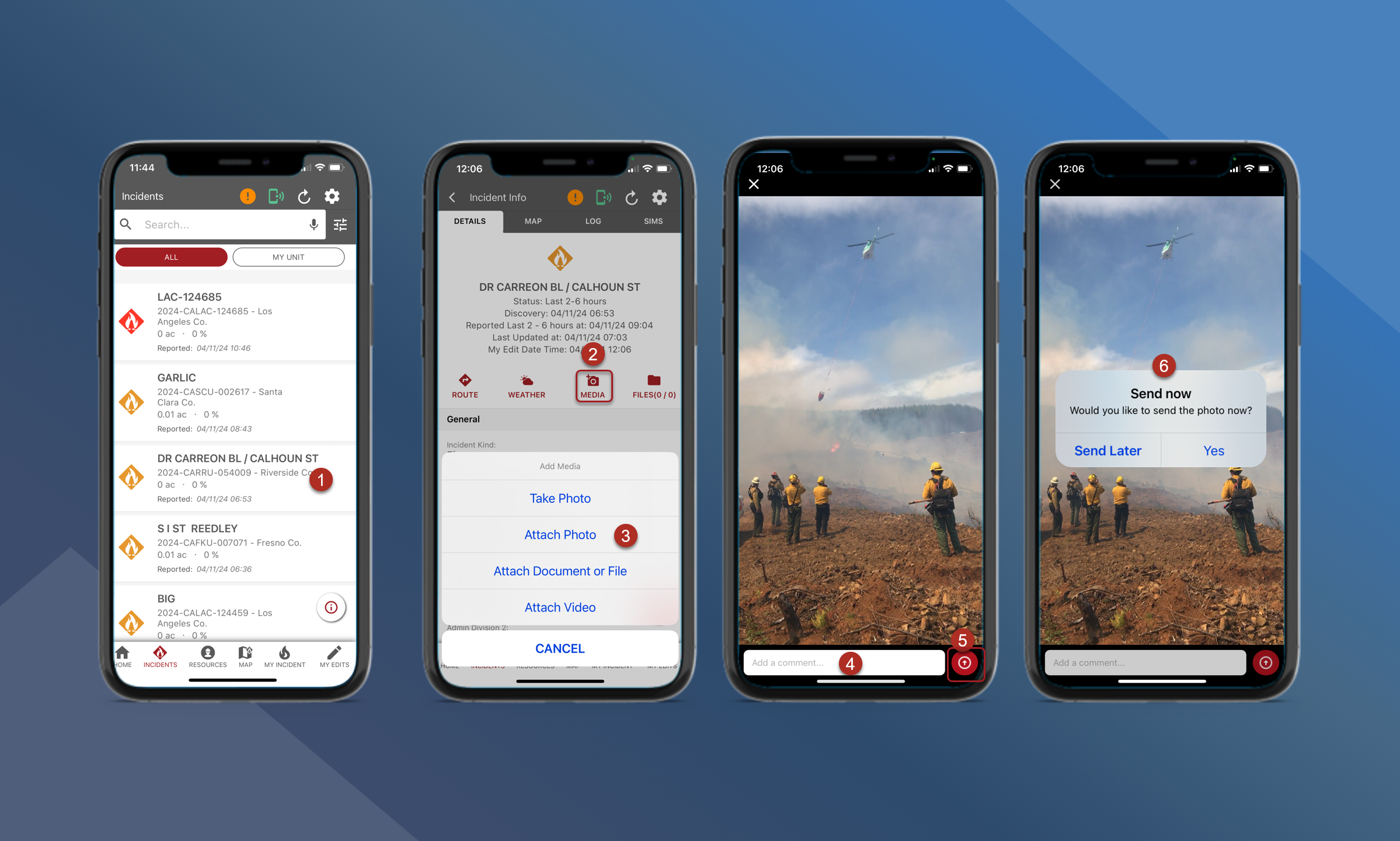
To attach a file, follow the steps outlined below:
-
Navigate to the Incident Info screen for the preferred incident
-
Tap Media
-
Select Attach Document or File and browse to select a file
The file has been added to the incident.
Remember to sync “My Edits” so other users can see the file.