

Click GPS Tracking layers to view your agency’s resources. The GPS Tracking list will show you the name of the device, the type of vehicle, agency, source, the last position time and location. Yellow text indicates that resource is moving. WFA will only store the last 24 hours of the resource’s location data.
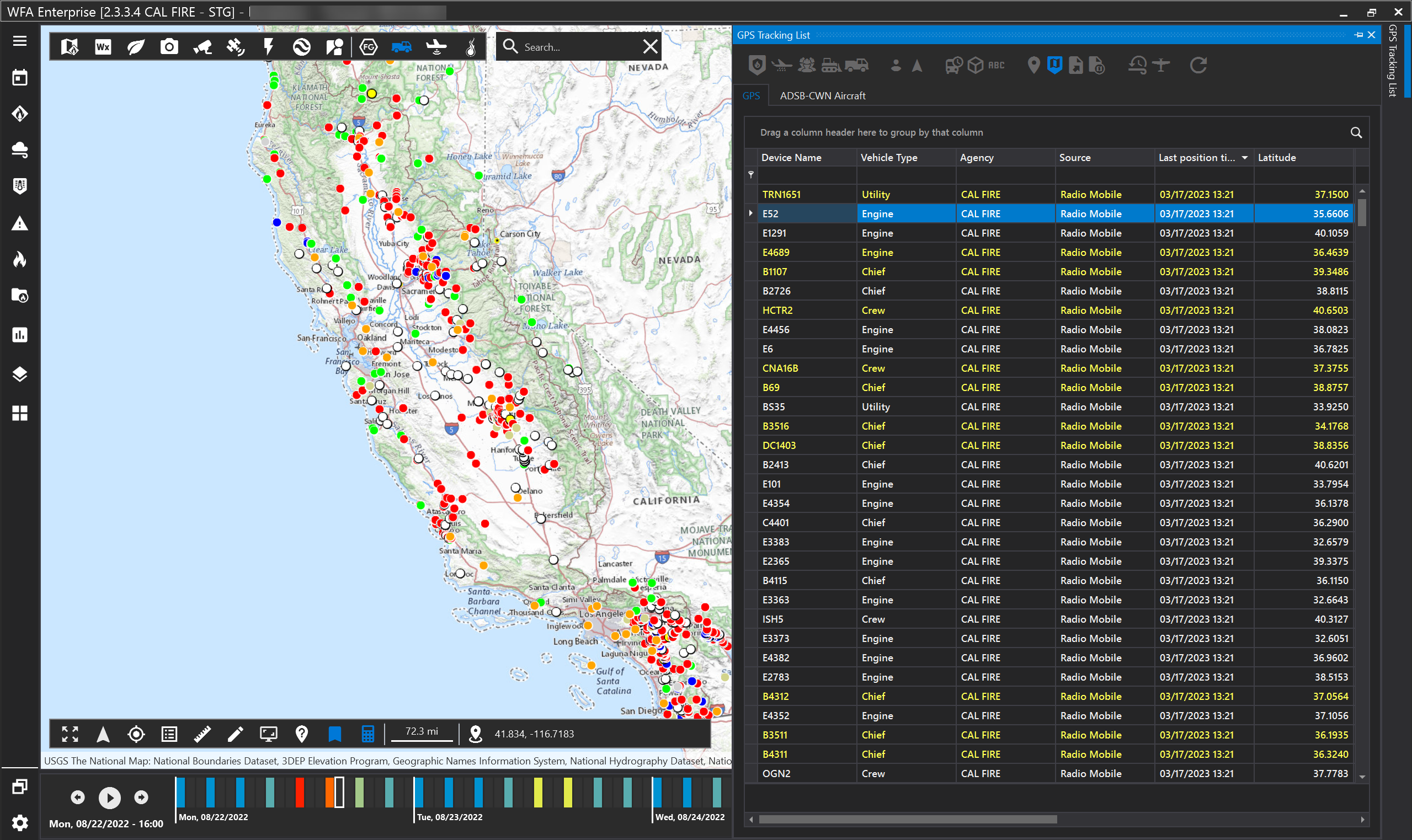
Managing your agency’s resources

|
|
A. |
B. |
C. |
D. |
E. |
|---|---|---|---|---|---|
|
Group 1 |
Show only my agency’s resources |
Show aerial resources (airtanker, helicopter, etc.) |
Show personal resources (crew, chief, etc.) |
Show dozer resources |
Show engine resources |
|
Group 2 |
First person point of view. (note, this feature works best when you have imagery base map selected). |
Follow view - as the resources move in real time, this feature will allow you to follow the resource. |
|
|
|
|
Group 3 |
Show symbology by last data/time positioned. Red: last 5 mins, orange: 5-15 mins, green: 15-60 mins, blue: 60-120 mins, black: older than 120 mins. |
Show 3D models. For the best user experience, use the 3D model with the first person and follow view. |
Show labels |
|
|
|
Group 4 |
Show selected GPS tracking trail |
GPS tracking filtered on map |
Export to excel |
Export to KMZ (current or historical GPS data). |
|
|
Group 5 |
Toggle real time/forecast |
ADSB resources |
Refreshes list |
|
|