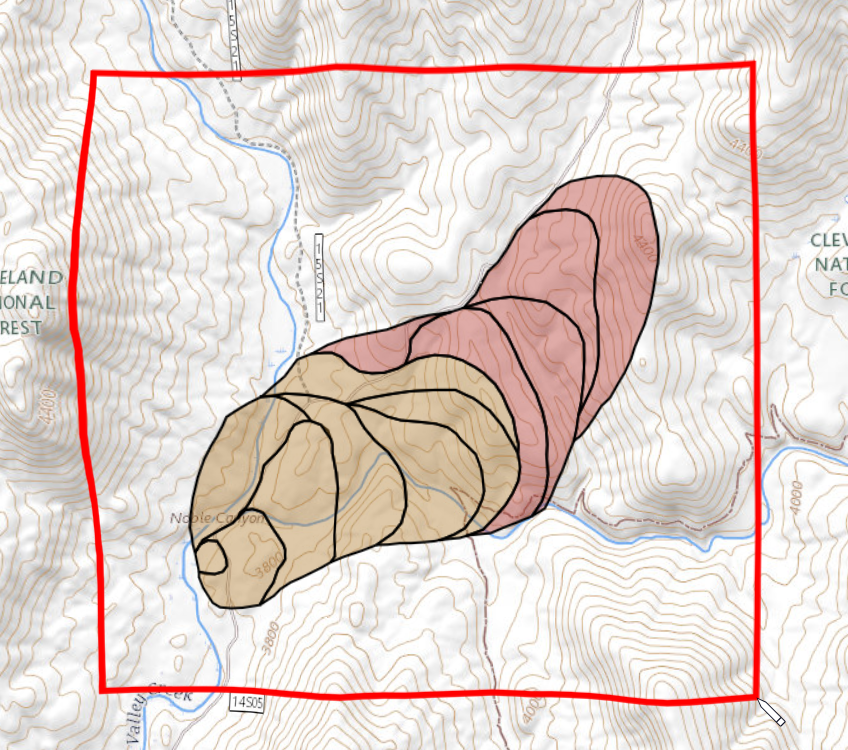
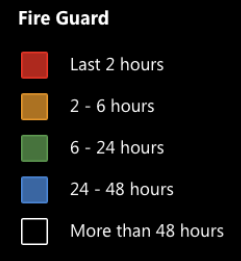
The FireGuard tool will toggle FireGuard areas on/off the map and open a panel with FireGuard area information.
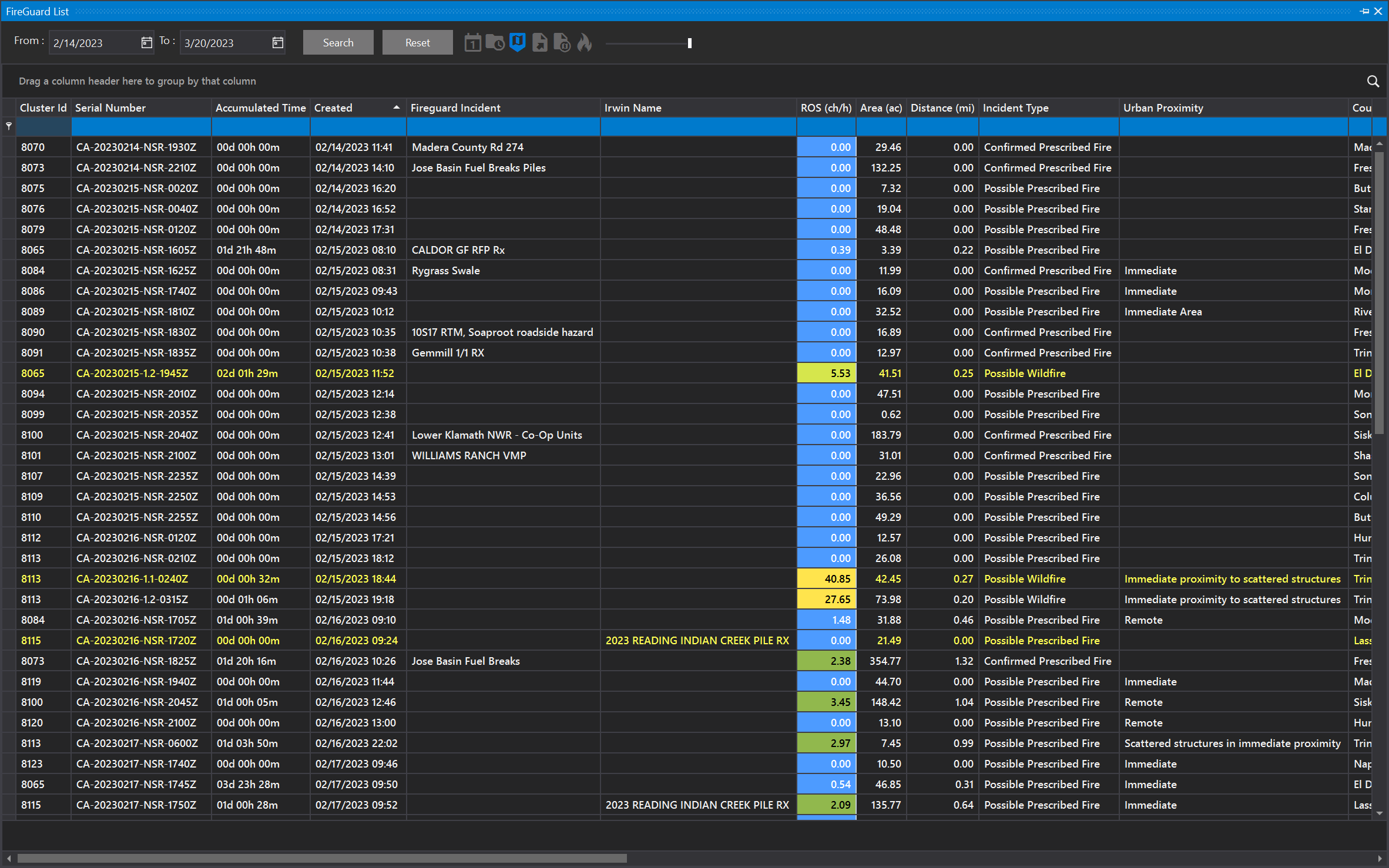
Use the list to search/sort for areas of activity. Rows shown in yellow indicate the first detection.
Select a row to see that area highlighted on the map.
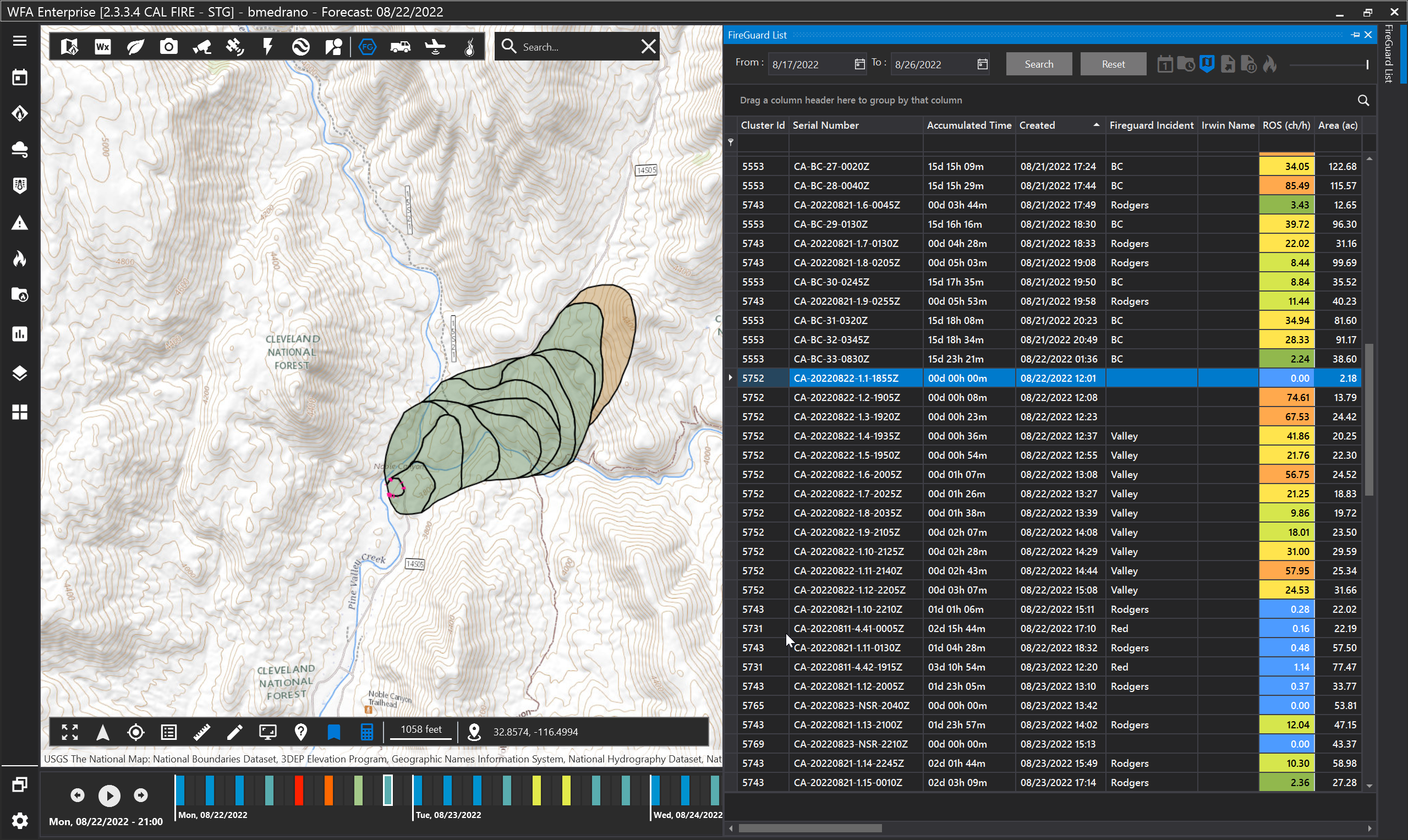
Note: The FireGuard areas are synced with the timeline (located at the bottom). In this example, the incident began at 12:01pm. Click through the timeline to view the progression of the incident.
Use the Export to KMZ button to export FireGuard shapes to a KMZ file. The exported KMZ can be used in Google Earth or as fire ignition locations in the FireSim tool. See Running a Test Simulation for more information about using a KMZ as an ignition location.
Filters

A: Filter today's incidents
B: Show FireGuard ROS Vector
C: Show FireGuard filtered on the map
D: Export data to .xlsx
E: Export FireGuard map features to .kmz
F: Select FireGuards as ignitions
G: Show progress time of FireGuards
Export to KMZ
To export features, click the Export to KMZ button. Your cursor will change into a pencil icon. Click once on the map to begin drawing a rectangle to select features. Double-click to finish the rectangle. Any FireGuard features that intersect with this rectangle will be exported. You will be prompted to save the file.