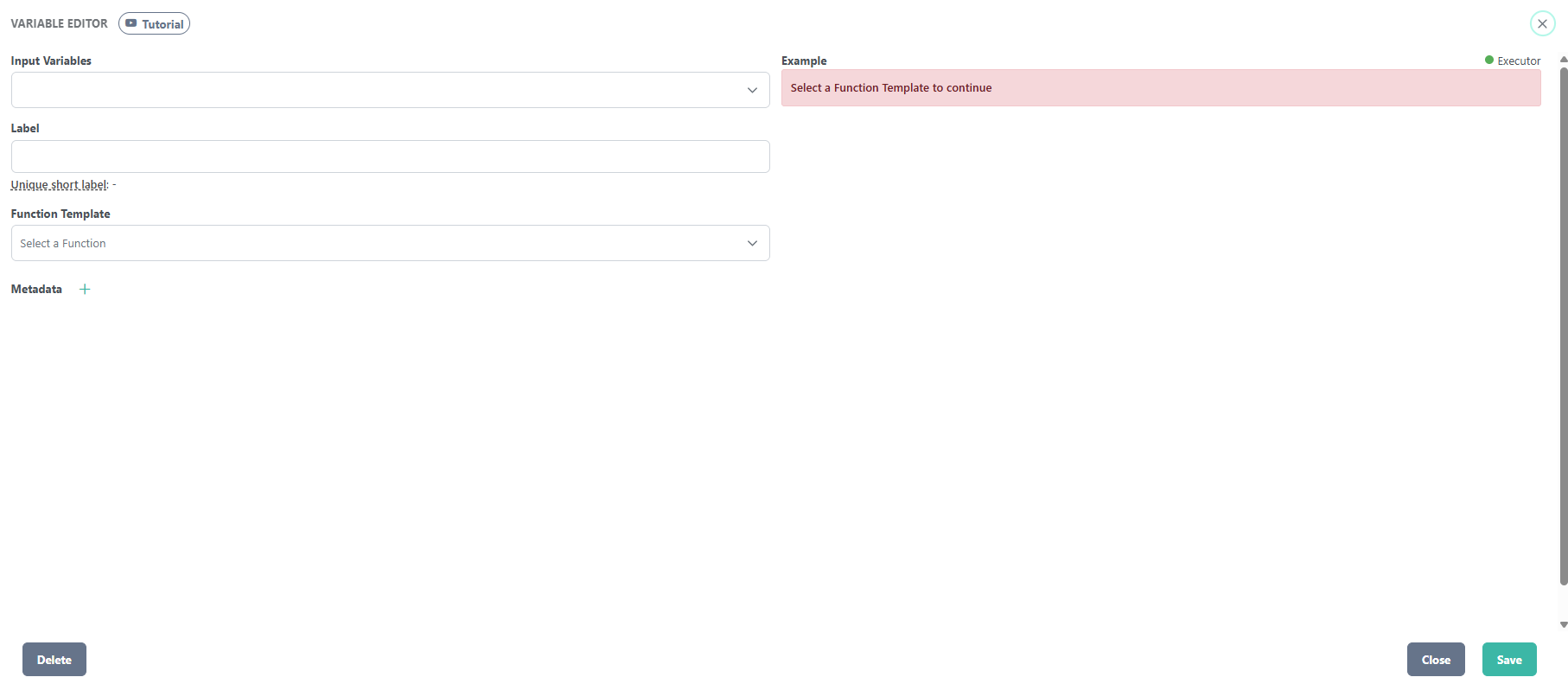
The Variable Editor lets you create derived variables by applying a function to one or more existing variables in the selected dataset. Open it from the Variables field by clicking Create Derived Variable.
To create a derived variable, select one or more input variables, enter a label to identify it, then choose a function template. An Executor indicator in the top right shows when a computation is running. An example table for the new variable appears in the right-hand panel when ready.
Available function templates are:
-
Arithmetic Operation — combine two variables using a mathematical operator.
-
Logical Operation — apply a logical operator (AND, OR, ALL, ANY) across variables.
-
Compare with Value — compare a variable against a fixed threshold value, returning a boolean result.
-
Threshold — flag values that exceed a defined threshold. The threshold function outputs the input value when it exceeds the threshold. Otherwise, it outputs null.
-
As Percentile Based on Historical Percentiles — transforms the value to a percentile based on the historical percentiles of the dataset.
-
Spark SQL — write a custom SQL expression for more complex variable derivations. You can type any function included in the Apache Spark documentation.
Click Save to add the derived variable to your query, or Delete to remove an existing one. Click Close to exit without saving.
For more information, watch the video Tutorial linked next to the Variable Editor title.