The Temporal Parameters panel appears in the New Request menu.
Temporal Parameters (Modes)
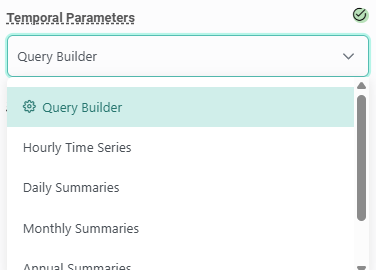
Select a mode from the Temporal Parameters dropdown. Each mode controls how the data is summarized over time. Additional fields for date range, timezone, aggregation statistics, and temporal filters appear after you select a mode.
-
Query Builder — a multi-step pipeline for more complex temporal queries; see below for details.
-
Hourly Time Series — returns a value at each hour within the selected date range.
-
Daily Summaries — aggregates hourly data to a daily statistic (e.g. daily maximum wind gust).
-
Monthly Summaries — aggregates data to a monthly statistic.
-
Annual Summaries — aggregates data to an annual statistic.
-
Period Summary — returns a single summary value for the entire date range.
Query Builder
The Query Builder lets you chain multiple temporal operations into a pipeline, where each step takes the output of the previous step as its input. This is useful when you need to perform a sequence of aggregations — for example, computing hourly values first and then summarizing those to a daily or monthly statistic with a specific aggregation applied at each stage.
When you select Query Builder, the Steps panel appears. The first step is always Hourly Time Series and cannot be removed. Each step shows the number of outputs it produces.
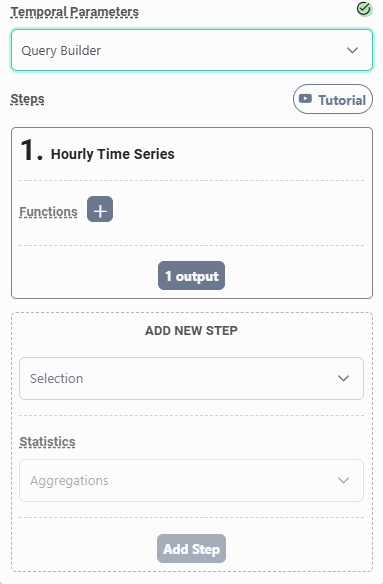
Adding a function to a step: Click the + button next to Functions on any step to open the step-level function editor. Enter a label, then choose a function template. The available templates are the same as those in the Variable Editor: Arithmetic Operation, Logical Operation, Compare with Value, Threshold, As Percentile Based on Historical Percentiles, and Spark SQL. Click Save Function to apply it to that step.
Adding a new step: Use the Add New Step panel below the existing steps. Select a temporal resolution from the Selection dropdown — Daily, Monthly, Annual, or Period — then choose an aggregation statistic from the Aggregations dropdown. Click Add Step to append it to the pipeline.
A Tutorial video is available in the Steps panel header.
Temporal Statistics
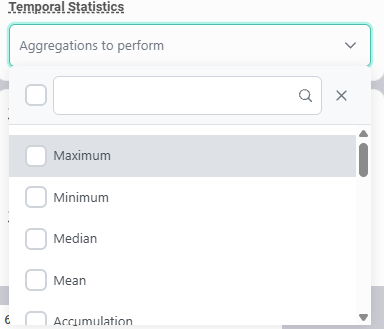
For all summary modes, you will be prompted to select an aggregation statistic: Minimum, Maximum, Median, Mean, or a percentile.
Temporal Filter
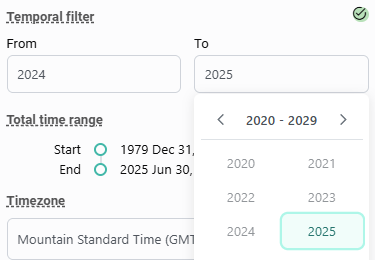
Temporal filters — which restrict the query to specific hours, months, days of week, weeks of year, years, or quarters — are available in all modes. The From and To dropdowns will look different based on the mode selected (e.g. select hour, day, month or year).
Total Time Range
A reference panel which shows the time range for which data is available for the selected variables.
Timezone
The date range is constrained by the dataset's available time range. Timezone defaults to UTC; change to PST, MST, CST, or EST to localize.