
When an incident is selected, it is opened in the Incident Card. This panel opens on the right-hand side of the screen and is where you will manage, add content and edit the incident.
The Incident Card opens as a separate panel to allow you to still work with other non-incident specific tools in the application such as Map Layers or Print Map.
Only one incident can be selected/worked with at a time, but using Pinned incidents, you can quickly switch between your incidents.
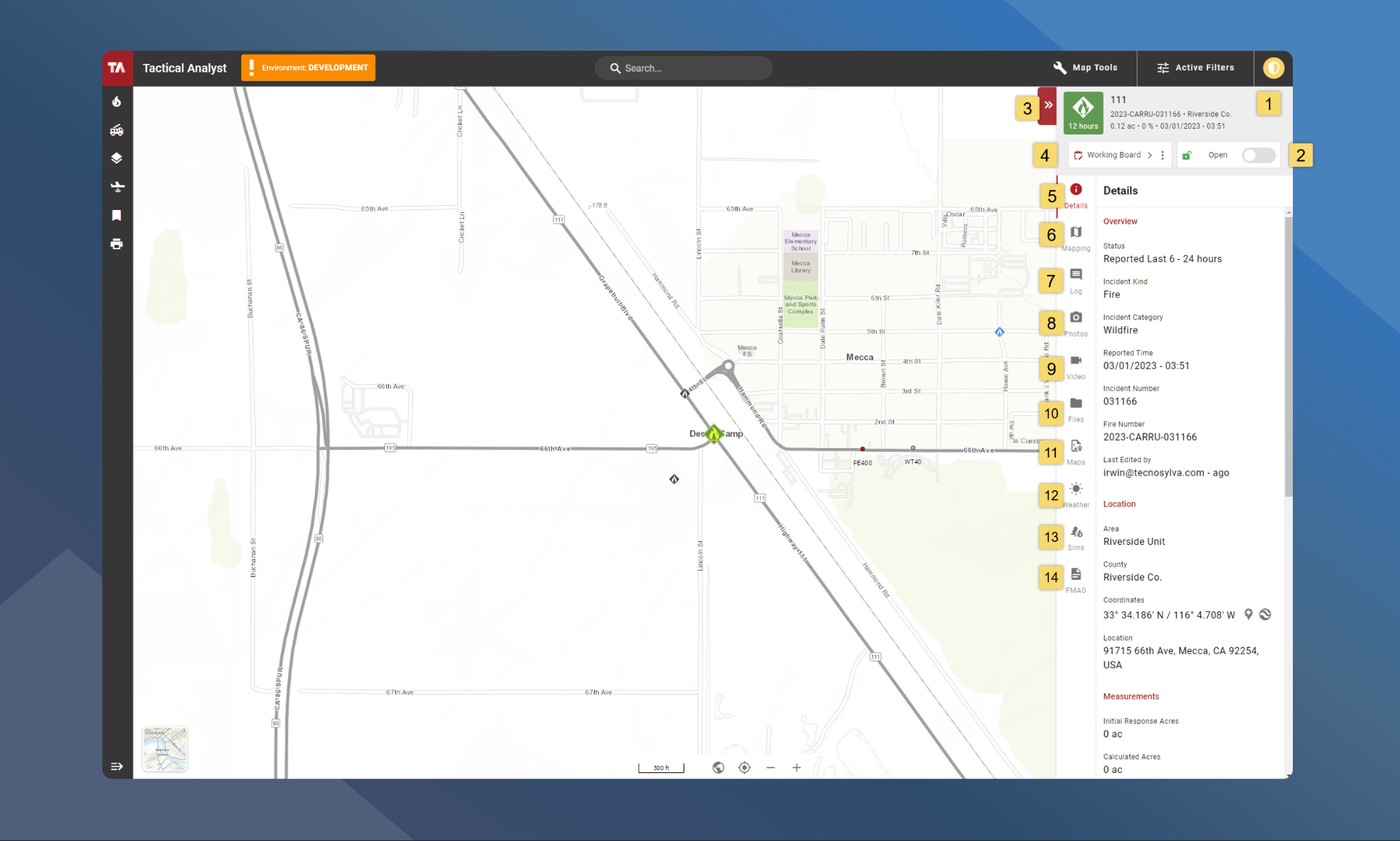
Card Layout
-
Incident Card Header - Displays the name of the selected incident, along with some basic details about the incident. This is also where you can pin/unpin the incident, zoom to the incident or close the incident card.
-
Incident Mode - This where you can change incident modes to Open mode or Approval mode
-
Hide/Show Incident Card - Hide or show the incident card to maximize the amount of map visible on the screen.
-
Boards Toolbar - Displays the current incident board you are in, as well as tools to manage the board.
-
Details - Displays details about the incident.
-
Incident Mapping - This is where you will view and manage all of the incident mapping for the selected incident and board.
-
Incident Log - Add comments for the selected incident.
-
Photos - Upload and view photos added to the incident and board from both web and mobile.
-
Videos - Upload and view videos added to the incident and board from both web and mobile.
-
Files - Upload and view files added to the incident and board from both web and mobile.
-
Maps - Upload and view maps added to the incident and board from both web and mobile.
-
Weather - View current and predicted weather from various sources for the incident location.
-
WFA-E Sims - View simulations published from WFA-E for the selected incident.
-
FMAG Tool - Create and view FMAG products for the selected incident.
Hide/Show the Incident Card
To maximize the map canvas, you can hide and show the incident card as needed by clicking
Close the Incident Card
When you are finished working with an incident, you can close the incident card by clicking the