
Tactical Analyst is incident centric. This means that while it gives you a global or statewide view, it allows you to select and work with one specific incident at a time.
The incident list shows all active incidents across the state or based on any applied filters.
View the Incident List
To view the incident list and select an incident:
-
Click
-
Click on the incident in the list you wish to view or work with.
Close the incident list by clicking
Each list item contains various quick actions and information about the incident including:
-
Icon indicating status (age)
-
Last time the incident was updated
-
Incident Name
-
Incident ID
-
County
-
Size (ac)
-
Containment %
-
Reported Date
-
-
-
Icons to indicate with mapping, photos, files, etc have been added.
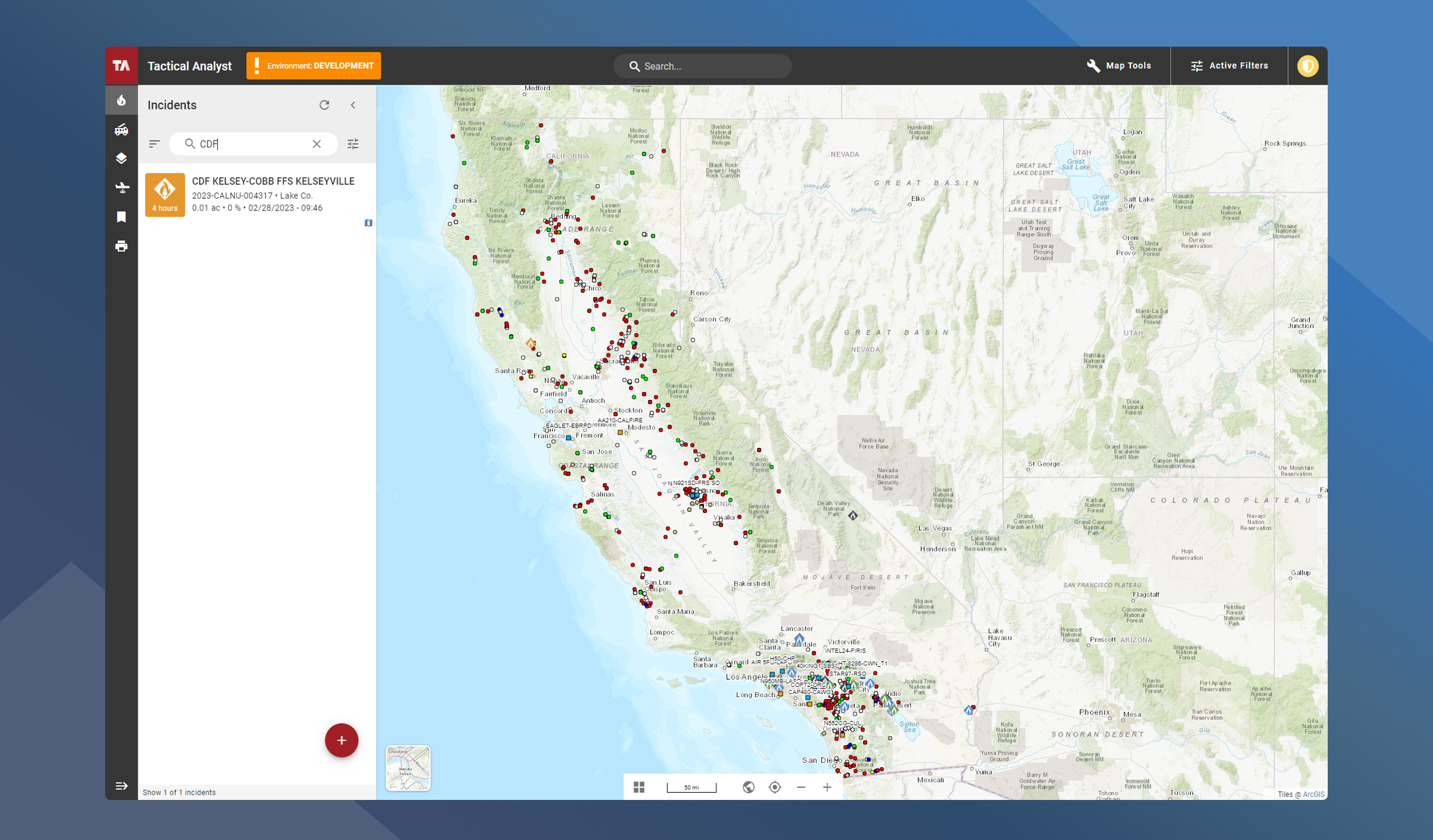
Search the Incident List
Quickly locate a specific incident using the search bar at the top of the Incident List. You can search by Incident Name or Incident Number, and the list will dynamically filter results as you type.
Clear your search by clicking the
Sort the Incident List
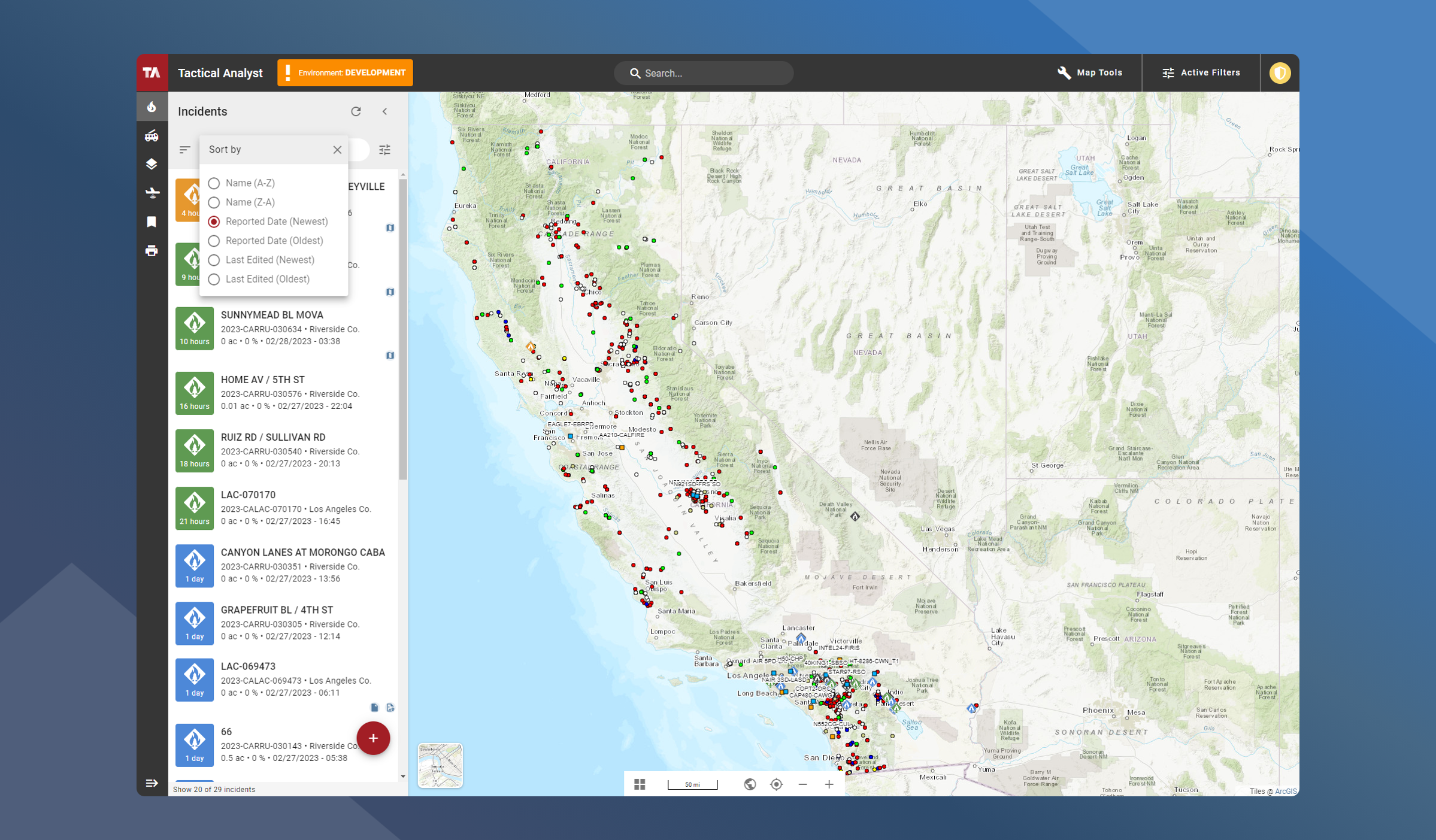
By default the incident list if is sorted By Reported Date (Newest). You can change how the incident list is sorted by clicking
-
Name (A-Z)
-
Name(Z-A)
-
Reported Date (Newest)
-
Reported Date (Oldest)
-
Last Edited (Newest)
-
Last Edited (Oldest)
Filter the Incident List
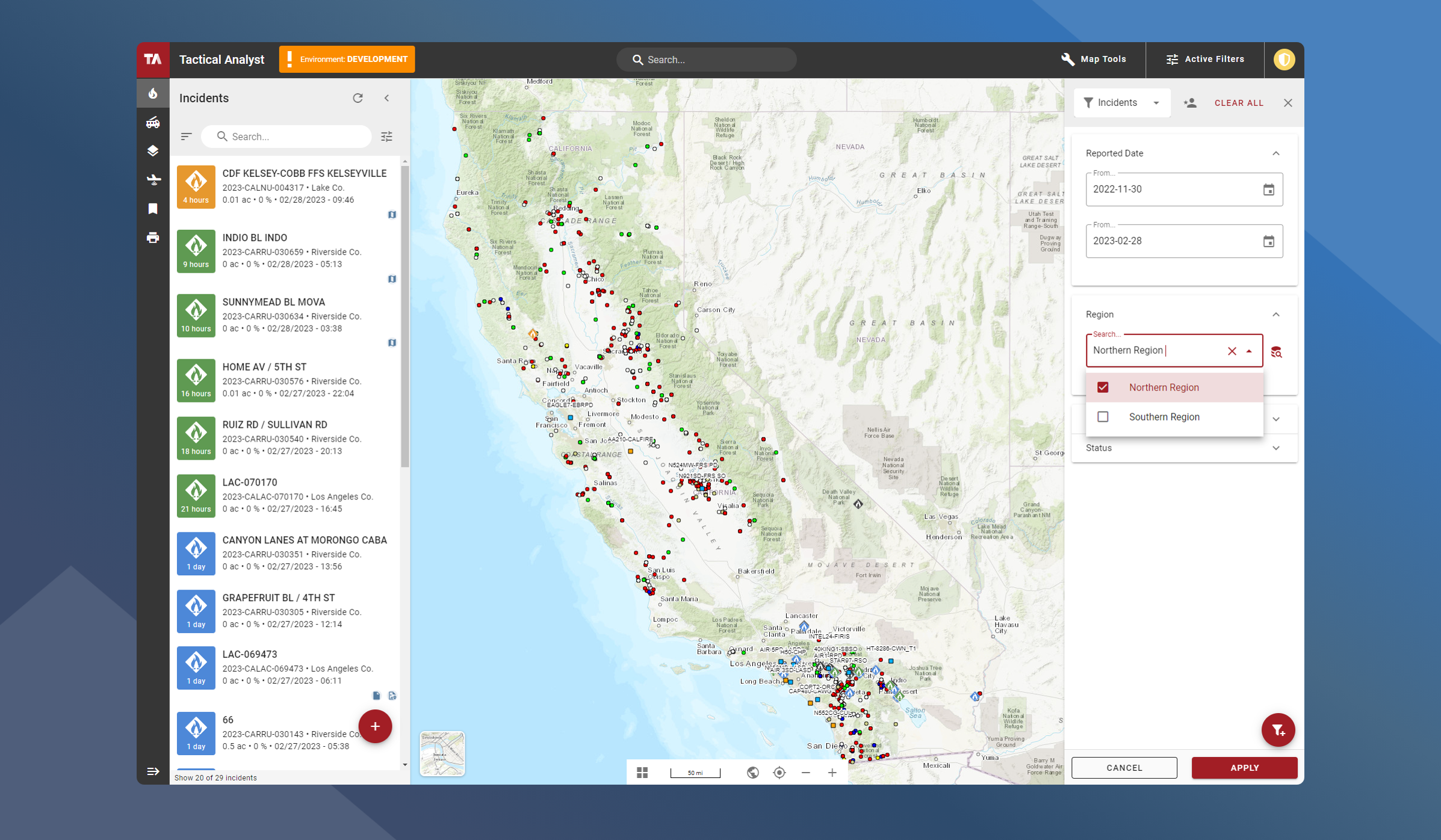
Filter the Incident List by clicking the
Applied filters will filter both the incident list and the map canvas.
Learn more about how to use filters.
Incident Fall-Off Rules
Incidents will automatically be archived based on size of the incident and when it was edited.
Fall-off rules are used to ensure that stale incidents are not retained.
Incidents are archived under the following conditions
-
Fire size is less than 10 acres AND fire information has not been updated in more than 3 days
-
Fire size is between 10 and 100 acres AND fire information has not been updated in more than 8 days
-
Fire size is larger than 100 acres AND fire information has not been updated in more than 14 days