
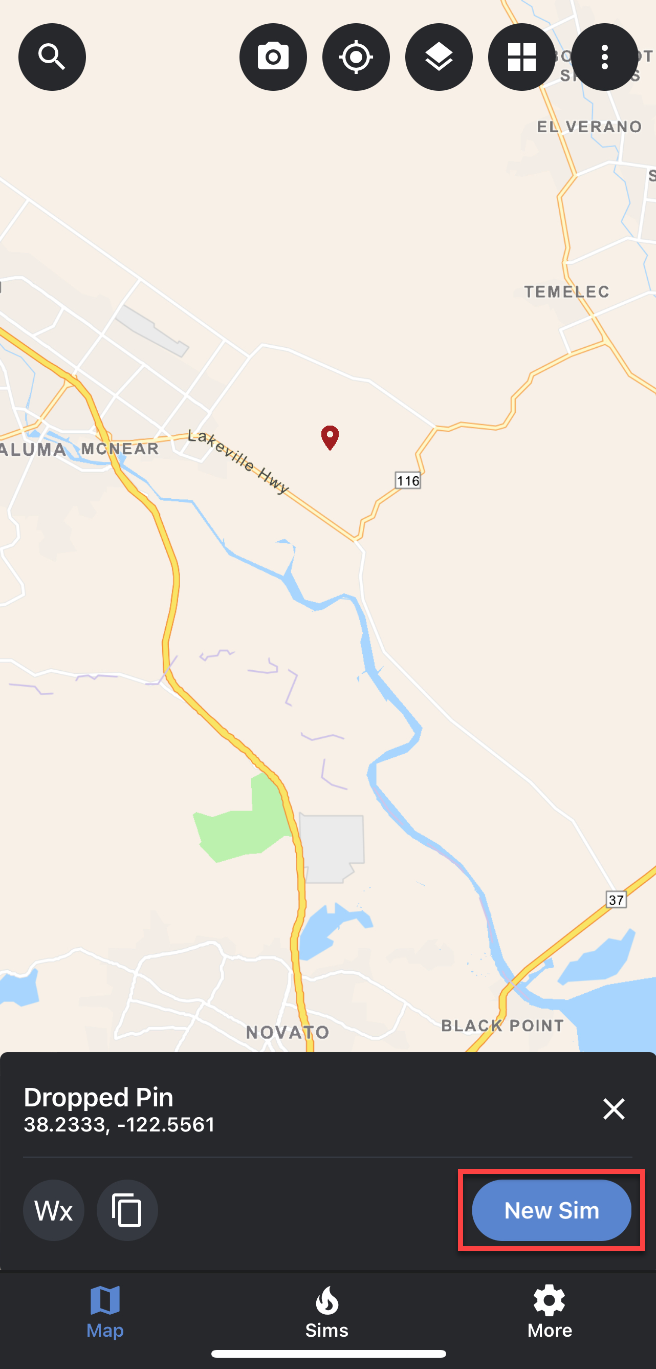
WFA Mobile offers the ability to create new simulations from ignition location that you have selected directly on the map. This is useful if you need to adjust an ignition location when a search result doesn’t not give you the location you were looking for.
To use a selected point on the map as an ignition location to create a new simulation, follow the steps below:
-
Navigate to the area on the map where you want to run a new simulation. You can do this by using the search bar to narrow down the area or by zooming and panning around the map.
-
Tap and hold on the screen/map where you want the ignition location to be.
a. A dropped pin will appear on the map where you touched the screen.
b. A panel will appear at the bottom of the screen that displays the coordinates of the dropped pin, as well as, a button to create a new simulation from this point (as seen in the screenshot above).
c. The coordinates for the selected point will also appear in the search bar. This allows you to adjust the coordinates easily and accurately if needed.
d. You can clear the selected point by tapping the X icon in the search bar.
Additional notes:
-
If the location you selected is incorrect or you want to move the ignition location, you can either clear the selected point or tap and hold another location on the map.
-
Once you have identified an ignition location, tap the “Create New Simulation from Location” button.
-
You will be directed to the “Add Simulation Attributes” panel where you can make changes to the different parameters.
-
Once you have made any needed changes to the simulation attributes, tap on the “Run Simulation” button located at the bottom of the “Add Simulation Attributes” panel.
-
Once your simulation has been completed, it will automatically load on the map.