
WFA Mobile offers the ability to create new simulations from ignition location that you have searched for using the search bar. You can search for an address or enter a lat/long. This is useful if you need to use an address or specific coordinates as an ignition location.
Search for a Specific Lat/Long
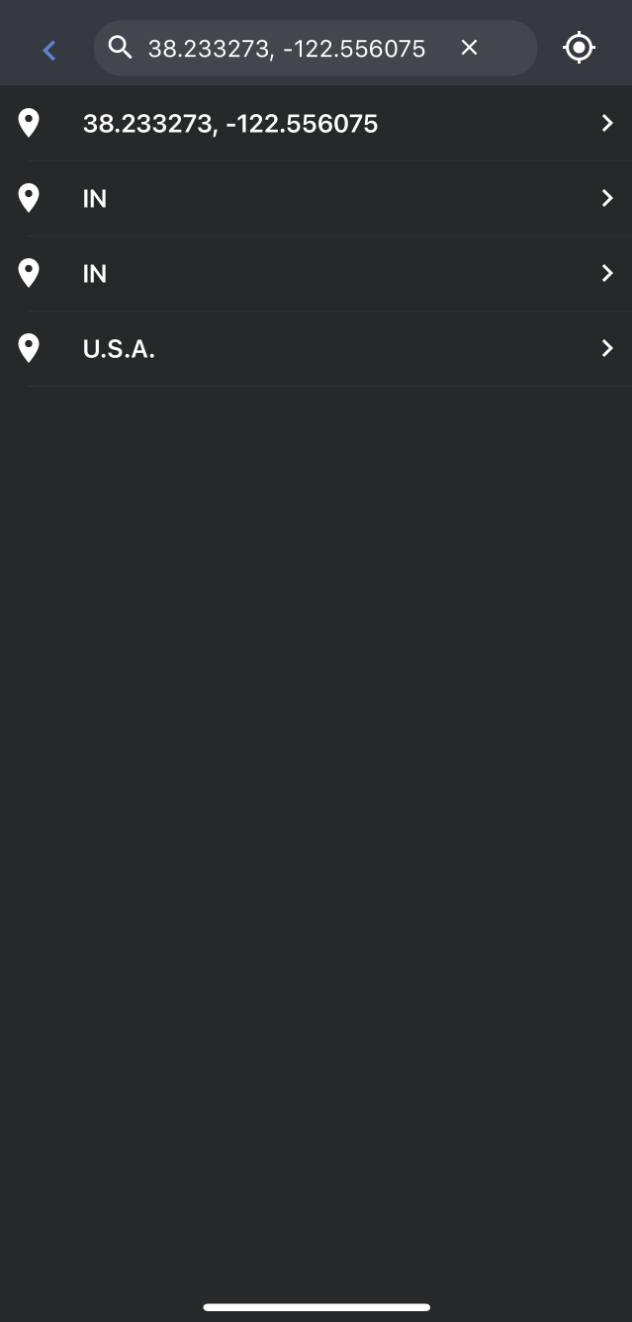
To search for a specific location using lat/long, follow the steps below.
-
Tap the search bar and enter the lat/long of the location you would like to use. Currently coordinates can only be entered in the Decimal Degrees format (ex. 38.233273, -122.556075)
-
Press enter on the keyboard to search for the entered coordinates.
-
The search results panel will populate a result with the entered coordinates.
-
Tap on the coordinates in the search result panel.
-
The map will zoom to the entered coordinates. A dropped pin will appear on the map at those coordinates.
a. The coordinates for the selected point will also appear in the search bar. This allows you to adjust the coordinates easily and accurately if needed.
b. A panel will appear at the bottom of the screen that displays the coordinates of the dropped pin, as well as, a button to create a new simulation from this point.
-
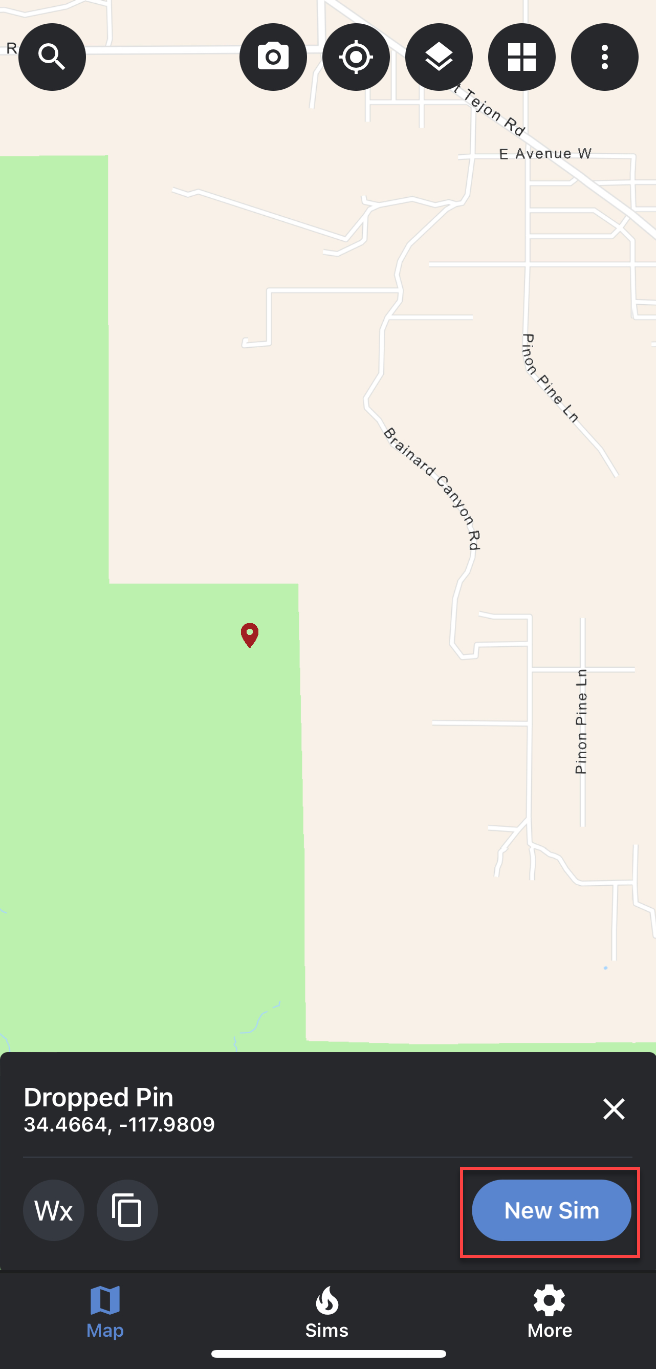
Tap the “New Sim” button.
-
You will be directed to the “Add Simulation Attributes” panel where you can make changes to the different parameters.
-
Once you have made any needed changes to the simulation attributes, tap on the “Run Simulation” button located at the bottom of the “Add Simulation Attributes” panel.
-
Once your simulation has been completed, it will automatically load on the map.
Search for an Address
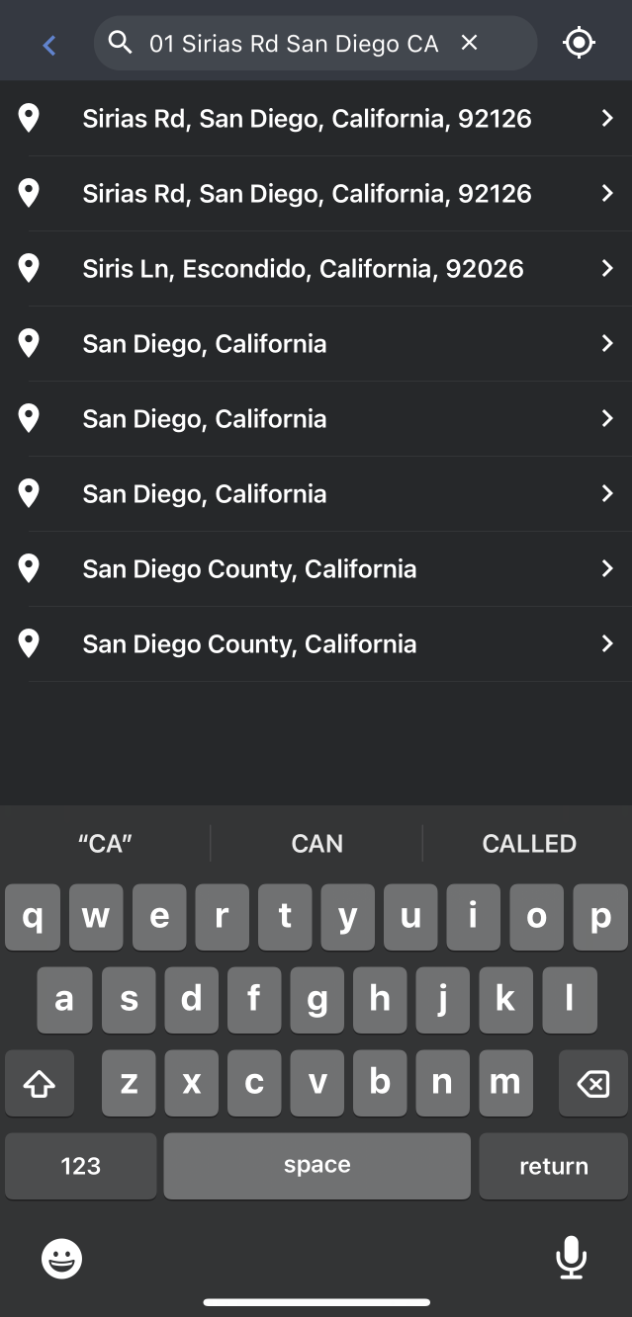
To search for a specific address or location, follow the steps below.
1. Tap the search bar and enter the address or location you want to use. Note: as you type the search results panel will be autopiloted with results matching your search.
2. Select the address or location you want to use in the results panel. The map will zoom to the entered address or location.
a. A dropped pin will appear on the map at that location.
b. The coordinates for the searched address or location will appear in the search bar. This allows you to adjust the coordinates easily and accurately if needed.
c. A panel will appear at the bottom of the screen that displays the coordinates of the dropped pin, as well as, a button to create a new simulation from this point.
3. Tap the “New Sim” button.
4. You will be directed to the “Add Simulation Attributes” panel where you can make changes to the different parameters.
5. Once you have made any needed changes to the simulation attributes, tap on the “Run Simulation” button located at the bottom of the “Add Simulation Attributes” panel.
6. Once your simulation has been completed, it will automatically load on the map.